1
RX8001_SG_EFS.qxd
29-03-2007
16:21
Pagina 9
RX8001 User Guide
Configuring the Extender through a Router
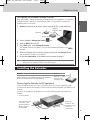
1 Connect the Extender to the router, and the router to the PC, as indicated below.
Straight
Ethernet cable
ENGLISH
When the Extender is already installed and connected to external A/V equipment, it is possible to
configure it through a router via a straight Ethernet cable. It is not possible to configure the
Extender wireless via the router.
Extender
Router
2 Set the Extender’s Configuration switch
to 3.
3 Open the Wizz.it Ex on the PC.
4 In the Tools menu, select Extender Discovery.
The Extender Discovery tool appears, with a list of all the detected Extenders in the
Network.
5 Select the Extender that you want to configure and click on the Configure button.
The Configuration Tool opens in the browser.
6 Finalize the configuration, as described in the instructions on page 5.
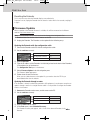
Tip
When the Extender is not recognized by the Extender Discovery tool, configure the Extender
directly with the configuration cable, as described on page 5.
Installing the Extender
Warning
Keep the Extender away from heat sources such as amplifiers.
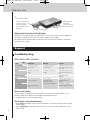
Before connecting the Extender to external A/V equipment,
make sure that the antenna is placed correctly.
Place the
antenna in an
upright position.
Connecting the Extender to A/V equipment
For the Extender to transmit an IR signal, you need to connect it to the A/V component via the
IR Output on the back of the Extender. In contrast to previous Marantz Extenders, the RX8001 has no
IR blaster.
To connect the Extender to A/V equipment, use one of the following cables enclosed with the
Extender:
• a Dual IR emitter;
Insert the mini-jack
connector of the
Dual IR emitter in
the IR output of
the Extender.
Attach the
emitter to the
infrared receiver
of the A/V
component.
6