1
Testing with the Variable Table
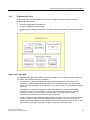
20.8 Forcing Variables
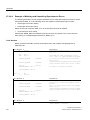
20.8.2
Introduction to Forcing Variables
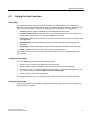
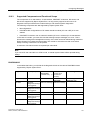
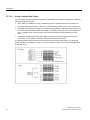
You can assign fixed values to individual variables of a user program so that they cannot be
changed or overwritten even by the user program executing in the CPU. The requirement for this is
that the CPU supports this function (for example, the S7-400 CPUs). By assigning fixed values to
variables you can set specific situations for your user program and use this to test the programmed
functions.
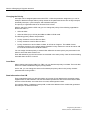
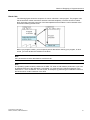
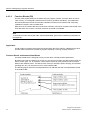
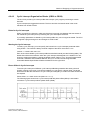
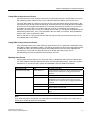
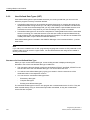
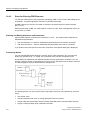
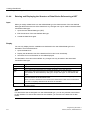
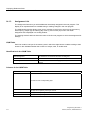
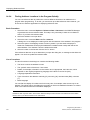
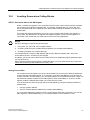
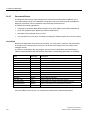
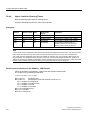
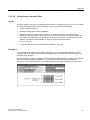
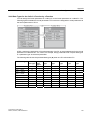
"Force Values" Window
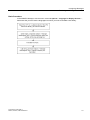
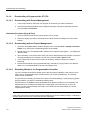
Only when the "Force Values" window is active can the menu commands for forcing be selected.
To display this window, select the menu command Variable > Display Force Values.
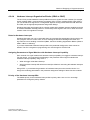
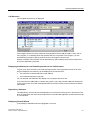
You should only open one single "Force Values" window for a CPU. The variables together with
their respective force values for the active force job are displayed in this window.
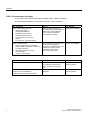
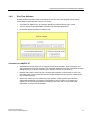
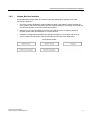
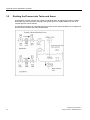
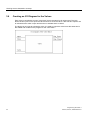
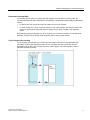
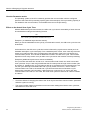
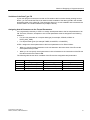
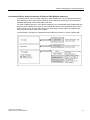
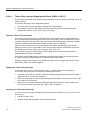
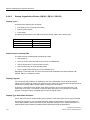
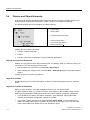
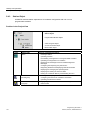
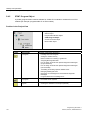
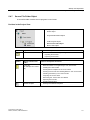
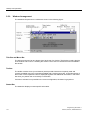
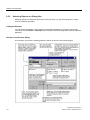
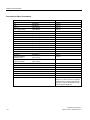
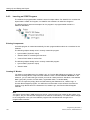
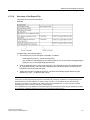
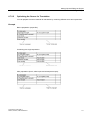
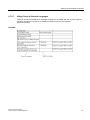
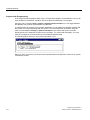
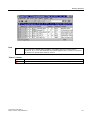
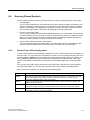
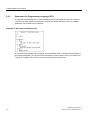
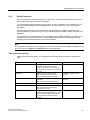
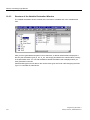
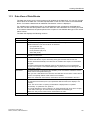
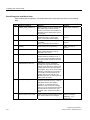
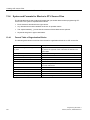
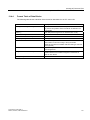
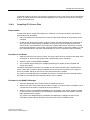
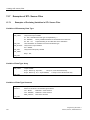
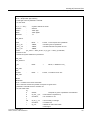
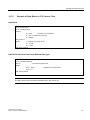
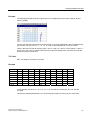
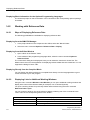
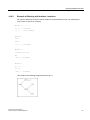
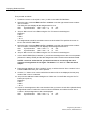
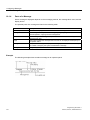
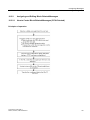
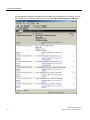
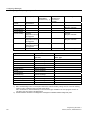
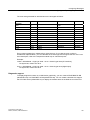
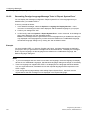
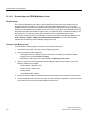
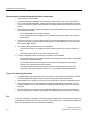
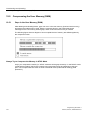
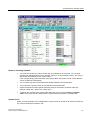
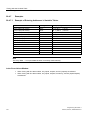
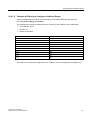
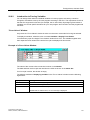
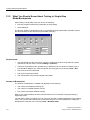
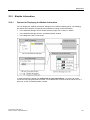
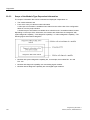
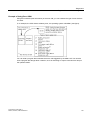
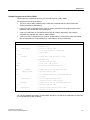
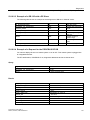
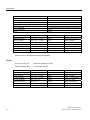
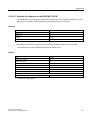
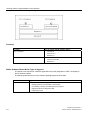
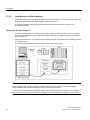
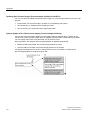
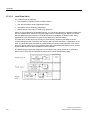
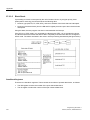
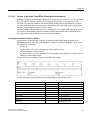
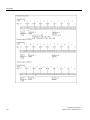
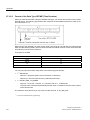
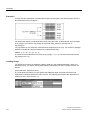
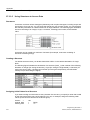
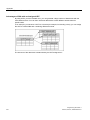
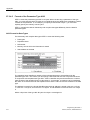
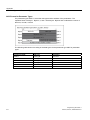
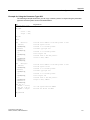
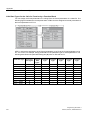
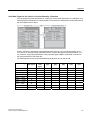
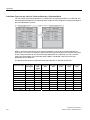
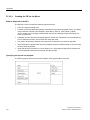
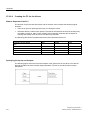
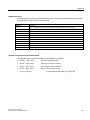
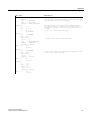
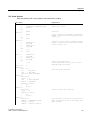
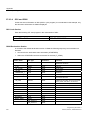
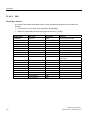
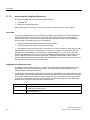
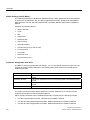
Example of a Force Values Window
The name of the current online connection is shown in the title bar.
The data and time the force job was read from the CPU are shown in the status bar.
If no force job is active, the window is empty.
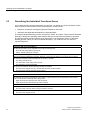
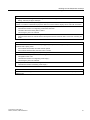
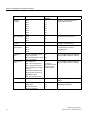
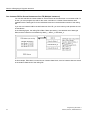
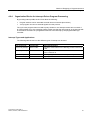
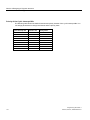
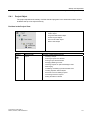
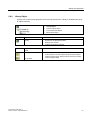
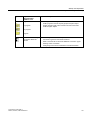
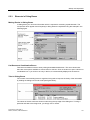
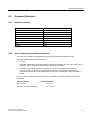
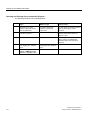
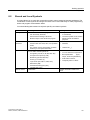
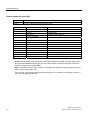
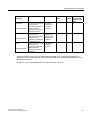
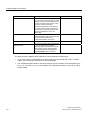
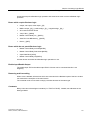
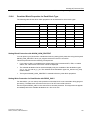
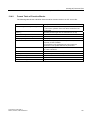
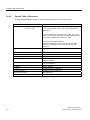
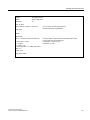
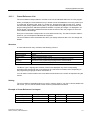
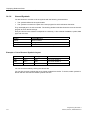
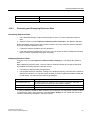
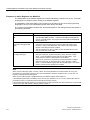
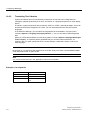
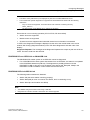
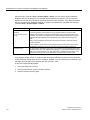
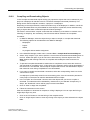
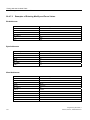
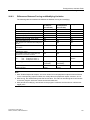
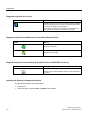
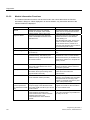
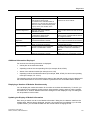
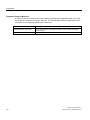
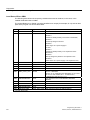
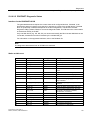
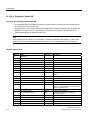
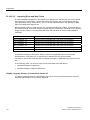
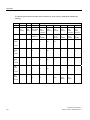
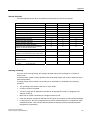
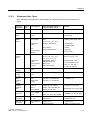
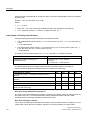
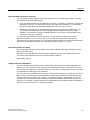
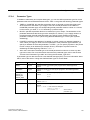
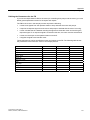
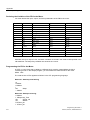
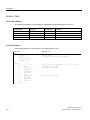
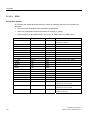
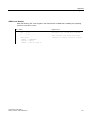
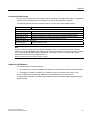
The different methods of displaying variables in the "Force Values" window have the following
significance:
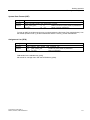
Display
Meaning
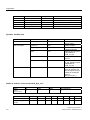
Bold:
Variables that are already assigned a fixed value in the CPU.
Normal:
Variables that are being edited.
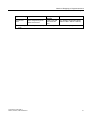
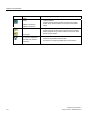
Grayed out:
Variables of a module that is not present/inserted in the rack
or
Variables with an address error; an error message is displayed.
Programming with STEP 7
Manual, 05/2010, A5E02789666-01
463