1
TM
Using the D-Link i2eye
DVC-2000 Videophone
over BGAN
Version 1.0
20.02.07
This document provides recommendations on the use of the D-Link i2eye DVC-2000 Videophone (called
the DVC-2000 in this document) over the BGAN network. It explains the features and benefits of the
videophone, how to set up the DVC-2000 for use over BGAN, the equipment needed and customization
required for use with BGAN.
DVC-2000 overview
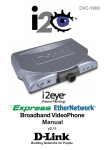
The DVC-2000 Broadband Videophone is a full-featured desktop videoconferencing device with a
built-in 5" color LCD screen. Since the DVC-2000 is a standalone device, you do not need a
computer or television to videoconference using BGAN. Using advanced video compression
technology, the DVC-2000 maximizes the image and audio quality over BGAN within the available
bandwidth.
Typical users
•
•
•
•
Media broadcasters
Military, government and surveillance
Special interest groups
Remote office workers
Key features
The DVC-2000 offers the following main features over the BGAN network:
•
The phone can be used for both IP video calls and standard PSTN calls. This means that you
can plug it into the RJ-11 port of a Thrane & Thrane terminal, or a Wideye SABRE 1
terminal and use it as a standard handset. The current mode of the terminal is indicated by
a green LED on the main keypad. If the LED is lit under PSTN, then the DVC-2000 is in
PSTN mode; if the LED is off then the phone is in broadband mode.
2
Using D-Link DVC-2000 over BGAN
Benefits to BGAN users
The DVC-2000 offers you the following main benefits:
• Fold away screen makes the unit more easily portable than some other video IP phones.
• Built in RJ-11 means you need to carry only this phone and not an additional voice phone.
Set-up
This section describes how to set up BGAN for use with the DVC-2000, and gives an example of a
configuration.
Before you start
The DVC-2000 works straight out of the box, and requires little configuration for use with BGAN.
This means that you can be making video and voice calls from anywhere in the world in just a few
minutes.
You can connect the DVC-2000 directly to a BGAN terminal. Note that the DVC-2000 relies on a
network connection being present when a call is made. Therefore, Inmarsat recommends that you
set up your terminal to auto-connect on start up; both the HNS 9201 and EXPLORER 500/700 can
be configured to start up in an auto-connect mode. Alternatively, there must be a computer
available to initiate an IP connection for the DVC-2000 over the BGAN network.
TIP:
If you use the DVC-2000 with the HNS 9201, and set the terminal to operate in
auto-connect mode, make sure the DVC-2000 has a static IP address of
192.168.128.101, with a Gateway of 192.168.128.100. This is because the HNS 9201
can only automatically activate the first IP context, and map that to the IP address
192.168.128.101. The DVC-2000 can be configured to obtain an address via DHCP
from the terminal, or you can set a static IP address in the terminal’s address range.
The DVC-2000 is based on the H.323 industry standard video streaming over IP protocol. This
ensures that it can communicate with any H.323 compliant device.
Setting up for BGAN
Do the following to set up the DVC-2000 for use on a BGAN terminal:
1. If you are setting up the videophone for the first time, you must use the supplied wizard. Follow
the on-screen instructions and use values from steps 10-13 when prompted for address settings.
2. Plug one end of the supplied Ethernet cable into the BGAN terminal (or into a hub, switch or
router), and plug the other end into the Ethernet port at the back of the DVC-2000.
3. If you have not already done so, configure the terminal to auto-connect with the network (if
this is an option on your BGAN terminal).
4. Turn on the DVC-2000.
5. Select the Broadband button on the DVC-2000.
6. Select Settings to enter Setup.
7. Select Network and then Speed to set the Max Data Speed. Press the change button to
change the maximum send/receive rates. The setting you choose here limits the data speed on
all outgoing or incoming calls. See the Recommendations following these instructions.
8. Select OK from the Network menu screen.
9. Select Address to access the IP address setup menu.
10. Enter the appropriate IP address:
• 192*168*128*101 (for static IP using the HNS 9201).
• DHCP IP address (if using the EXPLORER 500/700).
11. Select the down cursor key to exit the IP address field.
12. Enter the Subnet Mask as: 255*255*255*0.
13. If you are using the HNS 9201, enter the Gateway address as 192*168*128*100.
14. Select the down cursor key to exit this field.
3
Using D-Link DVC-2000 over BGAN
15. Select OK to apply the changes.
16. You maybe prompted to restart the system. Agree to this prompt, if asked.
17. Once back at the Network menu you can choose to enter DNS if you are using domain names.
This is not necessary if you are only making IP address calls.
15. Select Exit to exit the menu screens
Note the following:
•
On the HNS 9201 – If you use an external router, you can use BGAN LaunchPad on a computer
to initiate the connection, which can then be shared by the DVC-2000 to make a call. Router
ports NAT and PAT must be configured to allow inbound video calls from the fixed to mobile
direction. See the documentation supplied with your router for details.
•
On the EXPLORER 500/700 – It is possible to connect the DVC-2000 and a computer to a
hub or switch so that the device’s share a single PDP context. You can use BGAN
LaunchPad on a computer to initiate the connection, which can then be shared by the
i2eye™ to make a call.
•
On the EXPLORER 500/700 - For inbound calling or single device deployment, set the terminal
to operate in Modem mode with a static IP address, and configure the DVC-2000 with a DHCP
IP address for both inbound and outbound calling. Once the EXPLORER terminal is connected
to the BGAN network, the terminal will use DHCP to send the network static IP address to the
DVC-2000.
Recommendations
The recommended call rates for the DVC-2000 are as follows:
•
•
BGAN 256k Streaming IP connection – 192k max call rate send/receive on the DVC-2000.
BGAN 128k Streaming IP connection – 96k max call rate send/receive on the DVC-2000.
NOTE: The DVC-2000 supports call rates of 64k, 96k, 112k, 128k, 192k, 256k, 384k and
512k.
Inmarsat recommends that you use a streaming IP data connection for the DVC-2000. It is possible
to use the Standard IP data connection; however one of the characteristics of this connection is that
the requested data rate is not guaranteed. If you do decide to use a Standard IP connection,
Inmarsat suggests that you select one of the lower call rates of 64k or 96k on the DVC-2000.
NOTE: Remember to close the Streaming IP connection when the call is complete.
Setting up a phone book entry
To set-up a phone book entry for the phone(s) that you wish to connect to:
1. Select Dial followed by Add options to enter a Phone Book Entry.
2. Once on add page you can either enter phone numbers for PSTN calls or IP addresses for IP
video calls
3. Enter a name using the alphanumeric keypad into the Name field.
4. When the name is complete, select the down cursor key to move to the next field.
5. Once the required information has been entered for the contact select OK to save the changes.
6. This entry will now appear in your phonebook when select the Dial option from the main
screen.
7. If you want to manually dial a number you can select the Manual Dial option and enter an IP
address to make a call.
4
Using D-Link DVC-2000 over BGAN
Test results
Resources used over BGAN
Test
Results
Notes
D-Link DVC-2000 to D-link
DVC-2000
Video: 178kbps
256kbps Streaming class/
192k call rate
D-Link DVC-2000 Polycom PVX
Video: 110kbps
Audio G.723: 6.4kbps
Audio G.711: 64kbps
D-Link DVC-2000 to Scotty
Video Phone(MM156)
Video: 180kbps
Audio G.723: 6.4kbps
256kbps Streaming class/
192 call rate
256k Streaming class/
192 call rate
Test carried out using Software release: 6.0.0.211
Resources used over BGAN – DVC-2000 to DVC-2000
Test
Results
Notes
Standard IP
75kbps
Call speed 96kbps (not guaranteed)
128k Streaming
88kbps
Call speed 96kbps
256k Streaming
185kbps
Call speed 192kbps
Customization required
No customization is required.
Further details and support
Inmarsat contact:
[email protected]
D-Link contact:
Email: [email protected]
Web site: http://support.dlink.com/default.asp?orig=1
Postal address: 17595 Mt. Herrmann Street
Fountain Valley, CA 92708 US
1-800-326-1688
www.inmarsat.com/bgan
Whilst the above information has been prepared by Inmarsat in good faith, and all reasonable efforts have been made to ensure its accuracy, Inmarsat makes no warranty or representation as to
the accuracy, completeness or fitness for purpose or use of the information. Inmarsat shall not be liable for any loss or damage of any kind, including indirect or consequential loss, arising from
use of the information and all warranties and conditions, whether express or implied by statute, common law or otherwise, are hereby excluded to the extent permitted by English law.
INMARSAT is a trademark of the International Mobile Satellite Organisation, Inmarsat LOGO is a trademark of Inmarsat (IP) Company Limited. Both trademarks are licensed to Inmarsat Global
Limited. © Inmarsat Global Limited 2006. All rights reserved.
BGAN soln sheet Livewire M-Link Sep 2006