1
Introduction
Controls
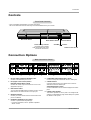
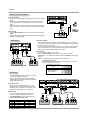
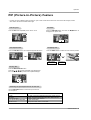
Front Panel Controls
- This is a simplified representation of a typical front panel.
The Front Panel Controls shown here may be somewhat different from your monitor.
INPUT VOLUME
SELECT
ON/OFF
Main Power Button
INPUT SELECT Button
Sub Power Button
VOLUME (F,G) Buttons
Power Standby Indicator
Illuminates red in standby
mode. Illuminates green when
the Monitor is turned on.
Remote Control Sensor
Connection Options
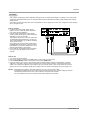
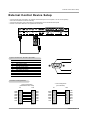
Back Connection Panel
( )R( )
RS-232C INPUT
(CONTROL/SERVICE)
1
DVI INPUT
RGB INPUT
2
AUDIO INPUT
RGB OUTPUT
3
REMOTE CONTROL
( )L ( )
EXTERNAL SPEAKER
4
5
R AUDIO L
AUDIO INPUT
Y
PB
PR
COMPONENT INPUT
6
R AUDIO L (MONO)
S-VIDEO
VIDEO
INPUT
7
AUDIO INPUT
AC INPUT
8
1. RS-232C INPUT (CONTROL/SERVICE) PORT
Connect to the RS-232C port on a PC.
6. COMPONENT INPUT/AUDIO INPUT JACKS
Connect a component video/audio device to these jacks.
2. DVI (Digital Visual Interface) INPUT/
RGB INPUT/AUDIO INPUT JACKS
Connect the monitor output connector from a PC to the
appropriate input port.
7. S-VIDEO INPUTS
Connect S-Video out from an S-VIDEO VCR or other SVideo device to the S-VIDEO input.
AUDIO/VIDEO INPUT JACKS
Connect audio/video out from external equipment to these
jacks.
3. RGB OUTPUT PORT
You can watch the RGB signal on another monitor, connect
RGB OUTPUT to another monitor’s PC input port.
4. REMOTE CONTROL
Connect your wired remote control to the remote control
port on the Monitor.
8. POWER CORD SOCKET
This Monitor operates on an AC power. The voltage is indicated on the Specifications page. Never attempt to operate
the Monitor on DC power.
5. EXTERNAL SPEAKER (8 ohm output)
Connect to optional external speaker(s).
* For further information, refer to ‘Speaker & Speaker
Stand’ manual.
Owner’s Manual 7