1
Scanning – Tips & Tricks
FTP
- PageScope Cabinet and the FTP Utility will not run on Windows 2003 & Vista.
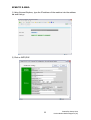
PageScope Cabinet needs to be open before scanning, or the FTP Service placed in the
Startup folder of the PC. (see the Konica Minolta FTP & SMB Setup Guide for
Windows)
SMB
* - On Windows 2003, you may find that you need to change a registry setting in order
for this to work. This setting can be found under:
HKEY_LOCAL_MACHINE\SYSTEM\CurrentControlSet\Services\LanManServer\Parameters\
RequireSecuritySignature (REG_DWORD)
You need to change the DWORD value from 1 to 0 to disable the SMB digital
communication policy.
* This should only be changed by the customer
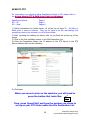
- Scanning to a mapped drive – make sure you place a / before the share name of the
folder within that mapped drive.
E-mail
- If you are connecting to an Exchange Server, Relay must be enabled for the Konica
Minolta device on the server itself.
- Alternatively a new account needs to be created on the SMTP server, and
‘SMTP Authentication’ needs to be enabled under the ‘E-mail Transmission’
settings on the MFP.
(Please note that ‘SMTP Authentication’ is not available on all machines)
- In order for ANY Fiery print controller to scan to e-mail, an e-mail account needs to be
set up on the e-mail server as if the machine were a new employee.
- Remember to make sure Binary Division is disabled under the E-mail SMTP Settings.
HDD
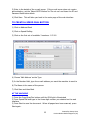
- If using the PageScope Box Operator or the HDD TWAIN Driver to retrieve scans,
please make sure you are using the correct version for the version of firmware the
machine is running on.
Version 3.1.0.2 Box Operator should be backwardly compatible with all versions of
firmware.
- Older versions of Box Operator will not connect to newer versions of firmware and need
to be upgraded at the same time as the firmware.
The latest version of Box Operator can be downloaded from our website:
www.konicaminolta.eu
Created by Stacey Hunt
3
Konica Minolta Hotline Support (UK)