1
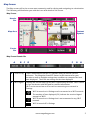
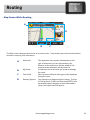
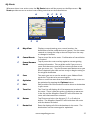
Map Screen Map Area
E
A
B
A
Zoom Level
B
Volume
D
C
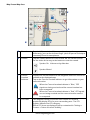
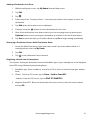
Tap the “+” (zoom in) or “-” (zoom out) to change the map scale.
Alternately, you can use the two finger ‘pinch or spread’ technique
commonly found in smartphones.
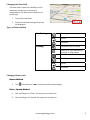
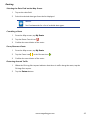
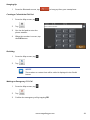
Tap the Volume button to reveal a slider bar for volume control.
Set the slider all the way to the bottom to mute the sound.
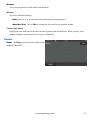
Speaker On. Volume set by slider bar.
Speaker Muted.
C
Current
Location
Indicator
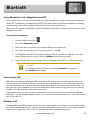
Displays the current location of the Magellan SmartGPS receiver in
relation to the displayed map.
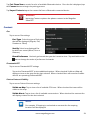
Tap on the Current Location Indicator to get information on your
current location.
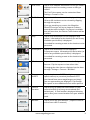
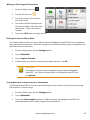
When the Current Location Indicator is “Blue,” GPS
signals are being received and the current location has
been computed.
When the Current Location Indicator is “Red,” GPS signals
are not being received and the current location cannot
be computed.
D
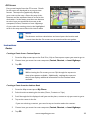
POI Icons
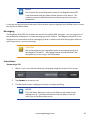
The Magellan SmartGPS receiver uses various POI icons to
graphically display POIs for your surrounding area. The POI
graphic indicates the POI category.
Which POI Icons are displayed can be customized in ‘Settings >
Content > Points of Interest Visibility’.
www.magellangps.com
4