1
McAfee Firewall
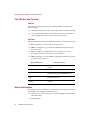
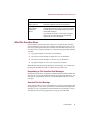
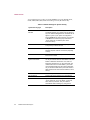
Table 5-2. McAfee Firewall’s Network Control Settings
Internet Traffic Setting
Description
Filter all traffic
Gives you the opportunity to decide whether an
application or program in your computer will be
allowed to access the Internet. If an unrecognized
program attempts to access your computer from the
Internet, you will also be given an opportunity to
allow or block its access your computer.
Allow all traffic
Configures McAfee Firewall to allow all Internet
traffic into and out of your computer. All programs in
your computer will be allowed to access the Internet;
programs attempting to access your computer from
the Internet will not be blocked. Allow all traffic
disables all McAfee Firewall protection features and
should only be used for diagnostic purposes.
2
Click Next.
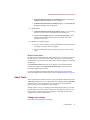
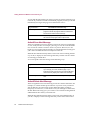
Startup Options
This screen allows you to choose how you want McAfee Firewall to respond
as you start your computer.
For your convenience, recommended Startup Load Options have been
pre-selected for you.
1
Select Load McAfee Firewall automatically at startup if you want
firewall protection as you start your computer. If you do not want
McAfee Firewall to start as your computer starts, then clear this check
box.
2
If you want to display a McAfee Firewall icon on your Windows
desktop, then select Place a McAfee Firewall icon on the desktop. If you
do not want an icon on your Windows desktop, then clear this check box.
3
Click Next.
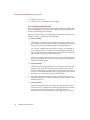
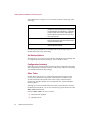
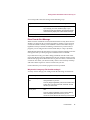
Access to shares
If your computer is part of a workgroup, such as a home network, you can
configure McAfee Firewall to allow access to your computer’s network shares
as well as allow your computer to access other computer’s shares. A share is a
resource such as a drive, directory, file, or printer available to a workgroup or
home networked computers.
72
McAfee Internet Security 5.0