1
Initial auto installation
When the TV powers on for the first time after
purchase, the initial auto installation wizard appears.
Follow the menus and make the necessary settings
one after another.
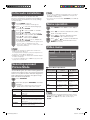
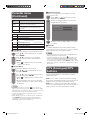
1
Press POWER on the TV.
2
Press a/b to select the desired language,
and then press ENTER.
3
Press a/b to select “HOME” or “STORE”,
and then press ENTER.
Press a/b to select your county channels
listed on the screen, and then press ENTER.
Press a/b to select “ATV”, “DTV” or
“ATV&DTV”, and then press ENTER.
Press a/b to select “Scan” or “Skip Scan”,
and then press ENTER.
• The initial auto installation wizard appears.
• Sound system is selected when the signal search
is set to “ATV” or “ATV&DTV” mode only.
• If you select “Skip Scan”, the channel scan could
be performed in Menu.
NOTE
• HOME mode: Settings are optimised for normal home
viewing and energy efficiency.
You may alter these settings to your personal preferences
by going to “Picture Mode” adjustments.
• STORE mode: Settings are designed for maximum impact
in retail store displays.
• To change the STORE mode to HOME mode, please refer
to page 12 to reset the unit.
Selecting a preset
Picture Mode
“Picture Mode” gives you several viewing options to
choose from to best match the system environment,
which can vary due to factors like room-brightness,
type of programme watched or the type of image
input from external equipment.
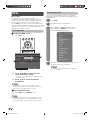
1
2
Press AV MODE.
Each time you press AV MODE, the mode
changes.
• You can also switch the mode in the “Picture
Mode” menu on the “Video” menu screen.
Selected item
Description
STANDARD
For a highly defined image in a normally
bright room.
MOVIE
For a movie.
GAME
For game play.
USER
Allows the user to customise settings as
desired. You can set the mode for each
input source.
DYNAMIC
For a clear-cut image emphasising high
contrast for sports viewing.
NOTE
• You can select a different Picture Mode item for each input
mode. (For example, select STANDARD for TV input and
DYNAMIC for VIDEO input.)
• You cannot select Picture Mode (AV MODE) for USB Media
Player mode.
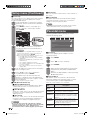
Menu operation
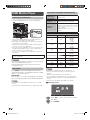
1
Press MENU and the MENU screen displays.
2
Press c/d to select the desired menu. (Video,
Audio, TV, Setup, Parental)
3
Press a/b to select the desired menu item.
Press ENTER to proceed if necessary.
4
Press a/b or c/d to select the desired item
or adjust the item to the desired level. Press
ENTER if necessary.
Video menu
Video
Audio
TV
Setup
Parental
Picture Mode
OPC
On
Colour Temperature
Advanced Video
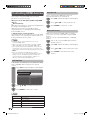
H Picture Mode adjustments
Selected item
c button
d button
Back Light
The screen dims
The screen
brightens
Brightness
For less brightness
For more
brightness
Contrast
For less contrast
For more contrast
Saturation
For decrease
For increase
saturation of colour saturation of
colour
HUE
For decrease HUE
of colour
For increase HUE
of colour
Sharpness
For less sharpness
For more
sharpness
NOTE
• For resetting all Picture Mode adjustment items to factory
preset values, press a/b to select “Picture Reset”, press
ENTER, press c/d to select “OK”, and then press
ENTER.
7
LC24LE430X_EN.indb 7
7/19/2011 9:38:13 AM