1
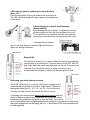
● Recording a band or capturing sounds in the field
(Rear 120°)
Point the rear panel of the zoom towards the sound source.
The 120° directivity angle will help in capturing the ambience
of the venue.
● Recording front and back simultaneously
(Surround 2CH)
By positioning the zoom upright, it is possible to record
sound coming both from the front and back of the unit.
This is great for a conversation between two people or
recording an instrument and a singer facing each other.
To select the mic you want to use press the mic pattern
keys on the front panel. An indicator light will show you
which mic setting is selected.
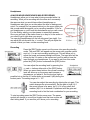
External Mic
For better mic control or if you want to direct the sound more precisely
you can plug in an external mic. Connect the mic to the [EXT MIC IN]
jack on the right side panel (see right) and use the mic to conduct your
interview. If you know the location is going to be noisy use a
unidirectional mic because it will pick up less background noise.
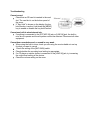
Recording from other external sources
The [LINE IN] jack lets you connect a CD player, mixing board or
other external component to record its output signal. Connect an
appropriate cable (eg 3.5 – 3.5, 3.5 – xlr, 3.5 – rca) to the zoom
and plug the other end into the source you want to record.
If recording from a mixing desk befriend the sound person and ask
them for the best quality output. Make sure you contact the venue
beforehand for permission and show up nice and early. If you show
up 2 minutes before the band/performance starts asking for a line into the mixing board
the sound engineer will not be happy with you. It also makes CiTR look unprofessional
and disorganized.