1
• Red text indicates the Mini-Converter is not detecting a signal or cannot negotiate with
the attached device
NOTE:
Even if no output device is detected, it still shows the signal it is outputting.
NOTE:
Configuration settings in red will change based on the attached output device as well as input
signals. For improved accuracy and reliability, you should configure the Mini-Converter only
when the target output device is attached and input signals are supplied at the inputs.
Screens are virtually the same on both PC and Mac, with subtle differences that reflect
the general look of the platform environment.
Running Multiple MiniConverters:
MiniConfig can manage multiple AJA Mini-Converters connected via USB—even when
they are of differing types. However it only connects to one at a time. You can choose
which Mini-Converter you wish to control using the pulldown menu in the upper right
hand corner. If you want to configure and update multiple Mini-Converters in parallel,
you can do it by running multiple instances of the MiniConfig application and have each
control a different Mini-Converter.
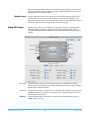
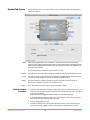
Figure 5. MiniConfig, Video Screen
Each connector is labeled with
the signals currently detected:
Select a USB
port and an
attached
Mini-Converter
(name in
parentheses)
Firmware
version
and serial
number
Tabbed
screens
Message
showing
status
NOTE:
The Lock LED indicates valid input video by color. Green is SD video, red is HD video, off is
no input.
Selecting a Mini-Converter with the dropdown menu causes this application to connect
to the selected converter. The graphic of Mini-Converter and text below it provides:
• Type of converter
• Firmware version
• Serial number of the unit
A status field at the bottom of the screen shows if your application is connected and
communicating with the Mini-Converter.
HDP2 Mini-Converter v1.4r1
13
www.aja.com