1
Using the Glide Pad
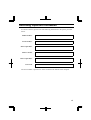
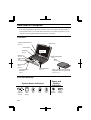
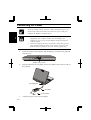
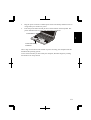
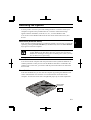
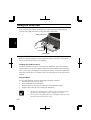
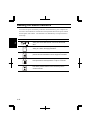
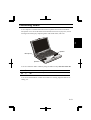
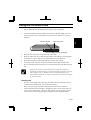
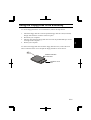
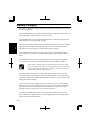
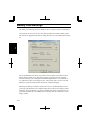
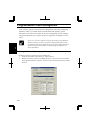
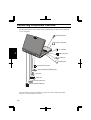
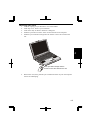
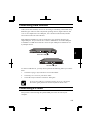
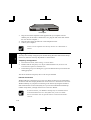
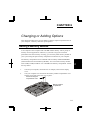
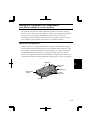
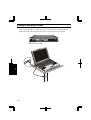
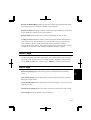
Your computer has a built-in pointing device called a glide pad. The glide pad
consists of the glide pad surface, a left button and a right button.
Glide pad surface
2
Left button
Right button
Using the Glide Pad
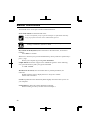
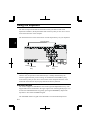
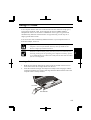
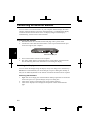
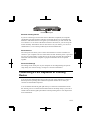
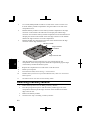
When you slide your finger across the glide pad surface, the pointer on the screen
moves in the same direction as your fingertip.
Clicking and double-clicking
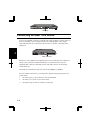
To click or double-click objects, you can use the left button, just as you do when
using a mouse. You can also emulate a left button click or double-click by tapping
once or twice with your fingertip on the glide pad surface. Clicking the right button
pulls down a menu if one is available. This is the same function as the right click of
a mouse.
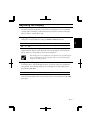
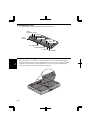
Drag and Drop
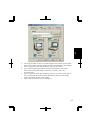
You can drag and drop objects on the Windows desktop as follows:
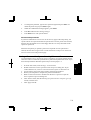
1. Position the pointer over the object.
2. Press and hold down the left button.
3. Drag the object by moving your fingertip over the glide pad surface.
4. Drop the object into place by releasing the left button.
•
•
2-8
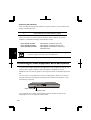
Do not use a pointed object, such as a pen or pencil to operate
the glide pad, You might scratch or damage the surface.
Do not operate the glide pad with a moist finger. This may cause
the glide pad to operate incorrectly.