1
Configuration Possibilities
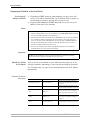
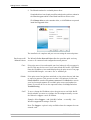
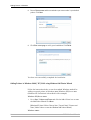
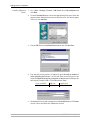
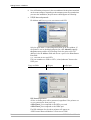
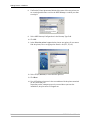
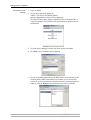
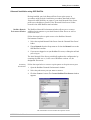
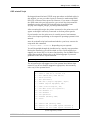
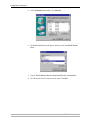
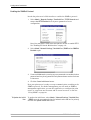
browser session. The browser reports the new state by changing into https
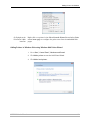
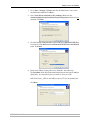
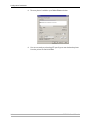
mode. In the browser’s Security Alert box, select View Certificate and
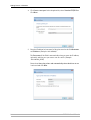
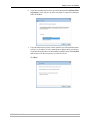
Install Certificate. Follow the instructions of the Install Certificate
Wizard.
Generating a
Certificate Request
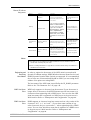
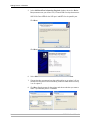
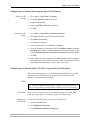
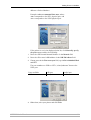
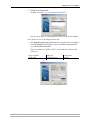
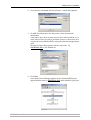
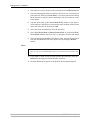
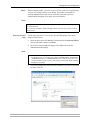
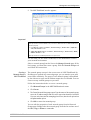
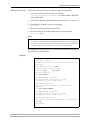
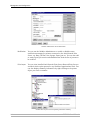
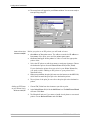
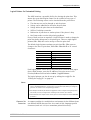
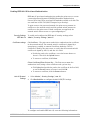
Select the Generate Certificate Request radio button and click Next.
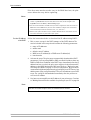
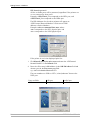
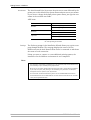
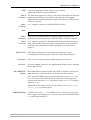
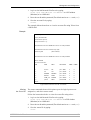
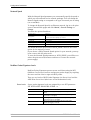
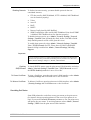
Enter the data asked for:
•
•
•
•
•
•
•
•
Country Name: Example: US
State or Province Name: Example: California
Locality Name: Example: Los Angeles
Organization Name: Example: Printers Inc
Organizational Unit Name: Example: Sales Dept
Common Name*: Example: [email protected]
Current Date (yyyy/mm/dd): Example: 2006/09/28
Validity Duration (in days): Example: 365
* Common Name denotes the name given to the print server in the network. If you do
not have a DNS server on your network, you must include the domain name, e. g.
[email protected]
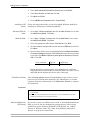
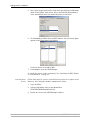
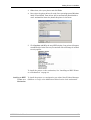
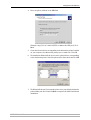
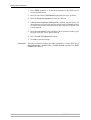
Click Finish.
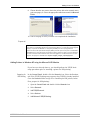
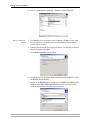
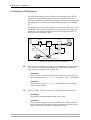
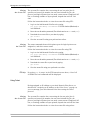
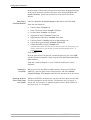
Now the print server will generate a public/private key pair and a PEMencoded Certificate Request, called cert.pem. Click Save, Save this file to
disk and Save.
Send this Certificate Request to your Certificate Authority for their
signature.
Importing a
Certificate
Accessing the Print
Server’s Web Pages
over https://
122
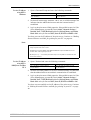
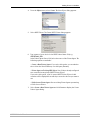
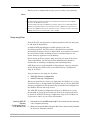
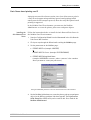
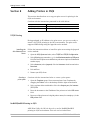
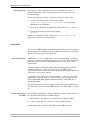
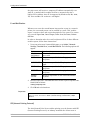
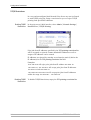
When you receive the PEM-encoded certificate from your Certificate
Authority, open the print server’s Web interface and select Admin |
Security Settings. Click Import and follow the instructions on the screen.
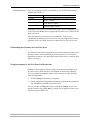
Whenever SSL/TLS is enabled, you can only reach the print server’s Web
interface through the secure services. The unsecure way via http:// is
closed and now you have to address the print server’s Web interface in
the secure way, i.e. via https://.
AXIS 5550 User’s Manual