1
Section 3 - Configuration
QoS Engine
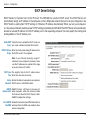
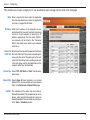
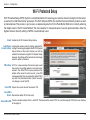
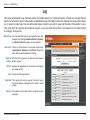
The QoS Engine option helps improve your network gaming performance by prioritizing applications. By default the
QoS Engine settings are disabled and application priority is not classified automatically.
Enable Traffic Check to enable Traffic Shaping.
Shaping:
Automatic This option is enabled by default when the Traffic
Uplink Speed: Shaping option is enabled. This option will allow your
router to automatically determine the uplink speed of
your Internet connection.
Measured This displays the detected uplink speed.
Uplink:
Manual The speed at which data can be transferred from the
Uplink Speed: router to your ISP. This is determined by your ISP. ISP’s
often speed as a download/upload pair. For example,
1.5Mbits/284Kbits. Using this example, you would enter
284. Alternatively you can test your uplink speed with
a service such as www.dslreports.com.
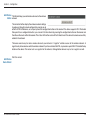
Connection By default, the router automatically determines whether
Type: the underlying connection is an xDSL/Frame-relay
network or some other connection type (such as cable
modem or Ethernet), and it displays the result as
Detected xDSL or Frame Relay Network. If you have an
unusual network connection in which you are actually
connected via xDSL but for which you configure either
“Static” or “DHCP” in the Internet settings, setting this
option to xDSL or Other Frame Relay Network ensures
that the router will recognize that it needs to shape
traffic slightly differently in order to give the best performance. Choosing xDSL or Other Frame Relay Network causes the
measured uplink speed to be reported slightly lower than before on such connections, but gives much better results.
D-Link DIR-628 User Manual
43