1
Passport Programming Guide
™
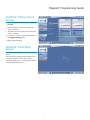
Table of Contents
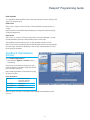
Getting ready to program BTE hearing instruments:
Toolbar . . . . . . . . . . . . . . . . . . . . . . . . . 2
Status Bar . . . . . . . . . . . . . . . . . . . . . . . 2
FastTrack™ by U:fit . . . . . . . . . . . . . . . . 3
FastTrack™ Client Screen . . . . . . . . . . . 3
FastTrack™ Instruments Screen . . . . . . 3
FastTrack™ Setup Screen . . . . . . . . . . . 4
FastTrack™ Acoustics Screen . . . . . . . . 5
FastTrack™ Feedback Optimization
Screen . . . . . . . . . . . . . . . . . . . . . . . 5
FastTrack™ Fitting Screen . . . . . . . . . . . 5
FastTrack™ Fine Tuning Screen . . . . . . 6
FastTrack™ Fitting Advice Screen . . . . 7
FastTrack™ End Fitting Screen . . . . . . . 7
Client Screen . . . . . . . . . . . . . . . . . . . . . 8
Hearing Loss Simulator Screen . . . . . . 9
In Situ Screen . . . . . . . . . . . . . . . . . . . . 9
ABR Screen . . . . . . . . . . . . . . . . . . . . . . 9
COSI Screen . . . . . . . . . . . . . . . . . . . . . 10
Instruments Screen . . . . . . . . . . . . . . 11
Setup Screen . . . . . . . . . . . . . . . . . . . . 11
Acoustics Screen. . . . . . . . . . . . . . . . . 13
Pre-Fitting Screen . . . . . . . . . . . . . . . . 13
Feedback Optimization Screen . . . . . 14
Quick Tuning Screen . . . . . . . . . . . . . 15
Configure Screen . . . . . . . . . . . . . . . . 16
Fine Tuning Screen . . . . . . . . . . . . . . . 17
AutoPro4™ Controls Screen . . . . . . . . 18
Fitting Advice Screen . . . . . . . . . . . . . 18
Data Logging Screen . . . . . . . . . . . . . 18
Volume Control Screen. . . . . . . . . . . . 19
SmartFocus™ Screen . . . . . . . . . . . . . . 19
End Fitting Screen . . . . . . . . . . . . . . . 20
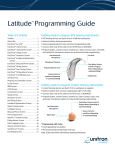
• BTE hearing devices are Quick Fit to a 50 dB flat hearing loss
• Remove battery during programming
• Open programming port cover and insert programming cable
• Connect other end of the cable to the HI-PRO box or NOAHlink
• Program button, volume control, smartFocus™, Smart Control, easy-t, easy-DAI,
and automatic microphone options are deactivated during programming.
Dual Directional
Microphones
Ear Hook
Microphone Protection
Programming Port Cover
Volume Control or
smartFocus (depending
on customized fitting)
Push Button Volume
Control or Program
Button (depending on
customized fitting)
Battery Door
Getting ready to program custom hearing instruments:
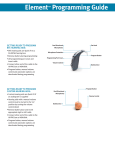
• Custom hearing devices are Quick Fit if an audiogram is supplied
• Remove battery door and insert appropriate right or left cable
• Connect other end of the cable to the Hi-Pro box or NOAHlink
• Program button, volume control, smartFocus, Smart Control, easy-t, and
automatic microphone options are deactivated during programming.
Dual Directional
Microphones
Battery Door
Push Button Volume Control or
Program Button (depending on
customized fitting)
Volume Control or
smartFocus (depending
on customized fitting)
Passport™ Programming Guide
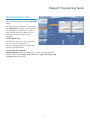
Status Bar
Programming with iCube:
• Insert appropriate size battery
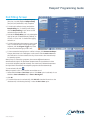
The status bar at the bottom of the U:fit window provides
useful information on the current status of the hearing
instruments in the fitting.
• Place instrument(s) inside iCube neck loop
When you are ready to program Passport™, certain sections on
the screen will remain constant during the fitting process.
A brief description of these sections is found below.
The status bar is clearly divided into a left and right side
indicated by blue and red icons, respectively.
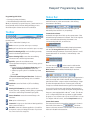
Toolbar
Communication Status
On the left and right side of the bar, the current status of the
selected hearing instrument is indicated. The “X” through the
ear icon indicates that the hearing instrument is not
communicating with U:fit, as seen below:
The toolbar is available at the top of each screen, just below
the main menu.
The toolbar contains the following icons:
Undo: removes your last action up to 15 steps.
To re-establish communication with the hearing instrument,
click the “X” through the ear icon. U:fit will search for
connected hearing instruments. If successful, the ear icon will
appear without the “X” and state, “communicating – save
required.”
Redo: performs the last removed action up to 15 steps.
Read from Hearing Aid(s): reads the fitting currently
saved in the hearing instrument.
Save to Hearing Aid(s): saves the current fitting
information into the hearing instrument.
Quick Fit: opens the re-calculate menu.
The recalculate menu gives you the following options:
• Quick Fit:
1. Check/Uncheck the Frequency Response and/or
Inputs and Adaptive Features checkboxes.
2. Select a program option from the For drop-down
list.
3. Press OK.
• Discard Current Fitting and Start Over: If selected,
this option will reset the hearing aid to its default
settings.
Mute
The mute buttons
on the status bar indicate the
current state of the hearing instrument: muted or unmuted.
Mute/unmute can be selected individually for each ear.
Reserve Gain
In the above illustration, the reserve gain for the right device is
5 dB (on average) and 10 dB for the left device. The reserve
gain indication turns orange once the current fitting no longer
provides the requested amount of reserve gain. It will stay
orange as a reminder that the reserve gain has been changed.
FastTrack™: turns fastTrack on/off for the fitting
session.
You can click on the reserve gain display in the status bar to
access the volume control set up at any time during the fitting.
Hearing Aid Information: provides specification
sheets, tutorials, a getting started guide, programming
information and hearing instrument style guide.
Passport comes equipped with onBoard™ control. This allows
you to configure the push button as either a toggle between
programs or as a volume control (for more information on how
to configure onBoard control, see the Setup Screen section).
Save to Database: saves the current fitting to the
database.
Print: prints a client report.
Current Environment
The current active environment in the instrument is shown in
the middle of the status bar.
The client
listens to this environment if communication to the devices is
active as indicated in the status bar.
Contact Us: brings you to the Unitron Hearing website
with contact information.
Exit U:fit™: exits the software application. You will be
prompted to save your fitting information if you have
not done so before closing U:fit.
2
Passport™ Programming Guide
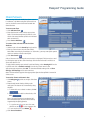
FastTrack™ by U:fit
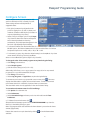
Select fastTrack from the toolbar.
The
may be used to turn fastTrack ON/OFF at any
time during the fitting.
Use the
and
buttons or the left
navigation menu to move from one screen to another.
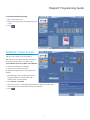
FastTrack™ Client Screen
To enter a new client:
1. Click Add New Client
.
2. Enter the client information in the appropriate
fields. The minimum required information is the
client’s last name. Mandatory fields are indicated
with an asterisk (*).
3. Press Save to Database
.
To continue to the next screen press next or use the
left navigation. Either method may be used
throughout the fastTrack fitting session.
To enter the client’s audiometric data:
1. Enter the audiometric data by clicking on the
audiogram
. The data can also be entered by
using the table.
a. To enter the bone conduction values, click
BC
.
b. To enter uncomfortable loudness levels, click
UCL
.
c. To copy the curve from one ear to the next,
click the arrows
for the respective ear.
d. To remove the curve, click Delete
.
Press
to continue to the next screen or
to go back.
FastTrack™ Instruments
Screen
Select Detect All to connect to instruments (to
simulate a fitting see below).
Once the instruments have been successfully
detected, fastTrack will automatically continue to the
next screen in the navigation.
3
Passport™ Programming Guide
To simulate a hearing device fitting:
1. Click on the down arrows.
2. Select the desired product, shell style, ear(s), and
model.
3. Press
.
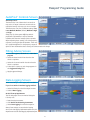
FastTrack™ Setup Screen
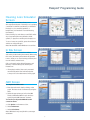
The Setup screen is for selecting smartFocus,
onBoard control, Smart Control and uDirect.
With onBoard control, the push button can function
as either a program button or a volume control.
To set onBoard control as a volume control function:
1. Uncheck the dial/lever box (default).
2. Check the box for OnBoard Control.
By default, all available Smart Control features are
enabled.
1. Enter the Smart Control serial number into the
empty field. Note: The serial number is for
reference only; it is not required.
2. Press Activate or Simulate.
3. “Pair Smart Control” box will appear with instructions. Note: Ensure the Smart
Control battery tab is removed and the device is turned on.
4. Press
.
4
Passport™ Programming Guide
FastTrack™ Acoustics
Screen
The Acoustics screen is for selecting venting, slim
tube, xReceiver unit and coupling choices.
For Moda II, the slim tube option will be checked
by default.
For Moda and 13 BTE, click on the slim tube
checkbox for a slim tube fitting. A software prompt
will appear upon leaving the setup screen to quick fit.
For Moxi, select the Receiver and Tip option.
Press
.
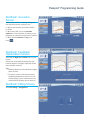
FastTrack™ Feedback
Optimization Screen
Click either the Right Ear or Left Ear button to start
the test.
If the test ran successfully, the hearing aid’s gain
limits are updated on the graph (black line) and the
phase canceller is enabled.
Note:
• Removing feedback results will also turn off the
phase canceller.
• The phase canceller is not enabled until the
feedback optimization test has been run. For
slim tube fittings, speech enhancement is not
enabled until the feedback test has been run.
FastTrack™ Fitting Screen
Select Fine Tuning or Fitting Advice.
5
Passport™ Programming Guide
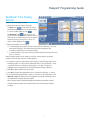
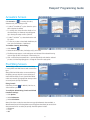
FastTrack™ Fine Tuning
Screen
To fine tune the hearing instrument:
1. Select the program you wish to fine tune.
The Basic view
groups bands into three
predefined frequency regions: Low, Mid and High.
For access to MPO, GAIN, CR click
.
The Advanced view
gives access to all
bands. Six bands are shown in the table at a time. A
slider just above the table allows you to modify the
frequency range covered by the 6 controls. For
access to MPO, GAIN, CR click
.
2. Select the channel(s) to be modified.
a. To individually group channels, click and drag a channel in the table over to the
next desired channel(s). The selected channels will be highlighted. The
individual grouping allows for easier fine tuning.
b. To adjust channels one at a time, select the desired channel in the table and click
the + or – buttons.
Note: If a fitting handle is at its maximum, only the – button appears. If a fitting
handle is at its minimum, only the + button appears.
3. For frequency response adjustments (gain/output), a range of fitting values can be
selected by either choosing a specific input level label (i.e. Soft, Moderate or Loud)
or a specific channel or channel grouping label (i.e. Low, Mid, or High). The
highlighted area in the graph shows you which frequency range is affected.
4. Click All to adjust all inputs and all channels.
5. Once All is selected, the highlighted section is adjusted by clicking + or – button.
6. To group fine tuning adjustments for MPO or compression ratio adjustments, click
MPO, CR or Gain. The affected area is highlighted in the graph. All changes can be
observed with the changed displayed values.
Note: Changes made to the MPO will affect all autoPro4 destinations equally.
Only the frequencies which are currently visible in the Fine Tuning table will be
modified.
6
Passport™ Programming Guide
FastTrack™ Fitting Advice
Screen
1. Select All Programs, All AutoPro4 or individual
program.
2. Select the situation which best describes the
client’s complaints.
3. Select the observation which best describes the
client’s complaints.
4. A description of the proposed change appears in
the Suggested Change field.
5. Apply suggested change.
FastTrack™ End Fitting
Screen
Press Print, Save and Exit to complete the fitting
session.
FastTrack will automatically print the fitting session,
the Getting Started Guided for the connected
instrument (unless the box is manually unchecked)
and then exit the fitting session.
7
Passport™ Programming Guide
Client Screen
When running U:fit under NOAH, the Client screen is
for reference only. When using the U:fit standalone
version, the Client screen is the interface with the
client database.
To enter a new client:
1. Click Add New Client
2. Enter the client information in the appropriate
fields. The minimum required information is the
client’s last name. Mandatory fields are indicated
with an asterisk (*).
3. Press Save to Database.
To retrieve client information from the client
database:
1. Select an option from the Search by drop-down list.
2. Enter your search terms into the search field.
Note: When searching by “Last Name” or “Client No.”, you may enter full or partial
names or numbers into the search field.
3. Click Start Search.
A list of client records matching the search criteria is displayed. The list may be sorted
by clicking the appropriate column headings. Click the desired result from the list to
access the client record.
To apply default settings customized for pediatric fittings, select Hearing Aid from the
top menu and click on Pediatric settings. Use the drop down menu for the
appropriate age range then select OK. To view these default settings click on Show
Settings. Hide Settings will close this window.
Note: This box will also appear when appropriate after the Date of Birth is entered in
Client screen.
To enter the client’s audiometric data:
1. Click Audiogram
at the bottom right of the client
screen.
2. Enter the audiometric data by clicking on the
audiogram. The data can also be entered by using
the table.
a. To enter the bone conduction values, click BC
.
b. To enter uncomfortable loudness levels, click
UCL
.
Note: The quick fit takes air conduction (AC),
bone conduction (BC) and UCL into account if
supported by the fitting formula.
c. To copy the curve from one ear to the next,
click the arrows
for the respective ear.
d. To remove the curve, click Delete
.
3. Click Save to Database.
8
Passport™ Programming Guide
Hearing Loss Simulator
Screen
The Hearing Loss Simulator allows you to
demonstrate the impact of a hearing loss by playing
sound files for either Normal Hearing or Simulated
Hearing Loss via sound field speakers or
headphones (not intended for use with hearing
instruments).
Enter a hearing loss and select a sound file from the
drop down menu (the menu defaults to Male
speech). To play the sound file press the play icon.
To record a custom sound file, press the red button
and the recording will begin.
Note: Not available under Windows 2000 or Vista.
In Situ Screen
The In Situ screen can be used to conduct
audiometry via the hearing instruments. When using
this screen, the hearing instruments will generate
tones to allow you to assess hearing sensitivity and
uncomfortable loudness levels.
Click on the graph at the desired frequency and
intensity or use the table(s) below then press
Present tone.
• If Autoplay is enabled, the tone is presented
automatically at the level and intensity that
corresponds to the value entered on the graph.
ABR Screen
To complete the ABR screen:
1. Enter the audiometric data by clicking on the
graph. The data can also be entered by using the
table.
2. Select the appropriate option from the ABR
Threshold Measured With drop-down list to
specify how the ABR data was obtained.
To view and/or adjust the ABR nHL to eHL
correction values:
a. Click Options on the menu toolbar.
b. Select Preferences.
c. Select Calculations.
Note: ABR data is only used for DSL v.5.0a target
calculation.
9
Passport™ Programming Guide
COSI Screen
To complete the Client Oriented Scale of
Improvement (COSI) form at your client’s initial
appointment:
1. Click the Needs Established drop-down menu to
select the date when your client’s needs are
established. The current date will appear as the
default date.
2. In the Description text box, enter a short
description of the listening situation your client
would like to have improved.
3. Select an autoPro destination or manual program
that matches your client’s listening need from the
Select Environment drop-down list.
4. Prioritize your client’s listening need by selecting
a number from Rank drop-down list. 1 = highest priority, 5 = lowest priority.
At your client’s follow-up visit, you will want to record the client’s perceived degree of
change in hearing ability with the hearing instrument:
1. Click the Outcome Assessed drop-down menu to select the date when your client’s
needs are measured. The current date will appear as the default date.
2. Select a Degree of Change option that best reflects your client’s opinion of how the
hearing instrument has affected his or her listening need.
3. Select a Final Ability option that best reflects the percentage of time your client
can hear satisfactorily with the hearing instrument.
Click Clear Needs to reset the Description, Select Environment, and Rank fields.
Click Clear Outcome to remove the Degree of Change and Final Ability rankings.
10
Passport™ Programming Guide
Instruments Screen
Once the client’s information and audiometric data has been entered, the next step is
to either detect the hearing instruments or simulate a fitting.
To detect the hearing instrument(s):
1. Click
or select Detect from the left navigation menu.
2. Select NOAHlink, Hi-Pro or iCube.
3. Click Right Ear Only
, Left Ear Only
connected hearing instruments.
or Both Ears
to detect the
Note: BTE fittings using iCube may need to be assigned to a side right/left. Use the
“Beep Hearing Instrument” to ensure communication status and to confirm the side
assignment for each instrument.
• Click Write to Instruments to create a new fitting based on the audiogram that you
have entered.
• Click Read from Instrument(s) if you want to retrieve data that is stored in the
instrument and data logging.
4. To open Style Guide to view the connected instrument, click on the hearing
instrument tab. Click the magnifying glass for a 360 degree view of available shell
styles and color options.
• Click Remove Hearing Aid Selection
desired.
to remove the selected hearing aid if
Setup Screen
To customize the set-up of the hearing instrument
including Unifi wireless features
(DuoLink and uDirect), select Setup or
:
Note: If a remote control is included with the current
fitting, it is recommended that you configure the
remote control first.
By default, all available Smart Control features are
enabled.
To disable any of the Smart Control functions
(learnNow™, smartFocus, or the telephone button),
uncheck the appropriate box after it has been
activated.
Note:
• The telephone button can be configured as any
manual program.
• The Home button cannot be disabled. Home is either autoPro4 (default) or the
designated Startup Program.
• Changes made to the configuration after the initial pairing may require that
Smart Control and the hearing instruments be paired again.
11
Passport™ Programming Guide
To pair Smart Control:
1. Enter the Smart Control serial number into the empty field.
Note: The serial number is for reference only; it is not required.
2. Click
.
3. Press Activate.
4. “Pair Smart Control” box will appear with instructions. Note: Ensure the Smart
Control battery tab is removed and the device is turned on.
To pair uDirect:
1. Click
.
3. Press Activate.
3. “New Accessory Found” box will appear with instructions.
To adjust the VC Range and/or the Desired Reserve Gain for this fitting:
Click the “Volume Control Settings” button. A box will appear with a drop-down list of
options for each.
If the fitting no longer provides the requested amount of reserve gain, the reserve gain
indication on the status bar changes from white to orange.
DuoLink:
Unifi wireless includes DuoLink which allows control of both hearing instruments by
pressing the onboard control or dial/lever of just one instrument.
A
indicates that duoLink is enabled,
indicates that it is disabled.
• DuoLink for the Program Toggle and easy-t is enabled by default.
• DuoLink for the Volume Control/Toggle is disabled by default.
• To change the program toggle to a volume toggle use the Toggle drop-down list.
• To change the volume control to smartFocus use the Lever/Dial drop-down list.
• SmartFocus is enabled by default for the software and Smart Control. To disable,
uncheck the box.
12
Passport™ Programming Guide
Acoustics Screen
Click Acoustics or
for venting, slim tube,
xReceiver unit, and coupling choices.
• For Moda™ II and Moda™ 13, the slim tube option
will be checked by default.
• For 13 BTE, click on the slim tube checkbox for a
slim tube fitting. A software prompt will appear
upon leaving the setup screen to quick fit.
• For Moxi™ and Moxi™ 13, select the Receiver and
Tip option.
• For custom products ordered with intelliVent, the
vent option will default to “intelliVent.”
To simulate a hearing device fitting:
1. Click Simulate
.
2. Select the desired product, shell style, ear(s), and model.
3. The fitting range appears on the audiogram and indicates if the selected hearing
aids are appropriate for the degree of the hearing loss.
4. Click on the hearing instrument tab to open the Style Guide and view the selected
product. Click the magnifying glass to change the view of the style guide.
Pre-Fitting Screen
The Pre-Fitting screen can be used to enter Fitting
Formula, RECD and REUG data as well as transducer
type.
Note: If RECD or REUG values are not used during
the fitting, you may skip this screen entirely and
move onto the Fitting screen. If no RECD or REUG
values are entered, age-appropriate average values
are used for the quick fit calculations.
Fitting Formula
Click Fitting formula
for NAL NL*, DSL V.5.0a,
and transducer options.
To modify the default fitting formula and default
transducer settings:
1. Click Options.
2. Select Preferences.
3. Select Calculations.
Note: If the client session has more than one type of audiometric data available, a
Measurement for Quick Fit drop-down menu will appear that allows you to select the
data you want to use as values for quick fit. Possible options include:
• Audiogram
• In situ
• ABR
13
Passport™ Programming Guide
RECD and REUG
To complete the RECD and REUG screens, enter the audiometric data by clicking on the
graph or by using the table.
RECD Screen
Enter correct Coupling or Vent information. U:fit will default to the appropriate 2-cc
Coupler.
Note: If you have entered RECD data in NOAH, you can import the data into U:fit by
clicking the Import icon.
REUG Screen
Click on the + or – buttons for the Resonance Peak Control (RPC) Manager to change
the estimated REUG values and shift the REUG peak in distinct steps.
The new REUG properties will be used to modify the target calculation in U:fit.
Note: The grey curves on both the RECD and REUG graphs represent average data for
the client’s age. If no RECD or REUG data is entered, age-estimated values are used
for the quick fit calculation.
Feedback Optimization
Screen
Select Feedback Optimization
1. Click either the Right Ear or Left Ear button to
start the test.
If the test ran successfully, the hearing aid’s gain
limits are updated on the graph (black line) and the
phase canceller is enabled.
Note: Removing feedback results will also turn off
the phase canceller.
Curve description:
Black line
Green line
Red or Blue line
Grey line
Feedback threshold
(max gain achieved
without feedback)
Target gain
Aided gain
Hearing instrument limit
Note: The phase canceller is not enabled until the feedback optimization test has
been run.
14
Passport™ Programming Guide
Quick Tuning Screen
Note: Within the Quick Tuning screen, both ears are
linked. To unlink the two ears, click the Link/Unlink
button.
The active program is highlighted in orange. In this
case, All Programs is selected so any changes will
affect all programs simultaneously. You may also
select individual destinations within autoPro4 or
within the individual manual programs for
adjustment.
To adjust Overall Gain:
Use the + and – buttons to modify overall gain for
each ear or both ears simultaneously.
Note: The Ear Link function does not apply when
using the overall gain buttons.
To adjust the Global Parameters:
Adaptation Manager adjusts the initial fitting according to the client’s experience
level with hearing devices. Target -10 dB, (New Wearer), Target -7 dB, Target -4 dB
and Target (Experienced Setting).
15
Passport™ Programming Guide
Configure Screen
In the Configure screen, you may review/modify
autoPro4 destinations and/or manual programs.
These settings will automatically default to
suggested values.
• Each global parameter has adjustable slider
positions ranging from off, mild, moderate, and
maximum. (Feature availability and/or limitations
may vary depending upon product).
• Select a microphone input option from the Input
drop-down list. Note: Exact choices will depend
on the chosen destination or listening
environment. The initial input that appears in the
box is the U:fit default for the destination.
• For the environments that offer the Mic+Telecoil or
Mic+DAI options, the balance between the microphone and the Telecoil or DAI can
be adjusted. Options are: -12 dB, -9 dB, -6 dB, -3 dB or 0 dB.
• For the music program only, select the desired setting from the myMusic drop-down
menu: General, Rock/Pop, Classical, Jazz/Blues.
Select or remove Manual Programs using the drop-down list.
To change the order of the manual programs at any time during the fitting:
1. Click Fitting on the menu bar.
2. Select Swap Programs.
3. Click the desired swap option (i.e. P2 <> P3).
Additionally, U:fit allows you to copy programs from any position into any manual
program and to copy sides between left and right:
1. Click Fitting on the menu bar
2. Select Copy Programs or Copy Sides at any time during the fitting.
To rename any environment or program with a custom name, click
. The menu
displays the table with the original and customized names. To enter a customized
environment name click on the third column and enter your new name.
The customized names are only applicable for the current client’s fitting.
To customize environment names for all client fittings:
1. Click Options from the menu bar.
2. Select Preferences.
3. Select Customize Strings and enter your choices in the table under Fitter
Preferences.
4. To delete all customized names click
.
Select the desired startup program from the STARTUP PROGRAM drop-down list.
AutoPro4 is the default start up program.
Note: This program will be selected when the Home button is pressed on the Smart
Control (if applicable).
Feature demonstrations may be launched by clicking
available.
below the feature where
16
Passport™ Programming Guide
Fine Tuning Screen
To fine tune the hearing instrument:
1. Select the program you wish to fine tune: All
Programs, All AutoPro4 or individual program.
The Basic view
groups bands into three
predefined frequency regions: Low, Mid and High.
For access to MPO, GAIN, CR click
.
The Advanced view
gives access to all
bands. Six bands are shown in the table at a time.
A slider just above the table allows you to modify
the frequency range covered by the 6 controls. For
access to MPO, GAIN, CR click
.
2. Select the channel(s) to be modified:
a. To individually group channels, click and drag a
channel in the table over to the next desired
channel(s). The selected channels will be highlighted. The individual grouping
allows for easier fine tuning.
b. To adjust channels one at a time, select the desired channel in the table and click
the + or – buttons.
Note: If a fitting handle is at its maximum, only the – button appears. If a fitting
handle is at its minimum, only the + button appears.
3. For frequency response adjustments (gain/output), a range of fitting values can be
selected by either choosing a specific input level label (i.e. Soft, Moderate or Loud)
or a specific channel or channel grouping label (i.e. Low, Mid, or High). The
highlighted area in the graph shows you which frequency range is affected.
4. Click All to adjust all inputs and all channels.
5. Once All is selected, the highlighted section is adjusted by clicking + or – button.
6. To group fine tuning adjustments for MPO or compression ratio adjustments, click
MPO, CR or Gain. The affected area is highlighted in the graph. All changes can be
observed with the changed displayed values.
Note: Changes made to the MPO will affect all autoPro4 destinations equally.
Only the frequencies which are currently visible in the Fine Tuning table will be
modified.
17
Passport™ Programming Guide
AutoPro4™ Controls Screen
Sensitivity Control:
The Sensitivity Control determines how autoPro4
responds to changes in the environment and how
rapidly the hearing aids respond to those changes.
The Sensitivity Control has 5 different settings: Low,
Low to Medium, Medium (default), Medium to High
and High.
Fitting Tip: If a client reports difficulty with the
performance of autoPro4, it may be related to
variables other than the settings of these controls.
Before adjusting these settings, check the frequency
response in each of the four destinations. There may
be a significant difference in the frequency response
of one or more destinations that is causing the client to notice the change.
Fitting Advice Screen
1. Select All Programs, All AutoPro4 or individual
program.
2. Select the situation which best describes the
client’s complaints.
3. Select the observation which best describes the
client’s complaints.
4. A description of the proposed change appears in
the Suggested Change field.
5. Apply suggested change.
Data Logging Screen
At the initial fitting, no data logging will be available.
If you do not wish to have data logging enabled:
1. Select End Fitting from the left navigation menu.
2. Uncheck Data Logging.
At the Follow-up Appointment:
The following steps are recommended during the
follow-up visit:
1. Detect hearing instrument.
2. Click Read from the Hearing Instruments.
3. Select Data Logging from the left navigation.
Note: If new settings are saved to the hearing
device, the data logging information will be lost. It is
important to read the data logging information from
18
Passport™ Programming Guide
the hearing device before new settings are saved to the hearing device.
Understanding the Data Logging Information:
The top of the data logging screen indicates:
• Logging Start: The date the data logging began, which represents the last time the
settings were saved to the hearing instruments.
• Hours of use: The total number of hours of use since the start date.
• Average use: The average number of hours per day the devices were used.
The color coded pie chart and table display the use (by percentage) of each autoPro4
destination and each manual program. Whenever manual programs (P2/P3/P4) are
available, they are displayed as additional slices of the pie chart.
Volume Control Screen
Select Volume Control from the left navigation bar.
The top half of the screen displays data collected for
autoPro4 (if available on product). The bottom of the
screen displays data collected for the manual
programs.
A bar graph provides information about logged
volume control adjustments for autoPro4 and/or
manual programs. The 0 dB line represents the ideal
volume indicator setting.
Apply Adjustments of logged VC to selected
programs for one or Both Ears .
Note: Automatic volume control adjustments are
only available if no manual fine tuning has been
performed during the follow-up session.
SmartFocus™ Screen
Select SmartFocus in the left navigation bar
(available for Passport products only).
The average smartFocus change for each automatic
destination and manual program is indicated by the
slider position. The current setting is indicated in
orange and the logged setting is green as noted in
the chart in the left corner of screen.
Apply Adjustments for logged smartFocus to selected
automatic destinations and/or manual programs for
one or both ears..
Note: Automatic smartFocus adjustments are only
available if no manual fine tuning has been
performed during the follow-up session.
19
Passport™ Programming Guide
End Fitting Screen
1. Use the controls to adjust the Beep Frequency
(Very Low, Low, Mid, High)and Beep Intensity
(Very Soft, Soft, Moderate, Loud), if required.
2. To disable all notification beeps, uncheck the
Beep Enabling box. To disable specific beeps,
click the Beep Enabling drop-down arrow and
uncheck the appropriate boxes.
3. Activate the Startup Delay option by selecting the
appropriate option: Minimum Delay (default), 10
seconds or 15 seconds. To disable data logging,
uncheck box.
4. To disable the hearing instrument program toggle
and/or to exclude easy-t in the program toggle
sequence, click the Program Toggle drop-down
arrow and uncheck the appropriate boxes.
5. To demonstrate the hearing devices’ notification beeps, click Demonstrate Beeps.
A larger demonstration box will appear on the screen. Click the music note next to
the notification to be demonstrated. Use drop-down menu to demonstrate beeps
for manual programs.
Note: If easy-t is selected as a program, there are two different buttons to
demonstrate the signal. The first button demonstrates the signal when the client
accesses the telephone program manually. The second easy-t button demonstrates
the signal that is heard when the telephone program activates automatically.
To save and exit U:fit, click
.
When prompted to save or not save the current client record:
1. Select either the Save or Don’t Save options. If the Save option is selected, choose
whether to Save to Database and/or Save to Hearing Aid.
2. Click OK.
3. To end the client session and exit U:fit, click Exit U:fit. Save the information to the
database and/or the hearing device(s) or select the Don’t Save option.
unitron.com
08-064 028-5337-02
20