1
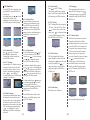
8.3.MainMenu
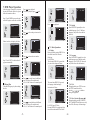
Pressing SETUP will enter the main menu,
pressing SETUP again or RETURN will
exit the menu.
In the Main Menu, press
to select
/
Channel Guide, System Config,
Installation, or Game submenu, press
or ENTER to enter the submenu setting.
Picture 5
Picture 6
Picture 7
Picture 8
8.3.1 Channel Guide
Press
/ to select TV Channels,
Radio Channels, Channels Class,
Channels Edit, and Book List Options,
press ENTER to confirm.
8.3.1.1 TV Channels
Upon entering the TV Channels menu, the
channels are listed on the left side of the
screen, and a preview window is on the
right side. The channel can be changed
using
, press DISPLAY
/
to sort the channels, press ENTER to start
watching TV in full screen.
Picture 9
Picture 10
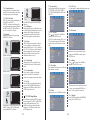
8.3.1.2 Radio Channels
Upon entering the Radio Channels menu,
the channels are listed on the left side of
the screen, and as they are radio channels,
the default screen picture of this TV will
appear in the preview window on the right
side. The channel can be changed using
, press DISPLAY to sort the
/
channels, press ENTER to start listening
to the radio.
Picture 11
8.3.1.3 Channels Class
From the Channels Class menu, each
channel can be classified into a group.
Press ENTER if you wish to add any
channels to a column category, press
ENTER again to cancel. Press RADIO
button to switch to radio channels, press
RADIO again to switch back to TV
channels.
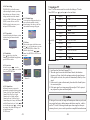
8.3.2 System Config
Press / to select TV Setting,
Video Setting, Audio Setting, Language,
Parent Control, Time Setting, and System
Info Options, press ENTER to confirm.
8.3.2.1 TV Setting
The TV Setting has the following options:
TV System, Video, and TV Type. Press
/ to move the cursor to one of the
options, press / to change the setting,
or press ENTER to change the setting.
Press RETURN or SETUP to exit.
Picture 12
Picture 14
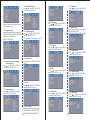
8.3.1.4 Channels Edit
To edit a channel's name, press / to
move to the channel, press ENTER to
confirm, press / to select a character,
press /
to change the character,
press ENTER to confirm the change.
To change the channel's display sequence,
press /
to move to the channel, press
/ to move the cursor to the MOVE
column, press ENTER to confirm, press
/ to move the cursor to the row you
prefer, press ENTER to confirm.
To delete a channel, press
/ to move
to the channel, press /
to move the
cursor to the DELETE column,
press ENTER to confirm, press ENTER
again to cancel. Press RETURN or
SETUP to exit.
Press RADIO button to switch to radio
channels, press RADIO again to switch
back to TV channels.
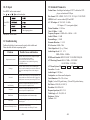
8.3.2.2 Video Setting
The Video Setting has the following
options: Brightness, Contrast, Hue, and
Saturation. Press / to move the cursor
to one of the options, press /
to
change the setting, or press ENTER to
change the setting. Press RETURN or
SETUP to exit.
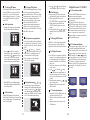
8.3.2.4 Language
The Language menu allows the user to
change the OSD Language. Press /
to change the language, or press ENTER
to change the setting. Press RETURN or
SETUP to exit.
Picture 16
8.3.2.5 Parent Control
The Parent Control menu has two options:
Change Pin and Channel Lock. When
selecting Change Pin, the user will be asked
to enter the Old Pin, New Pin and the New
Pin again. In order to change the Channel
Lock, the user will be asked to enter the
password (pin) first, if the password is
correct, the Channel Lock menu will appear.
Use / to select a channel, press
ENTER to lock or unlock the channel.
Press RADIO button to switch to radio
channels, press RADIO again to switch
back to TV channels. Press RETURN or
SETUP to exit.
Picture 15
Picture 18
Picture 19
Picture 20
The system default password is 0000.
Picture 13
-19-
Picture 17
8.3.2.3 Audio Setting
This function is not available yet.
-20-