1
Chapter 3 -Using Your Modem
Chapter 3 - Using Your Modem
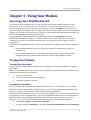
Operating Your MultiModem ZPX
If you’re an experienced modem user, you may only want to check your modem’s settings for data
compression, error correction, and so on. You’ll find you can get moving quite quickly by using a
terminal window (you may use HyperTerminal in Windows) to issue the AT&V<cr> command. This
command will list your modem’s current configuration, the stored (user) profiles, and the stored telephone
numbers. If you come across a setting you’re unsure of, refer to the AT Command Reference Guide for AT
commands and S-Register explanations and defaults.
Your MT5634ZPX can be controlled by issuing AT commands and setting S-Registers. Since your
MultiModem ZPX default settings use a traditional modem set to make a dial-up call to a remote
installation where the call is answered automatically—you shouldn’t need to change the current
configuration.
In operating your MultiModem ZPX, it is likely that you will use your data communications software to
either:
• Enter terminal mode, where you can speak most directly to the modem by issuing AT
commands, or
• Launch a data communications or Dial-Up Networking session through a set of modem
configurations that you select and then associate with a target telephone number.
Testing Your Modem
Testing Data Functions
You can test your modem’s data transfer functions by logging on to Multi-Tech’s Web site to register
your modem.
Note: This procedure assumes you have set up a successful dial-up Internet connection and you have a
web browser installed on your computer.
1.
Connect to the Internet.
2.
Go to http://www.multitech.com/register/
3.
Complete and submit the form.
Testing Fax Functions
Test your modem’s fax capabilities by sending a fax to Multi-Tech or to a fax machine in your office.
Windows 95, 98 and 2000 include a faxing application. If you are using Windows NT and want to fax
from your computer, you will need to install a third party faxing application.
The Windows fax application can act as a stand-alone fax program, or it can be used to fax from within
an application such as a word processor. If you are using Windows 2000 and are not familiar with the
faxing procedure, use the Windows 2000 Help index to find the topic entitled Fax, how to fax a
document. If you are faxing from Windows 95 or Windows 98, use the following procedure:
1.
Click Start | Programs | Accessories | WordPad.
2.
Create a message in WordPad, for example: Testing the MultiModem ZPX’s fax capabilities.
MultiModem ZPX User Guide
17