1
E61MA/MBED(EN).qx3
05.9.22 10:31
Page 1
Model DV4610 User Guide
DVD Player
CLASS 1
LASER PRODUCT
vii
E61MA/MBED(EN).qx3
05.9.22 10:31
Page 2
PRECAUTIONS
ENGLISH
ESPAÑOL
WARRANTY
GARANTIA
For warranty information, contact your local Marantz distributor.
Para obtener información acerca de la garantia póngase en contacto con su distribuidor Marantz.
RETAIN YOUR PURCHASE RECEIPT
GUARDE SU RECIBO DE COMPRA
Your purchase receipt is your permanent record of a valuable purchase. It should be
kept in a safe place to be referred to as necessary for insurance purposes or when
corresponding with Marantz.
Su recibo de compra es su prueba permanente de haber adquirido un aparato de
valor, Este recibo deberá guardarlo en un lugar seguro y utilizarlo como referencia
cuando tenga que hacer uso del seguro o se ponga en contacto con Marantz.
IMPORTANT
IMPORTANTE
When seeking warranty service, it is the responsibility of the consumer to establish proof
and date of purchase. Your purchase receipt or invoice is adequate for such proof.
Cuando solicite el servicio otorgado por la garantia el usuario tiene la responsabilidad
de demonstrar cuándo efectuó la compra. En este caso, su recibo de compra será la
prueba apropiada.
FOR U.K. ONLY
This undertaking is in addition to a consumer's statutory rights and does not affect
those rights in any way.
ITALIANO
GARANZIA
FRANÇAIS
GARANTIE
Pour des informations sur la garantie, contacter le distributeur local Marantz.
CONSERVER L'ATTESTATION D'ACHAT
L'attestation d'achat est la preuve permanente d'un achat de valeur. La conserver en
lieu sur pour s'y reporter aux fins d'obtention d'une couverture d'assurance ou dans le
cadre de correspondances avec Marantz.
IMPORTANT
Pour l'obtention d'un service couvert par la garantie, il incombe au client d'établir la
preuve de l'achat et d'en corroborer la date. Le reçu ou la facture constituent des
preuves suffisantes.
DEUTSCH
L’apparecchio è coperto da una garanzia di buon funzionamento della durata di un anno,
o del periodo previsto dalla legge, a partire dalla data di acquisto comprovata da un
documento attestante il nominativo del Rivenditore e la data di vendita. La garanzia
sarà prestata con la sostituzione o la riparazione gratuita delle parti difettose.
Non sono coperti da garanzia difetti derivanti da uso improprio, errata installazione,
manutenzione effettuata da personale non autorizzato o, comunque, da circostanze
che non possano riferirsi a difetti di funzionamento dell’apparecchio. Sono inoltre
esclusi dalla garanzia gli interventi inerenti l’installazione e l’allacciamento agli impianti
di alimentazione.
Gli apparecchi verranno riparati presso i nostri Centri di Assistenza Autorizzati.
Le spese ed i rischi di trasporto sono a carico del cliente.
La casa costruttrice declina ogni responsabilità per danni diretti o indiretti provocati
dalla inosservanza delle prescrizioni di installazione, uso e manutenzione dettagliate
nel presente manuale o per guasti dovuti ad uso continuato a fini professionali.
SVENSKA
GARANTIE
Bei Garantiefragen wenden Sie sich bitte an Ihren Marantz-Händler.
GARANTI
HEBEN SIE IHRE QUITTING GUT AUF
Die Quittung dient Ihnen als bleibende Unterlage für Ihren wertvollen Einkauf Das
Aufbewahren der Quittung ist wichtig, da die darin enthaltenen Angaben für
Versicherungswecke oder bei Korrespondenz mit Marantz angeführt werden müssen.
WICHTIG!
Bei Garantiefragen muß der Kunde eine Kaufunterlage mit Kaufdatum vorlegen.
Ihren Quittung oder Rechnung ist als Unterlage ausreichend.
För information om garantin, kontakta Marantz lokalagent.
SPAR KVITTOT
Kvittot är ett inköpsbevis på en värdefull vara. Det skall förvaras säkert och hänvisas
till vid försäkringsfall eller vidkorrespondens mod Marantz.
VIKTIGT
Fö att garantin skall gälla är det kundens sak att framställa bevis och datum om köpet.
Kvitto eller faktura är tillräokligt bevis fö detta.
NEDERLANDS
GARANTIE
Voor inlichtingen omtrent garantie dient u zich tot uw plaatselijke Marantz.
UW KWITANTIE, KASSABON E.D. BEWAREN
Uw kwitantie, kassabon e.d. vormen uw bewijs van aankoop van een waardevol
artikel en dienen op een veilige plaats bewaard te worden voor evt, verwijzing bijv, in
verbend met verzekering of bij correspondentie met Marantz.
BELANGRIJK
Bij een evt, beroep op de garantie is het de verantwoordelijkheid van de consument een
gedateerd bewijs van aankoop te tonen. Uw kassabon of factuurzijn voldoende bewijs.
CE MARKING
English
The DV4610 is in conformity with the EMC directive
and low-voltage directive.
Français
Le DV4610 est conforme à la directive EMC et à la
directive sur les basses tensions.
Deutsch
Das Modell DV4610 entspricht den EMC-Richtlinien
und den Richtlinien für Niederspannungsgeräte.
Nederlands
De DV4610 voldoet aan de EMC eisen en de vereisten
voor laag-voltage.
–2–
Español
El DV4610 está de acuerdo con las normas EMC y las
relacionadas con baja tensión.
Italiano
Il DV4610 è conforme alle direttive CEE ed a quelle
per i bassi voltaggi.
Svenska
DV4610 är tillverkad i enlighet med EMC direktiven och
direktiven för lågvoltsutrusning.
EN
E61MA/MBED(EN).qx3
English
–
–
–
–
–
–
–
–
–
–
–
–
05.9.22 10:31
Page 3
– Zorg dat er tenminste 1 meter vrije ruimte boven het toestel is.
– Zorg dat er 0,2 meter vrije ruimte rond het toestel is.
– Mors nooit vloeistoffen over dit apparaat. Laat het apparaat nakijken door
een gekwalificeerd servicemonteur wanneer er vloeistof in het
apparaat is gemorst.
– Plaats geen met vloeistof gevulde voorwerpen zoals vazen op het apparaat.
– Wanneer de schakelaar in de stand uit staat, is de NETVOEDING naar het
apparaat niet volledig uitgeschakeld.
WARNINGS
Do not expose the equipment to rain or moisture.
Do not remove the cover from the equipment.
Do not insert anything into the equipment through the ventilation holes.
Do not handle the mains lead with wet hands.
Do not cover the ventilation with any items such as tablecloths,
newspapers, curtains, etc.
No naked flame sources, such as lighted candles, should be placed on
the equipment.
When disposing of used batteries, please comply with governmental
regulations or environmental public instruction’s rules that apply in your
country or area.
Do not place anything about 1 meter above the top panel.
Make a space of about 0.2 meter around the unit.
Never spill liquid of any kind on this unit. If liquid is spilled into the unit,
consult qualified service engineer.
No objects filled with liquids, such as vases, shall be placed on the
equipment.
When the switch is in the OFF position, the equipment is not completely
switched-off from MAINS.
Français
Español
AVERTISSEMENTS
–
–
–
–
–
Ne pas exposer l’appareil à la pluie ni à l’humidité.
Ne pas essayer de retirer le boîtier de l’appareil.
Ne rien insérer dans l’appareil par les orifices de ventilation.
Ne pas manipuler le cordon d’alimentation avec les mains mouillées.
Ne pas recouvrir les ouïes de ventilation avec un objet quelconque comme
une nappe, un journal, un rideau, etc.
– Ne placer aucune source de flamme nue, comme une bougie allumée,
sur l'appareil.
– Pour mettre au rebut les piles usées, respecter les lois gouvernementales
ou les règlements officiels concernant l’environnement qui s'appliquent à
votre pays ou région.
– Ne placer aucun objet à moins d'un mètre environ du panneau supérieur.
– Veiller à ce qu’aucun objet ne soit à moins de 0,2 mètre des côtés de
l'appareil.
– Ne renverser aucun liquide sur cet appareil. Si du liquide se répand
dans l’appareil, consulter un ingénieur de service qualifié.
– Ne placer aucun objet rempli de liquide, tel que la vase, sur l’appareil.
– Quand même que la touche d'alimentation est mis hors service, l’appareil
n'est pas mis hors circuit complètement.
Deutsch
Italiano
WARNHINWEISE
–
–
–
–
–
–
–
–
–
–
–
–
Das Gerät nicht Regen oder Feuchtigkeit aussetzen.
Die Abdeckung nicht vom Gerät abnehmen.
Keine Gegenstände durch die Belüftungsschlitze stecken.
Das Netzkabel nicht mit feuchten oder nassen Händen anfassen.
Decken Sie die Lüftungsöffnungen nicht mit einem Tischtuch, einer
Zeitung, einem Vorhang usw. ab.
Es dürfen keine Gegenstände mit offener Flamme, wie etwa brennende
Kerzen, auf dem Gerät aufgestellt werden.
Beachten Sie bei der Entsorgung der verbrauchten Batterien alle geltenden
lokalen und überregionalen Regelungen.
Darauf achten, daß über dem Gerät ein Freiraum von mindestens 1 meter
vorhanden ist.
Auf allen Geräteseiten muß ein Zwischenraum von ungefähr 0,2 meter
vorhanden sein.
Niemals irgendwelche Flüssigheiten auf dem Gerät verschütten. Falls
dennoch Flüssigkeit in das Gerät eindringen sollte, suchen Sie bitte
einen qualifizierten Kundendiensttechniker auf.
Es soll kein mit Wasser gefülltes Gefäß, wie z.B. eine Vase, auf das Gerät
gestellt werden.
Wenn der Schalter sich der AUS-Stellung befindet, ist das Gerät nicht völlig
vom Stromnetz getrennt.
Nederlands
WAARSCHUWINGEN
–
–
–
–
–
Stel het apparaat niet bloot aan regen of vocht.
Verwijder de afdekplaat van het apparaat niet.
Duw niets door de ventilatieopeningen in het apparaat.
Raak het netsnoer niet met natte handen aan.
Bedek de ventilatieopeningen niet met enige voorwerpen, zoals
tafelkleden, kranten, gordijnen, enz.
– Plaats geen brandende voorwerpen, zoals kaarsen, op het apparaat.
– Volg bij het weggooien van verbruikte batterijen de overheidswetgeving
of milieuvoorschriften op die van kracht zijn in het land of de regio waarin
u zich bevindt.
ADVERTENCIAS
– No exponga el equipo a la lluvia ni a la humedad.
– No extraiga la tapa del equipo.
– No introduzca nada en el interior del equipo a través de los orificios de
ventilación.
.
– No maneje el cable de alimentación con las manos mojadas.
– No cubra la ventilación con objetos como manteles, periódicos, cortinas,
etc.
– No deben colocarse sobre el equipo elementos con fuego, por ejemplo
velas encendidas.
– Cuando se eliminen baterías usadas, deben cumplirse las
reglamentaciones oficiales o las normas de protección medioambiental
aplicables en su país o en su zona.
– No ponga nada a menos de 1 metro por encima del panel superior
– Deje un espacio de unos 0,2 metro alrededor de la unidad.
– No derrame nunca líquidos de ninguna clase en este aparato. Si se
derrama algún líquido en el interior del aparato, consulte a un
ingeniero de servicio cualificado.
– No ponga objetos llenados de líquido como florereos en este aparato.
– Aun cuando el botón de alimentación está en la posición apagada, no se
apague la alimentación principal completamente en el aparato.
AVVERTENZE
– Non esporre l’apparecchio alla pioggia o all’umidità.
– Non rimuovere il coperchio dell’apparecchio.
– Non introdurre oggetti all’interno dell’apparecchio attraverso i fori di
ventilazione.
– Non toccare il cavo di alimentazione con le mani bagnate.
– Non coprire le fessure di ventilazione con tovaglie, giornali, tende od oggetti
analoghi.
– Non posare sull’apparecchio sorgenti di fiamme scoperte quali candele
accese.
– Smaltire le pile usate in conformità alle norme governative o disposizioni
ambientali vigenti nel proprio paese o zona.
– Non posare nulla per circa un metro sopra il pannello superiore.
– Lasciare 0,2 metro liberi tutto intorno l’unità.
– Non spruzzare mai liquidi di qualsiasi tipo su quest’unità. In caso di
penetrazione di liquido nell'unità, rivolgersi ad un tecnico qualificato.
– Non posizionare oggetti contenenti liquidi, come ad esempio vasi,
sull'apparecchiatura.
– Quando l’interruttore si trova nella posizione off, l’apparecchiatura non è
completamente scollegata dalla RETE.
Svenska
–
–
–
–
–
–
–
–
–
–
–
–
–3–
VARNINGAR
Utsätt inte utrustningen för regn eller fukt.
Ta inte bort utrustningens hölje.
För inte in föremål i utrustningen genom ventilationshålen.
Hantera inte nätsladden med våta händer.
Täck inte för ventilationsöppningarna med några föremål som till exempel
bordsdukar, dagstidningar, gardiner e.d.
Inga föremål med öppen låga, som till exempel tända stearinljus, bör
placeras på utrustningen.
Följ de lagar och miljöskyddsråd som gäller i det land eller område där du
bor när du gör dig av med batterier.
Placera inte någonting närmare än 1 meter ovanför apparaten eller
enheten.
Se till att det finns omkring 0,2 meter fri plats runt omkring enheten.
Spill aldrig vätskor på DVD-spelaren.Om du skulle spilla vätska inuti den,
måste du vända dig till en kvalificerad servicetekniker.
Ställ inte föremål med vätskor, t.ex. vaser, ovanpå apparaten.
Även om omkopplaren stalls i avstängt läge (off) är strömförsörjningen till
apparaten inte helt bruten utan den är fortfarande ansluten till nätet.
EN
E61MA/MBED(EN).qx3
CAUTION :
05.9.22 10:31
Page 4
USE OF CONTROLS OR ADJUSTMENTS OR PERFORMANCE OF PROCEDURES OTHER THAN THOSE
SPECIFIED HEREIN MAY RESULT IN HAZARDOUS RADIATION EXPOSURE.
WARNINGS FOR LASER RADIATION
CAUTION :
INVISIBLE LASER RADIATION WHEN OPEN. DO NOT STARE INTO BEAM.
DANGER :
INVISIBLE LASER RADIATION WHEN OPEN. AVOID DIRECT EXPOSURE TO BEAM.
A NOTE ABOUT RECYCLING:
This product’s packaging materials are recyclable and can be reused. This product and the
accessories packed together are the applicable product to the WEEE directive except batteries.
Please dispose of any materials in accordance with your local recycling regulations.
When discarding the unit, comply with your local rules or regulations.
Batteries should never be thrown away or incinerated but disposed of in accordance with your local
regulations concerning chemical wastes.
Make your contribution to the environment!!!
• Used up batteries do not belong in the dust bin.
• You can dispose of them at a collection point for used up batteries or special waste. Contact your council for details.
TABLE OF CONTENTS
■ PRECAUTIONS . . . . . . . . . . . . . . . . . . . . . . . . . . . . . . 2
WARNINGS FOR LASER RADIATION. . . . . . . . . . . . . . 4
■ INTRODUCTION . . . . . . . . . . . . . . . . . . . . . . . . . . . . . . 5
About Copyright. . . . . . . . . . . . . . . . . . . . . . . . . . . . . . . 5
Notice for the Progressive Scan Outputs . . . . . . . . . . . . 5
Supplied Accessories . . . . . . . . . . . . . . . . . . . . . . . . . . 5
Symbols Used in this Manual. . . . . . . . . . . . . . . . . . . . . 5
■ ABOUT THE DISCS . . . . . . . . . . . . . . . . . . . . . . . . . . . 6
Playable Discs . . . . . . . . . . . . . . . . . . . . . . . . . . . . . . . . 6
■ FEATURES . . . . . . . . . . . . . . . . . . . . . . . . . . . . . . . . . . 7
■ FUNCTIONAL OVERVIEW . . . . . . . . . . . . . . . . . . . . . . 8
FRONT PANEL . . . . . . . . . . . . . . . . . . . . . . . . . . . . . 8
REMOTE CONTROL . . . . . . . . . . . . . . . . . . . . . . . . . 8
Tour of the Remote Control . . . . . . . . . . . . . . . . . . . . . . 9
Panel Display. . . . . . . . . . . . . . . . . . . . . . . . . . . . . . . . 11
Displays during Operation . . . . . . . . . . . . . . . . . . . . . . 11
Using the Remote Control . . . . . . . . . . . . . . . . . . . . . . 11
Loading the Batteries. . . . . . . . . . . . . . . . . . . . . . . . . . 11
■ CONNECTIONS . . . . . . . . . . . . . . . . . . . . . . . . . . . . . 12
Description - Rear Panel . . . . . . . . . . . . . . . . . . . . . . . 12
Connection to an Audio System . . . . . . . . . . . . . . . . . . 13
Connection to a TV (for Video) . . . . . . . . . . . . . . . . . . . 14
■ PLAYING A DISC . . . . . . . . . . . . . . . . . . . . . . . . . . . . 15
Basic Playback . . . . . . . . . . . . . . . . . . . . . . . . . . . . . . 15
CANCELLING AND CALLING BACK
THE PBC FUNCTION . . . . . . . . . . . . . . . . . . . . . . . 15
General Features. . . . . . . . . . . . . . . . . . . . . . . . . . . . . 15
FL OFF Mode . . . . . . . . . . . . . . . . . . . . . . . . . . . . . . . 15
Disc Menus . . . . . . . . . . . . . . . . . . . . . . . . . . . . . . . . . 15
Title Menu . . . . . . . . . . . . . . . . . . . . . . . . . . . . . . . . . . 15
CALLING UP A MENU SCREEN DURING
PLAYBACK . . . . . . . . . . . . . . . . . . . . . . . . . . . . . . . 15
Still / Pause . . . . . . . . . . . . . . . . . . . . . . . . . . . . . . . . . 15
Step by Step Playback. . . . . . . . . . . . . . . . . . . . . . . . . 16
Resume. . . . . . . . . . . . . . . . . . . . . . . . . . . . . . . . . . . . 16
Playing the Disc Recorded in VR Mode
(Video Recording Format) . . . . . . . . . . . . . . . . . . . . . . 16
Fast Forward / Reverse Search . . . . . . . . . . . . . . . . . . 16
Slow Forward / Slow Reverse . . . . . . . . . . . . . . . . . . . 16
Zoom. . . . . . . . . . . . . . . . . . . . . . . . . . . . . . . . . . . . . . 16
■
■
■
■
■
–4–
Title / Chapter Search . . . . . . . . . . . . . . . . . . . . . . . . .
BY USING THE SEARCH MODE BUTTON . . . . . . .
BY USING THE SKIP BUTTONS H G . . . . . . . .
Track Search . . . . . . . . . . . . . . . . . . . . . . . . . . . . . . . .
BY USING THE SEARCH MODE BUTTON . . . . . . .
BY USING THE SKIP BUTTONS H G . . . . . . . .
Time Search . . . . . . . . . . . . . . . . . . . . . . . . . . . . . . . .
Repeat . . . . . . . . . . . . . . . . . . . . . . . . . . . . . . . . . . . .
REPEAT TITLE / CHAPTER. . . . . . . . . . . . . . . . . . .
REPEAT TRACK / GROUP / ALL . . . . . . . . . . . . . . .
A-B REPEAT . . . . . . . . . . . . . . . . . . . . . . . . . . . . . .
Programme Playback (CD) . . . . . . . . . . . . . . . . . . . . .
Random Playback (CD) . . . . . . . . . . . . . . . . . . . . . . . .
MP3 / JPEG / WMA Playback . . . . . . . . . . . . . . . . . . .
DivX® Playback . . . . . . . . . . . . . . . . . . . . . . . . . . . . . .
Slide Show Mode. . . . . . . . . . . . . . . . . . . . . . . . . . . . .
On-Screen Information. . . . . . . . . . . . . . . . . . . . . . . . .
Programme Playback (MP3 / JPEG / WMA) . . . . . . . . .
Random Playback (MP3 /JPEG / WMA) . . . . . . . . . . . .
Audio Language . . . . . . . . . . . . . . . . . . . . . . . . . . . . .
Subtitle Language . . . . . . . . . . . . . . . . . . . . . . . . . . . .
Stereo Sound Mode. . . . . . . . . . . . . . . . . . . . . . . . . . .
Camera Angle . . . . . . . . . . . . . . . . . . . . . . . . . . . . . . .
Marker Setup Screen. . . . . . . . . . . . . . . . . . . . . . . . . .
Virtual Surround . . . . . . . . . . . . . . . . . . . . . . . . . . . . .
DVD SETUP . . . . . . . . . . . . . . . . . . . . . . . . . . . . . . . .
Language Setting . . . . . . . . . . . . . . . . . . . . . . . . . . . .
Display Setting. . . . . . . . . . . . . . . . . . . . . . . . . . . . . . .
Audio Setting . . . . . . . . . . . . . . . . . . . . . . . . . . . . . . . .
Parental Control. . . . . . . . . . . . . . . . . . . . . . . . . . . . . .
PARENTAL LEVEL. . . . . . . . . . . . . . . . . . . . . . . . . .
IF YOU FORGET THE PASSWORD . . . . . . . . . . . . .
CONTROL LEVELS . . . . . . . . . . . . . . . . . . . . . . . . .
Others Setting . . . . . . . . . . . . . . . . . . . . . . . . . . . . . . .
Reset to the Default Settings (except for
PARENTAL and VIDEO OUT) . . . . . . . . . . . . . . . . . . .
Language Code List . . . . . . . . . . . . . . . . . . . . . . . . . .
MAINTENANCE . . . . . . . . . . . . . . . . . . . . . . . . . . . . .
TROUBLESHOOTING GUIDE. . . . . . . . . . . . . . . . . . .
SPECIFICATIONS . . . . . . . . . . . . . . . . . . . . . . . . . . . .
PIN CONNECTION (A/V EURO CONNECTOR). . . . . .
17
17
17
17
17
17
17
18
18
18
18
18
19
19
20
21
21
22
22
22
23
23
23
23
24
24
24
24
25
25
25
26
26
26
26
27
27
28
29
29
EN
E61MA/MBED(EN).qx3
05.9.22 10:31
Page 5
The serial number of this product may be found on the back of the DVD player. No others have the same serial
number as yours. You should record the number and other vital information here and retain this book as a permanent record of your purchase to aid identification in case of theft. Serial numbers are not kept on file.
Date of Purchase
Dealer Purchase from
Dealer Address
Dealer Phone No.
Model No.
Serial No.
About Copyright
Unauthorized copying, broadcasting, public performance and lending of discs are prohibited.
This product incorporates copyright protection technology that is protected by U.S. patents and other intellectual
property rights. Use of this copyright protection technology must be authorised by Macrovision, and is intended
for home and other limited viewing uses only unless otherwise authorised by Macrovision. Reverse engineering
or disassembly is prohibited.
Apparatus Claims of U. S. Patent Nos, 4,631,603, 4,577,216, 4,819,098, and 4,907,093 licensed for limited
viewing uses only.
Notice for the Progressive Scan Outputs
Consumers should note that not all high definition television sets are fully compatible with this product and may
cause artifacts to be displayed in the picture. In case of picture problems with 525 or 625 progressive scan output,
it is recommended that the user switch the connection to the ‘standard definition’ output. If there are questions
regarding your TV set compatibility with this 525p or 625p DVD player, please contact our customer service centre.
Supplied Accessories
Please check to make sure the following items are included with the main unit in the carton.
User Guide
•••••••••••••••
Product
1 registration
card • • • • • • • • • • 1
+1
0
1
5
8
ME
NU
TOP
B
ME
NU
L
S.
ANG
LE
DIS
PLA
Y
i
SKI
P
FW
D
ZOO
M
PLA
Y
C
RE
MO
TE
RC CO
660 NT
0DV RO
LLE
R
SOU
ND
MO
DE
GR
OU
P
E
PAG
E
REV
F
PAU
SE
STO
P
B
j
D
s
RET
URN
TITL
E
MO
DE
AUD
IO
ENT
ER
SET
UP
K
RAN
DO
M
REP
EAT
CLE
AR
7
0
A-B
4
SEA
MOD RCH
E
9
POW
ER
2
6
3
A
OPE
CLO N/
SE
Remote
Audio (Red and White) Remote control
“AA” (R6P)
control • • • • • • • • 1 batteries • • • • • • 2 cable • • • • • • • • • • • 1 bus cable (Orange)
•••••••••••••••1
Video (Yellow)
cable • • • • • • • • • • • 1
Symbols Used in this Manual
The following symbols appear below in some headings and notes in this manual,
Description refers to playback of
DVD-V :
JPEG :
DVD-Video discs.
Description refers to playback of
VCD :
WMA :
Video CDs.
Description refers to playback of
CD :
DivX® :
Audio CDs.
Description refers to playback of
MP3 :
DVD-RW :
discs formatted with MP3.
with the following meanings.
Description refers to viewing of
JPEG discs.
Description refers to playback of
discs formatted with WMA.
Description refers to playback of
discs formatted with DivX®.
Description refers to playback of
the VR mode (Video Recording format).
is a trademark of DVD Format/Logo Licensing Corporation.
is trademark of Eastman Kodak Company.
This label indicates playback compatibility with DVD-RW discs recorded in VR mode (Video Recording format).
Windows Media and the Windows logo are trademarks or registered trademarks of Microsoft Corporation in
the United States and/or other countries.
DivX, DivX Certified, and associated logos are trademarks of DivX, Inc. and are used under license.
–5–
EN
English
INTRODUCTION
E61MA/MBED(EN).qx3
05.9.22 10:31
Page 6
ABOUT THE DISCS
Playable Discs
Playable
discs
Mark (logo)
Region code
Recorded
signals
Disc size
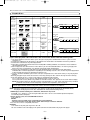
Disc types
DVD-Video
* 1, 2, 3, 5
2
or
DVD-RW
DVD-R
Digital video 12 cm
(MPEG2)
or
DivX®
8 cm
Example
Title 1
Title 2
Chapter 1 Chapter 2 Chapter 3 Chapter 4 Chapter 1 Chapter 2
* 1, 3, 4, 5,
6, 7, 8
Video CD
* 1, 3, 5, 9
Audio CD
-
Sound
and
Pictures
-
Digital audio
-
Digital audio
MP3
WMA*10
Digital picture
(JPEG)
DivX®
DIGITAL VIDEO
* 4, 5
CD-RW
CD-R
* 4, 5, 7,
8, 9
Video CD
or
Audio CD
Example
Track 1
12 cm
or
8 cm
MP3,
JPEG,
WMA,
DivX®
Example
Track 1
Picture CD
-
JPEG
Track 2
Track 3
Track 4
Track 5
Track 4
Track 5
Group 1
Track 2
Track 3
Track 6
Group 2
Track 6
12 cm
If you cannot play back a disc which bears one of the marks above, check the following notes.
*1: This player conforms to the PAL colour system. Also you can play discs recorded with the NTSC system via a PAL
system TV set.
*2: Certain DVD-Video discs do not operate as described in this manual due to the intentions of the disc’s producers.
*3: Scratched or stained discs may not be played back.
*4: Some discs cannot be played back because of incompatible recording conditions, characteristics of the recorder or
special properties of discs.
*5: You can play back discs which bear the marks above. If you use nonstandardized discs, this unit may not play them
back. Even if they are played back, the sound or video quality will be compromised.
*6: Only the discs recorded in the video format or Video Recording format, and finalized can be played back.
Unfinalized discs cannot be played back. Depending on the recording status of a disc, the disc may not be played back
at all or normally (the picture or sound may be distorted, etc.).
*7: If there is too much recordable space left on a disc (the used portion is less than 55mm across), it may not play back
properly.
*8: Do not glue paper or put stickers on to the disc. These may damage the disc, and the unit may not read it correctly.
*9: This unit conforms to ver.1.1 and ver.2.0 of Video CD standard with PBC function.
Ver.1.1 (without PBC function): You can enjoy playback picture as well as music CD.
Ver.2.0 (with PBC function): While using a Video CD with PBC function, “Pbc” appears on the screen and the display.
NOTE: When playing Video CDs with PBC function, some operations (e.g., track search and repeat tracks) cannot be
performed. Cancel PBC function temporarily to perform those operations (refer to page 15).
What is PBC? “PBC” stands for Playback Control.
You can play interactive software using menu screens. Refer to instructions in the Video CD.
*10: This player cannot play the disc contents protected by Windows Media Digital Rights Management (DRM).
NOTE: This player cannot play the DVD-RW discs that supports CPRM (Content Protection for Recordable Media).
This player cannot play the DVD-R discs recorded in VR mode (Video Recording format).
¡ NEVER play back the following discs. Otherwise, malfunction may result!
DVD-RAM / CD-I / Photo CD / DVD with region codes other than 2 or ALL / DVD-ROM for personal computers /
CD-ROM for personal computers
¡ On the following disc, the sound MAY NOT be heard.
Super Audio CD
NOTES:
• Only the sound recorded on the normal CD layer can be delivered.
• The sound recorded on the high density Super Audio CD layer cannot be delivered.
¡ Any other discs without compatibility indications
CAUTION:
• Use caution not to pinch your finger in the disc slot.
• Be sure to remove a disc and unplug the AC power cord from the outlet before carrying the DVD player.
–6–
EN
E61MA/MBED(EN).qx3
05.9.22 10:31
Page 7
¡Progressive Scan system
Unlike conventional interlace scanning, the
progressive scan system provides less flickering
and images in higher resolution than that of
traditional 625i (576i) television signals.
¡Dolby Digital Sound
By hooking this player up to a Multi-Channel Dolby
Digital decoder, you can enjoy high-quality Dolby
Digital 5.1 channel surround sound as heard in the
movie theatres.
¡DTS (Digital Theater System)
When this player is connected to the DTS decoder,
you can enjoy 5.1 channel surround system which
reproduces the original sound as truthfully as
possible. 5.1 channel surround system is developed
by the Digital Theater System, Inc.
¡Still/Fast/Slow/Step Playback
Various playback modes are available including still
pictures, fast forward/reverse, slow motion and step
frames.
¡Random Playback for Audio CD, MP3, JPEG, and
WMA
This player can shuffle the order of tracks to play
them in random order.
¡Programme Playback for Audio CD, MP3, JPEG,
and WMA
You can programme the order of tracks to play them
in any desired order.
¡DVD menus in a desired language
You can display DVD menus in a desired language
if the language is available on the DVD.
¡Auto Power Off
The power turns off automatically if there is no
activity at the player or its remote control for more
than 30 minutes. (Refer to page 26.)
¡Subtitles in a desired language
You can select a desired language for subtitles if the
language is available on the disc.
¡Selecting a camera angle
You can select a desired camera angle if a disc
contains sequences recorded from different angles.
¡Choices for audio language and sound mode
You can select a desired audio language and sound
mode if different languages and modes are
available on the disc.
¡Parental Lock
You can set the control level to limit playback of
discs which may not be suitable for children.
¡Automatic detection of discs
This player automatically detects if a loaded disc is
DVD-Video, Video CD, Audio CD, MP3, JPEG,
WMA, or DivX®.
¡Playing an MP3 disc
You can enjoy MP3 files which are recorded on CDR/RW.
¡Direct Search
You can search a desired title, chapter, and track
with the numeric buttons during playback or in stop
mode.
¡On-screen display
Information about the current operation can be
displayed on the TV screen, allowing you to confirm
the currently active functions (such as programme
playback).
¡FL OFF Mode
You can turn off the panel display.
¡Search
Chapter search:
Title search:
Group search:
Page search:
Track search:
Time search:
Search for a
Search for a
Search for a
Search for a
Search for a
Search for a
title or track.
desired
desired
desired
desired
desired
desired
chapter.
title.
group.
page.
track.
time point of a
¡Repeat
Chapter: Repeated playback of a chapter of the
disc.
Title:
Repeated playback of a title of the disc.
Track: Repeated playback of a track of the disc.
All:
Repeated playback of the entire disc.
(exclude DVD-Video)
A-B:
Repeated playback of a part between two
points.
Group: Repeated playback of a folder of the
MP3/JPEG/WMA/DivX® disc.
¡Zoom
2-time or 4-time magnified screen can be displayed.
¡Marker
The part designated by user can be called back.
¡Resume Play
You can resume playback from the point at which the
play has been stopped even if the power is turned off.
¡Component Video Out Jacks
Jacks located on the back of the DVD player which
are used to send high-quality video to a TV via
Component Video In Jacks.
¡Bit rate indication
¡DRC (Dynamic Range Control)
You can compress the range of sound volume.
¡MPEG sound
This player can handle a disc that supports MPEG
audio when it is connected to an MPEG decoder.
¡Displaying JPEG files
Kodak Picture CDs can be played. Still images stored
in JPEG format on CD-R/RW can also be played.
¡Reproducing WMA files
You can enjoy WMA files which are recorded on
CD-R/RW.
¡Reproducing DivX® files
You can enjoy DivX® files which are recorded on
DVD-R/RW or CD-R/RW.
• Official DivX CertifiedTM product
• Plays DivX®5, DivX®4, DivX®3, and DivX® VOD
video content (in compliance with DivX CertifiedTM
technical requirements).
• This player supports Quarter Pixel.
• This player does not support GMC.
–7–
Manufactured under license from Dolby
Laboratories. “Dolby” and the double-D symbol
are trademarks of Dolby Laboratories.
“DTS” and “DTS Digital Out” are trademarks of
Digital Theater Systems, Inc.
“WMA” (Windows Media Audio) is a new audio
codec developed by Microsoft® in the United
States of America.
EN
English
English
FEATURES
E61MA/MBED(EN).qx3
05.9.22 10:31
Page 8
FUNCTIONAL OVERVIEW
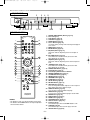
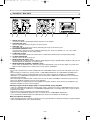
FRONT PANEL
1
2
3
4
5
DVD PLAYER DV4610
STANDBY
POWER ON/STANDBY
A
VIRTUAL
FL OFF
OPEN/CLOSE
32 33 14 31 13
11/12
9/10
15
REMOTE CONTROL
OPEN/
CLOSE
POWER
1
A
13
30
SEARCH
MODE
16
1
2
3
4
5
6
7
8
9
0
+10
1.
2.
3.
4.
5.
6.
A-B
17
18
19
7.
8.
9.
REPEAT
CLEAR
RANDOM
20
10.
SETUP
TOP MENU
21
8
29
K
11.
ENTER
s
B
6
22
23
24
12.
L
RETURN
ANGLE
SUBTITLE
AUDIO
ZOOM
DISPLAY
MODE
26
11
4
SKIP
j
i
STOP
PLAY
C
REV
12
MENU
E
B
PAUSE
F
GROUP
7
25
27
28
9
3
FWD
D
10
5
PAGE
13.
14.
15.
16.
17.
18.
19.
20.
21.
22.
23.
SOUND MODE
24.
25.
REMOTE CONTROLLER
RC6600DV
NOTES:
• The buttons in gray (
) do not function on this player.
• The buttons with circled numbers can only be operated
with the remote control.
26.
27.
28.
29.
30.
31.
32.
33.
–8–
POWER (ON/STANDBY) Button [page 15]
Disc loading tray
PLAY Button [page 15]
STOP Button [page 15]
PAUSE Button [page 15]
Cursor Buttons [page 15]
Use when making settings while watching the display on
a TV screen.
MENU Button [page 15]
ENTER Button [page 15]
G (SKIP) Button [page 17]
Plays back from the beginning of the next chapter or
track.
g (FWD) Button [page 16]
Press more than 2 seconds when you use the front
panel button for this function.
H (SKIP) Button [page 17]
Plays back from the beginning of the current chapter or
track.
h (REV) Button [page 16]
Press more than 2 seconds when you use the front
panel button for this function.
OPEN/CLOSE Button [page 15]
FL OFF Button [page 15]
Panel Display, Remote Sensor Window
SEARCH MODE Button [page 17]
A-B REPEAT Button [page 18]
REPEAT Button [page 18]
RANDOM Button [page 19]
CLEAR Button [page 17]
SETUP Button [page 24]
RETURN Button [page 15]
ANGLE Button [page 23]
Press to change the camera angle to see the sequence
being played back from a different angle.
SUBTITLE Button [page 23]
Press to select a desired subtitle language.
AUDIO Button [page 22]
Press to select a desired audio language or sound mode.
ZOOM Button [page 16]
DISPLAY Button [page 21]
MODE Button [page 18]
TOP MENU Button [page 15]
Numeric Buttons [page 15]
FL OFF Indicator
This indicator lights when the FL OFF button is ON.
STANDBY Indicator
This indicator lights when the DVD player turns off.
VIRTUAL Button [page 24]
EN
E61MA/MBED(EN).qx3
05.9.22 10:31
Page 9
FUNCTIONAL OVERVIEW
English
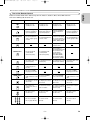
Tour of the Remote Control
Buttons on remote control work in different ways for DVD, Video CD, Audio CD, MP3, JPEG, WMA and DivX®.
Refer to the following table for correct use.
DVD
POWER Button
VCD
CD, MP3, JPEG, WMA
DivX®
• To turn on or to
standby the unit.
• To turn on or to
standby the unit.
• To turn on or to
standby the unit.
• To turn on or to
standby the unit.
A-B REPEAT Button
• To mark a segment
between A and B for
repeated playback.
• To mark a segment
between A and B for
repeated playback.
• To mark a segment
between A and B for
repeated playback.
(CD)
• To mark a segment
between A and B for
repeated playback.
REPEAT Button
• To repeat playback of
a title, chapter, group
or track.
• To repeat playback of
a track or disc.
• To repeat playback of
a track or disc. (CD)
• To repeat playback of
• To repeat playback of
a track, group or disc.
a track, group, or disc.
(MP3, JPEG, WMA)
RANDOM Button
MODE Button
• To play back tracks in
random order.
• To activate the 3D
sound (Virtual
Surround system).
• To activate the 3D
sound (Virtual
Surround system).
• To programme a
specific playback order.
• To activate the 3D
sound (Virtual
Surround system).
(CD, MP3, WMA)
• To activate the Slide
Show Mode. (JPEG)
ZOOM Button
• To magnify part of the • To magnify part of the • To magnify part of the • To magnify part of the
picture (x2/x4).
picture (x2).
picture (x2). (JPEG)
picture (x2).
ANGLE Button
• To access various
camera angles on
the disc.
SUBTITLE Button
AUDIO Button
DISPLAY Button
• To select a subtitle
language on the disc.
• To access various
• To select STEREO,
audio functions on the
L-ch or R-ch.
disc.
• To select STEREO,
L-ch or R-ch. (CD)
• To access various
audio functions on the
disc.
• To display the current • To display the current
disc mode.
disc mode.
• To display the current
disc mode.
• To display the current
disc mode.
SEARCH MODE Button • To search for a
chapter, title, time or
marker.
OPEN/CLOSE Button
• To select a subtitle
language on the disc.
• To search for a track,
time or marker.
• To search for a track. • To search for a track
• To search for time or a or time.
marker. (CD)
• To open or close
the disc tray.
• To open or close
the disc tray.
• To open or close
the disc tray.
• To open or close
the disc tray.
• To select a chapter,
title or group directly.
• To select a track
directly.
• To select a track
directly.
• To select a track
directly.
Numeric Buttons
–9–
EN
E61MA/MBED(EN).qx3
05.9.22 10:31
Page 10
FUNCTIONAL OVERVIEW
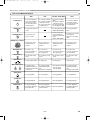
Tour of the Remote Control
DVD
CLEAR Button
· To clear the markers.
· To clear the numbers
entered incorrectly.
· To cancel the A point
for A-B Repeat.
MENU Button
VCD
· To clear the markers.
· To clear the numbers
· To clear the markers.
entered incorrectly.
· To cancel the A point
for A-B Repeat.
entered incorrectly.
· To cancel the A point
for A-B Repeat. (CD)
(CD)
· To clear the numbers
· To clear the numbers
entered incorrectly.
· To cancel the A point
for A-B Repeat.
· To call up the FILE LIST. · To call up the FILE
· To call up the menu on
(MP3, JPEG, WMA)
a disc.
· To return to the first
TOP MENU Button
DivX®
CD, MP3, JPEG, WMA
item in the highest
hierarchy of the FILE
LIST.
(MP3, JPEG, WMA)
· To call up the top
menu on a disc.
LIST.
· To return to the top file
in the highest
hierarchy of the FILE
LIST.
ENTER, Cursor Buttons
RETURN Button
· To move the cursor
· To move the cursor
· To move the cursor
· To move the cursor
and determine its
position.
and determine its
position.
and determine its
position.
and determine its
position.
· To return to the
previous operation in
the setup menu.
SETUP Button
· To call up the setup
menu.
· To return to the
previous operation in
the setup menu.
· To call up the setup
menu.
· To return to the
previous operation in
the setup menu.
· To call up the setup
menu.
· To return to the
previous operation in
the setup menu.
· To call up the setup
menu.
SKIP Buttons
· To skip chapters/titles. · To skip tracks.
REV / FWD Buttons
· To skip tracks.
· To skip tracks.
· To search forward/
· To search forward/
· To begin fast forward/
backward through a
backward through a disc. backward through a
reverse search.
disc.
disc.
· To begin slow forward/
(except JPEG)
· To begin slow forward.
· To begin slow forward.
slow reverse.
· To search forward/
STOP Button
· To stop playback.
· To stop playback.
· To stop playback.
· To stop playback.
· To begin playback.
· To begin playback.
· To begin playback.
· To begin playback.
· To pause playback.
· To advance playback
· To pause playback.
· To advance playback
· To pause playback.
· To pause playback.
· To advance playback
PLAY Button
PAUSE Button
frame by frame.
frame by frame.
– 10 –
frame by frame.
EN
E61MA/MBED(EN).qx3
05.9.22 10:31
Page 11
FUNCTIONAL OVERVIEW
Lights up when the
A-B Repeat function is on.
Lights up when the
repeat function is on.
Lights up when the ALL
Repeat function is on.
Lights up when the progressive
scan system is activated.
P.SCAN
DVD
Lights up when the
inserted disc comes
to a pause.
VCD
Lights up when playing back
in slow mode. (DVD, VCD)
Lights up when the inserted
disc is being played back.
English
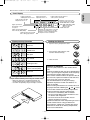
Panel Display
Displays a type of the disc
which is inserted on the tray.
• DVD: DVD, DivX® on DVD
• CD: Audio CD, MP3, JPEG,
WMA, Picture CD,
DivX® on CD
• VCD: Video CD
Displays the elapsed time of the title
or track. The number of a new title,
chapter, or track is displayed when
a chapter or track is switched.
Displays during Operation
Loading the Batteries
1. Open the battery compartment cover.
Power on
No disc inserted or
cannot read
2. Insert two “AA” (R6P) batteries, with
each one oriented correctly.
Tray open
Tray closed
3. Close the cover.
Loading the Disc
Cautions On Batteries
Lights up when the playback
control is activated (VCD)
Power off
Using the Remote Control
Keep in mind the following when using the remote control:
• Make sure that there is no obstacle between the
remote control and the remote sensor on the unit.
• Use within the operating range and angle, as shown.
STAN
n
thi
m
5
ut
DBY
POW
ER
ON/S
TAND
BY
DVD
PLAY
ER
DV46
10
VIRTU
AL
FL
OFF
bo
a
OPEN/A
CLOSE
Wi
60
POWE
R
RCH E
SEA
MOD
A-B
REPEA
T
CLEAR
1
4
7
s
K
ER
ENT
SKIP
j
STOP
PLAY
SOUN
D MODE
B
F
PAGE
i
C
PAUSE
FWD
D
AUDIO
MODE
B
L
REV
E
GROU
P
MENU
OPEN
CLOSE
/
3
6
9
+10
MENU
2
5
8
0
TOP
SUBTI
TLE
DISPL
AY
A
RAND
OM
SETUP
RETUR
N
ANGLE
ZOOM
R
LLE
RO
NT
CO 0DV
TE 660
RC
MO
RE
• Use “AA” (R6P) batteries in this remote control
unit.
• Replace the batteries with new ones approximately
once a year, though this depends on the frequency
with which the remote control unit is used.
• If the remote control unit does not operate close to
the main unit, replace the batteries with new ones,
even if less than a year has passed.
• The included batteries are only for verifying
operation. Replace them with new batteries as
soon as possible.
• When inserting the batteries, be careful to do so in
the proper direction, following the
and
marks
in the remote control unit’s battery compartment.
• To prevent damage or battery fluid leakage:
• Do not use a new battery with an old one.
• Do not use two different types of batteries such
as alkaline and manganese.
• Do not short-circuit, disassemble, heat or
dispose of batteries in flames.
• Remove the batteries when not planning to use the
remote control unit for a long period of time.
• If the batteries should leak, carefully wipe off the
fluid from the inside of the battery compartment,
then insert new batteries.
– 11 –
EN
E61MA/MBED(EN).qx3
05.9.22 10:31
Page 12
CONNECTIONS
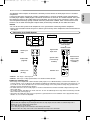
Description - Rear Panel
7
8
1
2
3
4
5
6
1. DIGITAL OUT Jacks
Use either an optical or coaxial digital cable to connect to an AV amplifier.
2. 2CH AUDIO OUT Jacks
Connect to the Audio input jacks of your TV or Stereo system.
3. VIDEO OUT Jack
Use a video cable to connect the jack to the Video input jack of your TV or Stereo system.
4. COMPONENT VIDEO OUT Jacks
Use these jacks if you have a TV with Component Video input jacks. These jacks provide CR/PR, CB/PB and Y video.
Component Video provides the best picture quality.
5. S-VIDEO OUT Terminal
Use the S-Video cable to connect this terminal to the S-Video input terminal of your TV for higher picture quality.
6. A/V EURO CONNECTOR
Connect to the 21-pin Scart jack of a TV.
7. REMOTE CONTROL IN/OUT Jacks
By connecting this DVD player to another Marantz audio component using a supplied Remote control bus cable, you can
remotely operate the components as a signal system.
8. REMOTE CONTROL EXTERNAL / INTERNAL Switch
Set this switch to “INTERNAL” when using this DVD player independently. If you use this DVD player in a system with a
Marantz receiver equipped with a remote sensor, set the switch to “EXTERNAL”.
NOTES:
• Be sure not to use both the A/V EURO CONNECTOR and COMPONENT VIDEO OUT jacks for video output at the same
time.
• When changing the “VIDEO OUT” setting (“SCART”, “COMPONENT INTERLACE” or “COMPONENT PROGRESSIVE”),
connect to a Video jack or an S-Video terminal on the TV. If the setting is changed, for example, to “COMPONENT
INTERLACE” or “COMPONENT PROGRESSIVE” while the A/V EURO CONNECTOR is connected to the TV, a distorted
video signal may be output.
• When connecting to a component with a remote sensor, be sure to connect the REMOTE CONTROL IN jack of this DVD
player to the REMOTE CONTROL OUT jack of the component.
• When connecting to a component which is not equipped with a remote sensor, be sure to connect the component to the
REMOTE CONTROL OUT jack of this DVD player.
Selecting Progressive Scan (625p <576p> or Interlaced 625i <576i>) Playback
• If your TV is compatible with progressive scanning (625p <576p>), connect the TV to the COMPONENT VIDEO OUT jacks
of the DVD player and set “VIDEO OUT” to “COMPONENT PROGRESSIVE” in the display setting. Next, set your TV to the
progressive scan mode.
Refer to pages 24-25 for instructions on changing the display setting.
• If your TV is not compatible with progressive scan, set “VIDEO OUT” to “COMPONENT INTERLACE”.
• Use a commercially available adaptor if the Video input jacks of your TVs or monitors are the BNC type.
What is Progressive Scanning?
• Unlike conventional interlace scanning, the progressive scan system provides less flickering and images in higher resolution
than that of traditional (625i <576i>) television signals.
– 12 –
EN
E61MA/MBED(EN).qx3
05.9.22 10:31
Page 13
The following show examples of connections commonly used to connect the DVD player to the TV and other
components.
If using this DVD player to play back a DVD in a Dolby Digital 5.1 channel surround or DTS surround format,
the DVD player outputs a Dolby Digital or DTS data stream from its OPTICAL or COAXIAL DIGITAL OUT jacks.
By hooking the player up to a Dolby Digital or DTS decoder, you can enjoy a more convincing, realistic ambience with powerful and high-quality surround sound of a professional standard, which can be heard in movie
theatres. Use an audio coaxial digital or optical cable (commercially available) for the audio connections.
NOTES:
• Be sure to turn off the power of all components in the system before connecting another component.
• Refer to the instruction manuals for your TV, Stereo system and any other components to be connected to the
DVD player.
Connection to an Audio System
Method 1
Method 2
Dolby Digital decoder,
DTS decoder
or
MPEG decoder
Stereo system
AUDIO
Digital Audio
Input Jacks
Audio Input
Jacks
Optical Cable
(commercially
available)
Audio Cable
(supplied)
DVD
AUDIO OUT
(Analog)
or
Audio Coaxial
Digital Cable
(commercially
available)
DIGITAL OUT
• Method 1 DVD Player + Stereo system
• Method 2 DVD Player + Dolby Digital decoder, DTS decoder or MPEG decoder
NOTES (for method 2 only):
• When using an AV amplifier with a built-in decoder (Dolby Digital, DTS, or MPEG decoder) as shown in the Method 2, set
“DOLBY DIGITAL”, “DTS” or “MPEG” to “BITSTREAM” accordingly for audio output in the setup menu (refer to page 25). Set
it to “PCM” or “OFF” for the decoder that is not used currently. Playing a DVD using incorrect settings may generate noise
distortion, and may also damage the speakers.
• The audio source on a disc in a Dolby Digital 5.1 channel surround format cannot be recorded as digital sound by an MD
deck or DAT deck.
• Set “DOLBY DIGITAL” and “MPEG” to “PCM”, and “DTS” to “OFF” for audio output in the setup menu for connecting to an MD
deck or DAT deck (refer to page 25).
• Harsh noise that could harm your ears or the speakers is generated when a DVD recorded in DTS is played while using a
decoder, etc., that is not DTS-compatible.
Optical cable (not supplied)
• Optical cable (not supplied) may be damaged when bent at sharp angles. Ensure cables are coiled in loops with a
diameter of 15 cm or more when storing them.
• Use a cable which is 3m or shorter.
• Insert cable plugs firmly into the connectors when making connections.
• If a plug has dust or is dirty, clean it with a soft cloth before inserting it into a connector.
– 13 –
EN
English
CONNECTIONS
E61MA/MBED(EN).qx3
05.9.22 10:31
Page 14
CONNECTIONS
Connection to a TV (for Video)
Basic
Audio
Method 1
Good
picture
Method 3
Method 2
Better
picture
Best picture
COMPONENT
VIDEO IN
21-pin Scart jack
R
L
CR/PR
S-VIDEO IN
VIDEO IN
Y
CB/PB
TV
Component
Video Cable
(commercially
available)
Audio Cable
(supplied)
Video Cable
(supplied)
S-Video Cable
(commercially
available)
Euro Audio/Video Cable
(commercially available)
or
DVD
AUDIO OUT
(Analog)
VIDEO OUT
S-VIDEO OUT
A/V EURO
CONNECTOR
COMPONENT
VIDEO OUT
• Method 1 DVD Player + TV with Video input jack
• Method 2 DVD Player + TV with S-Video input terminal
• Method 3 DVD Player + TV with AV1 (21-pin Scart) jack or Component Video input jacks
NOTES:
• Connect the DVD player directly to a TV. If the Audio/Video cables are connected to a VCR, pictures may be distorted due
to the copy protection system.
• S-Video output terminal
The video signals are divided into colour (C) and brightness (Y) signals, achieving a clearer picture.
If the TV is equipped with an S-Video input terminal, we recommend connecting it to this unit’s S-Video output terminal
using a commercially available S-Video connection cord.
HOW TO CONNECT TO A TV WITHOUT AUDIO/VIDEO INPUT JACKS
If your TV does not have RCA type audio and video input jacks it is still possible to connect this DVD
player to your TV’s 75-ohm coaxial antenna terminal using an optional Stereo Audio/Video RF Modulator (not included). Connect the audio and video outputs of the DVD player to the audio and video inputs on the RF Modulator, and
then connect the coaxial output of the RF Modulator (usually marked “TO TV”) to the 75 ohm coaxial antenna terminal on your TV. Follow the instruction supplied with the RF Modulator for more details.
If your TV’s 75 ohm coaxial antenna terminal is already occupied by an antenna or cable box connection, remove that
cable from your TV’s antenna terminal and reconnect it to the coaxial antenna input terminal of the RF Modulator
(usually marked “ANT IN”), then connect the RF modulator to your TV’s antenna terminal as described above.
NOTE:
• The picture quality from DVD discs will not be as good if the DVD player is connected to the TV’s antenna terminal
through an RF Modulator.
– 14 –
EN
E61MA/MBED(EN).qx3
05.9.22 10:31
Page 15
PLAYING A DISC
Basic Playback
VCD
JPEG
CD
WMA
• In setup menu, the FL OFF mode is not available.
• The FL OFF mode will be released when you press the
buttons listed below.
OPEN/CLOSE button (on both the remote and the front
panel), SETUP, POWER or DISPLAY button (on the
remote), POWER ON/STANDBY or FL OFF button (on
the front panel)
MP3
DivX®
Getting started
•
•
Turn on the power of the TV, amplifier
and any other components which are
connected to the DVD player.
Make sure the TV and audio receiver
(commercially available) are set to the
correct channel.
Disc Menus
DVD-V
1 Press the POWER button.
• “P-ON” will appear briefly on the display panel.
2 Press the OPEN/CLOSE button to open disc load-
1 Press the MENU button.
• The DVD main menu will appear.
2 If the feature is not available,
symbol may
appear on the TV screen.
3 If disc menu is available on the disc, audio language, subtitle options, chapters for the title and
other options will appear for selection.
4 Press the Cursor buttons (L / K / B / s) to select an
item, and the ENTER button to confirm selection.
ing tray.
3 Place the disc in the tray, with the label facing up.
4 Press the PLAY button.
• The tray will close automatically, and playback will start
from the first chapter or track of the disc. If the playback
does not start automatically, press the PLAY button.
• When you play back the DVD with a title menu, it may
appear on the screen. In this case, refer to “Title
Menu”.
Title Menu
5 Press the STOP button to stop playback.
DVD-V
NOTES:
1 Press the TOP MENU button.
• The title menu will appear.
2 If the feature is not available,
• A “prohibited icon” may appear at the topright on the TV screen during operation,
warning that a prohibited operation has
been done to the DVD player or the disc.
• With DVDs that use some titles for playback programme signals, playback may start from the
second title, or it may skip these titles.
• During the playback of two layered disc, pictures may
stop for a moment. This happens when the 1st layer
switches to the 2nd layer. This is not a malfunction.
• The operation may vary when you playback DVDs with
disc menu or Video CDs with PBC. Refer to the manual
accompanying the disc for details.
• A DVD-RW disc recorded in the VR mode may freeze
momentarily during playback depending on how the
playlist was made and edited (deleted titles, repeated
recording).
symbol may
appear on the TV screen.
3 Press the Cursor buttons (L / K / B / s) to select
an item, and the ENTER button to confirm selection.
• Playback will begin at the selected title.
VCD
1 When playing a Video CD with PBC func-
tion, the title menu will appear automatically.
2 Press the Numeric buttons to select the desired
title.
• Playback will begin at the selected title.
3 Press the RETURN button to go back to the title
menu.
CANCELLING AND CALLING BACK THE PBC FUNCTION
CALLING UP A MENU SCREEN DURING PLAYBACK
VCD
DVD-V
1 Insert a Video CD.
2 Press the STOP button.
3 Press the Numeric buttons to enter the desired
•
•
track number.
• The PBC function is now cancelled and the playback of
the Video CD will start.
Press the MENU button to call up the DVD main menu.
Press the TOP MENU button to call up the title menu.
NOTE:
• Contents of menus and corresponding menu operations may vary between discs. Refer to the manual
accompanying the disc for details.
4 To call back the PBC function, press the STOP but-
ton twice, and then press the PLAY button.
• Title menu will appear on the display.
Still / Pause
General Features
DVD-V DVD-RW
DVD-V
DVD may contain menus to navigate the disc and access special features. Press the appropriate Numeric buttons or use the
Cursor buttons (L / K / B / s) to highlight your selection in the
DVD main menu and press the ENTER button to confirm.
CD
WMA
MP3
DivX®
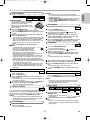
1 During playback, press the
PAUSE button.
F
• Playback will pause and sound
will be muted.
NOTE:
• Unless stated, all operations described are based on
remote control use. Some operations can be carried
out using the menu bar on the TV screen.
VCD
JPEG
2 To continue playback, press the PLAY button.
NOTE:
• On DVDs, set “STILL MODE” to “FIELD” on the display
menu if pictures in the pause mode are blurred. (Refer to
pages 24-25.)
FL OFF Mode
1 Press the FL OFF button on the front panel to turn
off the panel display.
• The FL OFF indicator will light up.
– 15 –
EN
English
DVD-V DVD-RW
NOTES:
E61MA/MBED(EN).qx3
05.9.22 10:31
Page 16
PLAYING A DISC
Step by Step Playback
DVD-V DVD-RW
Fast Forward / Reverse Search
VCD
DVD-V DVD-RW
DivX
®
1 During playback, press the
VCD
F
PAUSE button.
CD
WMA
MP3
DivX®
1 During playback, press the FWD g or REV h
• Playback will pause and sound
will be muted.
button repeatedly to select the required forward or
reverse speed.
2 The disc advances by one frame each time the
PAUSE button is pressed.
3 To exit Step by Step Playback, press the PLAY button.
NOTE:
• On DVDs, set “STILL MODE” to “FIELD” on the display
menu if pictures in the pause mode are blurred. (Refer
to pages 24-25.)
• For DVDs, Fast Forward or Reverse Search speed is
different depending on the disc.The approximate speed
is 1 (x2), 2(x8), 3 (x20), 4 (x50) and 5 (x100).
REV
FWD
Button
1
2
3
4
5
1
2
3
4
5
Button
Resume
DVD-V DVD-RW
VCD
JPEG
1 During playback, press the
STOP button.
• Resume message will appear
on the TV screen.
2 Press the PLAY button, play-
CD
WMA
• For Video CDs, Audio CDs, MP3, WMA and DivX®,
Fast Forward or Reverse Search speed is different
depending on the disc. The approximate speed is 1(x2),
2(x8) or 3(x30).
MP3
DivX®
2 To return to normal playback, press the PLAY button.
NOTES:
Resume ON
Press 'PLAY' to play from here.
To play the beginning,
press 'STOP' first and then 'PLAY'.
• Picture quality of DivX® files in fast reverse is lower
than that in fast forward.
• For some DivX® files, Fast Forward/Reverse Search
may not function.
<Example: DVD>
back will resume from
the point at which playback was stopped.
Slow Forward / Slow Reverse
• To cancel Resume, press the STOP button twice.
NOTES:
• Some Video CDs with the PBC function resume playback from the beginning of the track.
• The resume information will be saved even when the
power is switched off.
• For MP3, JPEG or WMA, playback will resume from the
beginning of the current track.
Playing the Disc Recorded in
VR Mode (Video Recording Format)
DVD-V DVD-RW
VCD
DivX®
1 During playback, press the PAUSE button.
2 Press the FWD g or REV h button.
• Slow motion playback will begin and
FWD D Button
sound will be muted.
3 Press the FWD g or REV h
1
button repeatedly to select the
required speed.
DVD-RW
DVDs recorded in VR mode can have a PLAYLIST assigned
to alter the order or content to be played. If a PLAYLIST has
been created, you can choose the ORIGINAL or PLAYLIST
option.
1 Press the MENU button in stop mode.
• The current setting screen will appear.
• Pressing the MENU button during playback is not valid.
2
• Slow Forward or Reverse speed is different depending on the disc.
Approximate speed is 1 (1/16), 2
(1/8), and 3 (1/2).
3
4 To return to normal playback, press
the PLAY button.
NOTES:
• On DVDs, set “STILL MODE” to “FIELD” on the display
menu if pictures in the pause mode are blurred. (Refer
to pages 24-25.)
• Only Slow Forward is available when playing Video CD
and discs with DivX® files.
Zoom
6 PLAYLIST6
2 Press the Cursor buttons (s or B) to select
ORIGINAL or PLAYLIST.
• PLAYLIST will not be displayed when it has not been
made.
• Resume playback will not be possible if you change the
setting.
3 Press the Cursor buttons (K or L) to select a title,
then press the ENTER button.
DVD-V DVD-RW
VCD
JPEG
DivX®
The Zoom function allows you to enlarge the video image
and to pan through the enlarged image.
1 Press the ZOOM button during playback.
• Playback will continue.
2 Press the ZOOM button repeatedly to select the
required zoom factor: x2, x4 or off.
• Playback will start.
NOTE:
• ORIGINAL: A list of titles which are recorded with a
DVD recorder.
PLAYLIST: A list of titles which is made based on the
ORIGINAL edited list.
– 16 –
• Only x2 zoom is available on Video CDs, JPEG and
DivX® .
x2
x4
EN
E61MA/MBED(EN).qx3
05.9.22 10:31
Page 17
3 Use the Cursor buttons (L / K / B / s) to move
Track Search
the zoomed picture across the screen.
VCD
CD
MP3
JPEG
WMA
DivX®
There are three ways to begin playback on a disc
at a specific track.
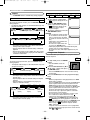
BY USING THE SEARCH MODE BUTTON
1 Press the SEARCH MODE
__/ 15
button.
• The Track Search display
appears.
2 Within 30 seconds, select a
desired track number using the
Numeric buttons.
• For the disc with less than 10 tracks, press the track
number directly.
• For discs with 10 or more but less than 100 tracks, to
play a single-digit track, press 0 first, then the track
number (e.g. for track 3, press 0, 3). To play a doubledigit track, press the track number.
• For discs with 100 or more tracks, to play a single- or a
double-digit track, press 0 first, then the track number
(e.g. for track 3, press 0, 0, 3, and for track 26, press 0,
2, 6). To play a triple-digit track, press the track number.
• Press the CLEAR button to erase the incorrect input.
4 To exit Zoom mode, press the ZOOM button.
NOTES:
• Zooming function does not work while disc menu is
shown.
• x4 zoom is not available on some discs.
• Playback will pause in the zoom mode on JPEG.
• Navigation screen is not available on JPEG.
• You cannot move the zoomed picture on some JPEG
files.
Title / Chapter Search
DVD-V DVD-RW
NOTE:
• The +10 button can also bring up the Track Search display except for the disc with less than 10 tracks. For
such a disc, Track Search can be done by just pressing
the track number.
BY USING THE SEARCH MODE BUTTON
1 Press the SEARCH MODE button
repeatedly until the Chapter
Search, or the Title Search
appears during playback.
2 Enter the desired chapter/title
number with the Numeric buttons.
/2
BY USING THE SKIP BUTTONS H G
BY USING THE SKIP BUTTONS H G
During playback, press the SKIP G button to move to the
next chapter. Press it repeatedly to skip subsequent chapters. Press the SKIP H button to go back to the beginning
of the current chapter. Press it repeatedly to go to the previous chapter.
• Chapter number will appear briefly on the front panel display.
• If the SKIP H or G button is pressed while the playback
is paused, the playback after skipping to the next chapter
will be also paused.
NOTES:
• Depending on the disc being played, the Numeric buttons can be used to search for a desired chapter by
entering the chapter number directly. Refer to the manual accompanying the disc.
• The SKIP H and G buttons are not available when
playback is stopped.
• A disc that does not contain chapters within titles, the
SKIP H and G buttons change the titles.
During playback, press the SKIP G button to move to the
next track. Press it repeatedly to skip subsequent tracks.
Press the SKIP H button to go back to the beginning of the
current track. Press it repeatedly to go to the previous tracks.
• Track number will appear briefly on the panel display.
• If the SKIP H or G button is pressed while the playback
is paused, the playback will be also paused after skipping
to the next track.
NOTE:
• The SKIP H and G buttons are not available when
playback is stopped.
Time Search
DVD-V DVD-RW
VCD
CD
DivX®
1 During playback, press the SEARCH MODE button
until the Time Search screen appears on the TV
screen.
2 Within 30 seconds, enter a
desired disc time with the
Numeric buttons.
:
:
TOTAL
1 : 23 : 45
• Playback will start at the specified
time.
• For Time Search, “0” appears
automatically when there is no
need to enter a number. For example, “0:0_:_ _”
appears in the Time Search screen if the total time of
the disc is less than 10 minutes.
• Press the CLEAR button to erase the incorrect input.
NOTE:
• For some DivX® files, Time Search may not function.
– 17 –
EN
English
PLAYING A DISC
E61MA/MBED(EN).qx3
05.9.22 10:31
Page 18
PLAYING A DISC
A-B REPEAT
Repeat
• The REPEAT button is available only during playback.
DVD-V DVD-RW
1 Press the A-B REPEAT button
REPEAT TITLE / CHAPTER
at your chosen starting point.
DVD-V
To activate the Repeat function, press the REPEAT button
during playback.
•
•
CHAPTER
TITLE
(current chapter repeat) (current title repeat)
CHAPTER
TITLE
•
REPEAT TRACK / GROUP / ALL
A-B
Programme Playback
This function allows you to programme a playback order in a
desired sequence.
CD
CD
1 In stop mode, press the MODE
To activate the Repeat function, press the REPEAT button
during playback.
button.
The Repeat mode changes as described below every time
you press the button.
TRACK
(current track repeat)
A-B appears briefly on the
TV screen, and the repeat
sequence begins.
• The A-B Repeat section can only
be set within the current title (for
OFF
DVD), or current track (for Video
CD, Audio CD and disc with DivX®
files).
• A-B Repeat is not available with
some scenes in DVD.
• To cancel the A point which was
set, press the CLEAR button.
• A-B Repeat playback does not function during title,
chapter, track or all repeat playback.
• For some DivX® files, A-B Repeat playback may not
function.
ALL
• The Repeat Title/Chapter setting will be cleared when
moving to other title or chapter.
• Repeat playback does not function during A-B Repeat
playback.
• Repeat Title/Chapter is not available with some scenes.
• “ALL” is not displayed when playing the DVD-RW discs
recorded in Video mode.
OFF
(repeat off)
A- appears briefly on the TV
screen.
A-B REPEAT button.
NOTES:
NOTES:
•
A-
3 To exit the sequence, press the
(repeat off) (current chapter repeat) (current title repeat) (entire disc repeat)
VCD
DivX®
again at your chosen end point.
DVD-RW
OFF
CD
2 Press the A-B REPEAT button
The Repeat mode changes as described below every time
you press the button.
OFF
(repeat off)
VCD
PROGRAM
CD-DA
TOTAL
0:03:30
• The PROGRAM screen will
appear.
2 Press the Cursor buttons (▲ or
▼) to select a track, then press
the ENTER button.
ALL
(entire disc repeat)
ENTER
PLAY
CLEAR
1/ 2
1/ 1
• Press the CLEAR button to erase the most recently
entered track.
NOTES:
3 Press the PLAY button to start programmed play-
• The Repeat Track setting will be cleared when moving
to other track.
• Repeat playback does not function during A-B Repeat
playback.
• Repeat playback is not available when playing the
Video CD with PBC function.
MP3
OFF
(repeat off)
TRACK
(current track
repeat)
JPEG
WMA
back.
NOTES:
DivX®
GROUP
ALL
(current folder
repeat)
(entire disc
repeat)
NOTE:
• The Repeat Track/Group setting will be cleared when
moving to other track or group.
– 18 –
• While the programme is being played back, the STOP
button works as follows.
• Press the STOP button once and then the PLAY button
again. Playback will restart from the point where the
STOP button was pressed. (Programme continued.)
• Press the STOP button twice and then the PLAY button
again. Playback will restart from the first track in the
usual way. Your programmes will be stored unless
either the disc tray is opened or power is turned off.
• Up to 99 tracks can be entered.
• To erase all tracks in the programme at once, select
ALL CLEAR at the bottom of the list at step 2 .
• If you wish to repeat the current track in the programme, press the REPEAT button repeatedly until
TRACK appears during playback. If you wish to
repeat the entire programme, press the REPEAT button
repeatedly until
ALL appears during playback.
• Refer to page 22 for Programme Playback of MP3,
WMA, and JPEG.
• If eight or more tracks have been set in a programme,
the user can switch the right part of the screen with the
SKIP H or G button.
EN
E61MA/MBED(EN).qx3
05.9.22 10:31
Page 19
• For more details of recording systems, refer to the
instruction manual for the CD-R/CD-RW drive or the
writing software.
• For MP3 and WMA file recorded in Variable Bit Rate
(VBR), the unit may not display the actual elapsed
time.
Random Playback
This shuffles the playing order instead of playback in the
original sequence.
CD
This player recommends the use of files recorded at the below
specifications:
1 In stop mode, press the
RANDOM
RANDOM button.
CD-DA
• The RANDOM screen will appear.
2 Press the PLAY button to start
TOTAL
0:45:55
Applicable MP3 file
RANDOM PROGRAM
--no indication--
Random Playback.
PLAY
NOTES:
• If you wish to repeat the current track in the random
selection, press the REPEAT button repeatedly until
TRACK appears during playback. If you wish to repeat
the entire random selection press the REPEAT button
repeatedly until
ALL appears during playback.
• You cannot go back to the previous track during Random Playback.
• Refer to page 22 for Random Playback of MP3, WMA,
and JPEG.
Sampling
frequency
44.1kHz
48kHz
Type
MPEG1
audio layer 3
Applicable JPEG file
Remarks
Upper limit:
• A JPEG image that extends
Size of
6300x5100 dots beyond the screen is
image
Lower limit:
reduced so that it will be
32x32 dots
displayed within the screen.
MP3 / JPEG / WMA Playback
MP3
JPEG
Applicable WMA file
WMA
When a CD-R or CD-RW disc with MP3, JPEG or WMA files
is inserted in the DVD player and the MENU button is
pressed, the FILE LIST will appear on the display. The number of tracks is also displayed on the front panel.
1 Press the Cursor buttons (K or L) to select the
2 Press the STOP button to stop playback.
NOTES:
• Folders are known as groups; files are known as tracks.
• A symbol of “ ” is shown on the top of the group name.
• A symbol of “ ” is shown on the top of MP3 files.
• A symbol of “ ” is shown on the top of JPEG files.
• A symbol of “ ” is shown on the top of WMA files.
• Maximum of 255 folders can be recognised.
• If the track extends beyond the scope of screen, a down
arrow “L” appears, indicating that the user can view
another part on the previous page. The current page
number and the number of total pages are shown on the
right of the down arrow “L”. Use the SKIP H or G
button to view the previous or next page.
• Maximum of 999 files can be recognised.
• Up to 8 hierarchies can be recognised.
• If no MP3, JPEG or WMA files are found in the group, the
group is not displayed.
• The DVD player can reproduce data recorded as per ISO
9660 Level 1, Level 2 or Joliet on the disc.
• It can also run a disc on which data is recorded in a
multi-session.
Remarks
Sampling
frequency
44.1kHz
48kHz
• Those frequencies are
applicable to WMA version
9.
Bit rate
48–192kbps
• Ensure that the copyright
function is set to off when
preparing a WMA disc.
Type
• A prohibition symbol will
appear if the user attempts
to run a non-reproducible
file such as copyright-proWMA version 9 tected.
• Recorded in 5.1 channel
format cannot be played
back.
desired group (folder) or track.
• If a group (folder) is selected, press the Cursor button
(B) or ENTER button to go on to the track selection
screen. Press the Cursor buttons (K or L) to choose
a track, then press the PLAY or ENTER button.
• To return to the previous screen, press the Cursor
button (s).
• If a track is selected, press the PLAY or ENTER button.
The selected track and the subsequent tracks will be
played back.
• When selecting the folders:
–Press the Cursor button (B) when you want to go to
the next hierarchy.
–Press the Cursor button ({) button when you want to
go back to the previous hierarchy (except for the top
hierarchy).
• Press the TOP MENU button to return to the first item.
Remarks
• It is prohibited to record
MP3 sound on a digital
device when connection is
made digitally.
• MP3 files recorded at fixed
bit rate of 32 kbps to 320
kbps are recommended.
Information on MP3, JPEG and WMA discs
• This DVD player can play back images and sounds from
data recorded in MP3, JPEG and WMA formats on CD-R
and CD-RW discs.
• A file with an extension of “.mp3 (MP3)” is called an “MP3
file”.
• A file with an extension of “.jpg (JPG)” or “.jpeg (JPEG)” is
called a “JPEG file”.
The DVD player can run an image file conforming to the
Exif specification. Exif is a file format, Exchangeable
Image File format established by Japanese Electronic
Industry Development Association (JEIDA).
• A file with an extension of “.wma (WMA)” is called a
“WMA file”.
• Files whose extension is other than “.mp3 (MP3)”, “.jpg
(JPG)” and “.jpeg (JPEG)” or “.wma (WMA)” will not be
listed in the MP3, JPEG or WMA menu.
• If the file is not recorded in MP3, JPEG or WMA format,
noise may be produced even if the file extension is either
“.mp3 (MP3)”, “.jpg (JPG)”, “.jpeg (JPEG)” or “.wma
(WMA)”.
• The name of group and track can be displayed in up to 25
characters. Unrecognisable characters will be replaced
with asterisks. The ninth and deeper hierarchies cannot
be displayed.
• Unplayable groups or tracks may be displayed depending
on the recording conditions.
• If the TOP MENU button is pressed when FILE LIST is
displayed, the first item will be highlighted.
– 19 –
EN
English
PLAYING A DISC
E61MA/MBED(EN).qx3
05.9.22 10:31
Page 20
PLAYING A DISC
Kodak Picture CD
The DVD player can also run JPEG files stored on Kodak
Picture CDs. The Picture CD is a service to convert photographs taken by a conventional film camera into digital data
and write the data on a CD. The user can enjoy picture
images on the television set by playing back the Picture CDs.
For details of Kodak Picture CD, contact a shop that deals
with developing service of Kodak Inc.
1 Press the MENU button.
Kodak Picture CD menu
appears.
Picture1
Picture2
DivX® Playback
DivX®
This DVD player can play back DVD-R/RW and CD-R/RW
discs recorded in DivX® Format. When a DVD-R/RW or CDR/RW with DivX® files is inserted in the DVD player and the
MENU button is pressed, the FILE LIST will appear. The
number of tracks will be also displayed on the front panel.
1 Press the Cursor buttons (K or L) to select the
desired group (folder) or track.
Picture3
• If all menu items cannot be
displayed in the screen
Picture4
Picture5
Picture6
scope, “G ” appears at the
right bottom of the screen,
1/32
indicating that the user can
Current track number /
view remaining items on the
the number of total tracks
next page. “H” appears, it
indicates that the user can view other items on the previous page. The track number of the currently highlighted item and the total tracks are shown at the centre
bottom of the screen.
• If “G” is shown at the right bottom, use the SKIP G
button to view the next page. If “H” is shown at the
left bottom, use the SKIP H button to view the previous page.
• Press the TOP MENU button to get back to the first page.
• It may take some time until all menu items are displayed on the menu screen.
2 Press the Cursor buttons (L / K / B / s), select a
• To return to the previous screen, press the Cursor button (s).
• If a group (folder) is selected, press the Cursor button
(B) or ENTER button to go on to the track selection
screen. Press the Cursor buttons (K or L) to choose a
track, then press the PLAY or ENTER button.
• If a track is selected, press the PLAY or ENTER button.
The selected track and the subsequent tracks will be
played back.
• When selecting the folders:
B) when you want to go to
–Press the Cursor button (B
the next hierarchy.
–Press the Cursor button ({) when you want to go
back to the previous hierarchy (except for the top hierarchy).
• Press the TOP MENU button to return to the first item.
2 Press the STOP button to stop playback.
NOTES:
desired track to be played, then press the PLAY or
ENTER button.
• If a Kodak Picture CD file is selected, an image will be
played back from the selected track and go to the next
one in turn.
3 Press the STOP button, to stop playback.
Notes on JPEG and Kodak Picture CD:
• A track is displayed for 5 or 10 seconds and then the next
track is displayed. Refer to page 26 for SLIDE SHOW.
• Every press on the Cursor button (B) will turn the
image clockwise by 90 degrees when an image is displayed. A press on the Cursor button (s) will turn the
image counterclockwise by 90 degrees.
• To change the size of the playback image, press the
MODE button twice. The size change mode appears on
top of the TV screen during playback. Then press the
Cursor buttons (s or B) or ENTER button to switch
between NORMAL (100%) and SMALL (95%).
• Progressive JPEGs (JPEG files saved in the progressive format) will not be played back on this DVD player.
• High resolution JPEG files take longer to be displayed.
• The size change mode may have no effect on some
files (e.g. files with a small picture size).
Notes on WMA:
• The DVD player can reproduce data recorded as ISO
9660 level 2 with 31 characters file name included
punctuation marks. The name of a file can be displayed
in up to 25 characters.
• Maximum of 8 subfolders can be recognised.
• It can also display tag information of WMA 64 characters at maximum.
• A file with an extension of Joliet as Unicode format in
up to 64 characters can be recognised.
• This unit cannot play back copyright protected WMA
files.
– 20 –
• DivX® is a codec (compression/decompression) that
can compress images to a very small amount of data.
The software can compress video data from almost any
sources to the size that can be sent on the Internet
without compromising visual quality of the images.
• A file with an extension of “.avi” or “.divx” is called a
DivX® file. All files with the “.avi” extention are recognised as MPEG 4.
• Files with the extension other than “.avi” and “.divx” will
not be listed on the DivX® menu. However, unplayable
groups or tracks may be displayed, depending on the
recording conditions.
• Even if the file has an extension of either “.avi” or
“.divx”, this player cannot play it back if it is recorded in
the format other than DivX®.
• Folders are known as groups; files are known as tracks.
• A symbol of
is shown on the top of the group name.
• Maximum of 255 folders can be recognised.
• Maximum of 999 files can be recognised.
• If the track extends beyond the scope of screen, a
down arrow “L” appears, indicating that the user can
view another part on the previous page. The current
page number and the number of total pages are shown
on the left of the down arrow “L”.
• The name of a group and track can be displayed up to
25 characters. Unrecognizable characters will be
replaced with asterisks. The ninth and deeper hierarchies cannot be displayed.
• You can play back the disc recorded in multi-session.
• Playback will be paused if the FILE LIST is displayed
during the playback.
• It may take a while for audio and images to be output
after you inserted a disc and pressed the PLAY button.
• When playing back the files recorded in high bit rates,
the images can be interrupted on some occasions.
• Although DivX® logo has been obtained for this player,
it may not be able to play back some data, depending
on the disc characteristics, bit rates, or audio format
settings, etc.
EN
E61MA/MBED(EN).qx3
05.9.22 10:31
Page 21
PLAYING A DISC
On-Screen Information
You can check information about the current media by pressing the DISPLAY button on the remote control.
DVD-V DVD-RW
1 Press the DISPLAY button
2 Press the DISPLAY button again to show the cur-
rent title.
• The elapsed and remaining playing time of the current
title will be displayed.
3 Press the DISPLAY button again to show the bit
rate and the current repeat setting.
• If you are playing a dual layered
disc, the layer number will also
be displayed (L0: Layer 0 is
played. L1: Layer 1 is played).
• If you are playing a DVD-RW
with setting the PLAYLIST, the
following will also be displayed.
ORG: Playing the ORIGINAL.
PL: Playing the PLAYLIST.
Video
Audio & Picture
ENTER
This player recommends the use of files recorded at the following specifications:
Applicable DivX® file
Playable
DivX®3.1.1,
Codec of AVI DivX®4.x,
files
DivX®5.1.1
720 x 480
Maximum size @30 fps
of image
720 x 576
@25fps
Sampling
frequency of
audio
Audio type
0:00:00 -0:00:00
• The elapsed and remaining
playing time of the current chapter will be displayed.
Please select the media to play back.
• Press the TOP MENU button to call up the Playback
Media Selection screen in stop mode.
• If you select Audio & Picture, instead of Video on the
Playback Media Selection screen, the DVD player can
play back MP3/JPEG/WMA files. Refer to page 19 for
details.
9/49
during playback to show the
current chapter.
IIII
T
L0
IIII
T
ORG
4 Press the DISPLAY button again to remove the
display.
VCD
CD
1 Press the DISPLAY button during playback, the
current track will be displayed on the TV screen.
Remarks
• The elapsed and remaining playing time of the current
track will be displayed.
• They are recognised as
MPEG4.
2 Press the DISPLAY button again to show the total
tracks.
• The elapsed and remaining playing time of the disc will
be displayed.
3 Press the DISPLAY button again to remove the
• It is prohibited to record
sound on a digital
8 kHz - 48kHz MP3
device when the connection
is made digitally.
MPEG1 audio
•
MP3
files recorded at fixed
layer 3 (MP3)
rate of 32 kbps to 320
MPEG1 audio bit
kbps are recommended.
layer 2
display.
• During Programme or Random Playback, each
playback status will be displayed when you press the
DISPLAY button. Then press the DISPLAY button
again to remove the display.
MP3
JPEG
1 Press the DISPLAY button
TRACK 01
during playback.
Slide Show Mode
• The name of the file currently
played will be displayed.
JPEG
You can switch to the Slide Show Mode during playback.
1 Press the MODE button during playback.
• The Slide Show Mode screen will appear.
• The Slide Show Mode cannot be switched when it is
stopped, or from the FILE LIST screen or the Picture
CD menu screen.
2 Press the Cursor buttons (s or B) or ENTER but-
ton.
DivX®
<Example: MP3>
2 Press the DISPLAY button
TR
1/36 0:01:15
T
again to show the track number, the elapsed time (MP3
and DivX®), the repeat status,
and the playback status at the top of the screen.
3 Press the DISPLAY button again to remove the
display.
• The Slide Show Mode will change.
CUT IN/OUT: The entire image appears in one time.
FADE IN/OUT: The image appears gradually and then
disappears.
• During Programme or Random Playback, each
playback status will be displayed when you press the
DISPLAY button. Then press the DISPLAY button
again to remove the display.
3 Press the MODE button twice to exit.
– 21 –
EN
English
• Use the software recognised by DivX®, Inc. when you
make DivX® files.
• When using tools or utilities to make up DivX® files,
read their instruction manual beforehand.
• A DivX® file whose file size exceeds 2GB cannot be
played back.
• If a large-sized DivX® file is selected, it may take a
while to start the playback (over 20 seconds sometimes).
• If DivX® files wrote on CD discs cannot be played back,
rewrite them on a DVD disc and try to play back.
• For more information for DivX®, please visit
http://www.divx.com.
• If you insert a CD-R/RW with DivX® files that are mixed
with MP3, JPEG, or WMA files, the Playback Media
Selection screen will be displayed. Please select Video
and proceed to Step 1.
E61MA/MBED(EN).qx3
05.9.22 10:31
Page 22
PLAYING A DISC
WMA
1 Press the DISPLAY button
NOTES:
• To erase all tracks in the programme at once, select
ALL CLEAR at the bottom of the list at step 2 .
• During the display of the PROGRAM screen, press the
RETURN button, and the stop screen will show up with
the programme contents in memory.
• Press the STOP button once and then the PLAY button
again. Playback will restart from the beginning of the
track played previously. (Programme continued.)
• Press the STOP button twice and then the PLAY button
again. Playback will restart from the first track in the
usual way. Your programmes will be stored unless
either the disc tray is opened or power is turned off.
• Up to 99 tracks can be set in a programme.
• If an inserted disc contains mixed MP3, JPEG and
WMA files, Programme function allows 99 tracks in
combination of MP3, JPEG and WMA files.
• If eight or more tracks have been set in a programme,
the user can switch the right part of the screen with the
SKIP H or G button.
TRACK 01
during playback.
• The name of the file currently
played will be displayed.
2 Press the DISPLAY button
again.
TITLE NAME
• Title name based on tag information currently played will be
displayed.
3 Press the DISPLAY button
ARTIST NAME
again.
• Artist name based on tag information currently played will be
displayed.
4 Press the DISPLAY button
TR
1/36 0:01:15
T
again to show the track number, the elapsed time, the
repeat status, and the playback status at the top of the screen.
5 Press the DISPLAY button again to remove the
display.
Random Playback
MP3
• During Programme or Random Playback, each
playback status will be displayed when you press the
DISPLAY button. Then press the DISPLAY button
again to remove the display.
DISC TITLE
Random Playback.
• For a disc containing mixed MP3,
JPEG and WMA files, Random
Playback of those files will be
performed.
• If the file does not contain tag information, “NOT AVAILABLE” will be displayed.
The DVD player allows you to select a language during DVD
disc playback if multiple languages are available.
1 Press the AUDIO button during playback.
2 Press the AUDIO button repeatedly to select your
desired language.
Programme Playback
button.
PLAY
DVD-V DVD-RW DivX®
indicates Chapter repeat
indicates Title or Track repeat
indicates Group (folder) repeat
indicates Disc repeat
indicates A-B repeat
This feature allows you to programme
an MP3, JPEG or WMA disc to play in
a desired sequence.
1 In stop mode, press the MODE
RANDOM PROGRAM
--no indication --
Audio Language
Hints for repeat indications
MP3
WMA
RANDOM
NOTE:
• C • T • G • A • A B-
JPEG
1 In stop mode, press the RANDOM button.
• The RANDOM screen will appear.
2 Press the PLAY button to start
JPEG
WMA
1. ENG
DolbyD 3/2.1ch 48k/3
HELLO
PROGRAM
FOLDER
MP3
WMA
JPEG
ENTER
PLAY
CLEAR
MP3 - COLECTION
ALBUM01
ALBUM02
ALBUM03
ALBUM04
ALBUM05
ALBUM06
ALBUM07
2. FRE
1/ 3
DolbyD 3/2.1ch 48k/3
1/ 1
ALBUM01
• The PROGRAM screen will
appear.
Bon jour
2 Press the Cursor buttons (K
or L) to select a group, then
press the Cursor button (B) or
ENTER button.
• A track selection screen appears.
3 Press the Cursor buttons (K
or L) to select a track, then
press the ENTER button to
save it in a programme.
PROGRAM
FOLDER
MP3
WMA
JPEG
ENTER
PLAY
CLEAR
3. JPN
ALBUM01
DolbyD 3/2.1ch 48k/3
TRACK11
TRACK08
TRACK09
TRACK10
TRACK11
TRACK12
TRACK13
TRACK14
2/ 3
1/ 1
TRACK11
NOTES:
PROGRAM
FOLDER
MP3
WMA
JPEG
ALBUM05
TRACK48
TRACK49
TRACK50
TRACK51
TRACK52
TRACK53
TRACK54
TRACK11
TRACK81
TRACK31
TRACK22
TRACK03
TRACK53
TRACK25
H 2/ 3 G
• Press the CLEAR button to erase
the most recently entered track.
• The programmed track is displayed in the right-hand screen.
• If the entire programme cannot
be displayed at once on the screen, “L” appears to go
to the next page.
• Pressing the Cursor button (s) will show a list of folders that belong to the one-level upper hierarchy than
the currently selected folder.
ENTER
PLAY
CLEAR
2/ 3
TRACK51
4 Press the PLAY button to start programmed play-
back.
– 22 –
• The sound mode cannot be changed during playback
of discs not recorded in double sound.
• Some discs allow Audio Language setting on the disc
menu. (Operation varies between discs. Refer to the
manual accompanying the disc.)
• For discs with DivX® files, the screen only displays MP3
audio or MPEG1 audio layer 2. (MPEG1 audio layer 2
will be displayed as “MP2”.) Other audio sounds will be
displayed as “---”.
• Pressing the AUDIO button may not work on some
DVDs with multiple audio languages (e.g. DVDs which
allow Audio Language setting on the disc menu).
• If you choose a language that has a 3-letter language
code, the code will be displayed every time you change
the Audio Language setting. If you choose any other
languages, “---” will be displayed instead. (Refer to
page 27.)
EN
E61MA/MBED(EN).qx3
05.9.22 10:31
Page 23
PLAYING A DISC
• If the disc has no audio language, ‘NOT AVAILABLE’
will be displayed.
• For DVD-RW (VR mode), pressing the AUDIO button
cycles the sound mode through MAIN, SUB and MAIN
+ SUB.
• For DVD-RW (VR mode), discs recorded in double
sound (two languages) can be played back in sound
mode of MAIN, SUB or MAIN + SUB.
• With the digital connection, the audio language of DVDRW (VR mode) with double sound will not be affected
even though you can change the setting on the display.
Subtitle Language
STEREO
English
Both right and left channels
are active (stereo).
L-ch
Only the left channel
is active.
R-ch
Only the right channel
is active.
NOTE:
• Stereo sound mode will not be changed when playing
DTS CD.
DVD-V DivX
®
The DVD player allows you to select a language for subtitle
during DVD disc playback if multiple languages are available.
1 Press the SUBTITLE button during playback.
2 Press the SUBTITLE button repeatedly to select
your desired subtitle language.
• The selected language will be displayed on the display
bar at the top of the screen.
• Press the Cursor buttons (s or B) to turn ON or OFF
subtitles during playback.
1.ENG/6
Subtitle 1
Camera Angle
DVD-V
Some DVD discs contain scenes which have been shot
simultaneously from various angles. You can change the
Camera Angle when the mark (
) appears on the screen.
1 Press the ANGLE button during playback.
• The selected angle will be displayed on the display bar
at the top of the screen.
2 Press the ANGLE button repeatedly to select your
desired angle.
2.FRE/6
Subtitle 2
1/8
Angle 1
2/8
OFF
Angle 2
OFF
3 To turn off subtitles, press the SUBTITLE button
repeatedly until OFF appears.
NOTES:
8/8
Angle 8
• Some discs allow Subtitle Language setting on the disc
menu. (Operation varies between discs. Refer to the
manual accompanying the disc.)
• Pressing the SUBTITLE button may not work on some
DVDs with multiple subtitle languages (e.g. DVDs which
allow Subtitle Language setting on the disc menu).
• If the desired language is not shown after pressing the
SUBTITLE button several times, the disc does not have
subtitles in that language.
• If you choose a language that has a 3-letter language
code, the code will be displayed every time you change
the Subtitle Language setting. If you choose any other
languages, ‘---’ will be displayed instead. (Refer to page
27.)
• If the disc has no subtitle language, ‘NOT AVAILABLE’
will be displayed.
• For discs with DivX® files, the screen only displays the
number of subtitle languages.
Stereo Sound Mode
VCD
CD
1 Press the AUDIO button repeatedly during play-
back to select between STEREO, L-ch or R-ch.
STEREO - both right and left channels are active (stereo)
L-ch
- only left channel is active
R-ch
- only right channel is active
NOTE:
• If the “ANGLE ICON” setting is “OFF” in the display menu,
the mark (
) will not appear. (Refer to page 26.)
Marker Setup Screen
DVD-V DVD-RW
VCD
CD
Use markers to memorise your favourite places on a disc.
1 Press the SEARCH MODE but-
ton repeatedly until the display
screen and markers appear
during playback.
2 Press the Cursor buttons (s or
B) to select 1, 2, 3, 4, 5, 6, 7,
8, 9, or 10 and ensure that “_ : _ _ : _ _” appears on
the display.
3 When the disc reaches the desired point, press the
ENTER button.
• The title or track and elapsed playing time will appear
on the TV screen.
4 To return to the marker later, press the SEARCH
MODE button repeatedly during playback and the
Cursor buttons (s or B) to choose a desired
marker, then pressing the ENTER button.
– 23 –
EN
E61MA/MBED(EN).qx3
05.9.22 10:31
Page 24
PLAYING A DISC
NOTES:
• Opening the disc tray, turning off the power or selecting
AC at step 2 and pressing the ENTER button will
erase all markers.
• To clear a marker, use the Cursor buttons (s or B),
position the cursor on to the marker number to be
cleared and press the CLEAR button.
• You can mark up to 10 points.
3 Press the MODE or RETURN button to exit.
NOTES:
• You can also use the VIRTUAL button on the front panel.
Press it repeatedly to select the required effect: 1, 2 or OFF.
• Select Virtual Surround OFF or adjust the volume down
if the sound is distorted.
• Virtual Surround will not be effective if the sound mode
is set to something other than “STEREO”. (for Audio
CDs or Video CDs playback only)
• The setting will be saved even if the player is turned off.
5 Press the SEARCH MODE or RETURN button to
exit.
Virtual Surround
DVD-V DVD-RW
VCD
CD
MP3
WMA
You can enjoy stereophonic virtual space through your existing 2 channel stereo system.
1 Press the MODE button during
playback.
2 Press the Cursor buttons (s
or B) or ENTER button to set
it 1 (Natural effect),
2 (Emphasised effect) or OFF.
DVD SETUP
In setup menu, QUICK mode, CUSTOM mode and INITIALIZE mode (refer to pages 24-26) are available.
QUICK mode consists of the setting menus often needed, and you can make all settings required in CUSTOM
mode.
You can make the settings of the items with QUICK mark in QUICK mode.
Language Setting
Display Setting
Language options are not available with some discs.
1 Press the SETUP button in stop
You can change certain aspects of the DVD display screens,
and various display mode settings.
1 Press the SETUP button in
mode.
2 Press the Cursor buttons (s or
B) to select CUSTOM, then
press the ENTER button.
stop mode.
LANGUAGE
AUDIO
SUBTITLE
DISC MENU
PLAYER MENU
2 Press the Cursor buttons (s
ENGLISH
ENGLISH
ENGLISH
ENGLISH
or B) to select CUSTOM, then
press the ENTER button.
• The CUSTOM mode will appear.
B) to select LANGUAGE, then press the ENTER
button to confirm.
4 Press the Cursor buttons (K or L) to select the
below items, then press the ENTER button.
AUDIO (Default : ENGLISH)
• Sets the audio language.
• Sets the subtitle language.
DISC MENU (Default : ENGLISH)
16:9 WIDE
AUTO
SCART
• The CUSTOM mode will appear.
3 Press the Cursor buttons (s
3 Press the Cursor buttons (s or
SUBTITLE (Default : ENGLISH)
DISPLAY
TV ASPECT
STILL MODE
VIDEO OUT
or B) to select DISPLAY, then press the ENTER
button to confirm.
4 Press the Cursor buttons (K or L) to select the below items, then press the ENTER button.
TV ASPECT (Default : 16:9 WIDE) QUICK
• Press the Cursor buttons (K or
L) for an item selection, then
press the ENTER button.
• Select 16:9 WIDE if a widescreen TV is connected to the
DVD player.
• Select 4:3 LETTER BOX for a
black bars appears on top and bottom of the screen.
• Select 4:3 PAN & SCAN for a full height picture with both
sides trimmed.
LANGUAGE
AUDIO
ORIGINAL
ENGLISH
FRENCH
SPANISH
GERMAN
ITALIAN
SWEDISH
DISPLAY
TV ASPECT
4:3 LETTER BOX
4:3 PAN & SCAN
16:9 WIDE
• Sets the language for DVD menu.
PLAYER MENU (Default : ENGLISH) QUICK
• Sets the language for the on-screen display.
5 Press the Cursor buttons (K or L) to select a
setting, then press the ENTER button.
• If OTHER is selected in the AUDIO, SUBTITLE or DISC
MENU screen, press 4-digit number to enter the code
for the desired language. (Refer to the Language Code
List on page 27.)
• Only the languages supported by the disc can be
selected.
STILL MODE (Default : AUTO)
6 Press the SETUP button to exit.
NOTE:
• Language Setting for AUDIO and SUBTITLE is not
available with some discs. Then use the AUDIO and
SUBTITLE buttons. Details are on pages 22-23.
– 24 –
• Press the Cursor buttons (K or
L) for an item selection (AUTO,
FIELD, or FRAME), then press
the ENTER button.
• This adjusts the resolution of
pictures in the still (PAUSE)
mode.
• If you select AUTO, automatically select the best resolution setting (FRAME or FIELD) based on the data
characteristics of the pictures.
DISPLAY
STILL MODE
AUTO
FIELD
FRAME
EN
E61MA/MBED(EN).qx3
05.9.22 10:31
Page 25
• If you select FIELD, pictures in the still mode will be
stabilized although they will be coarse due to a little
amount of data.
• If you select FRAME, pictures in the still mode will be
highly defined although they will be blurred due to output of two fields at the same time.
DOLBY DIGITAL (Default : BITSTREAM) QUICK
• Set to BITSTREAM when the
player is connected to a Dolby
Digital decoder.
• This function is effective only for
the COAXIAL and OPTICAL connections.
BITSTREAM:
Output by Dolby Digital.
PCM: Convert Dolby Digital to PCM.
NOTE:
• An individual picture on TV screen is called as “frame”,
which consists of two separate images called as “field”.
Some pictures may be blurred at the AUTO setting in
the still mode due to their data characteristics.
VIDEO OUT
(Default : SCART)
DISPLAY
VIDEO OUT
• Press the Cursor buttons (K or
L) for an item selection (SCART,
COMPONENT INTERLACE or
COMPONENT PROGRESSIVE),
then press the ENTER button.
• This setting will be effective when you exit the setup
screen by pressing the SETUP button.
• When VIDEO OUT is COMPONENT PROGRESSIVE,
“P.SCAN” appears on the DVD player’s panel display
after you exited the setup screen.
• Refer to page 12 for more details.
• Set to BITSTREAM when the unit
is connected to a DTS decoder.
• This function is effective only for
the COAXIAL and OPTICAL connections.
BITSTREAM:
Output DTS sound.
OFF: No DTS sound will be output.
AUDIO
DRC
DOWN SAMPLING
DOLBY DIGITAL
DTS
MPEG
ON
ON
BITSTREAM
BITSTREAM
PCM
MPEG (Default: PCM) QUICK
• Set to BITSTREAM when the unit
is connected to an MPEG
decoder.
• This function is effective only for
the COAXIAL and OPTICAL connections.
BITSTREAM:
Output MPEG sound.
PCM: Convert MPEG sound to PCM.
NOTES:
• Be sure to press the SETUP button, or the setting will
not work.
• When changing the VIDEO OUT setting (SCART,
COMPONENT INTERLACE or COMPONENT PROGRESSIVE), connect to a VIDEO jack or an S-VIDEO
terminal on the TV. If the setting is changed, for example, to SCART while the Component Video jacks are
used to connect to the TV, a distorted video signal may
be output.
ON
ON
BITSTREAM
BITSTREAM
PCM
DTS (Default : BITSTREAM) QUICK
SCART
COMPONENT INTERLACE
COMPONENT PROGRESSIVE
5 Press the SETUP button to exit.
AUDIO
DRC
DOWN SAMPLING
DOLBY DIGITAL
DTS
MPEG
AUDIO
DRC
DOWN SAMPLING
DOLBY DIGITAL
DTS
MPEG
ON
ON
BITSTREAM
BITSTREAM
PCM
5 Press the SETUP button to exit.
Parental Control
Audio Setting
Choose the appropriate Audio Setting for your equipment as
it only affects during the playback of DVD discs of the DVD
player.
1 Press the SETUP button in stop mode.
2 Press the Cursor buttons (s or B) to select
CUSTOM, then press the ENTER button.
• The CUSTOM mode will appear.
3 Press the Cursor buttons (s or
B) to select AUDIO, then the
ENTER button to confirm.
4 Press the Cursor buttons (K or
L) to select the below items,
then press the ENTER button.
DRC (Dynamic Range Control)
(Default : ON)
• To compress the range of sound
volume.
• DRC function is available only on
the discs that are recorded in the
Dolby Digital format.
AUDIO
DRC
DOWN SAMPLING
DOLBY DIGITAL
DTS
MPEG
Parental Control limits playback of discs with unsuitable audience ratings. A 4-digit password established by the user will unlock the Parental Lock.
This feature allows you to prevent your children from playing discs
with objectionable scenes.
PARENTAL LEVEL
Parental Level allows you to set the rating level of your DVD
discs. Playback will stop if the disc’s ratings exceed the level
you set.
1 Press the SETUP button in stop mode.
2 Press the Cursor buttons (s or B) to select
CUSTOM, then press the ENTER button.
ON
ON
BITSTREAM
BITSTREAM
PCM
3 Press the Cursor buttons (s or
B) to select PARENTAL, then
press the ENTER button.
4 Press the Numeric buttons to
enter your 4-digit password.
• When doing this for the first time,
enter any 4-digit number by
pressing the Numeric buttons
(except for 4737), then press the
ENTER button. That number will
be used as the password from the
second time onward. Record your
password in case you forget it.
AUDIO
DRC
DOWN SAMPLING
DOLBY DIGITAL
DTS
MPEG
ON
ON
BITSTREAM
BITSTREAM
PCM
DOWN SAMPLING (Default : ON)
• Set to ON when outputting in
48kHz.
• This function is available only on
digital outputting of a disc recorded in 96kHz.
AUDIO
DRC
DOWN SAMPLING
DOLBY DIGITAL
DTS
MPEG
PARENTAL
PASSWORD
Please enter a 4-digit password.
PARENTAL
PARENTAL LEVEL ALL
PASSWORD CHANGE
5 Press the Cursor buttons
ON
ON
BITSTREAM
BITSTREAM
PCM
When playing disc with
copyright protection
• The sound will be down-sampled at 48kHz, even if you
set to OFF.
(K or L) to select PARENTAL
LEVEL, then press the ENTER
button.
6 Press the Cursor buttons
(K or L) to select the desired
level, then press the ENTER button.
– 25 –
PARENTAL
PARENTAL LEVEL
ALL
8
7
6
5
4
3
EN
English
DVD SETUP
E61MA/MBED(EN).qx3
05.9.22 10:31
Page 26
DVD SETUP
SLIDE SHOW (Default : 5sec)
7 Press the SETUP button to exit.
NOTE:
• This adjusts the playback speed of
the JPEG SLIDE SHOW.
• Press the Cursor buttons (K or L)
to select between 5 sec and 10
sec, then press the ENTER button.
• This function may not work on some DVDs. Be sure if
the ratings operate in the way you have set.
To Change the Password:
1) Follow the steps 1 to 4 above.
2) Press the Cursor buttons (K or L) to select “PASSWORD
CHANGE”, then press the ENTER button.
3) Enter a new 4-digit password, then press the ENTER
button.
4) Press the SETUP button to exit.
• This player allows you to use the
DivX® Video-On-Demand (VOD)
services. You can play back the
files purchased or rental from
the VOD services. You need to
have a registration code to purchase or rental VOD files. Please visit
www.divx.com/vod for more details.
5 Press the SETUP button to exit.
Others Setting
Reset to the Default Settings (except for
This function allows you to adjust Angle Icon availability, Auto
Power Off, brightness of the player’s display panel, Slide
Show Mode and to obtain DivX® registration code.
1 Press the SETUP button in stop mode.
2 Press the Cursor buttons (s or B) to select CUSTOM,
then press ENTER.
PARENTAL and VIDEO OUT)
This allows you to return all selections of SETUP (except for
PARENTAL and VIDEO OUT) to their default settings.
1 Press the SETUP button in stop mode.
2 Press the Cursor buttons (s or B) to select INIT.,
then press the ENTER button.
3 Press the Cursor buttons (K or L) to select YES,
OTHERS
B) to select OTHERS, then
press the ENTER button to confirm.
4 Press the Cursor buttons (K or
L) to select an item, then press ENTER.
ANGLE ICON (Default : ON)
ANGLE ICON
AUTO POWER OFF
PANEL DISPLAY
SLIDE SHOW
DivX(R) VOD
• Press the ENTER button repeatedly to turn ANGLE ICON ON or
OFF.
Your registration code is:
12345678
To learn more visit
www.divx.com/vod
• You cannot play back the DivX® VOD files obtained with
different registration codes on this player.
• You cannot play back the DivX® VOD files, of which
rental period has been expired. In such case, press the
MENU button and select other files that can be played
back.
• Some DivX® VOD files are restricted with the limited
playable times (you cannot play them back beyond the
limit). If your DivX® VOD file has such limit, the playback
confirmation screen will appear. Use the Cursor button
(s or B) to select YES if you want to play back the file,
or to select NO if you do not wish to play it back. Then,
press the ENTER button to confirm the selection.
• Please send your inquiries regarding the VOD files to
DivX®, Inc.
CONTROL LEVELS
• The CUSTOM mode will appear.
3 Press the Cursor buttons (s or
OTHERS
DivX(R) VOD
NOTES:
Level.
• ALL
Parental Lock is cancelled.
• Level 8
DVD softwares of any grades (adult/general/children)
can be played back.
• Levels 7 to 2
Only DVD softwares intended for general use and children can be played back.
• Level 1
Only DVD softwares intended for children can be
played back. DVD softwares intended for adult and general use will be prohibited.
5sec
10sec
DivX(R) VOD
IF YOU FORGET THE PASSWORD
1 Press 4, 7, 3, 7 at step 4 .
• The original password will be cleared and the Parental
Level will be set to “ALL”. Enter a new 4-digit password,
then press the ENTER button.
2 Repeat steps 5 to 7 to re-establish the Parental
OTHERS
SLIDE SHOW
ON
ON
BRIGHT
5sec
then press the ENTER button.
4 Press the SETUP button to exit.
NOTE:
• If you like to cancel initializing, select NO at step 3 .
OTHERS
ANGLE ICON
AUTO POWER OFF
PANEL DISPLAY
SLIDE SHOW
DivX(R) VOD
ON
ON
BRIGHT
5sec
AUTO POWER OFF (Default : ON)
• Press the ENTER button repeatedly to turn AUTO POWER OFF
ON or OFF.
• It will turn the DVD player off automatically after 30 minutes of no
use.
PANEL DISPLAY
(Default : BRIGHT)
• Press the Cursor buttons (K or
L) to select an item among
BRIGHT, DIMMER and AUTO,
then press the ENTER button.
• When AUTO is selected, the display dims only during playback.
OTHERS
ANGLE ICON
AUTO POWER OFF
PANEL DISPLAY
SLIDE SHOW
DivX(R) VOD
ON
ON
BRIGHT
5sec
OTHERS
PANEL DISPLAY
BRIGHT
DIMMER
AUTO
– 26 –
EN
E61MA/MBED(EN).qx3
05.9.22 10:31
Page 27
Language Code List
Language
Code
A-B
Abkhazian
Afar
Afrikaans
Albanian
Amharic
Arabic
Armenian
Assamese
Aymara
Azerbaijani
Bashkir
Basque
Bengali;Bangla
Bhutani
Bihari
Bislama
Breton
Bulgarian
Burmese
Byelorussian
C-E
Cambodian
Catalan
Chinese [CHI]
Corsican
Croatian
Czech
Danish [DAN]
Dutch [DUT]
English [ENG]
Esperanto
Estonian
F-H
Faroese
Fiji
Finnish [FIN]
French [FRE]
4748
4747
4752
6563
4759
4764
5471
4765
4771
4772
4847
5167
4860
5072
4854
4855
4864
4853
5971
4851
5759
4947
7254
4961
5464
4965
5047
6058
5160
5161
5166
5261
5256
5255
5264
Language
Code
Language
Code
Language
Code
Frisian
Galician
Georgian
German [GER]
Greek [GRE]
Greenlandic
Guarani
Gujarati
Hausa
Hebrew
Hindi
Hungarian [HUN]
I-K
Icelandic [ICE]
Indonesian
Interlingua
Interlingue
Inupiak
Irish [IRI]
Italian [ITA]
Japanese [JPN]
Javanese
Kannada
Kashmiri
Kazakh
Kinyarwanda
Kirghiz
Kirundi
Korean [KOR]
Kurdish
L-N
Laothian
Latin
Latvian;Lettish
Lingala
Lithuanian
Macedonian
Malagasy
5271
5358
5747
5051
5158
5758
5360
5367
5447
5569
5455
5467
Malay
Malayalam
Maltese
Maori
Marathi
Moldavian
Mongolian
Nauru
Nepali
Norwegian [NOR]
O-R
Occitan
Oriya
Oromo(Afan)
Panjabi
Pashto;Pushto
Persian
Polish
Portuguese [POR]
Quechua
Rhaeto-Romance
Romanian [RUM]
Russian [RUS]
S
Samoan
Sangho
Sanskrit
Scots Gaelic
Serbian
Serbo-Croatian
Sesotho
Setswana
Shona
Sindhi
Singhalese
Siswat
Slovak
Slovenian
5965
5958
5966
5955
5964
5961
5960
6047
6051
6061
Somali
Spanish [SPA]
Sundanese
Swahili
Swedish [SWE]
T
Tagalog
Tajik
Tamil
Tatar
Telugu
Thai
Tibetan
Tigrinya
Tonga
Tsonga
Turkish [TUR]
Turkmen
Twi
U-Z
Ukrainian
Urdu
Uzbek
Vietnamese
Volapuk
Welsh
Wolof
Xhosa
Yiddish
Yoruba
Zulu
6561
5165
6567
6569
6568
5565
5560
5547
5551
5557
5347
5566
5647
5669
5760
5765
5757
6469
5771
6460
5761
5767
5861
5847
5868
5860
5866
5957
5953
6149
6164
6159
6247
6265
5247
6258
6266
6367
6459
6461
6467
6559
6553
6547
5350
6564
6554
6566
6660
6560
6550
6555
6565
6557
6558
6658
6653
6647
6666
6651
6654
4861
6655
6661
6665
6664
6657
6669
6757
6764
6772
6855
6861
4971
6961
7054
5655
7161
7267
If you choose a Language that has a 3-letter language code, the code will be displayed every time you change the Audio or Subtitle Language
setting on pages 22-23. If you choose any other languages, ‘---’ will be displayed instead. (3-letter language code is written in bracket.)
MAINTENANCE
Cleaning the Cabinet
• Use a soft cloth slightly moistened with a mild detergent solution. Do not use a solution containing alcohol, spirits,
ammonia or abrasives.
Cleaning Discs
• When a disc becomes dirty, clean it with a cleaning cloth. Wipe the disc from the centre out. Do not wipe in a circular motion.
• Do not use solvents such as benzine, thinner, commercially available cleaners, detergent, abrasive cleaning agents or
antistatic spray intended for analogue records.
Cleaning the disc lens
• If the player does not perform properly while referring to the relevant sections and to “TROUBLESHOOTING GUIDE” in
this User Guide, the laser optical pickup unit may be dirty. Consult your dealer or an Authorized Service Centre for
inspection and cleaning of the laser optical pickup unit.
Disc Handling
•
•
•
•
Use discs with the following logos on them.
Handle the discs carefully so that fingerprints and dust do not adhere to the surfaces of the discs.
Always store the disc in its protective case when it is not used.
Note that discs with special shapes (heart-shaped discs, octagonal discs, etc.) cannot be
played on this player. Do not attempt to play such discs, as they may damage the player.
DIGITAL VIDEO
– 27 –
EN
English
DVD SETUP
E61MA/MBED(EN).qx3
05.9.22 10:31
Page 28
TROUBLESHOOTING GUIDE
If the DVD player does not perform properly when operated as instructed in this User Guide, check the player, consulting the
following checklist.
Problem
Solution
No power
–Check if the AC power cord is properly connected.
–Unplug the AC power cord, and wait for 5-10 seconds and then plug
it in again.
No sound or picture
–Check if the TV is switched on.
–Check the video connection.
–Check the VIDEO/AUDIO cable connections to the TV.
(Refer to page 14 for Connection to a TV (for video).)
–Check if the VIDEO OUT mode is set correctly. See pages 12 and
25.
Distorted picture
–Sometimes a small amount of picture distortion may appear.
This is not a malfunction.
–Connect the player directly to the TV.
–Check if the VIDEO OUT mode is set correctly. See pages 12 and
25.
Completely distorted picture or
–Connect the player directly to the TV.
black/white picture with DVD
–Make sure the disc is compatible with the player.
No sound or distorted sound
–Adjust the volume.
–Check if the speakers are connected correctly.
No audio at digital output
–Check the digital connections.
–Check the Audio Setting.
No DTS audio output
–Use DIGITAL OUT jacks when outputting the DTS audio.
Picture freezes momentarily
–Check the disc for fingerprints/scratches and clean with a soft cloth
during playback
wiping from centre to edge.
–Clean the disc.
Disc can’t be played
–Clean the disc.
–Ensure the disc label is facing up.
–Check if the disc is defective by trying another disc.
–Cancel the Parental Lock or change the control level.
–Insert a correct disc that can be played on this player.
No return to start-up screen when disc is removed –Reset the player by switching the player off, then on again.
The player does not respond to the remote control –Aim the remote control directly at the sensor on the front of the
player.
–Reduce the distance to the player.
–Replace the batteries in the remote control.
–Re-insert the batteries with their polarities (+/– signs) as indicated.
Buttons do not work or the player stops
–To completely reset the player, unplug the AC cord from the AC
responding
outlet for 5-10 seconds.
The remote control doesn’t seem to work
–Check if the REMOTE CONTROL IN jack on the rear panel is
connected.
–Check if the REMOTE CONTROL switch is set to the correct
position.
The player does not respond to some
–Operations may not be permitted by the disc.
operating commands during playback
Refer to the instructions of the disc.
The player cannot read CDs/DVDs
–Use a commercially available CD/DVD cleaner to clean the lens
before sending the player for repair.
Angle does not switch
–The angle cannot be switched for DVDs which do not contain multiple angles. In some cases multiple angles are only recorded for
specific scenes.
Playback does not start when the title is selected –Check the “PARENTAL” setting.
The password for rating level has been forgotten
–Enter the default password “4737”, then your forgotten password will
be cleared.
The player does not recognise DivX® files
–Check if the file name, including an extension, consists of more than
136 characters. If that does, the player does not recognise the file.
NOTES:
•
•
•
•
Some functions are not available in specific modes, but this is not a malfunction. Read the description in this User Guide for
details of correct operations.
Playback from a desired track and Random Playback are not available during Programme Playback.
Some functions are prohibited on some discs.
When playing back Video CDs with PBC function, some operations (e.g., select and track repeat) cannot be performed.
Cancel PBC function temporarily to perform those operations. See page 15.
– 28 –
EN
05.9.22 10:31
Page 29
SPECIFICATIONS
PIN CONNECTION (A/V EURO CONNECTOR)
SIGNAL SYSTEM
PAL colour
20 18 16 14 12 10 8 6 4 2
APPLICABLE DISCS
(1) DVD-Video Discs
1-layer 12cm single-sided discs, 2-layer 12cm single-sided
discs, 2-layer 12cm double-sided discs (1 layer per side)
1-layer 8cm single-sided discs, 2-layer 8cm single-sided
discs, 2-layer 8cm double-sided discs (1 layer per side)
(2) DVD-R/DVD-RW
(3) Compact discs (Audio CD, Video CD)
12cm discs, 8cm discs
(4) CD-R/CD-RW
S-VIDEO OUTPUT
Y output level: 1Vp-p (75Ω/ohms)
C output level: 0.3Vp-p
Output connectors: S connectors, 1 set
VIDEO OUTPUT
Output level: 1Vp-p (75Ω/ohms)
Output connector: Pin jacks, 1 set
21 19 17 15 13 11 9 7 5 3 1
Contacts, signal levels and impedances
Contact 1
Audio Output (Right):
Contact 3
Audio Output (Left):
Contact 4
Audio, Ground
Contact 5
RGB, Ground (Blue)
Contact 7
RGB Output (Blue):
Contact 8
Function Select Switching Control
CR/PR output level: 0.7Vp-p (75Ω/ohms)
AUDIO OUTPUT
Output level: 2Vrms
2 channel (L, R) output connector: Pin jack, 1 set
AUDIO OUTPUT PROPERTIES
(1) Frequency response
1 DVDs (linear PCM) : 4Hz to 22kHz (48 kHz sampling)
: 4Hz to 44kHz (96 kHz sampling)
2 CDs
: 4Hz to 20kHz
(2) S/N ratio
: 115dB
(3) Total harmonic distortion : 1kHz CD: 0.0045%
(4) Dynamic range
: DVD: 100dB
CD: 98dB
DIGITAL AUDIO OUTPUT
Optical digital output: Optical jack, 1 set
Coaxial digital output: Pin jack, 1 set
POWER SUPPLY
AC 200-240V, 50Hz
2.0Vrms/01kΩ
0.7Vp-p/75Ω
Contact 9
RGB, Ground (Green)
Contact 11
RGB Output (Green):
Contact 13
RGB, Ground (Red)
Contact 14
RGB Switching Control, Ground
Contact 15
RGB Output (Red):
Contact 16
RGB Switching Control
H: 3.3V DC
Contact 17
Video Output Signal, Ground
Contact 18
Video Input Signal, Ground
Contact 19
Video Output (CVBS):
Contact 21
Common Ground (shielding)
0.7Vp-p/75Ω
0.7Vp-p/75Ω
RGB Mode
1.0Vp-p/75Ω
7
AUDIO/VIDEO
21-pin scart jack
2.0Vrms/01kΩ
L : 0.0~2.0V DC
Power Off
M: 4.5~7.0V DC
Wide-Screen Mode
(16:9)
H: 9.5~12.0V DC
Normal Mode (4:3)
COMPONENT OUTPUT
Y output level: 1Vp-p (75Ω/ohms)
CB/PB output level: 0.7Vp-p (75Ω/ohms)
Output connector: Pin jacks, 1 set
English
E61MA/MBED(EN).qx3
POWER CONSUMPTION
12 W
303
313
MAXIMUM EXTERNAL DIMENSIONS
440 (width) x 65 (height) x 313 (depth) mm
MASS
2.4 kg (5.3 lbs)
3
REMOTE CONTROL UNIT
RC6600DV
Infrared pulse type
Supply: DC 3V, 2 R6P/AA batteries
(mm)
– 29 –
11.5
53.5
65
440
EN
E61MA/MBED(EN).qx3
05.9.22 10:31
Page 30
www.marantz.com
You can find your nearest authorized distributor or dealer on our website.
U.S.A
Marantz America, Inc.
1100 Maplewood Drive, Itasca, IL 60143, U.S.A.
EUROPE
Marantz Europe B.V.
P.O. Box 8744, 5605 LS Eindhoven, The Netherlands
is a registered trademark.
2005/10
Printed in China
00M38BW851320 R
1VMN21446
E61MA/MBED ★★★★★