1
E61MA/MBED(EN).qx3
05.9.22 10:31
Page 21
PLAYING A DISC
On-Screen Information
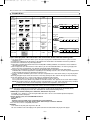
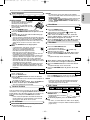
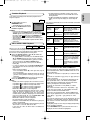
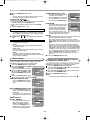
You can check information about the current media by pressing the DISPLAY button on the remote control.
DVD-V DVD-RW
1 Press the DISPLAY button
2 Press the DISPLAY button again to show the cur-
rent title.
• The elapsed and remaining playing time of the current
title will be displayed.
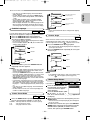
3 Press the DISPLAY button again to show the bit
rate and the current repeat setting.
• If you are playing a dual layered
disc, the layer number will also
be displayed (L0: Layer 0 is
played. L1: Layer 1 is played).
• If you are playing a DVD-RW
with setting the PLAYLIST, the
following will also be displayed.
ORG: Playing the ORIGINAL.
PL: Playing the PLAYLIST.
Video
Audio & Picture
ENTER
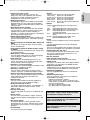
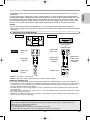
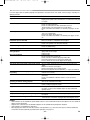
This player recommends the use of files recorded at the following specifications:
Applicable DivX® file
Playable
DivX®3.1.1,
Codec of AVI DivX®4.x,
files
DivX®5.1.1
720 x 480
Maximum size @30 fps
of image
720 x 576
@25fps
Sampling
frequency of
audio
Audio type
0:00:00 -0:00:00
• The elapsed and remaining
playing time of the current chapter will be displayed.
Please select the media to play back.
• Press the TOP MENU button to call up the Playback
Media Selection screen in stop mode.
• If you select Audio & Picture, instead of Video on the
Playback Media Selection screen, the DVD player can
play back MP3/JPEG/WMA files. Refer to page 19 for
details.
9/49
during playback to show the
current chapter.
IIII
T
L0
IIII
T
ORG
4 Press the DISPLAY button again to remove the
display.
VCD
CD
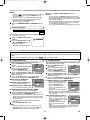
1 Press the DISPLAY button during playback, the
current track will be displayed on the TV screen.
Remarks
• The elapsed and remaining playing time of the current
track will be displayed.
• They are recognised as
MPEG4.
2 Press the DISPLAY button again to show the total
tracks.
• The elapsed and remaining playing time of the disc will
be displayed.
3 Press the DISPLAY button again to remove the
• It is prohibited to record
sound on a digital
8 kHz - 48kHz MP3
device when the connection
is made digitally.
MPEG1 audio
•
MP3
files recorded at fixed
layer 3 (MP3)
rate of 32 kbps to 320
MPEG1 audio bit
kbps are recommended.
layer 2
display.
• During Programme or Random Playback, each
playback status will be displayed when you press the
DISPLAY button. Then press the DISPLAY button
again to remove the display.
MP3
JPEG
1 Press the DISPLAY button
TRACK 01
during playback.
Slide Show Mode
• The name of the file currently
played will be displayed.
JPEG
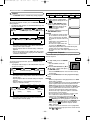
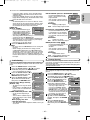
You can switch to the Slide Show Mode during playback.
1 Press the MODE button during playback.
• The Slide Show Mode screen will appear.
• The Slide Show Mode cannot be switched when it is
stopped, or from the FILE LIST screen or the Picture
CD menu screen.
2 Press the Cursor buttons (s or B) or ENTER but-
ton.
DivX®
<Example: MP3>
2 Press the DISPLAY button
TR
1/36 0:01:15
T
again to show the track number, the elapsed time (MP3
and DivX®), the repeat status,
and the playback status at the top of the screen.
3 Press the DISPLAY button again to remove the
display.
• The Slide Show Mode will change.
CUT IN/OUT: The entire image appears in one time.
FADE IN/OUT: The image appears gradually and then
disappears.
• During Programme or Random Playback, each
playback status will be displayed when you press the
DISPLAY button. Then press the DISPLAY button
again to remove the display.
3 Press the MODE button twice to exit.
– 21 –
EN
English
• Use the software recognised by DivX®, Inc. when you
make DivX® files.
• When using tools or utilities to make up DivX® files,
read their instruction manual beforehand.
• A DivX® file whose file size exceeds 2GB cannot be
played back.
• If a large-sized DivX® file is selected, it may take a
while to start the playback (over 20 seconds sometimes).
• If DivX® files wrote on CD discs cannot be played back,
rewrite them on a DVD disc and try to play back.
• For more information for DivX®, please visit
http://www.divx.com.
• If you insert a CD-R/RW with DivX® files that are mixed
with MP3, JPEG, or WMA files, the Playback Media
Selection screen will be displayed. Please select Video
and proceed to Step 1.