1
TELECOM
SAGEM
MF 5401
252591220-D_ENG
Instruction booklet
Dear customer
For your security and comfort, we urge you to carefully read the chapter Security, page 1 before any use.
By buying this multifunction machine, you have opted for a SAGEM quality product. Your device satisfies the different
specifications of a modern office automation tool.
This machine allows you to scan in color and black and white, to print and copy in black and white. You can connect
the multifunction device to your PC (Microsoft Windows 98SE/ME/2000/XP/Vista 32-bit).
Install the software included to use the multifunction device as a printer. Besides, you can scan, edit and save
documents through the PC. You have a connection with a WLAN adaptor (optional equipment) to communicate with a
personal computer.
WLAN is an option working only with an original adaptor that you can obtain from your retailer. You will find further
information on our Internet website: www.sagem.com.
Thanks to its navigator and its multitask access, it is powerful, user-friendly and easy to use.
The MF 5401 multifunction machine hereby described, comes with a 600 dpi scanner and a black and white laser
printer offering a printing speed of 16 ppm. The Companion Suite Pro LL software provided allows you to use your
multifunction machine like a scanner and a printer from a personal computer. It also gives you the possibility to manage
your multifunction machine.
Consumables
Refer to section Consumable specifications, page 38.
Dear customer
MF 5401
Contents
Parameters/Setup
Dear customer
I
Consumables
I
Security
Security directives
Positions of Safety labels on the machine
Symbols for the main power switch
Declaration of conformity
Notice to Users in UE Countries
Environment
The packaging
Batteries and rechargeable batteries
The product
Software use license
Definition
License
Property
Duration
Warranty
Responsibility
Development
Applicable law
Registered trademarks
Prohibited reproductions
Installation
Location conditions
Cautions of use
Paper recommendations
Loading paper in the main unit tray
Handling of paper
Humidity control
Use of envelopes
EP Cartridge recommendations
Terminal description
Command panel
Accessing terminal menus
Packaging contents
Device installation
Feed cassette paper insertion
Cartridge installation
Paper delivery stop
Starting your device
Device connection
Paper insertion in the manual input tray
Copy
Simple copy
ECO mode copy
Sophisticated copy
Special setup for the copy
Resolution setup
Zoom setup
Analysis origin setup
Contrast setup
Brightness setup
Paper type setup
Paper tray selection
Analysis margins setup
Left and right printing margins setup
Top and bottom printing margins setup
Format paper setup
Print the functions guide
Print the list of setups
Lock the keyboard
Activate the keyboard lock
Read the counters
Display the consumables status
Calibrate your scanner
Switches your machine to standby mode
Save your toner cartridge
Setup the printing format
Declare the number of authorised WEP keys
Setup the display language
1
1
2
2
2
2
3
3
3
3
Games and entertainment
Sudoku (depending on the model)
Print a grid
Print the solution to a grid
4
4
4
4
4
4
4
4
5
5
5
WLAN network
Type of radio network
Radio infrastructure network
Radio ad-hoc network
Radio networks (WLAN)
Connect your WLAN adaptor
Configure your network
Creating or rejoining a network
Referring to or changing your network
parameters
An example of how an AD-HOC network
may be set up
Setting up a multifunction machine
Setting up the PC
6
6
6
7
7
7
7
7
7
8
9
9
10
10
10
11
12
12
12
13
USB memory key
Use of the USB memory key
Print your documents
19
19
19
20
20
20
20
20
21
21
21
21
23
23
23
24
24
24
Delete your files located in the key
Analyse the USB memory key content
Save a document on a USB memory key
Activate/deactivate file automatic deletion on
a USB memory key
25
25
25
USB Connection
Wireless connection
Uninstall the software from your PC
Multifunction Terminal's Supervision
Checking the connection between the PC
and the multifunction machine
MF Director
Graphical presentation
Utilities and applications activation
MF Monitor
Graphical presentation
Display the consumable status
Scan To
Companion Suite Pro LL functionalities
Document analysis
Analysis with Scan To
-I-
19
24
24
Introduction
Configuration requirements
Installation
Install the software on your PC
Connections
14
14
14
14
15
15
15
15
15
15
16
16
16
16
16
17
17
17
17
17
17
18
18
18
18
18
18
Print the list of files located in the key
Print the files located in the key
PC Features
14
17
26
27
27
27
27
27
29
29
29
30
31
31
31
31
31
32
32
32
32
32
32
32
Contents
MF 5401
MF 5401
Printing
Printing with the multifunction machine
Maintenance
Service
General information
Toner cartridge replacement
Issues with smart cards
Cleaning
Scanner reading system cleaning
Printer cleaning
Printer external cleaning
Printer issues
Error messages
Paper jam
Miscellaneous issues
Specifications
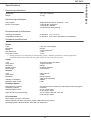
Physical specifications
Electrical specifications
Environmental specifications
Peripheral specifications
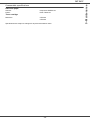
Consumable specifications
Customer Information
33
33
Contents
Analysis from a TWAIN compatible software
Character recognition software (OCR)
33
33
34
34
34
34
34
35
35
35
35
35
35
35
36
37
37
37
37
37
38
39
- II -
Security
Security directives
Before turning on your device, check that the outlet that you are going to plug it into conforms to the indications shown
on the information plate (voltage, current, power network frequency) located on your device. This device shall be
connected to a single phase power network. The device shall not be installed on bare ground.
Batteries and rechargeable batteries, packaging and electric and electronic equipment (EEE), shall be thrown away,
as specified by the Instructions of the ENVIRONMENT chapter of this manual.
Because of the device model, the power connector is the only way to disconnecting the device from the power network,
that is why it is imperative to apply the following safety measures: your device shall be connected to a power outlet
located nearby. The outlet shall be easily accessible.
Your device is delivered with a grounded power cord. It is imperative to connect a grounded connector to a grounded
outlet connected to the building earthing.
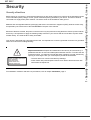
Repairs-maintenance: Repairs and maintenance should only be carried out by a
qualified technician. No user serviceable parts inside the machine. To reduce the risk
of electrical shock, you shall not proceed with these operations yourself, because by
opening or removing the lids, you could expose yourself to two hazards:
APPAREIL A RAYONNEMENT LASER DE CLASSE 1
CLASS 1 LASER PRODUCT
LASER KLASSE 1 PRODUKT
PRODUCTO LASER DE CLASE 1
APARECCHIO LASER DI CLASSE 1
- The laser beam can cause irreversible eye damage.
- Avoid contact with powered parts because it can lead to electrical shock with
unfortunate consequences.
For installation conditions and safe use precautions, refer to chapter Installation, page 6.
-1-
1 - Security - Declaration of conformity - Environment - Licence
MF 5401
Positions of Safety labels on the machine
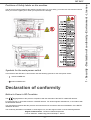
The device has warning labels at the positions shown below. For your safety, you must never touch these surfaces
when you remove a paper jam or when you replace the EP cartridge.
Symbols for the main power switch
In accordance with IEC 60417, this machine uses the following symbols for the main power switch:
-
means POWER ON.
-
means POWER OFF.
Declaration of conformity
Notice to Users in UE Countries
The
tagging attests to the product's compliance with the demands of the R&TTE 1999/5/CE directive.
For users security, in accordance with the 73/23/CE directive. For electromagnetic disturbances, in accordance with
the 89/336/CE directive.
The manufacturer declares that the products are manufactured in accordance with the APPENDIX II of the R&TTE
1999/5/CE directive.
The conformity declaration is available on www.sagem.com, see the support section or at the following address:
Sagem Communication - Customer relations department
4, rue du Petit Albi - 95800 Cergy Saint-Christophe - France
-2-
1 - Security - Declaration of conformity - Environment - Licence
MF 5401
Environment
The preservation of the environment is of importance to the manufacturer. The manufacturer wishes to service the
installations with respect to the environment and has chosen to integrate the environmental performance in the whole
lifecycle of its products, throughout manufacturing, release, use and disposal.
The packaging
The (green point) logo indicates that a contribution is given to an approved national organization to improve
the packaging salvage and recycling infrastructures.
To make recycling easier, follow local rules and regulations concerning sorting and disposal of such waste.
Batteries and rechargeable batteries
If your product contains batteries or rechargeable batteries, these shall be disposed of at the designated
collecting centers.
The product
The crossed bin symbol on the product indicates that it belongs to the electric and electronic equipment
family.
Therefore, according to European regulations you are requested to dispose of it at the selected collection
areas:
- to distribution centers in case of equivalent equipment purchase,
- to the available local collecting centers (dump, selective collection, etc.).
Thus, you participate in the "Waste of Electric and Electronic Equipment reuse and development" which can have
potential effects on the environment and human health.
The purpose of the International ENERGY STAR® Program is to promote the development
and popularization of energy-efficient office equipment.
As an ENERGY STAR® Partner, Sagem Communication has determined that this product
meets the ENERGY STAR® guidelines for energy efficiency.
-3-
1 - Security - Declaration of conformity - Environment - Licence
MF 5401
Software use license
CAREFULLY READ ALL THE TERMS AND CONDITIONS OF THE PRESENT LICENSE BEFORE OPENING THE
SEALED ENVELOPE CONTAINING THE SOFTWARE. OPENING THIS ENVELOPE INDICATES THAT YOU
ACCEPT THESE TERMS AND CONDITIONS.
In case you should not accept the terms of this license, the CD-ROM packaging should be returned to the retailer
unopened, along with the other components of the product. The purchase price of this product will be refunded. No
refunds will be made for products if the CD-ROM packaging have been opened, if components are missing or if the
reimbursement request is made after ten (10) days from the purchase date, your receipt is the proof of purchase.
Definition
The Software designates programs and associated documentation.
License
- This license allows you to use this Software on personal computers on a local network. You only have permission to
use this Software to print on one multifunction machine; you can not lend the Software or authorize anyone to use it.
- You are allowed to make a back up copy.
- This license is non-exclusive and non-transferable.
Property
The manufacturer or its providers hold the Software property right. You only become the owner of the CD-ROM. You
shall not modify, adapt, decompile, translate, create any derived piece, rent or sell the Software or the documentation.
Any rights not explicitly approved are reserved by the manufacturer or its providers.
Duration
This license remains valid until cancelled. You can cancel it by destroying the program and the documentation as well
as any other copies of them. This license will automatically be canceled in case you do not respect the terms of this
license. If the license is rendered invalid, you agree to destroy all copies of the program and the associate
documentation.
Warranty
The Software is provided "as is" with no warranties what so ever, whether expressed or implied, including without
limitation, any warranties of merchantability or fitness for a particular purpose; all the risks concerning the results and
performance of this Software are assumed by the buyer. In case the program should appear defective, all the repair
and service expenses will be covered by the buyer.
Nevertheless, the license holder benefits from the following warranty: we guarantee that the CD-ROM on which the
Software is recorded is free from hardware or manufacturing faults if used in normal conditions, the guarantee is valid
for ninety (90) days from the delivery date, the copy of the receipt being the proof of purchase. In case of a CD-ROM
fault that due to accident or misuse, the CD-ROM will not be replaced as per the warranty.
Responsibility
If the CD-ROM is not working properly, send it to the retailer together with a copy of the receipt. It is the retailer's sole
responsibility to replace the CD-ROM. Nobody, not even the manufacturer who is involved in the creation, realization,
merchantability and delivery of this program would be responsible for direct, indirect or immaterial damages, such as,
but not limited to, loss of information, loss of time, execution loss, loss of revenue, loss of customers, due to the use or
inability to use the program.
Development
With a constant concern for improvement, the manufacturer reserves the right to modify the Software specifications
without any notice. In case of modification, your user right does not give you access to free updates.
-4-
1 - Security - Declaration of conformity - Environment - Licence
MF 5401
Applicable law
This license is under the French law. Any dispute following the interpretation or execution of this license will be
submitted to the Paris Court.
Given the continuous technology development, the manufacturer reserves the right to modify the technical
specifications indicated for this product, at any time, without prior notice, and/or to stop manufacturing of the product.
All the names of the products and brands that could be trademarks registered by their respective owners are
recognized in the present document.
Registered trademarks
Given the technical evolution, Sagem Communication reserves the right to modify the technical specifications of this
product and/or to stop its manufacturing at any time and without notice. Companion Suite Pro is a registered trademark
of Sagem Communication.
Adobe® and the Adobe® products referred to here are registered trademarks of Adobe Systems Incorporated.
PaperPort11SE is a registered trademark of ScanSoft.
Microsoft® Windows®’ 98, Microsoft® Windows®’ Millennium®, Microsoft® Windows NT®, Microsoft® Windows
2000®, Microsoft® Windows XP®, Microsoft® Windows Vista® and any other Microsoft® product referred to here are
registered trademarks of Microsoft Corporation registered and/or used in the United States and/or in other countries.
All the other brands or products referred to as examples or in order to give additional information are registered
trademarks of their respective owners.
The informations contents of this user manual are subject to change without notice.
Prohibited reproductions
Do not copy or print any item for which reproduction is prohibited by law.
Copying or printing the following items is generally prohibited by local law :
- bank notes;
- checks;
- bonds;
- stock certificates;
- bank drafts;
- passports;
- driver's licenses.
The preceding list is meant as a guide only and is not inclusive. If you have any questions concerning the legality of
copying or printing certain items, consult with your legal advisor.
-5-
1 - Security - Declaration of conformity - Environment - Licence
MF 5401
Installation
Location conditions
By choosing an appropriate location, you preserve the longevity of the machine. Check that the selected location has
the following characteristics:
- Choose a well ventilated location.
- Make sure not to obstruct the ventilation grids located on the left and right sides of the device. During the
installation, make sure to place the machine thirty centimeters away from the surrounding objects so all the lids
can be easily opened.
- Make sure that this location does not present any ammonia nor any other organic gasses emission hazard.
- The ground outlet (refer to the security notices presented in the Security chapter) to which you plan to connect
the machine shall be located close to this one and have an easy access.
- Make sure that the machine is not directly exposed to sun light.
- Make sure not to place the machine in an area exposed to an air flow generated by an air conditioning, heating or
ventilation system, nor in an area subject to big temperature or humidity jumps.
- Choose a solid and horizontal surface on which the machine will not be exposed to intense vibrations.
- Keep the machine away from any object that could obstruct its ventilation ports.
- Do not place the machine close to hangings or any other flammable objects.
- Choose a location where the water and other splashes of liquid are limited.
- Make sure that this location is dry, clean and dust free.
Make sure to place the machine in well ventilated premises. When operating, the printer generates a
small amount of ozone. An unpleasant smell can come from the printer if it is used intensively in not
well ventilated premises. For a secure use, make sure you place the machine in well ventilated
premises.
Cautions of use
Take into account the important precautions below when using the machine.
Running environment:
- Temperature: 10 °C to 32 °C with a maximum amplitude of 10 °C per hour.
- Humidity: 15 to 80 % of ambient humidity (without condensation), with a maximum amplitude of 20 % per hour.
Terminal:
The section below describes the precautions to be taken when using the machine:
- Never turn the machine off and never open the lids while printing.
- Never use gas or flammable liquids, or objects generating magnetic field close to the machine.
- When you unplug the power cord, always hold the connector without pulling the cord. A damaged cord presents
a potential fire hazard or an electric shock hazard.
- Never touch the power cord with wet hands. You risk getting an electric shock.
- Always unplug the power cord before moving the machine. Otherwise, you could risk having the cord damaged
and create a fire hazard or an electric shock hazard.
- Always unplug the power cord when you plan not to use the machine for a long period of time.
- Never put objects on the power cord, never pull it and never fold it. This could cause a fire hazard or an electric
shock hazard.
- Always make sure that the machine is not sitting on the power cord or any other electric device communication
cables. Make sure also that neither cord nor cable is introduced to the machine inner mechanism. This would
expose you to a machine malfunction risk or to a fire hazard.
- Make sure that the printer is unplugged from the power outlet before connecting or disconnecting an interface
cable to the printer (use a shielded interface cable).
- Never try to remove any fixed pane or hood. The machine contains high voltage circuits. Any contact with these
-6-
2 - Installation
MF 5401
circuits can cause an electric shock risk.
- Never try to modify the machine. This could cause a fire hazard or an electric shock hazard.
- Always make sure that paper clips, staples or other small metallic items do not get inside the machine via the
ventilation ports or other ports. Such items create fire hazards or electric shock hazards.
- Prevent water and any other liquid from spilling on the machine or near to it. Any contact of the machine with water
or liquid can cause a fire hazard or an electric shock hazard.
- If liquid or metallic item gets accidentally inside the machine, turn it off immediately, unplug the power cord and
contact your retailer. Otherwise, you would face a fire hazard or an electric shock hazard.
- In case of heat, smoke, unusual smell or abnormal noise emissions, turn the machine off, unplug the power cord
immediately and contact your retailer. Otherwise, you would face a fire hazard or an electric shock hazard.
- Avoid using the machine during an "electric storm", this can cause an electric shock hazard due to lightning.
- Never move the terminal during printing.
- Always lift the terminal when you wish to move it.
Paper recommendations
Loading paper in the main unit tray
- Insert paper with the face down, and adjust paper guides to the paper format to avoid feed failure, skewing, and
paper jams.
- Amount of loaded paper must not exceed the loading mark. If the loading mark is exceeded, this may cause feed
failure, skewing, and paper jams.
- Adding paper in the pile must be avoided because it may cause double feeding.
- When withdrawing the cassette from the main unit, always support it with both hands to avoid doing drop it.
- If you use paper already printed by your machine or another printer, the printing quality may not be optimal.
Handling of paper
- Curling must be corrected before printing. Curls must not exceed 10 mm.
- Care must be taken with storage to prevent feed faults and image defects due to leaving the paper in conditions
of high humidity.
Humidity control
- Paper which has become damp, or paper which has been left unused for a very long time.
- After opening the paper, it must be kept in a plastic bag.
- Paper with waved ends, paper which is creased, paper with crumples, and any other non-normal paper must not
be used.
Use of envelopes
- Feeding can be done only through the manual feed.
- Recommended area should be the area which excludes 15 mm from the leading edge, 10 mm from and both the
left and right edges, and the rear edge.
- A few lines may be given in solid print at the part of being overlapped.
- Envelopes which are not recommended may lead to improper printing (refer to the paragraph Peripheral
specifications, page 37).
- Curled envelope after printing should be fixed manually.
- Small crumples on the edge of the wide side of envelopes. Smearing, or less clear printing may appear on the
reverse side.
- Set envelope by pressing the folding line of four edges properly after releasing air inside. Set envelope in a proper
position after aligning in case it is bent or warped.
EP Cartridge recommendations
- Must not be stood on the side, or held upside down.
-7-
2 - Installation
MF 5401
MF 5401
2 - Installation
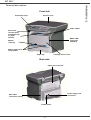
Terminal description
Front side
Commands panel
Scanner cover
Paper output
Smart card
insertion point
Fold-down stop
for paper
delivery
Master USB
connection
(USB key)
Manual
input tray
Manual paper feed
setup guides
Cartridge access cover
Paper tray
Back side
Paper jam covercover
Power supply cord
connection
Slave USB
connection (for PC)
On/Off switch
-8-
MF 5401
16
1
18
17 19
2 - Installation
Command panel
2
ABC
DEF
GHI
JKL
MNO
PQRS
TUV
WXYZ
15
14
13
ECO
12
11 10 9
8
7
6
STOP
PRINT
COPY
SCAN
5
4
3
10. Button
1. Screen
2. Digital keypad
: navigation up the menus
11. Button
3. Button SCAN: document analysis to the PC or a
media (USB key)
: stop the current operation
12. Button ECO: sets up the activation delay
4. Button COPY: local copy
13. Button
: color analysis mode selection
5. Button STOP PRINT: stops the current PC printing
14. Button
: analysis resolution setup
6. Button
15. Button
: contrast setup
: validation
7. Button OK: confirms the displayed selection
16. Icon
8. Button
menus
17. Icon
: Photo resolution.
18. Icon
: Fin resolution.
19. Icon
: colour mode.
: menu access and navigation down the
9. Button C: back to the previous menu and input
correction
: Superfin resolution.
Accessing terminal menus
All terminal functions and settings are available via the menu and are associated to a specific menu command.
For example, the menu command 51 launches the printing of the functions list (the functions list stores the list of all
terminal menus, sub-menus and their identification number).
Two methods are available to access menu items : a step by step method or a shortcut method.
To print the functions list with the Step by step method:
1 Press on .
2 Use the
or
button to browse the menu and select 5 - PRINT. Confirm with OK.
3 Use the
or
button to browse the menu PRINT and select 51-FUNCTIONS LIST. Confirm with OK.
To print the functions list with with the shortcut method:
1 Press on .
2 Enter 51 with the numerical keypad to directly print the functions list.
-9-
Packaging contents
Device installation
The packaging contains the items listed below:
1 Unpack the device.
2 Install the device respecting the security notices
stated at the beginning of this booklet.
3 Remove all stickers from the machine.
4 Remove the plastic protection film from the screen.
5 Place the control panel in front of the machine,
insert the control panel in its back slots (A).
Multifunction device
A
B
B
Control panel
6 Push the front side of the control panel (B) to clip it.
Feed cassette paper insertion
Before inserting paper, refer to the
paragraph Paper recommendations,
page 7.
1 toner cartridge
Your device accepts a number of formats and types of
papers (refer to the paragraph Consumable
specifications, page 38).
1 installation guide and 1 PC installation CD ROM
You can use paper weighing between
60 and 105 g/m2.
1 Remove the paper feed cassette completely.
1 power cord
1 initialisation card
- 10 -
2 - Installation
MF 5401
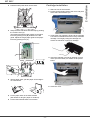
Cartridge installation
2 Push the lower panel down until it clicks.
PUSH
1 Stand in front of the machine.
2 Push the left and right sides of the cover and pull it
at the same time towards you.
3 Setup the back side feed cassette stop by pushing
the "PUSH" lever (A).
Then adjust the lateral paper guides to the paper
format by pushing lever (B) located on the left
guide. Adjust the length paper guide to the paper
format by pushing lever (C).
3 Unpack the new cartridge. Gently roll the cartridge
5 or 6 times to distribute the toner evenly inside the
cartridge. Thoroughly rolling the cartridge will
assure the maximum copies per cartridge.
C
A
4 Insert the cartridge in its slot by pushing it until it
clicks (last move down) as shown on the picture
below.
B
4 Take a paper stack, pull the paper off and align it
on a flat surface.
5 Close the cover.
5 Put the paper stack in the feed cassette
(200 sheets for 80 g/m² paper for instance).
6 Put the feed cassette back in its location.
- 11 -
2 - Installation
MF 5401
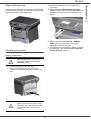
Paper delivery stop
Adjust the paper delivery stop, depending on the format of
the document to be printed. Do not forget to raise the flap
to prevent the sheets from falling down.
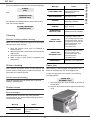
3 Press the On/Off button to turn on the device
(I position).
4 After initialisation, WAITING FOR INIT CARD
appears on the screen. Insert the initialisation card
provided in the card reader as indicated on the
picture.
5 After an analysis phase, INIT. OK - REMOVE
CARD appears on the screen. Remove the
initialisation card from the drive.
6 The machine is set to English by default. To modify
this parameter, refer to the paragraph Setup the
display language, page 18.
Starting your device
Device connection
Before plugging the power cord, it is
imperative to refer to the Security
directives, page 1.
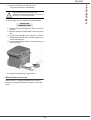
1 Connect the power cord to the device.
2 Make sure that the On/Off switch is on Off
(O position). Plug the power cord to outlet on the
wall.
As a precaution, in case of danger, the
power cord is used as a 230 V power
unit cut off. The outlet shall be located
close to the device and be of easy
access.
- 12 -
2 - Installation
MF 5401
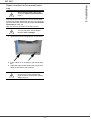
Paper insertion in the manual input
tray
Before inserting paper, refer to the
paragraph Paper recommendations,
page 7.
The manual input tray allows you to use various paper
formats with greater weightings than the one used in the
paper feed cassette (refer to the paragraph Consumable
specifications, page 38).
Only one sheet or envelope can be fed at a time.
You can use paper, which weights
between 52 and 160 g/m².
1 Spread the manual feed guides to the maximum.
2 Insert a sheet or an envelope in the manual input
tray.
3 Adjust the paper guides against the right and left
edges of the sheet or the envelope.
Before printing, check that the paper
format you are using matches the
paper format set on the printer (refer to
Copy, page 14).
- 13 -
2 - Installation
MF 5401
Copy
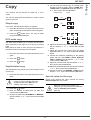
5 You can print the desired copy on several paper
formats to create a poster. Select 1 PAGE TO 1,
1 PAGE TO 4 or 1 PAGE TO 9 with the buttons
or , then confirm with the OK button.
Your machine has the function to make one or more
copies.
Feuille analyséesheet
Analyzed
A
You can also setup several parameters in order to make
copies at your will.
Simple copy
A
In this case, the default parameters are applied.
1 Place the document to be copied face down on the
glass, respecting the indications around the glass.
2 Press the COPY button twice. The copy is made
using the default parameters.
A
ECO mode copy
The ECO mode enables you to reduce the amount of
toner consumed on the page so as to save your printing
costs.
When the ECO mode is used, the toner consumption is
reduced and the print density becomes lighter.
COPY
button.
3 Press the
ECO
button.
Sophisticated copy
The sophisticated copy allows to do custom setups for the
current copy.
1 Place the document to be copied face down on the
glass.
COPY
A
to4 4
11
vers
11
versto9
9
Special setup for the copy
Setups done through this menu become the device
default setups after you confirm.
After step 1, you can directly enter the
number of copies with the numerical
keypad and press the OK button to
validate. Then refer to step 4.
2 Press the
1
6 Adjust the desired zoom level, from 25% TO 400%
with the buttons
or
, confirm with the OK
button.
7 Adjust the desired origin values with the digital
keyboard buttons or then confirm with the OK
button.
8 Choose the resolution depending on the printing
quality that you want DRAFT, AUTO, QUALITY
TEXT or PHOTO with the buttons
or , then
confirm with the OK button.
9 Adjust the contrast level with the buttons
or ,
then confirm with the OK button.
10 Adjust the desired brightness level with the buttons
or , then confirm with the OK button.
11 Choose the paper type NORMAL, THICK with the
buttons
or , then confirm with the OK button.
1 Place the document to be copied face down on the
glass.
2 Press the
11
versto1
Sortie
Output
button.
3 Enter the number of copies that you want and
confirm with the OK button.
4 Choose the paper tray AUTOMATIC or MANUAL
with the buttons
or , then confirm with the OK
button.
- 14 -
When the quality of the printing is not
satisfying, you can proceed to a calibration
(refer to Calibrate your scanner,
page 18).
3 - Copy
MF 5401
Resolution setup
Contrast setup
The RESOLUTION parameter allows you to setup the
photocopy resolution.
The CONTRAST parameter allows to choose the
photocopy contrast.
841 - ADVANCED FCT/COPY/RESOLUTION
844 - ADVANCED FCT/COPY/CONTRAST
1 Choose the resolution with the buttons
according to the following table:
Parameter
or
1 Setup the desired level of contrast with the buttons
and , confirm by pressing the OK button.
2 You can also directly setup the desired contrast
with the
button, press several times on this
button until the desired setup without using the
Menu 845.
Signification
DRAFT
Low resolution.
AUTO
Standard resolution for documents
containing text and graphics.
QUALITY
TEXT
Optimal resolution for documents
containing text.
PHOTO
Optimal resolution for documents
containing photographies.
3 Quit this menu by pressing the
Brightness setup
The BRIGHTNESS parameter allows to lighten or darken
your original document.
2 Confirm your choice by pressing the OK button.
845 - ADVANCED FCT/COPY/LUMINOSITY
You can also setup the resolution by
pressing the
button.
1 Setup the desired brightness with the buttons
and .
2 Confirm your choice by pressing the OK button.
button.
3 Quit this menu by pressing the
Zoom setup
button.
842 - ADVANCED FCT/COPY/ZOOMING
The ZOOM parameter allows you to shrink or enlarge an
area of a document by choosing the origin and the zoom
level to be applied to this document from 25 to 400 %.
Enter the desired zoom level with the digital keyboard,
confirm your choice by pressing the OK button.
Paper type setup
Analysis origin setup
ENDFIN
OFFEUILLE
SHEET
DEBUT
BEGIN.
OFFEUILLE
SHEET
By entering new values for X and Y in mm (X < 210 and
Y < 286), you move the analysed area as shown on the
diagram below.
y
1 Select the paper NORMAL or THICK that you use
with the buttons
and .
2 Confirm your setup by pressing the OK button.
3 Quit this menu by pressing the
If you want, you can change the origin of the scanner.
x
851 - ADVANCED FCT/SCAN. & PRINT/PAPER
TYPE
Analysed area
843 - ADVANCED FCT/COPY/ORIGIN
1 Select the X and Y coordinates with the buttons
or .
2 Setup the desired coordinates with the digital
keyboard or the buttons
and , confirm your
choice by pressing on the OK button.
- 15 -
button.
3 - Copy
MF 5401
Paper tray selection
Top and bottom printing margins setup
The Automatic selection can have two meanings
depending on the paper format defined on the paper
trays. The following table describes the different cases.
If you want to, you can offset the lateral margins of the
document towards the top or the bottom during printing.
Default tray
Same paper
format in the
trays
1 Setup the top / bottom margins offsets (by 0.5 mm
steps) with the buttons
and .
2 Confirm by pressing the OK button.
Selection between the
AUTOMATIC main tray and the
manual tray.
MANUAL
Different paper
format in the
trays
855 - ADVANCED FCT/SCAN. & PRINT/TOP
PRINT.
Tray used for copy
AUTOMATIC
MANUAL
The manual tray is
used.
3 Quit this menu by pressing the
button.
The main tray is used
Format paper setup
The manual tray is
used.
This menu allows you to define the default paper format
of the manual tray and the main tray. You can also setup
the default scanning width.
852 - ADVANCED FCT/SCAN. & PRINT/TRAY
PAPER
856 - ADVANCED FCT/SCAN. & PRINT/
PAPER FORMAT
1 Select the default paper tray to use, AUTOMATIC
or MANUAL, with the buttons
and .
2 Confirm by pressing the OK button.
1 Select the paper tray for which you want to define
a default paper format with the buttons
and .
2 Confirm by pressing the OK button.
3 Choose the paper format with the buttons
or
according to the following table:
3 Quit this menu by pressing the
button.
Paper tray
Analysis margins setup
If you want to, you can offset the lateral margins of the
document to the left or right during the analysis with your
flat-bed scanner.
853 - ADVANCED FCT/SCAN. & PRINT/
FLATBED MARG
1 Setup the left / right margins offsets (by 0.5 mm
steps) with the buttons
and .
2 Confirm by pressing the OK button.
3 Quit this menu by pressing the
button.
Left and right printing margins setup
If you want to, you can offset the lateral margins of the
document to the left or right during printing.
854 - ADVANCED FCT/SCAN. & PRINT/
PRINTER MARG
1 Setup the left / right margins offsets (by 0.5 mm
steps) with the buttons
and .
2 Confirm by pressing the OK button.
3 Quit this menu by pressing the
button.
- 16 -
Available paper format
MAN. TRAY
A5, A4, Legal and Letter
AUTO. TRAY
A5, A4, Legal and Letter
SCANNER
LTR/LGL and A4
4 Confirm by pressing the OK button.
5 Quit this menu by pressing the
button.
3 - Copy
MF 5401
Parameters/
Setup
Activate the keyboard lock
Everytime you use your machine, you will have to enter
your code.
▼ 812 - ADVANCED FCT/LOCK/LOCK KEYBD.
You can setup your machine as you like depending on the
use. You will find in this chapter description of the
functions.
1 Press on ▼, enter 812 with the keyboard.
2 Enter the lock code and confirm with OK.
3 With the buttons ▼ or ▲, choose WITH and confirm
with OK.
4 Quit this menu by pressing the
button.
You can print the functions guide and the available setup
of your multifunction machine.
Your machine is continuously being updated,
new functions are regularly made available.
To benefit, visit our website www.sagem.com
and download the last updates.
Read the counters
you can view the activity counters for your machine at any
time.
Print the functions guide
This function shows you the number of scanned pages.
▼ 823 - ADVANCED FCT/COUNTERS/SCANNED
The printing is not possible on A5 paper
format.
PAGE
1 Press on ▼, enter 823 with the keyboard.
2 The number of scanned pages appears on the
screen.
3 Quit this menu by pressing the
button.
1 Press on ▼ and enter 51 with the digital keypad.
The printing of the functions guide starts.
Print the list of setups
This function shows you the number of printed pages.
▼ 824 - ADVANCED FCT/COUNTERS/PRINTED PG
The printing is not possible on A5 paper
format.
1 Press on ▼, enter 824 with the keyboard.
2 The number of printed pages appears on the
screen.
3 Quit this menu by pressing the
button.
1 Press on ▼, enter 54 with the digital keypad.
The printing of the list of setups starts.
Lock the keyboard
This function prevents non-authorized people from
accessing the machine. An access code will be required
every time someone wants to use the device. After each
use, the device will lock automatically.
Display the consumables status
You can read at any time the remaining toner in the
cartridge. This level appears in percentage.
▼ 86 - ADVANCED FCT/CONSUMABLES
Before that you have to enter a lock code
▼ 811 - ADVANCED FCT/LOCK/LOCKING CODE
1 Press on ▼, enter 811 with the digital keyboard.
2 Enter your lock code (4 digits) with the keyboard,
confirm with OK.
3 Enter again your lock code (4 digits) with the
keyboard, confirm with OK.
4 Quit this menu by pressing the
button.
If a code is already registered, enter the old
code before typing the new one.
- 17 -
1 Press on ▼, enter 86 with the keyboard.
2 The available toner percentage appears on the
screen.
3 Quit this menu by pressing the
button.
4 - Parameters/Setup
MF 5401
Calibrate your scanner
Setup the printing format
You can do this operation when the quality of photocopied
documents is not satisfactory anymore.
The default setup is NO. You can print a document in a
LETTER format on A4 pages by setting up this parameter
on LETTER/A4.
▼ 80 - ADVANCED FCT/CALIBRATION
▼ 29 - SETUP/TECHNICALS
1 Press on ▼, enter 80 with the keyboard, confirm
with OK.
2 The scanner is triggered and a calibration is done
automatically.
3 At the end of the calibration, the machine comes
back to the screen saver.
1 Press on ▼, press on OK.
2 Select TECHNICALS with the ▼ or ▲ buttons and
confirm with OK.
3 Select 93 with the ▼ or ▲ buttons and confirm
with OK.
4 Choose the parameter LETTER/A4 with the ▼ or
▲ buttons and confirm with OK.
Switches your machine to standby
mode
5 Quit this menu by pressing the
The machine will switch to standby mode when not being
used. You can choose the time before the machine
switches to stand by (it is set in minutes).
You can choose with the setup WITHOUT, DELAY 5 MIN,
DELAY 15 MIN, DELAY 30 MIN.
▼ 29 - SETUP/TECHNICALS
1 Press on ▼, press on OK.
2 Select TECHNICALS with the ▼ or ▲ buttons and
confirm with OK.
3 Select 08 with the ▼ or ▲ buttons and confirm
with OK.
4 Quit this menu by pressing the
Declare the number of authorised
WEP keys
You can create a network with WEP keys to allow several
personal computers to use the machine as a network
printer.
You can authorise up to 4 WEP (Wired Equivalent
Privacy) on your machine.
To declare the number proceed as follows:
▼ 29 - SETUP/TECHNICALS
button.
1 Press on ▼, press on OK.
2 Select TECHNICALS with the ▼ or ▲ buttons and
confirm with OK.
3 Select 96 with the ▼ or ▲ buttons and confirm
with OK.
4 Enter the desired key number (4 maximum),
confirm with OK.
Save your toner cartridge
This function allows you to increase the lifetime of your
toner cartridge.
5 Quit this menu by pressing the
▼ 29 - SETUP/TECHNICALS
1 Press on ▼, press on OK.
2 Select TECHNICALS with the ▼ or ▲ buttons and
confirm with OK.
3 Select 80 with the ▼ or ▲ buttons and confirm
with OK.
4 Choose the parameter WITH with the ▼ or ▲
buttons and confirm with OK.
5 Quit this menu by pressing the
button.
button.
Setup the display language
You can select another language for the menus display.
By default, the machine operates in the English language.
button.
▼ 203 - SETUP/GEOGRAPHICAL/LANGUAGE
1 Press on ▼, enter 203 with the keyboard and
confirm with OK.
2 Choose the desired language with the ▼ or ▲
buttons and confirm with OK.
3 Quit this menu by pressing the
- 18 -
button.
4 - Parameters/Setup
MF 5401
Games and
entertainment
Sudoku (depending on the model)
Sudoku is a Japanese puzzle. The game is in a grid format of
three squares by three squares to be distributed in fields in
zones of 3 × 3. Depending on the level of difficulty, more or fewer
numbers are already entered at the start of the game. The aim
of the game is to distribute the numbers 1 to 9 between the
boxes in such a way that each number appears only once in
each row, column and in each of the nine grids. There is only
one solution.
Print a grid
1
2
3
4
5
6
7
8
9
10
11
Press , 5 and OK.
Select SUDOKU using the
or
button.
Confirm with OK.
Select PRINT GRID using the
or
button.
Select the level of difficulty EASY LEVEL,
INTERMEDIATE LEVEL, DIFFICULT LEVEL, EVIL
LEVEL using the
or
button
Confirm with OK.
Choose the grid you want by entering the number on the
numeric keypad (1 to 100).
Confirm with OK.
Choose the number of copies you want by entering a
number from 1 to 9 on the numeric keypad.
Confirm with OK.
The number of copies of the grid requested is printed.
Print the solution to a grid
1
2
3
4
5
6
7
8
9
10
11
Press , 5 and OK.
Select SUDOKU using the
or
button
Confirm withOK.
Select PRT SOLUT using the
ou .
Select the level of difficulty EASY LEVEL,
INTERMEDIATE LEVEL, DIFFICULT LEVEL, EVIL
LEVEL using the
or
button.
Confirm with OK.
Choose the grid you want by entering the number on the
numeric keypad (1 to 100).
Confirm with OK.
Choose the number of copies you want by entering a
number from 1 to 9 on the numeric keypad.
Confirm with OK.
The number of copies of the solution to the grid
requested is printed.
- 19 -
5 - Games and entertainment
MF 5401
WLAN network
Radio ad-hoc network
You can connect your machine to a PC using a USB cable
or make a wireless connection (via radio) with a PC or
network.
Beware, when you are using a wireless
connection, that certain items of medical
equipment, sensitive or security systems may
be affected by the radio transmissions of your
device; in all cases, please follow safety
guidelines closely.
In an ad-hoc network, the devices communicate directly
with each other without passing through an access point.
The speed of communication across the whole radio
network is as fast as the weakest connection in the
network. The speed of communication is also dependent
on spatial distance between transmitter and receiver, as
well as the number of barriers, such as walls or ceilings.
If you have a WLAN adaptor, you can incorporate your
machine as a network printer into a radio network. This
works only with an approved adaptor that you can obtain
from our ordering department. For further information,
contact www.sagem.com.
Type of radio network
A radio network or WLAN (Wireless Local Area Network)
is created when at least two computers, printers or other
peripheral devices communicate with each other in a
network via radio waves (high frequency waves). The
transmission of data in the radio network is based on the
standards 802.11b and 802.11g. According to how the
network is set up, it may be described as an infrastructure
network or an ad-hoc network.
Radio networks (WLAN)
Three steps are necessary to incorprate your machine
into a radio network (WLAN):
Radio infrastructure network
In an infrastructure network, several devices
communicate via a central access point (a gateway or
router). All data is sent to the access point (gateway or
router) from where it is re-distributed.
1 Configure the network to your PC.
2 Set up the parameters for your machine so that it
can function in a network.
3 Having set up the parameters your device, install
the Companion Suite LL software onto your PC
with the necessary printer drivers.
The PC and all other devices must have their
parameters set up to the same network as the
multifunction machine. All the details needed
for setting up the device, such as the network
names (SSID), type of radio network, WEP
key, IP address or subnetwork mask, must
match the specifications of the network.
You will find these details on your PC or on
the Access Point.
To find out how to set up the parameters for
your PC, please consult the users’ manual for
your WLAN adaptor. For large networks,
please seek the advice of your network
administrator.
You can be sure of perfect communication if
you use an approved adaptor in conjunction
with your PC.
All of the latest printer drivers for the
approved adaptor may be found on our
website together with further information:
www.sagem.com.
- 20 -
6 - WLAN network
MF 5401
Connect your WLAN adaptor
▼ 281 - SETUP/WLAN/ASS. CONFIG.
1 Type in ▼, select the menu SETUP using the keys
▼ or ▲ and confirm with OK.
2 Select WLAN using the keys ▼ or ▲ and confirm
with OK.
3 Select ASS. CONFIG. using the keys ▼ or ▲ and
confirm with OK.
4 Select NEW NETWORK using the keys ▼ or ▲
and confirm with OK.
Your machine belongs to a new generation of terminals
that you can incorporate into a WLAN network using a
WLAN USB key.
Your machine’s network radio adaptor
transmits data using the radio protocol IEEE
802.11g; it can also be incorporated into an
existing IEEE 802.11b network.
If you choose and exisiting network, steps 5
and 6 ( and possibly 7) are carried out
automatically.
When connecting to your machine, only use
the approved adaptor. Other transmitting or
receiving adaptors may damage your device.
5 SSID appears on the screen, enter the name of
your network using the numerical keypad, pressing
the keys one after the other until you obtain the
name you want (32 characters maximum) and
confirm with OK.
6 AD-HOC MODE or INFRA. MODE appear on the
screen. Go back to the beginning of the chapter
and make your choice.
Select one of these modes and confirm with OK.
- If you choose AD-HOC mode, the sub-menu
CHANNEL appears, enter a figure between 1
and 13 and confirm with OK.
7 WITHOUT SECURITY or WITH SECURITY
appear on the screen.
Select the option you want and confirm with OK.
- If you choose WITH SECURITY the sub-menu
WEP KEY 1 appears, enter the key number
(1 to 4 maximum) that you are using on your
network.
Irrespective of whether you use your machine
in an infrastructure or ad-hoc network, you
must set up certain network and security
parameters (for example, the Service-Set-ID
(SSID) and the WEP key). These must match
the network’s specifications.
1 Plug your WLAN USB key into the USB port of your
machine.
The WEP key number may be configured in
the menu:
▼ 29 - SETUP/TECHNICALS/WEP KEYS
NBR
8 IP CONF.: MANU or IP CONF.: AUTO appear on
the screen.
If you choose to set up the system manually, go to
the next paragraph and enter the parameters
IP ADDRESS, SUBNET MASK and GATEWAY.
9 At the end of this procedure, you return to the main
menu of ASS. CONFIG.
10 Exit this menu by pressing the
key.
Configure your network
We recommend that the settings of your
WLAN network should only be changed by a
person with a good knowledge of the
configuration of your computer.
Referring to or changing your network
parameters
Each of the parameters of your network may be changed
as your network develops.
Creating or rejoining a network
Before attempting to use a WLAN adaptor on your
machine, you must enter the parameters that will allow a
WLAN network to recognise your machine.
▼ 2822 - SETUP/WLAN/PARAMETERS/IP ADDRESS
On your machine you will find simple instructions
that guide you step by step through the set-up of your
network. Just follow them!
- 21 -
1 Type in ▼, select the menu SETUP using the keys
▼ or ▲ and confirm with OK.
2 Select WLAN using the keys ▼ or ▲ and confirm
with OK.
3 Select PARAMETERS using the keys ▼ or ▲ and
6 - WLAN network
MF 5401
▼ 2826 - SETUP/WLAN/PARAMETERS/MODE
confirm with OK.
4 Select IP ADDRESS using the keys ▼ or ▲ and
confirm with OK.
5 The dumber of your IP address will appear in the
format 000.000.000.000. Enter the new IP address
for your machine in the format displayed and
confirm with OK.
6 Exit this menu by pressing the
key.
1 Type in ▼, select the menu SETUP using the keys
▼ or ▲ and confirm with OK.
2 Select WLAN using the keys ▼ or ▲ and confirm
with OK.
3 Select PARAMETERS using the keys ▼ or ▲ and
confirm with OK.
4 Select MODE using the keys ▼ or ▲ and confirm
with OK.
5 The symbol >>, tells you that your network is in
active mode.
6 Select one of the modes and confirm with OK.
- If you choose the AD-HOC MODE, the submenu CHANNEL will appear; enter a number
between 1 and 13 and confirm with OK.
▼ 2823 - SETUP/WLAN/PARAMETERS/SUBNET
MASK
1 Type in ▼, select the menu SETUP using the keys
▼ or ▲ and confirm with OK.
2 Select WLAN using the keys ▼ or ▲ and confirm
with OK.
3 Select PARAMETERS using the keys ▼ or ▲ and
confirm with OK.
4 Select SUBNET MASK using the keys ▼ or ▲ and
confirm with OK.
5 The number of your subnet mask will appear in the
format 000.000.000.000. Enter the new submask
of your machine in the format displayed and
confirm with OK.
6 Exit this menu by pressing the
key.
7 Exit this menu by pressing the
In an AD-HOC network, the devices
communicate directly with each other without
passing through an access point. The speed
of communication across the whole AD-HOC
radio network is as fast as the weakest
connection in the network. The speed of
communication is also dependent on spatial
distance between transmitter and receiver, as
well as the number of barriers, such as walls
or ceilings.
▼ 2824 - SETUP/WLAN/PARAMETERS/GATEWAY
1 Type in ▼, select the menu SETUP using the keys
▼ or ▲ and confirm with OK.
2 Select WLAN using the keys ▼ or ▲ and confirm
with OK.
3 Select PARAMETERS using the keys ▼ or ▲ and
confirm with OK.
4 Select GATEWAY using the keys ▼ or ▲ and
confirm with OK.
5 The number of your gateway will appear in the
format 000.000.000.000. Enter the new gateway
for your machine in the format displayed and
confirm with OK.
6 Exit this menu by pressing the
key.
key.
▼ 2827 - SETUP/WLAN/PARAMETERS/SECURITY
This parameter allows you to make your network secure.
▼ 2825 - SETUP/WLAN/PARAMETERS/SSID
1 Type in ▼, select the menu SETUP using the keys
▼ or ▲ and confirm with OK.
2 Select WLAN using the keys ▼ or ▲ and confirm
with OK.
3 Select PARAMETERS using the keys ▼ or ▲ and
confirm with OK.
4 Select SSID using the keys ▼ or ▲ and confirm
with OK.
5 The name of your network will appear on the
screen. Enter the new name of your network and
confirm with OK.
6 Exit this menu by pressing the
key.
1 Type in ▼, select the menu SETUP using the keys
▼ or ▲ and confirm with OK.
2 Select WLAN using the keys ▼ or ▲ and confirm
with OK.
3 Select PARAMETERS using the keys ▼ or ▲ and
confirm with OK.
4 Select SECURITY using the keys ▼ or ▲ and
confirm with OK.
5 Choose WITH or WITHOUT and confirm by OK.
If you choose WITH, enter a password:
- In a 64 bit security configuration, the password
must contain five characters exactly.
- In a 128 bit security configuration, the password
must contain 13 characters exactly.
You may also enter the password using the
hexadecimal system, if this is the case:
- For a 64 bit security configuration, the
password must contain exactly
10 hexadecimal characters.
- For a 128 bit security configuration, the
password must contain exactly
26 hexadecimal characters.
6 Exit this menu by pressing the
- 22 -
key.
6 - WLAN network
MF 5401
▼ 2828 - SETUP/WLAN/PARAMETERS/HOSTNAME
9 Select WITHOUT SECURITY and confirm with OK.
10 Select IP CONF.: MANU and confirm with OK.
11 Enter "169.254.0.2" in the field IP ADDRESS and
confirm with OK.
12 Enter "255.255.0.0" in the field SUBNET MASK
and confirm with OK.
13 Enter "0.0.0.0" in the field GATEWAY and confirm
with OK.
14 At the end of this process, you return to the main
menu of ASS. CONFIG.
15 Exit this menu by pressing the
key.
The machine name allows you to identify your machine on
the network via a PC (for example with the name "PRINTNETWORK-1").
1 Type in ▼, select the menu SETUP using the keys
▼ or ▲ and confirm with OK.
2 Select WLAN using the keys ▼ or ▲ and confirm
with OK.
3 Select PARAMETERS using the keys ▼ or ▲ and
confirm with OK.
4 Select HOSTNAME using the keys ▼ or ▲ and
confirm with OK.
5 Type in the desired name (15 characters
maximum) and confirm with OK.
6 Exit this menu by pressing the
Once the network has been set up, the LED of the WLAN
USB key should be on.
You must now set up the PC.
Setting up the PC
key.
Once your connection has been set up, you must install
the network printer driver "Laser Pro LL Network" on
your PC so that you can print your documents. Refer to
the paragraph Wireless connection, page 29.
An example of how an AD-HOC network
may be set up
An example of how to configure an Ad-hoc network
without security protection using the following
parameters:
• network name: "house"
• radio type: "ad-hoc"
• channel: "1"
• PC’s IP address: "169.254.0.1"
• PC’s subnetwork mask: "255.255.0.0"
• PC’s gateway: "0.0.0.0"
• IP address of the multifunction machine: "169.254.0.2"
• subnetwork mask of the multifunction machine:
"255.255.0.0"
• multifunction machine’s gateway: "0.0.0.0"
For this section, refer to the instructions supplied by the
manufacturer of the WLAN USB key to help you to find
and join the "house" network.
1 You may need to install the software for the WLAN
USB key on the PC, if this has not already been
done.
2 Plug WLAN USB key into a USB port on the PC.
3 Use the software of the WLAN USB key to detect
the network.
4 Join the network "house" once this has been
detected.
5 Now set up the WLAN network connection of your
PC.
Setting up a multifunction machine
1 Plug the WLAN USB key into the USB connector of
the multifunction machine.
2 Type in ▼, select the menu SETUP using the keys
▼ or ▲ and confirm with OK.
3 Select WLAN using the keys ▼ or ▲ and confirm
with OK.
4 Select ASS. CONFIG. using the keys ▼ or ▲ and
confirm with OK.
5 Select NEW NETWORK using the keys ▼ or ▲
and confirm with OK.
6 SSID appears on the screen, enter "house" using
the numerical keypad and confirm with OK.
7 Select the mode AD-HOC MODE and confirm
with OK.
8 Enter "1" in the field CHANNEL and confirm
with OK.
- 23 -
To guide you through this stage, refer to the
paragraph “Setting the parameters for a
connection” in the manufacturer’s instructions.
To do this, you must configure the element
Protocol Internet (TCP/IP) for the WLAN
connection that has been created. If this element is
set up in such a way as to obtain an IP address
automatically, you must change it to manual mode
to set up the TCP/IP address ("169.254.0.1" in our
example), the subnet mask ("255.255.0.0" in our
example) and the default gateway ("0.0.0.0" in our
example).
6 Enter OK.
6 - WLAN network
MF 5401
USB memory key
You can connect a USB memory Key on the front side of
your machine. The files stored in TXT, TIFF and JPEG
formats will be analysed and you will be able to use the
following actions:
- print the stored files contained in your USB memory
key,
- delete the files contained in your USB memory key,
- run an analysis on the contents of the inserted USB
memory key,
- digitalise a document on your USB memory key.
4 The list is shown in a table with the following
information:
- the analyzed files are indexed in an incremental
1 by 1 order,
- the files name with their extension,
- the date of the files last save,
- the files size in Kbytes.
Print the files located in the key
▼ 01 - MEDIA/PRINT DOC./FILE
1 Insert the USB memory key on the front side of the
machine respecting the way of insertion.
MEDIA ANALYSIS appears on the screen.
2 Select PRINT DOC. with the ▼ or ▲ buttons and
confirm with OK.
3 Select FILE with the ▼ or ▲ buttons and confirm
with OK.
4 You have three possibilities to print your files:
- ALL, to print all the files located in the USB
memory key.
Select ALL with the
or
buttons and
confirm with OK. The printing is started
automatically.
Use of the USB memory key
Always respect the insertion way when you
connect a USB memory key to the machine.
Do not disconnect your USB memory key
while the machine is reading its contents or
writing contents.
-
Print your documents
SERIES, to print a series of files located in the
USB memory key.
Select SERIES with the
or
buttons and
confirm with OK.
FIRST FILE and the first indexed file appears
on the screen. Select with the
or
buttons
the first file of the series to print and confirm with
OK. A star (Ä) appears on the left side of the
file.
LAST FILE appears on the screen. Select with
the
or
buttons the last file of the series to
print and confirm with OK.
Press the
COPIES NUMBER appears on the screen,
enter the desired number of copies with the
digital keypad and confirm with OK.
Select the printing format: A4 or 10x15 and
confirm with OK.
Select the printing format: THICK or NORMAL
and confirm with OK to start printing.
The printing is not possible on A5 paper
format.
You can print the stored files or a list of the files located in
the USB memory key.
-
Print the list of files located in the key
▼ 01 - MEDIA/PRINT DOC./LIST
1 Insert the USB memory key on the front side of the
machine respecting the way of insertion.
MEDIA ANALYSIS appears on the screen.
2 Select PRINT DOC. with the ▼ or ▲ buttons and
confirm with OK.
3 Select LIST with the ▼ or ▲ buttons and confirm
with OK.
- 24 -
button.
SELECTION, to print one or several files
located in the USB memory key.
Select with the
or
buttons the file to print
and confirm with OK. A star (Ä) appears on the
left side of the file.
Repeat this step for each file you want to print.
Press the
button.
COPIES NUMBER appears on the screen,
enter the desired number of copies with the
digital keypad and confirm with OK.
Select the printing format: A4 or 10x15 and
confirm with OK.
7 - USB memory key
MF 5401
Analyse the USB memory key content
Select the printing format: THICK or NORMAL
and confirm with OK to start printing.
5 Quit this menu by pressing the
After a period of inactivity, your machine will return to the
main menu. To view the USB memory key again please
proceed as follows:
▼ 07 - MEDIA/MEDIA ANALYSIS
button.
Delete your files located in the key
1 Press on ▼, enter 07 with the keyboard.
2 The USB memory key analysis is started.
3 You can print or delete the detected files located in
your USB memory key. Refer to the previous
chapters.
You can delete files located in your USB memory key.
▼ 06 - MEDIA/DELETE/MANUAL
1 Insert your USB memory key on the front side of
your machine respecting the way of insertion.
MEDIA ANALYSIS appears on the screen.
2 Select DELETE with the ▼ or ▲ buttons and
confirm with OK.
3 Select MANUAL with the ▼ or ▲ buttons and
confirm with OK.
4 You have three possibilities to delete your files:
- ALL, to delete all the files located in the USB
memory key.
Select ALL with the
or
buttons and
confirm with OK.
You come back to the previous menu.
-
Save a document on a USB memory
key
This function allows you to digitise and save a document
directly in the folder SCAN on a USB memory key. The
folder SCAN is created by the application.
SERIE, to delete a series of files located in the
USB memory key.
Select SERIE with the
or
buttons and
confirm with OK.
FIRST FILE and the first indexed file appears
on the screen. Select with the
or
buttons
the first file of the series to delete and confirm
with OK. A star (Ä) appears on the left of the
file.
LAST FILE appears on the screen, select with
the
or
buttons the last file of teh series to
delete and confirm with OK. A star (Ä) appears
on the left side of the file.
Press the
button.
You come back to the previous menu.
-
SELECTION, to delete only one or several files
located in the USB memory key.
Select with the or buttons the file to delete
and confirm with OK. A star (Ä) appears on the
left side of the file.
Repeat this step for each file you want to delete.
Press the
button.
You come back to the previous menu.
5 Quit this menu by pressing the
button.
Before digitalising a document, make sure that
your USB memory key has sufficient disk
space. If not, you can:
• delete manually the files, see section
Delete your files located in the key,
page 25,
or
• activate the option that deletes
automatically the oldest files located in the
SCAN folder, see section Activate/
deactivate file automatic deletion on a
USB memory key, page 26.
1 Place the document to be copied face down on the
glass.
2 Insert the USB memory key in the USB connector
of your multifunction device.
The USB memory key analysis is started.
When the analysis is finished, the MEDIA menu is
displayed.
3 Select SCAN TO with the
or
buttons then
confirm with the OK button.
You can also access this function in two other
ways:
• by pressing the SCAN button of the
machine deck then by selecting SCAN-TOMEDIA.
• By pressing the
button from the screen
saver then by typing 03 on the digital
keyboard.
4 Choose the COLOUR between BLACK&WHITE and
COLOUR with the
or buttons and the button OK.
5 With the alphanumeric keyboard, give a name to
the scan file (up to 20 characters) and confirm
with OK.
6 Choose the scan format between IMAGE and PDF,
and confirm to start the scan and the recording of
the document.
- 25 -
7 - USB memory key
MF 5401
allows to have the same kind of file as a
photo. PDF is a format for the digital documents
creation.
IMAGE
To activate this option, proceed as follows :
▼ 0621 - MEDIA / DELETE / AUTOMATIC/
SCAN MODE
With the IMAGE format, if you have selected:
• BLACK&WHITE, the picture will be saved
in TIFF format.
• COLOUR, the picture will be saved in
JPEG format.
1 Select WITH with the
with the OK button.
▼ 0621 - MEDIA / DELETE / AUTOMATIC/
SCAN MODE
1 Select WITHOUT with the
confirm with the OK button.
Press the
button several times and select
the resolution you require.
• Scanning in BLACK&WHITE :
Icon: text resolution.
-
Icon: photo resolution.
•
Icon: auto resolution.
Scanning in COLOUR :
-
Icon: text resolution.
-
Icon: auto resolution.
The beginning button
buttons then confirm
To deactivate this option, proceed as follows :
You can choose the image resolution that will
be digitized to the USB memory key; the
default resolution is DRAFT.
-
or
immediately starts the scan
and sends a file to the support with the parameters
defined in the analysis format.
Activate/deactivate file automatic
deletion on a USB memory key
This option, when activated, deletes automatically the
oldest files in the folder SCAN on the USB memory key,
in order to save a new digitalised document when the disk
space is insufficient.
This option is ineffective when the SCAN
folder is empty and the USB memory key is
full. You must then delete manually the files in
order to free up disk space, see section
Delete your files located in the key,
page 25.
- 26 -
or
buttons then
7 - USB memory key
MF 5401
PC Features
Installation
Install the software on your PC
Introduction
Turn your PC on. Open an ADMINISTRATOR session unless
working in 98SE and ME environments.
1 Open the CD-ROM drive, insert the installation CDROM and close the drive.
2 An installation procedure is automatically run (Auto
run).
3 A screen titled COMPANION SUITE PRO LL appears.
This screen allows you to install and uninstall the
software, access the product's user guides or
browse the CD-ROM contents.
4 Place your cursor on PRODUCT INSTALLATION and
confirm with left-click of the mouse.
5 The Products Installation screen appears.
Place your cursor on FULL and confirm by left-click
with the mouse.
The COMPANION SUITE PRO software allows the
connection of a personal computer with a compatible
multifunction machine.
From the PC, you can:
-
manage the multifunction machine, allowing you to
set it up according to your needs.,
-
print your documents on the multifunction machine
from your usual applications,
-
scan colour, grey scale or black and white
documents and edit them on your PC, or process
them into text using the character recognition
software (OCR),
Configuration requirements
The FULL installation copies on your hard disk
the software required for the good execution of
the Companion Suite Pro kit, which is:
- Companion Suite Pro (machine management
software, printer drivers, scanner, ...),
- Adobe Acrobat Reader,
- PaperPort.
The minimum configuration requirements for your
personal computer are:
Supported operation systems:
-
Windows 98SE,
-
Windows Millennium,
-
Windows 2000 with at least Service Pack 3,
-
Windows XP (Home and Pro),
-
Windows Vista 32-bit.
You may already be the owner of a version of
the software available in the installation CDROM.
In this case use the CUSTOM installation, select
the software that you want to install on your
hard drive and confirm your choice.
Processor:
-
500 MHz for Windows 98SE,
-
800 MHz for Windows Me or 2000,
-
1 GHz for Windows XP (Home and Pro),
-
1 GHz for Windows Vista 32-bit.
The multifonction machine components only appear
if your Windows Installer version is older than 2.0.
The installation resumes, a progress bar appears.
A CD-ROM drive
A free USB port
600 Mbytes of available disk space for the installation
RAM memory:
-
128 Mbytes minimum for Windows 98, Me, and
2000,
-
192 Mbytes minimum for Windows XP (Home and
Pro).
-
1 Go for Windows Vista 32-bit.
You can stop the program's installation by clicking on the
STOP THE INSTALL button.
After search and analysis of the PC components and the
multifunction machine's components, you need to restart
your PC for the modifications to take effect.
Click on the OK button.
6 After restart, the InstallShield Wizard screen shows
the progress of the assistant preparation.
- 27 -
8 - PC Features
MF 5401
You can stop the procedure at any time by clicking
on the CANCEL button.
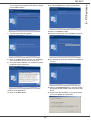
12 The final installation is ready to be executed.
13 Click on the INSTALL button.
14 A screen informs you of the installation progress.
7 The welcome screen will appear.
8 Click on the NEXT button to launch the installation
of the COMPANION SUITE PRO kit on your PC.
9 To continue the installation, you need to accept the
proposed license agreement.
15 The Companion Suite Pro software is installed on
your PC.
16 Click on the CONTINUE button to copy the utilities
and PaperPort SE software that come along with
the kit.
17 At the end of the installation, you need to restart
your PC to update the system files.
10 Click on the YES button.
11 Click on the NEXT button.
- 28 -
8 - PC Features
MF 5401
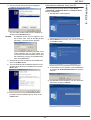
18 Select your choice and click on the FINISH button.
19 Your "Companion Suite Pro" kit is successfully
installed on your PC.
2 Power on your multifunction machine.
The ADD HARDWARE assistant window appears.
3 Click on the NEXT button to finish the installation.
4 Select FIND THE APPROPRIATE DRIVER FOR MY
HARDWARE (RECOMMENDED). Click on the NEXT
button.
5 Select the location where the system has to look for
the driver. Only the CD-ROM DRIVES checkbox has
to be ticked. Click on the NEXT button. The search
takes a few moments.
6 A window informs you that the driver has been
located. Click on the NEXT button.
7 A screen informs you that the XML interface
software has been installed. Click on the FINISH
button.
The add hardware assistant window appears.
8 Click on the NEXT button.
9 Select FIND THE APPROPRIATE DRIVER FOR MY
HARDWARE (RECOMMENDED). Click on the NEXT
button.
10 Select the location where the system shall look for
the driver. Only the CD-ROM DRIVES checkbox has
to be ticked. Click on the NEXT button. The search
takes a few moments.
11 A window informs that the driver has been located.
Click on the NEXT button.
12 A screen informs you that the COMPANION SUITE
PRO F@X ACTIVITIES software has been installed.
Click on the FINISH button.
You can start the multifunction machine's management
software from the menu START > PROGRAMS
> COMPANION SUITE > COMPANION SUITE PRO LL
> MF DIRECTOR or by clicking on the icon MF DIRECTOR
located on your desktop.
It is possible to add LAN printers without
installing the Companion Suite Pro software
on Windows 2000, XP and Vista. From the
Windows Start menu -> Parameters ->
Printers and faxes, select "Add Printer" and
follow the instructions on screen.
Connections
Make sure that your multifunction machine is powered off
and that the Companion Suite Pro CD-ROM is inserted in
the drive.
USB Connection
The connection between the PC and the machine
requires a USB 2.0 shielded cable no more than 3 meters
long.
It is recommended to install the
Companion Suite Pro software first and
then to connect the USB cable to your
machine.
You can now use the multifunction machine to print or
scan your documents.
If you connect the USB cable before installing
the Companion Suite Pro software the
recognition system (plug and play) identifies
automatically that new hardware has been
added. To start your machine drivers
installation, follow the instructions on screen. If
a window asking about the location of the
drivers pops up, then indicate the installation
CD-ROM.
Wireless connection
The Companion Suite Pro LL software shall be
installed to perform this operation.
1 Locate your USB cable connectors and connect as
shown below on the picture.
- 29 -
1 Run the MF Director application by clicking on the
icon located on your desktop or from the menu
START > PROGRAMS > COMPANION SUITE
> COMPANION SUITE PRO LL > ADD PRINTER.
2 Click on the NEXT button to run the installation
procedure.
8 - PC Features
MF 5401
Uninstall the software from your PC
3 The next screen shows the list of compatible
hardware found on the network.
Run the programs removal from the menu START
> PROGRAMS > COMPANION SUITE > COMPANION SUITE
PRO LL > UNINSTALL.
1 A preparation screen appears.
You can make another search on the network by
clicking on the REFRESH button.
Remark:
A hardware device may not appear in the
list in which case click on the NOT IN THE
LIST button. The next window appears.
2 Select REMOVE and confirm your choice by clicking
on the NEXT button.
Type the IP address or the NetBIOS name
of the hardware that you wish to add. You
can test the connection between the PC and
the hardware by clicking on the TEST button.
Click on the OK button.
4 Select what you wish to add from the hardware list.
Click on the NEXT button.
5 The next window lists the different features of the
printer that are about to be installed. Click on the
NEXT button.
3 A confirmation screen appears. Click on OK button
to continue the COMPANION SUITE PRO LL program
removal.
4 A preparation screen appears. You can cancel the
removal by clicking on CANCEL.
6 The window indicating that the installation
procedure was successful pops up. Click on the
FINISH button.
- 30 -
8 - PC Features
MF 5401
5 You need to restart your system at the end of the
procedure. Close all open programs, select YES,
I WANT TO RESTART MY COMPUTER NOW and click on
the FINISH button.
MF Director
This graphical Interface allows you to run the utilities and
the software to manage your multifunction machine.
Graphical presentation
Run the application by clicking on the MF Director icon
located on your desktop or from the menu START
> PROGRAMS > COMPANION SUITE > COMPANION SUITE
PRO LL > MF DIRECTOR.
Multifunction Terminal's Supervision
The software that you have installed contains two
multifunction machine management applications,
MF DIRECTOR and MF MONITOR, which allow you to:
By default, MF DIRECTOR is displayed with dark blue
rounded shape. You can modify its shape and color by
right-clicking with the mouse.
-
check whether the multifunction machine is
connected to your PC,
-
monitor the multifunction machine activitie,
-
monitor the status of the multifunction machine
consumables from the PC,
Utilities and applications activation
-
quickly access the graphic editor applications, OCR
etc.
The COMPANION SUITE PRO graphical interface allows you
to run the following utilities and software:
To manage the multifunction machine, run the MF
Director application by clicking on the icon located on your
desktop or from the menu START > PROGRAMS
> COMPANION SUITE > COMPANION SUITE PRO LL > MF
DIRECTOR.
-
get HELP from the current documentation,
-
run the PAPERPORT software (Doc Manager).
Checking the connection between the PC
and the multifunction machine
To check if the connection between the devices is good,
run the MF MONITOR software from the icon located on the
desktop and check that the same information is displayed
on the multifunction machine (for instance the date).
To run a software or utility contained in the COMPANION
SUITE PRO kit, place the cursor on it and left-click with the
mouse.
- 31 -
8 - PC Features
MF 5401
MF Monitor
Scan To
Graphical presentation
The setup of this tab, becomes the default setup for the
scanner.
Remark:
Run the application by clicking on the MF Monitor icon
located on your desktop or from the menu START
> PROGRAMS > COMPANION SUITE > COMPANION SUITE
PRO LL > MF MONITOR.
The function SCAN TO can only be used if
the application is running. If this is not the
case, activate it.
1 Select the SCAN TO tab.
2 Select one of the possible choices:
- colour,
- grayscale,
- black and white.
3 Select the scanner resolution (72 dpi to 4800 dpi).
4 Confirm your choices by clicking on the OK button.
From this screen you can monitor the information or
configure your multifunction machine from the tabs:
-
COMPANION: Presents the multifunction machine
screen.
-
CONSUMABLES: Displays the consumables status.
-
SCAN TO: Scan Mode and Resolution parameters
setup, these parameters will be taken into account
when clicking on the SCAN button from the machine.
Display the consumable status
The following information will be available from the
Consumables tab:
- current consumables status,
- number of printed pages,
- number of scanned pages.
Companion Suite Pro LL
functionalities
Document analysis
The document analysis can be carried out in two ways:
• either by the SCAN TO function (application accessible
from the MF Director window or from the SCAN button
from the machine),
• or directly from a TWAIN standard compatible
application.
Analysis with Scan To
Run the application by clicking on the MF Director icon
located on your desktop or from the menu START
> PROGRAMS > COMPANION SUITE > COMPANION SUITE
PRO LL > MF DIRECTOR.
- 32 -
8 - PC Features
MF 5401
1 Left-click with the mouse on the SCAN TO graphical
image or click the SCAN button from your machine.
2 You can follow the ongoing digitisation on a screen.
Printing
You have the possibility to print your documents via the
USB connection or the Wifi connection.
During the installation of the software, the Laser Pro LL
printer driver will be installed automatically onto your pc.
This will allow you to print your documents on the
machine via the USB connection.
The LASER PRO LL NETWORK printer driver allows to print
via the wireless connection. This driver is installed when
you add a network printer.
3 At the end of the digitisation, the scanned picture
appears in the PaperPort window.
Printing with the multifunction machine
To print a document with the machine from your PC is like
printing a document in Windows (use the PRINT command
from the FILE menu of the currently open application on
the screen). Select the LASER PRO LL printer to print via
the USB connection or the LASER PRO LL NETWORK
printer to print via the Wifi connection.
The LASER PRO LL printer becomes the default
printer when the Companion Suite Pro
software is installed.
If the PaperPort software is not installed on
your hard drive, the scanned picture will
appear on your desktop in TIFF format.
Analysis from a TWAIN compatible software
1 Run the picture editor application and then run the
acquisition command.
The document analysis window appears.
2 Setup the parameters (contrast, resolution, ...)
before starting the digitisation.
3 Once the document is digitised, you can archive it
or edit it.
Character recognition software (OCR)
The character recognition function allows to create a
usable data file for desktop applications from a hardcopy
document or from a picture.
The character recognition only works for printed
characters, such as printer outputs or typed text.
Nevertheless you can request for a handwritten text block
to be kept intact (a signature for instance) by outlining it.
Given your machine environment and the character
recognition from your machine, the OCR is done with a
Drag&drop of a document from the PaperPort to the
Notepad icon.
For more details about the usage of this
software, check the on-line help of the
product.
- 33 -
8 - PC Features
MF 5401
Maintenance
5 Unpack the new cartridge and insert it into the slot
as indicated in the diagram below.
Service
General information
For your safety, it is imperative to refer to the
security directives presented in chapter
Security, page 1.
6 Close the cover.
7 The following message appears:
To ensure that your machine is kept in the best
conditions, it is recommended that you periodically clean
the inner parts.
HAVE YOU CHANGED
THE TONER? <OK>
Please respect the following rules while using this
machine:
- Do not leave the scanner cover open.
- Do not try to lubricate the device.
- Do not close the scanner cover violently or do not
apply vibrations to the machine.
- Do not open the cartridge access cover while printing.
- Do not try to disassemble the machine
- Do not use paper which would has stayed in the tray
for too long.
Press OK.
8 When this message appears,
INSERT THE
TONER CARD
insert the smart card provided with the new toner
cartridge as shown on the picture below.
Toner cartridge replacement
Your machine comes with a current consumable
management system. It tells you if your toner cartridge is
close to its end of cycle. The following message will
appear on your machine screen.
TONER NEAR
END
9 A wait message appears.
PLEASE
WAIT
After this message has been displayed, you
are able to change the cartridge.
The smart card is read.
NEW TONER
REMOVE CARD
To quit this screen, press OK.
Remove the smart card from the reader, your
machine is ready to print again.
To replace the toner cartridge, proceed as shown below.
When the following message is displayed on the screen:
TONER EMPTY
REPLACE <OK>
Issues with smart cards
If you use a smart card that has already been used, the
machine will display:
1 Press OK.
OPEN FRONT COVER
REPLACE TONER
PLEASE
WAIT
2 Stand in front of the device.
3 Push on the left and right sides of the cover and pull
it towards you.
4 Raise and remove the toner cartridge from the
machine.
then,
- 34 -
REMOVE CARD
ALREADY USED
9 - Maintenance
MF 5401
If you use a defective smart card, the machine will display:
Message
PLEASE
WAIT
Action
TONER NEAR END
Indicates that your
consumable will need
changing soon.
REPLACE PAPER
Add paper in tray.
then,
UNKNOWN CARD
REMOVE CARD
If the C button is pressed while the smart card is being
read, the machine displays:
ACTION CANCELLED
REMOVE CARD
HEATING
Message displayed when
starting the machine.
CLOSE COVER
PRINTER
The printer front cover is
open, close it.
TONER EMPTY
REPLACE <OK>
Replace the toner cartridge.
PAPER JAM
REMOVE TONER
A sheet of paper is jammed in
the machine. Take out the
toner cartridge and remove the
jammed paper sheet. Take out
the paper tray and remove the
jammed paper sheet. Then
open and close the
consumable cover.
PAPER JAM
EXTERNAL TRAY
A sheet of paper is jammed in
the machine. Open the paper
jam cover. Remove the
jammed paper sheet. Then
open and close the
consumable cover.
PAPER EMPTY
Add paper in the paper tray.
Cleaning
Scanner reading system cleaning
When one or more vertical lines appear on the copies,
clean the glass of the scanner.
1 Open the scanner cover until it is standing in
vertical position.
2 Wipe the glass with a soft lint-free cloth soaked with
mild alcohol.
3 Close the scanner cover.
4 Make a copy to check that the symptoms have
disappeared.
Printer cleaning
Paper jam
Dust, dirtiness and paper debris on the external and
internal surfaces of the printer can affect its operation. We
advise that it is cleaned regularly.
When printing, a sheet of paper may get stuck in the
printer or the paper tray and cause a paper jam.
In case of a paper jam in the machine, the following
message appears:
Printer external cleaning
PAPER JAM
EXTERNAL TRAY
Clean the external part of the printer with a soft cloth
soaked in mild detergent.
1 Open the paper jam cover located at the back of
the machine.
2 Remove the jammed sheet of paper and close the
cover.
Printer issues
Error messages
When the printer encounters any of the problems
described below, the corresponding message is shown
on the machine display.
Message
CHECK TONER
Action
Check the presence of a
toner cartridge in the
machine.
- 35 -
9 - Maintenance
MF 5401
MF 5401
9 - Maintenance
3 Open and close the consumable cover.
The printer starts again automatically.
The fusion unit can reach a very high
temperature during the operation. To prevent
any harm, do not touch this area.
In case of paper jam. The following message appears:
PAPER JAM
REMOVE TONER
1 Remove the toner cartridge and check if a sheet is
jammed.
2 Remove the sheet of paper which causes the paper
jam.
3 Put the toner cartridge in the machine, or remove
the paper tray and remove the sheet of paper which
causes the paper jam.
4 Check that the paper sheets in the paper tray are
correctly placed.
5 Replace the paper tray in the machine.
Miscellaneous issues
When turning on, nothing is displayed on the screen.
Check the connection between the power cord and the
outlet.
- 36 -
Specifications
Physical specifications
Dimensions:
Weight:
344 x 447 x 386 mm
11.6 kg
Electrical specifications
Power supply:
Electric consumption:
Single phase 220-240 V - 50/60 Hz - 4.5 A
10 W typical in powersave
13 W typical in standby
340 W average during printing
Environmental specifications
Operating temperature:
Acceptable humidity level:
In operation: + 10 °C to 32 °C
In operation: 15 % to 80 % HR (without condensation)
Peripheral specifications
Printer
Type:
Resolution:
Speed:
Preheating time:
First page out time:
Laser (on normal paper)
600 dpi
16 ppm maximuma
21 sec.
13 sec.
a. Printing speed may vary depending on used operating systems, computer specifications, software applications,
connection modes (LAN, USB or WLAN), paper formats as well as file types and sizes.
Copier
Type:
Copy speed:
Resolution:
Multiple copies:
Zoom range:
Autonomous Black and White
16 ppm maximum
600 dpi
99 pages maximum
25 % to 400 %
Scanner
Type:
Color depth:
Resolution:
Software compatibility:
Maximum paper format:
Color scanner
36 bits
600 dpi (optical)
2400 dpi (interpolated)
TWAIN
Letter
Printing supports
Main paper tray capacity:
Output tray capacity:
Main tray paper format:
Paper format for manual printing:
250 sheets maximum (60 g/m²), 200 sheets maximum (80 g/m²)
50 sheets
A4, A5, Legal, Letter
60 to 105 g/m² paper
A4, A5, Legal, Letter, B5, exec, A6
52 to 160 g/m² paper
PC connection
Slave USB 2.0 port (PC connection)
Master USB 2.0 port (Wlan connection, reader, USB memory key reader)
Operating System: Windows 98 SE, 2000, ME, XP, Vista 32-bit
- 37 -
9 - Maintenance
MF 5401
Consumable specifications
Reference paper
Scanner :
Printer :
Inapa tecno SPEED A4
Ricoh T6200 A4
Toner cartridge
Reference
CTR 360
CTR 365
Specifications are subject to changes for improvement without notice.
- 38 -
9 - Maintenance
MF 5401
Customer Information
As part of our continuing quest for total customer satisfaction, all of our products are made with ease-of-use and
reliability in mind.
If, after consulting your user manual, you still require assistance, you should contact our Call Centre. Our personnel
are highly trained specialists who can ensure that you receive the maximum benefit from your product.
United Kingdom
Phone: 0870 2485490 (0.10 £/min. Tariff cost effective from 22.09.2006)
- 39 -
Customer Information
MF 5401