1
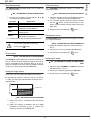
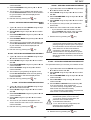
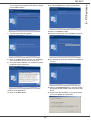
18 Select your choice and click on the FINISH button.
19 Your "Companion Suite Pro" kit is successfully
installed on your PC.
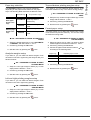
2 Power on your multifunction machine.
The ADD HARDWARE assistant window appears.
3 Click on the NEXT button to finish the installation.
4 Select FIND THE APPROPRIATE DRIVER FOR MY
HARDWARE (RECOMMENDED). Click on the NEXT
button.
5 Select the location where the system has to look for
the driver. Only the CD-ROM DRIVES checkbox has
to be ticked. Click on the NEXT button. The search
takes a few moments.
6 A window informs you that the driver has been
located. Click on the NEXT button.
7 A screen informs you that the XML interface
software has been installed. Click on the FINISH
button.
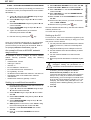
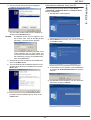
The add hardware assistant window appears.
8 Click on the NEXT button.
9 Select FIND THE APPROPRIATE DRIVER FOR MY
HARDWARE (RECOMMENDED). Click on the NEXT
button.
10 Select the location where the system shall look for
the driver. Only the CD-ROM DRIVES checkbox has
to be ticked. Click on the NEXT button. The search
takes a few moments.
11 A window informs that the driver has been located.
Click on the NEXT button.
12 A screen informs you that the COMPANION SUITE
PRO F@X ACTIVITIES software has been installed.
Click on the FINISH button.
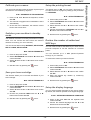
You can start the multifunction machine's management
software from the menu START > PROGRAMS
> COMPANION SUITE > COMPANION SUITE PRO LL
> MF DIRECTOR or by clicking on the icon MF DIRECTOR
located on your desktop.
It is possible to add LAN printers without
installing the Companion Suite Pro software
on Windows 2000, XP and Vista. From the
Windows Start menu -> Parameters ->
Printers and faxes, select "Add Printer" and
follow the instructions on screen.
Connections
Make sure that your multifunction machine is powered off
and that the Companion Suite Pro CD-ROM is inserted in
the drive.
USB Connection
The connection between the PC and the machine
requires a USB 2.0 shielded cable no more than 3 meters
long.
It is recommended to install the
Companion Suite Pro software first and
then to connect the USB cable to your
machine.
You can now use the multifunction machine to print or
scan your documents.
If you connect the USB cable before installing
the Companion Suite Pro software the
recognition system (plug and play) identifies
automatically that new hardware has been
added. To start your machine drivers
installation, follow the instructions on screen. If
a window asking about the location of the
drivers pops up, then indicate the installation
CD-ROM.
Wireless connection
The Companion Suite Pro LL software shall be
installed to perform this operation.
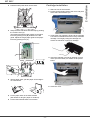
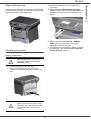
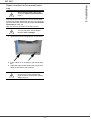
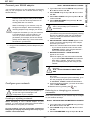
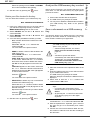
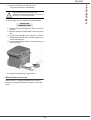
1 Locate your USB cable connectors and connect as
shown below on the picture.
- 29 -
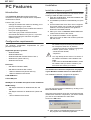
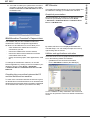
1 Run the MF Director application by clicking on the
icon located on your desktop or from the menu
START > PROGRAMS > COMPANION SUITE
> COMPANION SUITE PRO LL > ADD PRINTER.
2 Click on the NEXT button to run the installation
procedure.
8 - PC Features
MF 5401