1
A776
Setup Guide
Two-Color Hybrid Thermal/Impact Printer
If installing the Ethernet communication cable:
1
{Testing the printer
Host computer can remain on.
Ethernet communication connector panel
Power
supply
connector
Ethernet
connector
2
The test prints a complete list of printer settings (Diagnostic form)
and partially cuts the paper. The test items listed depend on the
printer model.
Instructions at the bottom of the printout describe how to enter the
configuration menu and change the current settings of the printer.
Plug the printer end of the Ethernet cable into the Ethernet
connector port on the printer (A). Make sure the connector
snaps firmly in place.
9
3
Plug the computer end of the Ethernet cable into the Ethernet
port of the computer. Make sure the connector snaps firmly
in place.
4
After you have connected the printer, you must set the printer
internal parameters for Ethernet operation. See “Ethernet
terminology and setup” in the A776 Programming Guide.
Test Procedure
1
Caution: Be extremely careful changing any of the
printer settings to avoid inadvertently changing other
settings that might affect the performance of the printer.
3
Set DIP switch 1 (below) to the On position (down).
4
Turn the power on, then press and hold the paper feed button. The printer prints the diagnostic form and the configuration
main menu.
5
Follow the printed instructions on the scrolling menu by
pressing the paper feed button to make Yes/ No selections.
To run the test:
a
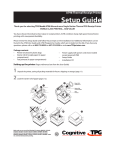
Open the receipt cover (1), then
b
while holding down the paper feed button (2) close the
receipt cover .
6
1
Power supply cable
Open
receipt
cover
2
Push and hold
paper feed button
while closing
receipt cover
Caution: To avoid damage to the printer, connect the power supply
cable last.
WARNING! Using this device without a grounded outlet is a safety
hazard and voids the printer’s Warranty, Safety, FCC and CE Mark
designation.
1
Plug the power cord into the power supply.
2
Route the cash drawer and power supply cables through the
strain relief as shown below.
3
Plug the power cord into the power supply, then plug the power
supply into an outlet. The green light on the top cover will
light up.
Cable routing
Prevent the printer from being accidentally unplugged by making
sure the cables are routed as shown below.
Connector
Cover
(Closed)
Communication
Connector
(RS-232C 9-pin)
(Route straight
out back of
printer and
tighten screws)
Power
Supply
Cable
(Straight
back)
2
Release paper feed button when the printer begins printing the
diagnostic printout.
3
Review the printout for printer settings.
A776 Test Printer.eps
To change any of these settings go to the configuration menu as
directed at the bottom of the printout.
|Configuring the printer
USB Cable
Strain Relief
Power Supply
Strain Relief
USB
Cable
USB
Cable
Power Supply
Strain Relief
USB Cable
Strain Relief
Back of Printer
Press the paper feed button to select the setting you want to change:
Ignore n leading spaces in a 47 column text
Enable 51-column compressed mode
Delete the trailing spaces in a slip text line
Set the A776 to emulate the A758 slip stop position
Continue through your menu selections until you are asked,
“Save New Parameters?” Select “Yes” or “No”.
a
To save, select “Yes”, then return DIP switch 1 to the Off
position (up).
b
Press the reset button. The printer resets with the new
selections. You can verify the setting by printing a
diagnostics form.
Select Paper Type
To change the paper type, enter the section through the
configuration menu.
Press the paper feed button to select the setting you want to change:
Type 0 (monochrome)
Type 4 (blue/black)
Type 5 (red/black; green/black)
Communication interface
Change the communication interface settings (except Ethernet) by
selecting “Set Communication Interface” from the main menu and
answer “Yes” to “SET INTERFACE TYPE?”
To change RS-232C serial interface settings
1
Press the paper feed button to select the RS-232C
setting you want to change:
•
Baud rate - (1200 to 115200 baud)
•
Hardware flow control:
Software - (XON/XOFF)
Hardware - (DTR/DSR)
•
Data reception errors: Ignore errors, Print “?”
•
Alternate DTR/DSR - Enabled Disabled
Note: Number of data bits, Stop bits, and Parity parameters can
not be changed and are not shown. CognitiveTPG, 950 Danby Road, Ithaca, NY 14850 -- http://www.CognitiveTPG.com
A776 Strain Releif.eps
Indicate No with a short click. (Press paper feed
button quickly)
If you want to continue configuring the printer, select “No”. The
printer returns to the configuration menu.
Cash Drawer
Cable
•
Select “Set Communication Interface” from the main menu
and answer “No” to “SET INTERFACE TYPE?” to go to the
instructions for selecting the RS-232C settings.
Turn Printer off and close the receipt cover.
Slip Setting options
To change the A776 slip setting options, enter this section through the
emulation software options section of the configuration menu.
Configuration Procedure
2
Press the paper feed button to select the setting you want to change:
Printer emulations: Native or A756
Printer ID: A776, A760, A758, OR A756
Default line space: 8.13, 7.52, 6.77, or 6 lines per inch
Font size: standard, tall, or ColorPOS
Indicate Yes with a long click. (Press and hold paper feed
button for at least one second.)
Press the paper feed button as instructed to select the
communication interface you want.
Open the receipt cover be sure there is paper in the printer.
To change the printer emulation, printer ID, receipt default lines per
inch (LPI), or font size, enter this section through the configuration
menu.
•
The configuration menu allows you to select functions or change
various settings for the printer. Instructions printed on the receipt,
guide you through the processes.
1
Emulation/Software options
2
Press the paper feed button for at least one second to validate
the selection.
DECLARATION OF CONFORMITY
Type of Equipment: Information Technology Equipment – Printer
Model: A776-XXXX-XXXX
Model: B780-XXXX-XXXX
(X = any alphanumeric character)
Applicable EU
Directives: 2004/108/EC (electromagnetic compatibility directive)
2006/95/EC (low voltage, product safety directive)
Harmonized Standards:
EN 55024 (1998/A1:2001/A2:2003) Information Technology Equipment –
Immunity Characteristics
EN 55022 (2006/A1:2007) EMC, Class B, Limits and methods of
measurement of interference characteristics of IT equipment.
IEC 60950-1 (ed. 2); am 1. Product Safety standard
“CognitiveTPG, LLC, 950 Danby Road, Ithaca, New York, 14850,
declares that the equipment specified above conforms to the referenced EU
Directives and Harmonized Standards.”
Date: November 28, 2012
Jeffrey C Phoenix, Regulatory Compliance Engineer
CognitiveTPG, LLC
950 Danby Road
Ithaca, New York 14850
189-1300034 Rev C
Customer Support: 1-800-732-8950, ext 4 - Sales Order Desk: 1-800-732-8950, ext 1
A 7 7 6 - S U G 0 0 0 1 R e v C 11/12