1
User Manual BDH5011
11.3 For Component Video (480p,
720p and 1080i signal) - Con’t
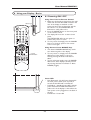
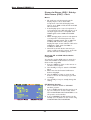
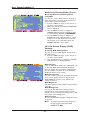
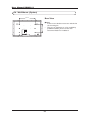
Accessing Geometric Adjustment Mode
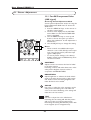
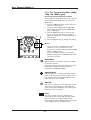
Various geometric adjustments can be set using
the Geometric Adjustment OSD menu.To access
the Geometric Adjust sub-menu:
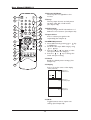
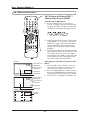
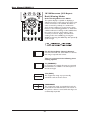
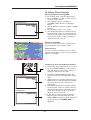
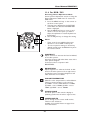
1 Press the MENU +/- keys on the remote or
the front control panel.
2 The First menu displayed is the PICTURE
Menu. Make sure that the PICTURE OSD
Menu is displayed.
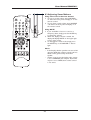
3 Use the MENU +/- keys to set the selection
to ON. As soon as you press the button, the
Geometric Adjust sub-menu will be
displayed.
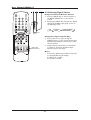
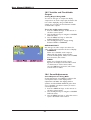
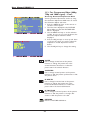
4 Press the ADJ +/- keys to move up and down
to choose the option you wish to adjust. An
explanation of each adjustment is listed
below.
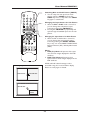
5 Use the ADJ +/- keys to change the setting.
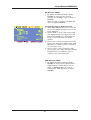
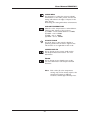
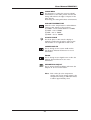
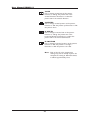
V-SIZE
Use to change vertical size of the picture.
Increase to enlarge the picture size in the
vertical direction. Decrease to reduce the
picture size in the vertical direction.
V-CENTER
Use to change vertical position of the picture.
Increase to shift the picture up. Decrease to shift
the picture down.
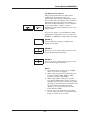
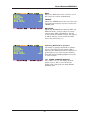
H-WIDTH
Use to change horizontal size of the picture.
Increase to enlarge the picture size in the
horizontal direction. Decrease to reduce the
picture size in the horizontal direction.
H-POSITION
Use to change horizontal position of the picture.
Increase to shift the picture to the right. Decrease to shift the picture to the left.
RETURN
Return to PICTURE OSD Menu.
44