1
Cause 2
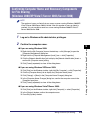
TCP/IP network is not properly set up.
Remedy
Check the following:
• Confirm that the IPv4 addresses are properly set up. If the IPv4 addresses
were set using DHCP, BOOTP, or RARP, confirm that they are operating.
• Confirm that the IPv6 addresses are properly set up. After checking the
settings of the router, set <Use Stateless Address> to ‘On’ to confirm whether
you can obtain an address. If the IPv6 addresses were set using DHCPv6,
confirm that DHCPv6 is operating.
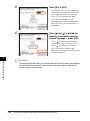
NOTE
Your computer may not be able to recognize the machine even though the IP address
settings are appropriate. This problem may be resolved by delaying the startup of
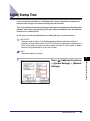
network communications for the machine. (See “Setting Startup Time,” on p. 7-3.)
Cause 3
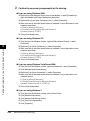
The computer that is printing is not properly set up.
Remedy
Check the following:
Troubleshooting
• Confirm that the proper printer driver is installed. If you are printing from
Windows, each computer must have a printer driver installed. For instructions
on how to install printer drivers, see the Printer Driver Installation Guide or
Mac Printer Driver Installation Guide. (See Chapter 3, “Accompanying
CD-ROMs,” in the User’s Guide.)
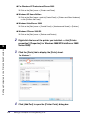
• Confirm that the correct printer is set as the output destination for the
computer that is printing. Check the output destination in [Control Panel]
(Windows) or [System Preferences] (Macintosh). For more information, see
the Windows Printer Driver Guide or the Mac Printer Driver Guide.
8
8-6
Cause 4
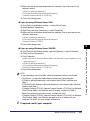
The name of the file being printed is too long.
Remedy
Normally LPR (or the Microsoft TCP/IP Printer, if you are using Windows 2000/
XP/Vista/7/Server 2003/Server 2008) sends jobs either under the name of the
application software used for printing or under the file name. However, a job
name longer than 255 characters cannot be sent to the machine. To correct this
problem, rename the file with a shorter name.
Cause 5
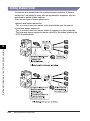
The IP address of the computer sending data (print or fax jobs) to the machine
is not permitted by the settings for [IP Address Range Settings] on the IPv4 or
IPv6 Settings screen.
Remedy
Check the settings for [IP Address Range Settings] on the IPv4 or IPv6 Settings
screen. (See “Setting the IP Address Range,” on p. 6-21.)
Cause 6
An error message is displayed on the touch panel display of the machine.
Remedy
After confirming the error message, see Chapter 6, “Troubleshooting,” in the
Reference Guide and perform the necessary operations according to the error
message displayed.
Identifying and Isolating Problems















































































![[Impostazioni rete].](http://vs1.manualzilla.com/store/data/006126015_1-a8b230434cd1a1b69e1ac6b45a87b86d-150x150.png)