1
DMR-ES20-EG.fm
Page 25
Monday, April 18, 2005
5:46 PM
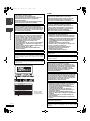
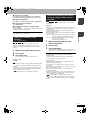
FUNCTIONS window and
Status messages
Picture menu–Change the picture
quality
Reduces noise and picture degradation.
Progressive (➔ page 41)
1
ENGLISH
Playback NR
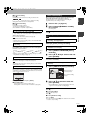
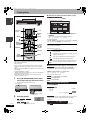
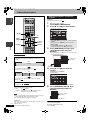
FUNCTIONS window
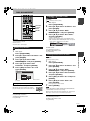
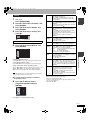
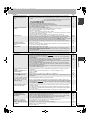
By using the FUNCTIONS window you may access the main
functions quickly and easily.
While stopped
Press [FUNCTIONS].
Functions displayed depend on the type of disc.
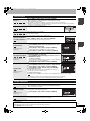
Select “On” to enable progressive output.
Select “Off” if the picture is stretched horizontally.
FUNCTIONS
Transfer (When “Progressive” is set to “On”)
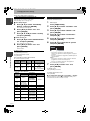
Select the method of conversion for progressive output to suit
the type of title being played (➔ page 40, Film and video).
DVD
DVD-RAM
DOCUMENTARY
Cartridge Protection Off
Disc Protection Off
Playback
DIRECT NAVIGATOR
Recording
TIMER RECORDING
ShowView
When the output signal is PAL
• Auto:
ENTER
RETURN
To Others
“To Others”
“Return”
When the output signal is NTSC
• Auto 1 (normal):
FUNCTIONS
Detects 24 frame-per-second film content and
appropriately converts it.
• Auto 2: Compatible with 30 frame-per-second film content in
addition to 24 frame-per-second film content.
• Video: Select when using “Auto 1” and “Auto 2”, and the
video content is distorted.
DVD
DVD-RAM
DOCUMENTARY
Cartridge Protection Off
Disc Protection Off
Playback
DIRECT NAVIGATOR
Recording
TIMER RECORDING
ShowView
PLAYLISTS
FLEXIBLE REC
DV AUTO REC
Playing back
Detects 25 frame-per-second film content and
appropriately converts it.
• Video: Select when using “Auto”, and the video content is
distorted.
SETUP
DISC MANAGEMENT
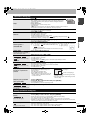
AV-in NR (Only when AV1, AV2, AV3, AV4 or DV is selected)
Reduces video tape noise while dubbing.
• Automatic:
Noise reduction only works on picture input from a
video tape.
• On:
Noise reduction works for any input video.
• Off:
Noise reduction is off. You can record the input signal
as it is.
Only when you have set “Progressive” to “On” in the SETUP menu
(➔ page 35).
ENTER
RETURN
2
To Others
Return
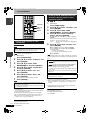
Press [e, r] to select an item and
press [ENTER].
• If you select “To Others”, press [e, r] to select an item (e.g.,
“SETUP” or “DISC MANAGEMENT”) and press [ENTER].
• If you select “Return”, press [e, r] to select an item (e.g.,
“DIRECT NAVIGATOR” or “TIMER RECORDING”) and
press [ENTER].
To exit the FUNCTIONS window
Press [FUNCTIONS].
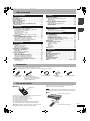
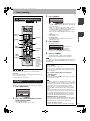
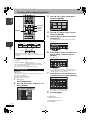
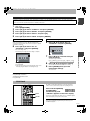
Sound menu–Change the sound effect
V.S.S. RAM -R -RW(V) +R DVD-V DVD-A -RW(VR)
(Dolby Digital, MPEG, 2-channel or over only)
Enjoy a surround-like effect if you are using two front speakers
only.
• Turn V.S.S. off if it causes distortion.
• V.S.S. does not work for bilingual recordings.
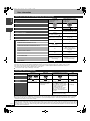
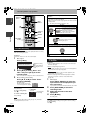
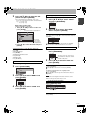
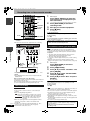
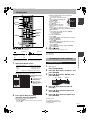
Status messages
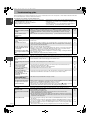
Status messages appear on the television during operation to show
the condition of the unit.
Press [STATUS].
The display changes each time you press the button.
Dialog Enhancer RAM -RW(V) +R DVD-V DVD-A -RW(VR)
(Dolby Digital, 3-channel or over only, including a center channel)
The volume of the center channel is raised to make dialog
easier to hear.
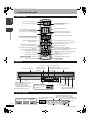
Other menu–Change the display
position
Position
1 - 5: The higher the setting the lower the on-screen menu moves.
Type of disc
DVD-RAM
REC
PLAY
Stereo
LR
Recording or play status/input channel
TV audio type being received (➔ below)
Selected audio type
Available recording time
and recording mode
Date and time
12:34:50 24.12.
g
g
Remain 1:45 SP
T12 0:01.23 SP
Title number and elapsed
time during play/
Recording mode
g
T12
0:12.34 SP
Title number and elapsed
time during recording/
Recording mode
No display
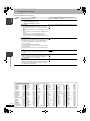
• TV audio type
Stereo: STEREO/NICAM stereo broadcast
M 1/M 2: Bilingual/NICAM dual-sound broadcast
M 1:
NICAM monaural broadcast
RQT8212
25