1
Vision Appliances
VA61
GigE Camera Vision Appliance
User’s Reference Manual
405-00022-00
Rev. 06
7 April 2011
VA61 GigE Camera Vision Appliance User’s Reference Manual
Document Number 405-00022-00
Revision 06; 7 April 2011
CopyrightE2011 Teledyne DALSA Incorporated.
CopyrightE2010–2007 DALSA Corporation.
All rights reserved.
Printed in the United States of America.
All copyrights in this manual, and the hardware and software described in it, are the exclusive property of Teledyne DALSA Incorporated
and its licensors. Claim of copyright does not imply waiver of Teledyne DALSA Incorporated or its licensor’s other rights in the work. See
the following Notice of Proprietary Rights.
NOTICE OF PROPRIETARY RIGHTS
This manual and the related hardware and software are confidential trade secrets and the property of Teledyne DALSA Incorporated and its
licensors. Use, examination, reproduction, copying, transfer and/or disclosure to others of all or any part of this manual and the related documentation are prohibited except with the express written consent of Teledyne DALSA Incorporated.
The information in this document is subject to change without notice. Teledyne DALSA Incorporated makes no representations or
warranties with respect to the contents of this manual and specifically disclaims any implied warranties of merchantability or fitness
for a particular purpose. Teledyne DALSA Incorporated assumes no responsibility for errors or omissions in this document.
iNspect, iLabel, Sherlock, and the Teledyne DALSA logo are trademarks of Teledyne DALSA
Incorporated.
Camera Configurator is a registered trademark of Teledyne DALSA Incorporated.
All other trademarks are the property of their respective owners.
Teledyne DALSA Industrial Products
Information: [email protected]
Support: [email protected]
Web: http://www.teledynedalsa.com/ipd
700 Technology Park Drive
Billerica, MA, USA 01821
Tel 1.978.670.2002 Fax 1.978.670.2010
405-00022-00
VA6x User’s Reference
Certifications
FCC Compliance Statement
This product has been tested and found to comply with the limits for a class B digital device, pursuant to Part 15 of the FCC rules. These limits are designed to provide reasonable protection
against harmful interference in a residential installation. This equipment generates, uses and can
radiate radio frequency energy and may cause harmful interference to radio communication.
European Declaration of Conformity
This product has been tested to comply with the EC Directive for a class B digital device. It has
been tested and found to comply with EN55022/CISPR22.
CFR 21 Part 11
This product provides the tools needed for users to implement an auditing program that could be
in compliance with CFR21 Part 11.
• System and software backup and restore – Acronis® True Image software
• System software security (password logging and access limits) – Sherlock and iNspect software
• Protection of system backup files from modification – Acronis True Image software
• Record of actions by users with time stamp information – iNspect software
• Time stamp information on data output – Sherlock and iNspect software
Rev 06; 7 April 2011
3
VA6x User’s Reference
405-00022-00
Handling and Operating Precautions
Care should always be exercised when handling and operating your VA4x system. Even though
the system is encased within a rugged, industrial enclosure, incorrect use or handling can result in
damage to your investment. To prevent this, we recommend you avoid the following:
• “Hot-plugging” cables and devices. Be sure to shut the system down and remove power before
connecting or disconnecting anything to it.
• “Free-standing” operation. Whenever possible, we advise mounting the system to prevent it
from falling accidentally. Mounting holes are provided at the base of the unit. DIN mounting
hardware is optionally available.
• Pulling power while operating. Whenever possible, gracefully shutdown the system if at any
time you need to remove power.
• Operating the system in a hazardous environment. The system is not NEMA rated.
• Image logging to the C: partition. A minor bug in the NTFS file system may cause corruption
of the Windows boot sector under continuous image logging to the C: partition. Use the D:
partition for image logging.
ElectroStatic Discharge
Avoid the damage that ESD can cause. Never expose the internal electronics to a potentially hazardous environment by opening the enclosure. Doing so may cause serious damage.
User Service Warning
This product has no field-replaceable components. Tampering with the unit will void the product
warranty.
Warranty
Teledyne DALSA warrants the VA6x against defects in materials and workmanship for a period
of one year from the date of delivery. Teledyne DALSA and its representatives expressly disclaim any and all other warranties.
Your sole remedy shall be repair or replacement of the VA6x product and associated optional
components, provided that the defective product is returned within the warranty period.
If you need to return the system, you must contact the Teledyne DALSA representative who sold
you the system. Do not return your product to Teledyne DALSA without authorization.
Teledyne DALSA assumes no liability for damages resulting from the use of this manual.
4
Rev 06; 7 April 2011
405-00022-00
VA6x User’s Reference
Table of Contents
Certifications . . . . . . . . . . . . . . . . . . . . . . . . . . . . . . . . . . . . . . . . . . . . . . . . . . . . . . .
FCC Compliance Statement . . . . . . . . . . . . . . . . . . . . . . . . . . . . . . . . . . . . . . .
European Declaration of Conformity . . . . . . . . . . . . . . . . . . . . . . . . . . . . . . . .
CFR 21 Part 11 . . . . . . . . . . . . . . . . . . . . . . . . . . . . . . . . . . . . . . . . . . . . . . . . .
Handling and Operating Precautions . . . . . . . . . . . . . . . . . . . . . . . . . . . . . . . . . . . . .
ElectroStatic Discharge . . . . . . . . . . . . . . . . . . . . . . . . . . . . . . . . . . . . . . . . . . .
User Service Warning . . . . . . . . . . . . . . . . . . . . . . . . . . . . . . . . . . . . . . . . . . . .
Warranty . . . . . . . . . . . . . . . . . . . . . . . . . . . . . . . . . . . . . . . . . . . . . . . . . . . . . . . . . .
1. Introduction . . . . . . . . . . . . . . . . . . . . . . . . . . . . . . . . . . . . . . . . . . . . . . . . . . . . . . . . . .
Overview . . . . . . . . . . . . . . . . . . . . . . . . . . . . . . . . . . . . . . . . . . . . . . . . . . . . . . . . . .
About This Manual . . . . . . . . . . . . . . . . . . . . . . . . . . . . . . . . . . . . . . . . . . . . . . . . . .
2. Before You Begin . . . . . . . . . . . . . . . . . . . . . . . . . . . . . . . . . . . . . . . . . . . . . . . . . . . . . .
Product Verification . . . . . . . . . . . . . . . . . . . . . . . . . . . . . . . . . . . . . . . . . . . . . . . . . .
Environmental Requirements . . . . . . . . . . . . . . . . . . . . . . . . . . . . . . . . . . . . . . . . . .
3. Support and Maintenance . . . . . . . . . . . . . . . . . . . . . . . . . . . . . . . . . . . . . . . . . . . . . . .
Support . . . . . . . . . . . . . . . . . . . . . . . . . . . . . . . . . . . . . . . . . . . . . . . . . . . . . . . . . . .
Documentation . . . . . . . . . . . . . . . . . . . . . . . . . . . . . . . . . . . . . . . . . . . . . . . . .
IPD Website . . . . . . . . . . . . . . . . . . . . . . . . . . . . . . . . . . . . . . . . . . . . . . . . . . .
Factory Support . . . . . . . . . . . . . . . . . . . . . . . . . . . . . . . . . . . . . . . . . . . . . . . . .
Maintenance . . . . . . . . . . . . . . . . . . . . . . . . . . . . . . . . . . . . . . . . . . . . . . . . . . . . . . .
4. Product Overview . . . . . . . . . . . . . . . . . . . . . . . . . . . . . . . . . . . . . . . . . . . . . . . . . . . . .
Product Description . . . . . . . . . . . . . . . . . . . . . . . . . . . . . . . . . . . . . . . . . . . . . . . . . .
Typical Applications . . . . . . . . . . . . . . . . . . . . . . . . . . . . . . . . . . . . . . . . . . . . .
Components . . . . . . . . . . . . . . . . . . . . . . . . . . . . . . . . . . . . . . . . . . . . . . . . . . . . . . . .
5. Installation . . . . . . . . . . . . . . . . . . . . . . . . . . . . . . . . . . . . . . . . . . . . . . . . . . . . . . . . . . .
Pre-Installation Checks . . . . . . . . . . . . . . . . . . . . . . . . . . . . . . . . . . . . . . . . . . . . . . .
Interface Specifications . . . . . . . . . . . . . . . . . . . . . . . . . . . . . . . . . . . . . . . . . . . . . . .
Camera Connections . . . . . . . . . . . . . . . . . . . . . . . . . . . . . . . . . . . . . . . . . . . . .
Camera Settings . . . . . . . . . . . . . . . . . . . . . . . . . . . . . . . . . . . . . . . . . . . . . .
Camera Exposure Control . . . . . . . . . . . . . . . . . . . . . . . . . . . . . . . . . . . . . .
GigE Camera Video Data Cable . . . . . . . . . . . . . . . . . . . . . . . . . . . . . . . . . .
Camera Control & Power Cable . . . . . . . . . . . . . . . . . . . . . . . . . . . . . . . . . .
Network Connection . . . . . . . . . . . . . . . . . . . . . . . . . . . . . . . . . . . . . . . . . . . . .
Serial Port Connection . . . . . . . . . . . . . . . . . . . . . . . . . . . . . . . . . . . . . . . . . . .
Rev 06; 7 April 2011
3
3
3
3
4
4
4
4
11
11
11
12
12
12
13
13
13
13
13
13
14
14
14
15
16
16
16
17
17
18
18
19
20
20
5
VA6x User’s Reference
405-00022-00
Industrial I/O Connections . . . . . . . . . . . . . . . . . . . . . . . . . . . . . . . . . . . . . . . .
Input Electrical Specifications . . . . . . . . . . . . . . . . . . . . . . . . . . . . . . . . . . .
Output Electrical Specifications . . . . . . . . . . . . . . . . . . . . . . . . . . . . . . . . . .
I/O Breakout Options . . . . . . . . . . . . . . . . . . . . . . . . . . . . . . . . . . . . . . . . . . . .
Standard Terminal Breakout (A-IOB-011) . . . . . . . . . . . . . . . . . . . . . . . . . .
Optional Isolation Breakout (A-IOB-100) . . . . . . . . . . . . . . . . . . . . . . . . . .
Solution Switching Using I/O . . . . . . . . . . . . . . . . . . . . . . . . . . . . . . . . . . . . . .
Status LEDs and RESET Switch . . . . . . . . . . . . . . . . . . . . . . . . . . . . . . . . . . . . . . . .
iNspect & iLabel Function . . . . . . . . . . . . . . . . . . . . . . . . . . . . . . . . . . . . . .
Sherlock Function . . . . . . . . . . . . . . . . . . . . . . . . . . . . . . . . . . . . . . . . . . . .
Mounting Options . . . . . . . . . . . . . . . . . . . . . . . . . . . . . . . . . . . . . . . . . . . . . . . . . . .
VA61 Chassis . . . . . . . . . . . . . . . . . . . . . . . . . . . . . . . . . . . . . . . . . . . . . . . .
Cameras . . . . . . . . . . . . . . . . . . . . . . . . . . . . . . . . . . . . . . . . . . . . . . . . . . . .
Breakout Module . . . . . . . . . . . . . . . . . . . . . . . . . . . . . . . . . . . . . . . . . . . . .
Installation . . . . . . . . . . . . . . . . . . . . . . . . . . . . . . . . . . . . . . . . . . . . . . . . . . . . . . . . .
Camera Configuration . . . . . . . . . . . . . . . . . . . . . . . . . . . . . . . . . . . . . . . . . . . . . . . .
iNspect/iLabel . . . . . . . . . . . . . . . . . . . . . . . . . . . . . . . . . . . . . . . . . . . . . . .
Sherlock . . . . . . . . . . . . . . . . . . . . . . . . . . . . . . . . . . . . . . . . . . . . . . . . . . . .
Troubleshooting . . . . . . . . . . . . . . . . . . . . . . . . . . . . . . . . . . . . . . . . . . . . . . . . . . . . .
Software . . . . . . . . . . . . . . . . . . . . . . . . . . . . . . . . . . . . . . . . . . . . . . . . . . . . . . . . . . .
VA-Genie Camera Setup . . . . . . . . . . . . . . . . . . . . . . . . . . . . . . . . . . . . . . . . . .
Sapera CamExpert . . . . . . . . . . . . . . . . . . . . . . . . . . . . . . . . . . . . . . . . . . . . . . .
SaperaLT Runtime . . . . . . . . . . . . . . . . . . . . . . . . . . . . . . . . . . . . . . . . . . . . . .
Genie Framework . . . . . . . . . . . . . . . . . . . . . . . . . . . . . . . . . . . . . . . . . . . . . . .
Sherlock . . . . . . . . . . . . . . . . . . . . . . . . . . . . . . . . . . . . . . . . . . . . . . . . . . . . . .
Sapera Acquisition Wizard . . . . . . . . . . . . . . . . . . . . . . . . . . . . . . . . . . . . . . . .
iNspect/iLabel . . . . . . . . . . . . . . . . . . . . . . . . . . . . . . . . . . . . . . . . . . . . . . . . . .
Acronis True Image . . . . . . . . . . . . . . . . . . . . . . . . . . . . . . . . . . . . . . . . . . . . . .
Appendix A. Connectors and Pinouts . . . . . . . . . . . . . . . . . . . . . . . . . . . . . . . . . . . . . . . .
Camera Power and Control Connectors . . . . . . . . . . . . . . . . . . . . . . . . . . . . . . . . . .
Camera Data Connectors . . . . . . . . . . . . . . . . . . . . . . . . . . . . . . . . . . . . . . . . . . . . . .
Power Connector . . . . . . . . . . . . . . . . . . . . . . . . . . . . . . . . . . . . . . . . . . . . . . . . . . . .
I/O Connector . . . . . . . . . . . . . . . . . . . . . . . . . . . . . . . . . . . . . . . . . . . . . . . . . . . . . .
Ethernet and USB Connectors . . . . . . . . . . . . . . . . . . . . . . . . . . . . . . . . . . . . . . . . . .
Display Connector . . . . . . . . . . . . . . . . . . . . . . . . . . . . . . . . . . . . . . . . . . . . . . . . . . .
Serial Connector . . . . . . . . . . . . . . . . . . . . . . . . . . . . . . . . . . . . . . . . . . . . . . . . . . . .
6
21
22
22
23
23
23
24
25
25
25
26
26
27
27
28
30
30
30
30
32
32
33
33
33
34
34
34
34
35
35
36
36
37
38
39
39
Rev 06; 7 April 2011
405-00022-00
VA6x User’s Reference
Appendix B. Using Photo-Sensors . . . . . . . . . . . . . . . . . . . . . . . . . . . . . . . . . . . . . . . . . .
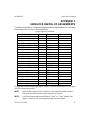
Appendix C. Sherlock Digital I/O Assignments . . . . . . . . . . . . . . . . . . . . . . . . . . . . . . . .
Appendix D. Non-Standard Options . . . . . . . . . . . . . . . . . . . . . . . . . . . . . . . . . . . . . . . . .
Current Sourcing PNP Output . . . . . . . . . . . . . . . . . . . . . . . . . . . . . . . . . . . . . . . . . .
Appendix E. Genie Camera Setup . . . . . . . . . . . . . . . . . . . . . . . . . . . . . . . . . . . . . . . . . . .
Verify or Set the Camera IP Address . . . . . . . . . . . . . . . . . . . . . . . . . . . . . . . . . . . . .
Verify or Update the Camera Firmware . . . . . . . . . . . . . . . . . . . . . . . . . . . . . . . . . .
Camera Configuration Settings . . . . . . . . . . . . . . . . . . . . . . . . . . . . . . . . . . . . . . . . .
Device Name . . . . . . . . . . . . . . . . . . . . . . . . . . . . . . . . . . . . . . . . . . . . . . . . . . .
Packet Size . . . . . . . . . . . . . . . . . . . . . . . . . . . . . . . . . . . . . . . . . . . . . . . . . . . .
Color Mode . . . . . . . . . . . . . . . . . . . . . . . . . . . . . . . . . . . . . . . . . . . . . . . . . . . .
White Balance . . . . . . . . . . . . . . . . . . . . . . . . . . . . . . . . . . . . . . . . . . . . . . . . . .
Trigger and Strobe . . . . . . . . . . . . . . . . . . . . . . . . . . . . . . . . . . . . . . . . . . . . . . .
Gain . . . . . . . . . . . . . . . . . . . . . . . . . . . . . . . . . . . . . . . . . . . . . . . . . . . . . . . . . .
Exposure Time . . . . . . . . . . . . . . . . . . . . . . . . . . . . . . . . . . . . . . . . . . . . . . . . .
Saving Your Camera Settings . . . . . . . . . . . . . . . . . . . . . . . . . . . . . . . . . . . . . . . . . .
Sherlock Configuration Files . . . . . . . . . . . . . . . . . . . . . . . . . . . . . . . . . . . . . . . . . .
Changing the Camera Order . . . . . . . . . . . . . . . . . . . . . . . . . . . . . . . . . . . . . . .
Distributed Network Configurations . . . . . . . . . . . . . . . . . . . . . . . . . . . . . . . . . . . . .
iNspect/iLabel . . . . . . . . . . . . . . . . . . . . . . . . . . . . . . . . . . . . . . . . . . . . . . . . . .
Sherlock . . . . . . . . . . . . . . . . . . . . . . . . . . . . . . . . . . . . . . . . . . . . . . . . . . . . . .
Changing Out Cameras . . . . . . . . . . . . . . . . . . . . . . . . . . . . . . . . . . . . . . . . . . . . . . .
Sherlock . . . . . . . . . . . . . . . . . . . . . . . . . . . . . . . . . . . . . . . . . . . . . . . . . . . . . .
iNspect/iLabel . . . . . . . . . . . . . . . . . . . . . . . . . . . . . . . . . . . . . . . . . . . . . . . . . .
Appendix F. DCI-100 Camera Interface Module . . . . . . . . . . . . . . . . . . . . . . . . . . . . . . . .
Connectors . . . . . . . . . . . . . . . . . . . . . . . . . . . . . . . . . . . . . . . . . . . . . . . . . . . . . . . . .
Features . . . . . . . . . . . . . . . . . . . . . . . . . . . . . . . . . . . . . . . . . . . . . . . . . . . . . . . . . . .
Cables Available . . . . . . . . . . . . . . . . . . . . . . . . . . . . . . . . . . . . . . . . . . . . . . . . . . . .
Power . . . . . . . . . . . . . . . . . . . . . . . . . . . . . . . . . . . . . . . . . . . . . . . . . . . . . . . . . . . . .
Logic Thresholds . . . . . . . . . . . . . . . . . . . . . . . . . . . . . . . . . . . . . . . . . . . . . . . . . . . .
Serial Connector . . . . . . . . . . . . . . . . . . . . . . . . . . . . . . . . . . . . . . . . . . . . . . . . . . . .
Camera Connectors . . . . . . . . . . . . . . . . . . . . . . . . . . . . . . . . . . . . . . . . . . . . . . . . . .
Input Connector . . . . . . . . . . . . . . . . . . . . . . . . . . . . . . . . . . . . . . . . . . . . . . . . . . . . .
Output Connector . . . . . . . . . . . . . . . . . . . . . . . . . . . . . . . . . . . . . . . . . . . . . . . . . . .
Rev 06; 7 April 2011
40
41
42
42
43
43
45
46
47
48
48
49
50
53
54
55
57
57
59
60
61
61
61
62
63
63
63
63
63
64
65
65
65
66
7
VA6x User’s Reference
405-00022-00
List of Tables
Title
Page
Recommended Camera List . . . . . . . . . . . . . . . . . . . . . . . . . . . . . . . . . . . . . . . . . . . . . . .
Cable Pin-Out . . . . . . . . . . . . . . . . . . . . . . . . . . . . . . . . . . . . . . . . . . . . . . . . . . . . . . . . .
I/O Connector Definitions . . . . . . . . . . . . . . . . . . . . . . . . . . . . . . . . . . . . . . . . . . . . . . . .
Example Load Resistance (based on 10 mA load) . . . . . . . . . . . . . . . . . . . . . . . . . . . . .
Terminal Block Definitions for Opto-Isolation Breakout . . . . . . . . . . . . . . . . . . . . . . . .
Camera Control Pinout . . . . . . . . . . . . . . . . . . . . . . . . . . . . . . . . . . . . . . . . . . . . . . . . . .
Ethernet Pinout . . . . . . . . . . . . . . . . . . . . . . . . . . . . . . . . . . . . . . . . . . . . . . . . . . . . . . . .
Power Connector Pinout . . . . . . . . . . . . . . . . . . . . . . . . . . . . . . . . . . . . . . . . . . . . . . . . .
I/O Connector Definitions . . . . . . . . . . . . . . . . . . . . . . . . . . . . . . . . . . . . . . . . . . . . . . . .
Ethernet Pinout . . . . . . . . . . . . . . . . . . . . . . . . . . . . . . . . . . . . . . . . . . . . . . . . . . . . . . . .
USB Pinout . . . . . . . . . . . . . . . . . . . . . . . . . . . . . . . . . . . . . . . . . . . . . . . . . . . . . . . . . . .
Display Pinout . . . . . . . . . . . . . . . . . . . . . . . . . . . . . . . . . . . . . . . . . . . . . . . . . . . . . . . . .
Serial Pinout . . . . . . . . . . . . . . . . . . . . . . . . . . . . . . . . . . . . . . . . . . . . . . . . . . . . . . . . . .
Default Digital I/O Definitions . . . . . . . . . . . . . . . . . . . . . . . . . . . . . . . . . . . . . . . . . . . .
IPD DCI-100 Threshold Control Assignments . . . . . . . . . . . . . . . . . . . . . . . . . . . . . . . .
IPD DCI-100 Serial Port Pinout . . . . . . . . . . . . . . . . . . . . . . . . . . . . . . . . . . . . . . . . . . .
IPD DCI-100 Camera Connector Pinout . . . . . . . . . . . . . . . . . . . . . . . . . . . . . . . . . . . . .
IPD DCI-100 Input Connector Pinout . . . . . . . . . . . . . . . . . . . . . . . . . . . . . . . . . . . . . . .
IPD DCI-100 Output Connector Pinout . . . . . . . . . . . . . . . . . . . . . . . . . . . . . . . . . . . . .
8
17
19
21
23
24
35
36
36
37
38
38
39
39
41
64
65
65
66
66
Rev 06; 7 April 2011
405-00022-00
VA6x User’s Reference
List of Figures
Title
Figure 1. VA61 Installation . . . . . . . . . . . . . . . . . . . . . . . . . . . . . . . . . . . . . . . . . . . . . . .
Figure 2. VA61 Rear Panel . . . . . . . . . . . . . . . . . . . . . . . . . . . . . . . . . . . . . . . . . . . . . . .
Figure 3. Control and Power Cable . . . . . . . . . . . . . . . . . . . . . . . . . . . . . . . . . . . . . . . . .
Figure 4. Single-Ended Inputs . . . . . . . . . . . . . . . . . . . . . . . . . . . . . . . . . . . . . . . . . . . . .
Figure 5. Typical Output Wiring Diagram . . . . . . . . . . . . . . . . . . . . . . . . . . . . . . . . . . .
Figure 6. Terminal Breakout Module . . . . . . . . . . . . . . . . . . . . . . . . . . . . . . . . . . . . . . .
Figure 7. Isolation Breakout Module . . . . . . . . . . . . . . . . . . . . . . . . . . . . . . . . . . . . . . . .
Figure 8. Solution ID Switching Circuit . . . . . . . . . . . . . . . . . . . . . . . . . . . . . . . . . . . . .
Figure 9. Front Panel Status LEDs and Reset Switch . . . . . . . . . . . . . . . . . . . . . . . . . . .
Figure 10. VA61 Mounting Holes . . . . . . . . . . . . . . . . . . . . . . . . . . . . . . . . . . . . . . . . . .
Figure 11. Genie Camera Mounting Holes . . . . . . . . . . . . . . . . . . . . . . . . . . . . . . . . . . .
Figure 12. Isolated Breakout Board . . . . . . . . . . . . . . . . . . . . . . . . . . . . . . . . . . . . . . . . .
Figure 13. VA61 Installation . . . . . . . . . . . . . . . . . . . . . . . . . . . . . . . . . . . . . . . . . . . . . .
Figure 14. Camera Power and I/O Connectors . . . . . . . . . . . . . . . . . . . . . . . . . . . . . . . .
Figure 15. Power Connector . . . . . . . . . . . . . . . . . . . . . . . . . . . . . . . . . . . . . . . . . . . . . .
Figure 16. I/O Connector . . . . . . . . . . . . . . . . . . . . . . . . . . . . . . . . . . . . . . . . . . . . . . . . .
Figure 17. Ethernet and USB Connectors . . . . . . . . . . . . . . . . . . . . . . . . . . . . . . . . . . . .
Figure 18. Photosensor Connections . . . . . . . . . . . . . . . . . . . . . . . . . . . . . . . . . . . . . . . .
Figure 19. PNP Sourcing Outputs . . . . . . . . . . . . . . . . . . . . . . . . . . . . . . . . . . . . . . . . . .
Figure 20. Genie Camera Status . . . . . . . . . . . . . . . . . . . . . . . . . . . . . . . . . . . . . . . . . . .
Figure 21. VA-Genie Camera Setup Utility . . . . . . . . . . . . . . . . . . . . . . . . . . . . . . . . . . .
Figure 22. Ports in VA-Genie Camera Setup . . . . . . . . . . . . . . . . . . . . . . . . . . . . . . . . . .
Figure 23. Firmware Update Tool . . . . . . . . . . . . . . . . . . . . . . . . . . . . . . . . . . . . . . . . . .
Figure 24. The CamExpert Window . . . . . . . . . . . . . . . . . . . . . . . . . . . . . . . . . . . . . . . .
Figure 25. Selecting a Camera . . . . . . . . . . . . . . . . . . . . . . . . . . . . . . . . . . . . . . . . . . . . .
Figure 26. Camera Name . . . . . . . . . . . . . . . . . . . . . . . . . . . . . . . . . . . . . . . . . . . . . . . . .
Figure 27. Packet Size . . . . . . . . . . . . . . . . . . . . . . . . . . . . . . . . . . . . . . . . . . . . . . . . . . .
Figure 28. Setting the Color Mode . . . . . . . . . . . . . . . . . . . . . . . . . . . . . . . . . . . . . . . . .
Figure 29. Sensor Tab, Color Calibration . . . . . . . . . . . . . . . . . . . . . . . . . . . . . . . . . . . .
Figure 30. I/O Tab . . . . . . . . . . . . . . . . . . . . . . . . . . . . . . . . . . . . . . . . . . . . . . . . . . . . . .
Figure 31. Input Settings . . . . . . . . . . . . . . . . . . . . . . . . . . . . . . . . . . . . . . . . . . . . . . . . .
Figure 32. Output Settings . . . . . . . . . . . . . . . . . . . . . . . . . . . . . . . . . . . . . . . . . . . . . . . .
Figure 33. Sensor Tab . . . . . . . . . . . . . . . . . . . . . . . . . . . . . . . . . . . . . . . . . . . . . . . . . . .
Rev 06; 7 April 2011
Page
15
16
19
22
22
23
23
24
25
26
27
27
29
35
36
37
38
40
42
43
44
44
45
46
47
48
48
49
49
50
51
52
53
9
VA6x User’s Reference
405-00022-00
Figure 34. Exposure Control . . . . . . . . . . . . . . . . . . . . . . . . . . . . . . . . . . . . . . . . . . . . . .
Figure 35. Camera Information Tab . . . . . . . . . . . . . . . . . . . . . . . . . . . . . . . . . . . . . . . .
Figure 36. Save Settings . . . . . . . . . . . . . . . . . . . . . . . . . . . . . . . . . . . . . . . . . . . . . . . . .
Figure 37. Saving and Naming Configuration File . . . . . . . . . . . . . . . . . . . . . . . . . . . . .
Figure 38. Sapera Camera Acquisition Wizard . . . . . . . . . . . . . . . . . . . . . . . . . . . . . . . .
Figure 39. DCI-100 Connectors . . . . . . . . . . . . . . . . . . . . . . . . . . . . . . . . . . . . . . . . . . .
Figure 40. DCI-100 and Dimensions . . . . . . . . . . . . . . . . . . . . . . . . . . . . . . . . . . . . . . . .
10
54
55
55
56
58
64
67
Rev 06; 7 April 2011
405-00022-00
VA6x User’s Reference
1. INTRODUCTION
Congratulations on your purchase of the VA61 GigE Camera Vision Appliance! You now own a
powerful, integrated system that can be applied to a diverse range of industrial vision applications. As a valued Teledyne DALSA customer, you can now look forward to easily implementing
robust solutions, the Vision Appliance way.
Overview
The VA61 is an integrated platform that includes processing, display, image capture, networking,
communication and industrial I/O. These standard hardware components, encased within an aluminum chassis, provide the basis for a powerful industrial vision system.
About This Manual
This manual will assist you with the installation and setup of your Vision Appliance product and
the inspection software. It describes what the product supports and how to connect the external
interfaces.
If your Vision Appliance questions are not answered in this reference, please contact your local
Teledyne DALSA representative who will be happy to answer or direct your question to the appropriate factory resource.
In the unlikely event of failure, the warranty and return information is included in Section 3, starting on page 4.
The vertical bars are “change bars” and mark additions or changes from the previous version of this manual.
Rev 06; 7 April 2011
11
VA6x User’s Reference
405-00022-00
2. BEFORE YOU BEGIN
Product Verification
Before getting started, please take a few minutes to verify that your shipment is complete and in
good condition. If your product has been visibly damaged during shipment or is missing parts,
please contact your local Teledyne DALSA representative immediately.
Environmental Requirements
For reliable operation, this product should be operated within the following environmental conditions:
• Stable ambient temperature from 10°C to 45°C
• Relative humidity to 90% non-condensing
• Stable ambient lighting
• No excessive vibration or mechanical shock
• No contact with corrosive agents
• No liquid splash
• Dust and dirt controlled (regular maintenance checks)
CAUTION: The enclosure includes air intake holes at the rear of the unit and a small exhaust fan
on the front. For the continued reliability of the system, it is important that these areas are not
obstructed when the unit is mounted.
12
Rev 06; 7 April 2011
405-00022-00
VA6x User’s Reference
3. SUPPORT AND MAINTENANCE
Support
Teledyne DALSA Industrial Products provides the following support resources:
Documentation
In addition to this manual, the following information ships with the product:
Online help – fingertip help is available on every screen (“panel”) of the User Interface.
PDF document – a copy of this manual is located on the hard drive, in directory “PDF Manuals”.
IPD Website
Our www.teledynedalsa.com/ipd website is updated regularly with the latest information.
Factory Support
Call, fax, or email your local representative, or the Teledyne DALSA Headquarters, for product
support.
Teledyne DALSA Industrial Products
700 Technology Park Drive
Billerica, MA 01821
Main Number: +1.978.670.2002
FAX: +1.978.670.2010
Email: [email protected]
Internet: http://www.teledynedalsa.com/ipd
To assist our staff in supporting you better, please have the following information available:
1. Name of Teledyne DALSA representative who sold you the product.
2. Serial number of the unit.
3. Description of how the product is being used (application and environment).
4. Description of the problem and what you were doing when the problem occurred.
5. Exact wording of any error or warning messages that the product displayed.
6. What you have done to try and solve it.
Maintenance
For continued product health and reliable results, Teledyne DALSA recommends regular maintenance checks to keep the equipment free of dust and dirt. Use anti-static compressed air to blow
dust off the Lens and use a lens cloth or cleaner to wipe away grease, oil, or fingerprints.
Rev 06; 7 April 2011
13
VA6x User’s Reference
405-00022-00
4. PRODUCT OVERVIEW
Product Description
The VA61 is an optical inspection appliance designed for high-speed applications requiring
single or multiple views of a part. Both easy to learn and deploy, the VA61 is an ideal choice for
manufacturers who need to ensure the best possible quality in their product.
The VA61 is a stand-alone product that does not require interfacing to a PC for setup. Remote
connections are available for control and monitoring. All required software, user interfaces and
communication controls are resident in the product.
Pre-inspection setup requires adjusting the sensor trigger-to-image delay, focusing the camera
lens and adjusting the light source to optimize image picture quality (highlight features of interest). This is an important step to assure accurate and repeatable results.
Inspections are quickly set up by applying instances of tools to an image template captured by
each of the cameras. Once configured with acceptable tolerances, the device is ready to start inspecting. In inspect mode, results and images are posted to the local display continuously. At the
same time, outputs control downstream part handling and results are communicated to related
equipment via RS-232 or Ethernet.
The VA61 accommodates both translation (X,Y) and 360° rotation of parts. While fixturing is
recommended wherever possible, it is not a requirement for operation of this product. The VA61
can store over 256 solutions, 32 of which can be switched externally through user I/O for line
changeovers.
Typical Applications
The VA61 can be applied to solve a diverse range of manufacturing problems across a multitude
of industries. Typical applications include:
• Detect missing or incorrect components in a package or assembly
• Inspect front, back and top surfaces simultaneously
• Track or verify products – barcode or 2D matrix
• Align PCBs – locate and report position of multiple fiducials
• Locate and count objects
• Verify label position, fill level, cap and safety seal on bottles
• Check for surface defects
• Verify a label is not torn, smeared, stained or folded
14
Rev 06; 7 April 2011
405-00022-00
VA6x User’s Reference
Components
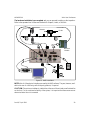
Figure 1 illustrates the physical components associated with a typical VA61 installation. Information on connector pinouts and electrical characteristics can be found in this Chapter, or in Appendix A starting on page 35.
detector
Kicker
1
1
2
Breakout
Module
2
+24
VDC
Figure 1. VA61 Installation
NOTE: Not all of the physical interfaces are used by the VA61 software. They are, however, available to the user for interfacing with third party products, if required.
CAUTION: The enclosure includes air intake holes at the rear of the unit and a small exhaust fan
on the front. For the continued reliability of the system, it is important that these areas are not
obstructed when the unit is mounted.
Rev 06; 7 April 2011
15
VA6x User’s Reference
405-00022-00
5. INSTALLATION
Pre-Installation Checks
1. Read the handling and operating precautions in Section 2.
2. Check that all essential components are present:
a. The VA61 unit
b. Display, keyboard and mouse
c. Camera(s) and associated cable(s)
d. C-Mount Lens for each camera
e. 24VDC power supply
f. Light Source, cable and power supply if necessary
g. Sensor trigger and cable (if required)
h. I/O breakout hardware
Interface Specifications
Before attempting installation, familiarize yourself with the various hardware interfaces detailed
below.
Industrial I/O
Camera Control
1
1
DC Power
2
2
Camera
Mouse & Keyboard
Network Port
Ports
PS/2 ports
and
Display
Audio
2 USB
Ports
Serial
Port
Figure 2. VA61 Rear Panel
16
Rev 06; 7 April 2011
405-00022-00
VA6x User’s Reference
Camera Connections
The standard camera that ships with the product has a resolution of 640x480 pixels, but this is
expandable up to 1600x1200. Different size cameras are available to suit application space
constraints.
Teledyne DALSA offers cameras for use with our vision systems, some of which are referenced
below. See also directory: D:\PDF Manuals for available camera manuals.
NOTE
When you order the camera from Teledyne DALSA with the VA61, it will be
tested with the cables and Vision Appliance that are being shipped to you. Furthermore, the VA61will have the appropriate configuration file loaded, making
for a smooth out-of-the-box experience.
The camera interface supports:
• 2 camera inputs, supporting progressive scan digital GigE (Gigabit Ethernet) cameras with
standard or double-speed capabilities. Sherlock supports 2 asynchronous cameras. iNspect
and iLabel solutions support synchronous cameras; multiple cameras in a single Solution must
be synchronous. iNspect and iLabel do not support color cameras.
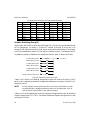
Recommended Camera List
The following cameras are offered by Teledyne DALSA. Consult Teledyne DALSA for alternate
choices if required.
Model
Genie* M640
Genie M1024
Genie M1400
Genie M1600
Genie C640
Genie C1024
Genie C1400
Genie C1600
Type
monochrome
monochrome
monochrome
monochrome
color
color
color
color
Resolution
640x480
1024x768
1360x1024
1600x1200
640x480
1024x768
1360x1024
1600x1200
Full frame speed
64 fps
20 fps
15 fps
12 fps
64 fps
20 fps
15 fps
12 fps
* Standard camera that ships with the VA61.
Sherlock uses a separate configuration file, usually found in the \IFC\Config directory.
Camera Settings
NOTE
Cameras ordered with the VA61 are configured with two different IP Addresses
that match the two different GigE Port addresses on the VA61. The cameras cannot be swapped between the two camera ports.
Rev 06; 7 April 2011
17
VA6x User’s Reference
405-00022-00
In the factory default setting, VA61 Camera Port 1 is set to IP Address 10.1.64.5, and VA61 Camera Port 2 is set to IP Address 10.1.128.7. Subnet Mask 255.255.192.0. The VA-Genie Camera
Setup program assigns compatible addresses to the two cameras. Once addresses are assigned,
the cameras cannot be swapped between the two camera ports.
Genie cameras purchased through a different distribution channel are usually set to dynamic addressing by default. This is usable in a distributed network situation, but not when cameras are
directly connected to the VA61 camera ports. The VA61 is not a DHCP server. Connect the cameras and run the VA-Genie Camera Setup program, to assign fixed addresses to the cameras, then
label each camera for the port it was connected to. The cameras are no longer interchangeable.
You should run the Firmware update to verify your camera’s firmware is up to date, or if updating
is required. Start –> Programs –> DALSA –> Genie –> Firmware Update.
The camera parameters are programmable through the GigE interface. Teledyne DALSA provides the Sherlock camera I/O instructions, Sapera CamExpert utility, and iNspect/iLabel Sensor
Setup panel, for programming camera settings.
Camera Exposure Control
The Genie camera has programmable Exposure Time. For digital cameras, programming the exposure time yields better control and results than pulse width controlled exposure, commonly
used to control the exposure in analog cameras. The Genie camera does have a pulse width controlled mode for situations where analog cameras are being replaced. But when designing a system with digital cameras (GigE or CameraLink) you should use the programmable exposure
time.
You can save an exposure time value to the camera, using CamExpert. You can also change the
exposure time in iNspect, iLabel and Sherlock.
GigE Camera Video Data Cable
The GigE cameras are compatible with standard RJ45 ethernet connectors and cables. The Genie
cameras automatically sense or detect the transmit and send signals. This means you can use either a regular network cable or a crossover cable. Teledyne DALSA offers a crossover cable with
a locking connector that attaches to the camera. This cable is also compatible with the standard
RJ45 or Ethernet connectors.
Part Number
A-CAB-GE-00
A-CAB-GE-01
A-CAB-GE-02
18
Cable Length
3 meters
5 meters
10 meters
Rev 06; 7 April 2011
405-00022-00
VA6x User’s Reference
Camera Control & Power Cable
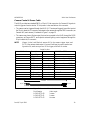
The VA61 provides two standard DB15 or 15-pin D-Sub connectors for Camera I/O signals to
control trigger and receive strobe. 12 Volt power is also available on this connector.
• The camera can be triggered through the VA61 I/O. The external trigger(s) would be input at
the 25-pin Industrial I/O connector, and output to the cameras through the DB15 connectors, as
Camera IN2 (each camera), illustrated in Figure 1 on page 15.
• The camera may have a Strobe output, that can be connected to the VA61 through the DB15
connectors, as Camera OUT2, and output to external lighting control equipment through the
25-pin Industrial I/O connector.
NOTE
iNspect, iLabel, and Sherlock assume IN2 is the camera trigger input, and
OUT2 is the camera strobe output. If you use CamExpert to create a camera configuration file, make sure you use In2 for trigger, and Out2 for strobe.
Cable Pin-Out
Camera 12-Pin Hirose
1
2
3
4
5
6
7
8
9, 10
11
12
Description
Power Ground
+12 Volt Power
OUT 1 –
OUT 1 +
IN 1 –
IN 1 +
Out 2+ / Strobe
Out 2 –
No Connection
IN 2 + / Trigger
IN 2 –
Direction
Camera Output
Camera Input
Camera Output
Camera Input
VA61 15-Pin DB15
10
15
7 (no connection on VA61)
13 (no connection on VA61)
8 (no connection on VA61)
14 (no connection on VA61)
12
6
1,2,3,5,11
9
4
see below
12 pins
15 pins
Figure 3. Control and Power Cable
Part Number
A-CAB-GTP-00
A-CAB-GTP-01
A-CAB-GTP-02
Rev 06; 7 April 2011
Cable Length
3 meters
5 meters
10 meters
19
VA6x User’s Reference
405-00022-00
Another possible configuration would be:
• The camera is triggered directly from the part sensor, bypassing the VA61.
• The camera’s strobe output is connected directly to the lighting equipment, bypassing the
VA61.
For this case, Teledyne DALSA offers an optional DCI-100 Teledyne DALSA Camera Interface
module for connecting the camera signals to terminal block connectors. The same Control and
Power cable is used to connect the Cameras to the DCI-100. The Camera Power and I/O connectors on the VA61 would not be used for the strobe and trigger signals when the DCI-100 is in use.
Only the GigE data ports would be used.
Network Connection
If your system is to be connected to a LAN (Local Area Network), connect a network cable to the
RJ45 Ethernet jack located over the 2 USB ports. The VA61 supports GigE (1,000BaseT) Fast
Ethernet (100BaseT) and Twisted Pair Ethernet (10BaseT). If you plan to use Fast Ethernet or
GigE, use a Category 5 (UTP5) cable. The default network port is the connector above the USB
ports. This network port is configured for Dynamic Addressing or DHCP.
The two VA61 Camera Ports are configured for Static Addresses 10.1.64.5 and 10.1.128.7 with
Subnet Mask 255.255.192.0. “Jumbo Frames” is set to 9014 and “Receive Descriptor” set to
2048. A larger value for Jumbo Frames seems to degrade operation in some cases.
Serial Port Connection
The VA61 has one RS-232/485 compliant serial port. The serial port is typically used for passing
results to a third party device, such as a PLC or other peripherals. The serial port is used to communicate with the optional DCI-100 Teledyne DALSA Camera Interface module.
20
Rev 06; 7 April 2011
405-00022-00
VA6x User’s Reference
Industrial I/O Connections
The VA61 interfaces I/O using the 25-pin D-Sub connector on the back panel (Figure 2, page 16).
I/O Connector Definitions
Pin #
1
2
3
4
5
6
7
8
Direction
–
In
In
In
In
–
Out
Out
9
10
11
Out
Out
In
12
13 & 14
15
16
17
18
19
20
Out
–
In
In
In
In
–
Out
21
22
23
24
25
Out
Out
Out
Out
–
iNspect and iLabel Definition
Ground
GPI0, Sensor/Camera Trigger 1
GPI2, or Solution ID 0
GPI4, Solution ID 2 or Trigger 2
GPI6, or Solution ID 4
Ground
GPO0, or Strobe 1
GPO2, or Pass in equation default (Pass
Cam1 in Async mode)
GPO4, Strobe 2, Pass Cam2 in Async mode
GPO6
User Power input on PNP option
not connected on standard NPN
Fused +12V at 0.75A
Ground
GPI1, or Change Solution input
GPI3, or Solution ID 1
GPI5, or Solution ID 3
GPI7, or Solution ID 5
Ground
GPO1, Fail in Equation default (Pass Cam1
in Async mode)
GOP3, Fail Cam2 in Async mode
GPO5
GPO7
Fused +5 V at .75 A
Ground
Sherlock Definition
In Channel 0, or Trigger 1
In Channel 2
In Channel 4, or Trigger 2
In Channel 6
Out Channel 0, or Strobe 1
Out Channel 2
Out Channel 4, or Strobe 2
Out Channel 6
In Channel 1
In Channel 3
In Channel 5
In Channel 7
Out Channel 1
Out Channel 3
Out Channel 5
Out Channel 7
The iNspect and iLabel software defines the I/O settings in this table for trigger inputs, strobe
outputs, and decision outputs. Sherlock uses the trigger and strobe defaults in this table, or the
definitions in a VA-Genie Camera Configuration file for the I/O Connector.
Rev 06; 7 April 2011
21
VA6x User’s Reference
405-00022-00
Input Electrical Specifications
All VA61 inputs are single-ended, with the following specification:
Signal state
Low (Inactive)
High (Active)
Turn ON current
Min.
0V
2.4 V
1 mA
Max
0.8 V
30 V
3.3 Volts
2.2K
Same polarity
as the input
10K
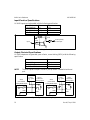
input
5.62K
Figure 4. Single-Ended Inputs
Output Electrical Specifications
All VA61 outputs are single-ended, open collector, current sinking (NPN), with the following
specification:
Parameter
Output Voltage
Output Sink Current
Short Circuit Protection
NOTE
Max
30 V
500 mA
25 V
The NPN outputs are Open Collector. A pull-up resistor is needed to test the outputs.
VA61
non-isolated
sinking NPN output
External
Power
+7V–+35V
+ –
User’s
active-low
sourcing input
V+
Out
VA61
non-isolated
sinking NPN output
External
Power
+7V–+35V
+ –
Out
IN
GND
GND
User’s
active-low
sourcing input
V+
R
IN
GND
GND
Figure 5. Typical Output Wiring Diagram
22
Rev 06; 7 April 2011
405-00022-00
VA6x User’s Reference
Example Load Resistance (based on 10 mA load)
Voltage Source
24 V
30 V
Load R
4.8 K ohms
6 K ohms
I/O Breakout Options
The Industrial I/O connector is a standard 25-pin D-Sub connector. You may create your own
cable for making your connections. There is an optional VA61 breakout module with terminal
connectors and LED indicators, available from Teledyne DALSA.
Standard Terminal Breakout (A-IOB-011)
The terminal breakout module (Figure 6) ships as part of the standard product bundle. It provides
a simple means to wire inputs and outputs to the VA61. The pinout is a direct 1–1 correlation with
the 25-pin connector on the back panel (pin-out on page 21).
Figure 6. Terminal Breakout Module
Optional Isolation Breakout (A-IOB-100)
The isolation breakout module (Figure 7) provides opto-isolation for all of the I/O. It supports
standard “Openline” modules from Grayhill. The breakout provides easy wiring to industrial
controls, while providing protection from potentially harmful power sources. Each module supports either 2 inputs or 2 outputs. Output modules are fused and provide status LED indicators.
Modules M0 to M3 are DC Inputs, Modules M4 to M7 are DC Outputs (see following table).
Figure 7. Isolation Breakout Module
Rev 06; 7 April 2011
23
VA6x User’s Reference
405-00022-00
Terminal Block Definitions for Opto-Isolation Breakout
Pin #
1
2
3
4
5
6
7
8
Function
IN0
GND
IN1
GND
IN2
GND
IN3
GND
Pin #
9
10
11
12
13
14
15
16
Function
IN4
GND
IN5
GND
IN6
GND
IN7
GND
Pin #
17
18
19
20
21
22
23
24
Function
OUT0+
OUT0–
OUT1+
OUT1–
OUT2+
OUT2–
OUT3+
OUT3–
Pin #
25
26
27
28
29
30
31
32
Function
OUT4+
OUT4–
OUT5+
OUT5–
OUT6+
OUT6–
OUT7+
OUT7–
Solution Switching Using I/O
iNspect and iLabel Solutions can be switched through the I/O Connector or the Breakout board,
for line changeovers. You supply a “Solution ID” number, 00 through 31 with 5 bits, or 00
through 63 with 6 bits as shown, and a “load” signal, using 6 switches and a button. The necessary
circuit is illustrated below, and the I/O Connector pin numbers are given. This hardware switching feature is enabled or disabled on the Save/Export Solution panel in iNspect and iLabel.
Solution ID bit 0 pin 3
V+ pin 24
Solution ID bit 1 pin 16
Solution ID bit 2 pin 4
Solution ID bit 3 pin 17
Solution ID bit 4 pin 5
Solution ID bit 5 pin 18
Change Solution input pin 15
Figure 8. Solution ID Switching Circuit
If there is no ID switch circuit attached, the application opens with Solution 00 running. If an ID
switch circuit is attached (and enabled), the application starts/opens running the Solution ID indicated by the switch.
NOTE
Do Not change the running Solution when in the History Recall panel, or when
any dialog boxes or message windows are open, such as image save, file or directory browse, Reject Restart Count, alarm messages.
If there is no ID switch attached, the Solution ID inputs and Change Solution input can be used as
General Purpose inputs GPI1–GPI7 in Conditional Outputs and Equation Assignments in iLabel
and iNspect Solutions.
24
Rev 06; 7 April 2011
405-00022-00
VA6x User’s Reference
Status LEDs and RESET Switch
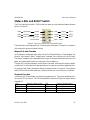
The Vision Appliance provides 7 LEDs on the front panel, as visual health and status indicators
(shown in Figure 9).
LED0
Application
Amber
Red
Reject
LED3
LED1
Camera
Amber
Yellow
Recycle
LED4
LED2
Switch Solution Amber
Green
Pass
LED5
Reset Switch
Blue – Power
Figure 9. Front Panel Status LEDs and Reset Switch
The Reset button, when depressed, will initiate a system reset/reboot. The button is recessed in
the front panel to prevent accidental contact.
iNspect & iLabel Function
As the iNspect or iLabel application opens, two of the LEDs start flashing. These represent “application” and “camera” health. The application “heartbeat” has a 2 second cycle, at 50% duty.
The camera “heartbeat” rate is dependent upon the type of camera and external event time or line
speed, and can be rapidly flashing, or may seem to be constantly on.
The other LED indicators represent “switch solution command” and inspection results (Pass/Recycle/Reject). In the iNspect and iLabel applications, the inspection results are updated with every inspection and visually indicate the state of the outputs on the I/O connector. The inspection
results LEDs are latched after a decision, and stay latched until the next decision is available.
Sherlock Function
In Sherlock, all 6 LEDs are under your inspection program control. There are no predefined functions to the LEDs in Sherlock. The LEDs are available in Sherlock as Digital I/O output channels
8 through 13.
LED
LED0 amber
LED1 amber
LED2 amber
Sherlock Digital Output
Channel 8
Channel 9
Channel 10
Rev 06; 7 April 2011
LED
LED3 red
LED4 yellow
LED5 green
Sherlock Digital Output
Channel 11
Channel 12
Channel 13
25
VA6x User’s Reference
405-00022-00
Mounting Options
VA61 Chassis
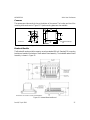
The VA61 provides the means to mount to a standard DIN rail or custom assembly. The mounting
holes are located on the base plate of the unit. Location and size of the mounting holes are shown
in Figure 10.
• Cabinet dimensions: W 20 cm x L 21.56 cm x H 7.5 cm; W 8 inches x L 8.6 inches x H 3 inches.
• Weight: 2.62 kg; 5.75 lb.
Dimensions are shown in inches.
Figure 10. VA61 Mounting Holes
26
Rev 06; 7 April 2011
405-00022-00
VA6x User’s Reference
Cameras
The cameras provide mounting holes on the bottom of the camera. The location and size of the
mounting holes are shown in Figure 11. Tripod mounting plates are also available.
13
50
44
Unit: mm
26
29
60
67
M3x0.5 4 Deep
8x
Figure 11. Genie Camera Mounting Holes
Breakout Module
The Breakout Boards provide the means to mount to a standard DIN rail. Standard DIN mounting
brackets are located on the bottom of the Breakout Board assembly. The Isolated Breakout Board
Assembly is shown in Figure 12.
Dimensions are shown in inches (and millimeters)
Figure 12. Isolated Breakout Board
Rev 06; 7 April 2011
27
VA6x User’s Reference
405-00022-00
Installation
1. Mount the Camera(s) and VA61 in a location free from excessive shock, moisture, and
vibration. The VA61 can be used with a standard DIN rail mount. Mounting holes are located on the base plate. See Figure 10 on page 26.
2. Connect a standard VGA Monitor to the Display connector.
3. Connect a mouse and keyboard, using either the PS/2 or USB connectors.
4. Thread the lens onto each camera lens mount.
5. Attach camera cables to each camera and connect them to the camera ports on the VA61. See
“Interface Specifications” and Figure 2, on page 16. If you ordered 2 cameras with the
VA61, make sure you match the camera and port correctly. The IP Addresses are configured for one port or the other and are not interchangeable.
6. Connect the sensor trigger inputs to the I/O Connector (see pin-out, page 21) or the breakout
module.
7. Mount the light source. Connect the strobe controller (if required) to the strobe output of the
I/O Connector (see pinout, page 21) or the breakout module.
8. Wire the required outputs from the I/O to the PLC or pass/reject mechanisms (see pinout,
page 21).
9. Connect network as required (see “Network Connection” on page 20).
10. Connect Serial connections as required (see “Serial Port Connection” on page 20).
Before powering on the unit, take a couple of minutes to verify your hardware installation:
11. Verify all cable connections
12. Verify all electrical connections
13. Verify all components are securely mounted.
Complete the installation by applying power to the unit. The VA61 is powered from an external
supply (option A-PWR-NSII) that connects to the 3-pin D-Sub connector. The power requirements are:
• +24 Volts at +/– 2.5 Amperes
When the VA61 has booted, the Genie cameras take a minute to acquire their network connection
to the VA61. There is a camera icon in the system tray (near the time). Message balloons may
appear saying devices are connected or disconnected. Hover the cursor over this camera icon to
see status on the number of cameras successfully configured and available. Run the VA-Genie
camera setup utility to verify the cameras are connected correctly.
28
Rev 06; 7 April 2011
405-00022-00
VA6x User’s Reference
The hardware installation is now complete, and you can proceed to setting up the inspection.
Refer to the separate User’s Reference Manuals for iNspect, iLabel, or Sherlock.
detector
Kicker
Breakout
Module
+24
VDC
Figure 13. VA61 Installation
NOTE: Not all of the physical interfaces are used by the VA61 software. They are, however, available to the user for interfacing with third party products, if required.
CAUTION: The enclosure includes air intake holes at the rear of the unit and a small exhaust fan
on the front. For the continued reliability of the system, it is important that these areas are not
obstructed when the unit is mounted.
Rev 06; 7 April 2011
29
VA6x User’s Reference
405-00022-00
Camera Configuration
iNspect/iLabel
The “IPD Camera and Language Selector” allows you to change the camera type (Analog, Firewire, GigE, and Virtual or image sequence) for the iNspect/iLabel applications (not for Sherlock). If a saved Solution is not compatible with the selected camera, it will not load or run.
The iNspect/iLabel applications use a generic Genie camera file “GEVtest.txt” in the D:\iNspect
directory, and an IO file GIOtest.txt in the same directory. You can change settings in the iNspect
or iLabel application. The settings and image size are saved in the Solution file. Camera settings
are sent to the camera when a saved Solution is loaded. The Solution will not load if the camera
type and image size does not match. You would only need to alter the GEVtest.txt or GIOtest.txt
files to change the Trigger or Strobe signal polarity. The commented lines in these two files explain how to do this.
Sherlock
The “Sapera Acquisition Wizard” identifies all available Genie Cameras, and creates a file “SaperaLTDrv.ini” that identifies them in Sherlock, and (optionally) points to Camera Configuration
files. Several example camera files are included on the VA61. The Sherlock application uses the
settings stored in the camera, or in camera configuration files. You can change settings for Trigger, Strobe, Exposure, White Balance, Gain, Black Level, using the CamExpert utility. You can
use the Sherlock program instructions to change Gain, Exposure (shutter time) or Strobe pulse
width (IO:Camera:SetNumberFeature).
The “VA-Genie Camera Setup” utility configures the VA61 I/O Connector, connecting the Genie
Camera strobe and trigger from the 15-pin connectors to the 25-pin Connector. The driver default
(no configuration file) is separate triggers for each camera, and strobe outputs disabled. There are
example “GIO” configuration files included on the VA61, in the VAGenie\Config directory. The
file in use is selected by the IFCDrv.ini file. The file selected by the factory installation is usually
“GIO2Trig2Strobe.txt” which enables separate triggers for each camera and both strobe outputs
enabled. The GIO configuration can also be used to change the trigger and strobe signal polarity.
Troubleshooting
1. You have launched iNspect or iLabel, but you do not see an image on the display.
a. Verify the acquisition heartbeat is flashing. If it is not, a connection problem is likely.
Verify the cables again.
b. Verify that the lens aperture is not closed.
30
Rev 06; 7 April 2011
405-00022-00
VA6x User’s Reference
c. Verify that the inspection area (meaning the area that the camera is viewing) is correctly
illuminated.
d. Verify that the camera and camera port match. The VA61 was configured before shipping
from Teledyne DALSA, with the cameras ordered with the VA61. The cameras cannot be
swapped between the two ports.
e. Verify that all cameras are successfully configured and available, by hovering over the
camera icon in the System tray (by the time display in the lower right corner).
f. Verify the Camera Selector has GigE camera selected. Installing a new software version
defaults to the analog cameras. Click the bubble beside GigE, then click the “Set” button
at the bottom of the Camera Configurator window.
2. Your iNspect Solution file does not load. There are no measurements displayed.
If the camera type used in the saved solution does not match the current attached camera, the solution will not load. iNspect will start a New Solution.
a. Use the Report Generator utility to create a report of your Solution file. This will specify
the cameras in use when the Solution was created.
3. You have launched Sherlock, but the Sherlock application fails to open.
This problem is usually caused by either a mismatch in the available hardware and the configuration files, or an incompatibility in the configuration file and the camera.
a. Verify all cameras are available, by hovering over the camera icon in the System tray, or
Start–Programs–DALSA–Sapera Network Imaging Package–Teledyne DALSA GigE
Vision Device Status. If Sherlock is running the cameras should be “Connected”. If Sherlock is closed, the cameras should be “Available”. If the Status windows says “IP Error”
the addresses are not correctly set. Refer to Appendix E. If the Status window says “GVSP
Unavailable” there is a problem with the GigE port driver. Refer to the document “Solving GVSP Unavailable” on your VA61 in \Install Files\VAGenie, or on the Sherlock CD,
in the directory \VAGenie.
b. Examine the file \Sherlock\Drivers\SaperaLTDrv.ini, and determine which Camera Configuration files are in use, and how many cameras are called out.
c. Open the Sapera CamExpert utility from a desktop icon or from the Start menu: Start–
Programs–DALSA–Sapera
d. Select a Camera from the “Device” drop down. Select the camera configuration file
called out by the SaperaLTDrv.ini file. Notice if the message pane contains any errors. If
there are error messages, the camera firmware is not compatible with some parameter(s)
in the file.
Rev 06; 7 April 2011
31
VA6x User’s Reference
405-00022-00
e. Close CamExpert, and run the Genie Firmware Update utility. If the status says “Update
Required” the camera firmware is outdated. Click “Automatic” to run the update. If the
status says “Update Not Required” the configuration file is outdated. Follow the steps in
Appendix E to set up your Genie camera and save a new configuration file.
4. You have launched Sherlock, but you do not see a camera image on the display.
a. Pull down the Options–Acquisition menu. This display will tell you if there is not license
for acquisition.
b. The Options–Acquisition display will tell you what drivers are enabled and loaded.
Verify both the SaperaLTDrv and IFCDrv drivers are enabled. If they are not both enabled, enable them now and close Sherlock. Drivers are loaded only when Sherlock first
opens.
c. If there is no Image Window, it is possible the Color Camera is not configured for RGB
color. Sherlock does not support Raw 8, YUY2 or UYVY settings. Refer to Appendix E
on configuring the Genie camera.
d. Right-click in the Image Window, and select a camera. If there are no camera selections
available, the Sapera LT driver did not load correctly.
e. Verify that the lens aperture is not closed.
f. Verify that the inspection area (meaning the area that the camera is viewing) is correctly
illuminated.
Software
There are several software packages that make the VA61 operate with the Genie cameras and application programs. This section attempts to show how these relate and depend on each other.
VA-Genie Camera Setup
• Configures the Genie camera(s) with fixed IP Addresses compatible with the two camera ports
on the VA61. This action is performed the first time this utility is run after a new Genie camera
is connected. After that, opening this utility verifies the camera addresses are compatible with
the ports they are connected to. Fixed addresses are necessary for iNspect/iLabel.
• VA61 I/O drivers. Configures the connection of trigger inputs and strobe outputs from the
25-pin Industrial I/O Connector to the two 15-pin Camera power and I/O connectors. For Sapera LT and Sherlock, the driver default (no configuration file) is 2 separate triggers, and strobe
outputs disabled. You can make changes and save them to a file for use with Sherlock. Example
files are included on the VA61. iNspect/iLabel has its own separate control of the VA61 I/O.
32
Rev 06; 7 April 2011
405-00022-00
VA6x User’s Reference
• DCI-100 I/O drivers. Configures the programmable logic thresholds on the DCI-100 Module,
through the VA61 or PC serial port. The DCI-100 provides a way to connect camera power and
I/O, separate from the VA61 camera power and I/O connectors.
• Acquisition driver for the iNspect/iLabel application. Cameras are ordered by IP Address.
• Acquire and display images. The default camera settings of this program are temporarily written to the camera , to allow display in this utility. The camera settings in this program are not
used by the other application programs. Note: Changing the Camera Name in this program
may make the camera unaccessible to the Sherlock and SaperaLT software.
Sapera CamExpert
• Change camera configuration settings, such as exposure time, white balance, gain, color output format. Gain and exposure time can also be changed from Sherlock and iNspect/iLabel.
• Save camera settings to the camera memory or a configuration file. You can configure the camera to load either your saved settings, or the factory settings, at power up. The preferred method
is to save your settings to the camera and load them at power up. If multiple configurations are
needed, you can save them to camera configuration files. Several example configuration files
are included on the VA61.
• Acquire and display images. Changes to the camera settings are temporary, unless saved to the
camera memory or to a configuration file.
SaperaLT Runtime
• Acquisition utility for the Sherlock software. Sapera LT is used with the drivers in the Genie
Framework.
Genie Framework
• Acquisition drivers for the SaperaLT and Sherlock software. Firmware update utility. A System tray icon provides status on the Genie camera connections. (available, unavailable, disconnected).
• Sapera Network Configuration Tool. Note: Changing the Camera Name in this program may
make the camera unaccessible to the Sherlock and SaperaLT software. Advanced–Recover
Camera can be used to reset the camera IP Address to DHCP/LLA, following the display steps.
Rev 06; 7 April 2011
33
VA6x User’s Reference
405-00022-00
Sherlock
• Image processing library and Integrated Development Environment (IDE) with a Graphical
User Interface (GUI) used to design, test, debug, and deploy machine vision applications.
• Sherlock uses the Sapera LT library and Genie Framework drivers for image acquisition. The
“Sapera LT” driver must be enabled in the Acquisition Options. You may point to a Sapera
CamExpert camera configuration file.
• Sherlock uses the VA-Genie Setup drivers for the Industrial I/O and Camera I/O. The “IFC”
driver must be enabled in the Acquisition Options. You may point to a VA-Genie Configuration file if you have made changes to the default I/O configuration; for example, enabling
strobe outputs or changing to a single trigger input for both cameras.
Sapera Acquisition Wizard
• This Sherlock utility detects all available hardware or cameras supported under Sapera LT, and
creates a file “SaperaLTDrv.ini” that identifies the cameras by their Camera Name. You can
enable or disable camera ports, and select camera configuration files in this utility. NOTE: If
this configuration file does not match the number of cameras (if two cameras are enabled, but
one camera is later disconnected) the Sapera LT and Genie drivers will not load, and Sherlock
will not run saved programs. Sherlock will open a new “investigation” file.
iNspect/iLabel
• Inspection application with Graphic User Interface (GUI) for easy setup of product inspection.
• iNspect/iLabel uses the VA-Genie Setup drivers for camera acquisition. iNspect/iLabel maintains its own settings and control over the camera and I/O.
Acronis® True Image
• VA61 systems in the blue cabinet (starting in June 2009) contain a factory restore image on the
hard drive. During system boot, press the F9 key to start the Acronis software, and restore the
factory settings. Any configuration changes made after receiving your VA61 are lost.
• The Acronis software also allows you to create new system backup images.
34
Rev 06; 7 April 2011
405-00022-00
VA6x User’s Reference
APPENDIX A
CONNECTORS AND PINOUTS
This section provides the connector pinout information for each of the VA61 external interfaces.
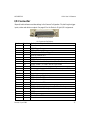
Camera Power and Control Connectors
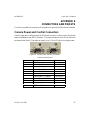
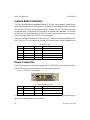
Camera image data is carried through RJ45 Ethernet connectors. Camera control signals and
power are available on two DB15 connectors. The location and pinout for the D-Sub connectors
are shown below. Each D-Sub cable can supply up to 0.5 A at +12 Volts from chassis power.
Pin 1
Figure 14. Camera Power and I/O Connectors
Camera Control Pinout
Pin number
1, 2, 3
4
5, 10
6
7
8
9
12
13
14
15
Rev 06; 7 April 2011
Description
Not Connected
Camera Input 2 –
Power Ground
Camera Output 2 –
Camera Output 1 –
Camera Input 1 –
Camera Input 2 + (trigger)
Camera Output 2 + (strobe)
Camera Output 1 +
Camera Input 1 +
+12 Volts (0.5A)
Direction
Out of VA61
In to VA61
no connection
no connection
Out of VA61
In to VA61
no connection
no connection
35
VA6x User’s Reference
405-00022-00
Camera Data Connectors
The GigE camera data ports are standard Ethernet RJ-45 8-pin male connectors, located directly
below the camera power and control connectors. Camera Port One is assigned a Static IP Address
10.1.64.5 and Camera Port Two is assigned a Static IP Address 10.1.128.7. The VA-Genie Camera Setup program configures the two cameras for compatible Static addresses. The Ethernet
ports are also configured (starting March 2008) for Jumbo Frames and maximum Receive Descriptors (see pages 25 and 26 in the Genie Camera Manual).
CamPort1 is defined in Windows as PCI Bus 1 Device 1. CamPort2 is defined in Windows as PCI
Bus 1 Device 14. This information may be needed if you must install a custom hardware driver.
Ethernet Pinout
Pin
1
2
3
4,5,7,8
6
Name
TD+
TD–
RD+
NC
RD–
Direction
Out
Out
In
–
In
Description
Transmit Data+
Transmit Data–
Receive Data+
not connected
Receive Data–
Power Connector
The VA61 is powered from an external supply (option A-PWR-NSII) that connects to the 3-pin
male D-Sub connector on the back panel. The power requirements are:
+24 V +/–10% @ 2.5 A maximum.
Pin 1
Figure 15. Power Connector
Power Connector Pinout
Pin
1
2
3
Name
GND
+24V
NC
Direction
–
Input
–
Description
Ground
DC Power
not connected
A power cable (A-CAB-NSII-PWR), with open leads on one end and a mating connector plug on
the other, is shipped standard with the product.
36
Rev 06; 7 April 2011
405-00022-00
VA6x User’s Reference
I/O Connector
iNspect/iLabel software overrides settings in the Camera Configuration File, defining the trigger
inputs, strobe and decision outputs. See page 41 for the Sherlock Digital I/O Assignments.
Pin 1
Figure 16. I/O Connector
I/O Connector Definitions
Pin #
1
2
3
4
5
6
7
8
9
10
11
12
13 & 14
15
16
17
18
19
20
21
22
23
24
25
Direction
–
In
In
In
In
–
Out
Out
Out
Out
In
Out
–
In
In
In
In
–
Out
Out
Out
Out
Out
–
Rev 06; 7 April 2011
Definition in iNspect and iLabel
Ground
GPI0 Trigger 1
GPI2 or Solution ID 0
GPI4, Solution ID 2, or Trigger 2
GPI6 or Solution ID 4
Ground
GPO0, Strobe 1
GPO2, or Pass in default equations (Pass Cam1 in Async mode)
GPO4, Strobe 2, or Pass Cam2 in Async mode
GPO6
Not connected on standard NPN. User Power input on PNP option.
Fused +12V at 0.75A
Ground
GPI1 or Change Solution Input
GPI3 or Solution ID 1
GPI5 or Solution ID 3
GPI7 or Solution ID 5
Ground
GPO1, or Fail in default equations (Fail Cam1 in Async mode)
GPO3, or Fail Cam2 in Async mode
GPO5
GPO7
Fused +5 V at .75 A
Ground
37
VA6x User’s Reference
405-00022-00
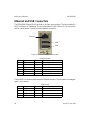
Ethernet and USB Connectors
The 10/100/1000 Ethernet RJ-45 connector is an 8-pin male connector. The factory default is
DHCP or Dynamic IP Addressing. This port is defined as PCI Bus 1 Device 13. You can use this
port for a third camera if you do not need a network connection.
Ethernet
USB
USB
Figure 17. Ethernet and USB Connectors
Ethernet Pinout
Pin
1
2
3
4–5
6
7–8
Name
TD+
TD–
RD+
NC
RD–
NC
Direction
Out
Out
In
–
In
–
Description
Transmit Data+
Transmit Data–
Receive Data+
not connected
Receive Data–
not connected
The two USB 2.0 connectors reside below the Ethernet connector. They are identical, rectangular
type-A, 4-pin sockets.
USB Pinout
Pin
1
2
3
4
38
Name
VCC
DATA–
DATA+
GND
Direction
Out
I/O
I/O
–
Description
Power, +5 V (1 A max)
Data–
Data+
Ground
Rev 06; 7 April 2011
405-00022-00
VA6x User’s Reference
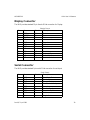
Display Connector
The VA61 provides standard 15-pin female D-Sub connection for Display.
Display Pinout
Pin
1
2
3
4
5–8
9
10
11
12
13
14
15
Name
RED
GREEN
BLUE
NC
GND
+5V
GND
NC
SDA
HS
VS
SCL
Direction
Out
Out
Out
–
–
Out
–
–
I/O
Out
Out
I/O
Description
Red
Green
Blue
not connected
Ground
+5 V
Ground
not connected
Serial data
Horizontal Sync
Vertical Sync
Serial data clock
Serial Connector
The VA61 provides standard 9-pin male D-Sub connection for serial port.
Serial Pinout
Pin
1
2
3
4
5
6
7
8
9
Name
DCD
RXD
TXD
DTR
GND
DTS
RTS
CTS
RI
Rev 06; 7 April 2011
Direction
In
In
Out
In
–
Out
Out
In
In
Description
Data Carrier Detect
Receive Data
Transmit Data
Data Terminal Ready
Ground
Data Set Ready
Request to Send
Clear to send
Ring Indicator
39
VA6x User’s Reference
405-00022-00
APPENDIX B
USING PHOTO-SENSORS
HTM Electronics Industries (http://www.htm–sensors.com) and Banner Engineering Corp.
(http://www.bannerengineering.com) and several other manufacturers make photoelectric sensors that do not require de-bouncing. The HTM Electronics MP-D0380D-CX9Q4UE infrared
sensor, and the Banner Engineering R55F series photoelectric sensors and the SM312
LVAGMHSQD photoelectric sensor have been used successfully with the Vision Appliance.
These sensors are rated to operate on 10 to 30 VDC; but do not exceed 24 VDC or you will damage the Vision Appliance.
The following diagram shows how to connect these photoelectric sensors. The wiring is:
Brown - Power (+16 to +24 Volts DC)
Blue - Ground
Black - Signal from photoelectric sensor. Goes high (to about the power voltage) when triggered.
The other two wires are not needed for using the sensor with the Breakout Board. These two wires
are:
White - Signal from photoelectric sensor – connects a small load to ground (see sensor specification)
Gray - Can be connected to a switch to ground; when closed, enables Remote Teach
The photoelectric sensor draws power from the brown and blue leads. When the photoelectric
sensor is triggered the output (black lead) goes high (to about the power supply voltage).
+ Power (16–24 VDC)
Ground
Brown
Blue
Black
Sensor
Unit
Sensor Trigger (GPI0)
or
Decision Trigger (GPI2)
Figure 18. Photosensor Connections
40
Rev 06; 7 April 2011
405-00022-00
VA6x User’s Reference
APPENDIX C
SHERLOCK DIGITAL I/O ASSIGNMENTS
The default configuration is 2 independent triggers, and strobe outputs disabled. You can change
these settings in the VA-Genie Camera Setup utility.
Default Digital I/O Definitions
Sherlock Digital I/O
output Channel 0 (Strobe 1)
output Channel 1
output Channel 2
output Channel 3
output Channel 4 (Strobe 2)
output Channel 5
output Channel 6
output Channel 7
output Channel 8
output Channel 9
output Channel 10
output Channel 11
output Channel 12
output Channel 13
input Channel 0 (Trigger 1)
input Channel 1
input Channel 2
input Channel 3
input Channel 4 (Trigger 2)
input Channel 5
input Channel 6
input Channel 7
Direction
out
out
out
out
out
out
out
out
out
out
out
out
out
out
in
in
in
in
in
in
in
in
Name
GPO0
GPO1
GPO2
GPO3
GPO4
GPO5
GPO6
GPO7
LED0 (amber)
LED1 (amber)
LED2 (amber)
LED3 (red)
LED4 (yellow)
LED5 (green)
GPI0
GPI1
GPI2
GPI3
GPI4
GPI5
GPI6
GPI7
I/O Connector Pin
7
20
8
21
9
22
10
23
–
–
–
–
–
–
2
15
3
16
4
17
5
18
To trigger both cameras off one trigger input in Sherlock 7, you can use one of the GIO configuration files included on the VA61.
NOTE
Sherlock does not give an error indication if you enable the strobes, and then
later write to one of the strobe output channels from Sherlock.
NOTE
If the Genie camera outputs are defined as “Open” or “Close” (default) they
appear in Sherlock’s I/O, and change the output channel numbers.
Rev 06; 7 April 2011
41
VA6x User’s Reference
405-00022-00
APPENDIX D
NON-STANDARD OPTIONS
Current Sourcing PNP Output
Current Sourcing PNP output is a special order option for the VA61. The normal configuration is
NPN Current Sinking outputs.
Current Sourcing (PNP) outputs are driven high when active. The specifications are as follows.
Output Voltage is determined by the User supplied power 7–35 Volts on the User Power input
(pin 11 on the I/O connector).
Parameter
Output Voltage
Output Source Current
Over Current Protection
Max
UserPower (7–35 V)
350 mA
500 ma
Figure 19 illustrates driving an active-high sinking input with the PNP outputs.
External
VA61
Power
non-isolated
+7V–+35V
sourcing PNP output
–
+
UserPower
User’s
active-high
sinking input
V+
Out
IN
GND
GND
Figure 19. PNP Sourcing Outputs
42
Rev 06; 7 April 2011
405-00022-00
VA6x User’s Reference
APPENDIX E
GENIE CAMERA SETUP
NOTE
You should perform a firmware update with any new Genie camera. The firmware update utility is available from the Windows Start button.
Verify or Set the Camera IP Address
Genie cameras used with the VA61, must use a Static IP address. If you received cameras labeled
“Camera1” and “Camera2” or “CamPort1” and “CamPort2” the address has already been set.
You can skip forward to “Verify or Update Firmware” or “Camera Configuration Settings.”
If the cameras are not labeled, you can follow these steps to configure the camera addresses.
Connect one camera at a time to the VA61. A camera icon in the system tray indicates the camera
status (not on all OS). Right-click on the camera icon, and select “SHOW Status Dialog Box”. Or
use Start–Programs–DALSA–Sapera Network Imaging Package–DALSA GigE Vision Device
Status.
If the camera IP address does not match the expected IP address for the Gigabyte Ethernet port, an
“IP Error“ is indicated, as shown Figure 20.
Figure 20. Genie Camera Status
To automatically assign a compatible IP address, launch the VA-Genie Camera Setup program
(Start>Programs>VA Genie Tools> VA Genie Setup). If the IP address for the camera needs to be
changed, a dialog box will appear before the VA Genie Camera Setup program opens, stating the
camera is being assigned a compatible IP address. After the IP address is assigned, the VA-Genie
Camera Setup program opens (Figure 21).
Rev 06; 7 April 2011
43
VA6x User’s Reference
405-00022-00
Figure 21. VA-Genie Camera Setup Utility
The VA-Genie Camera Setup program can be closed after the IP address is assigned. You do not
need to save any settings from this program. Sherlock, iNspect and iLabel do not use camera
settings from the VA-Genie Setup program. You can use this program to customize the I/O settings for the Camera’s Power and I/O Connectors for use with Sherlock. Or you can use one of the
files included with the VA61 at D:\VAGenie\Config. The camera settings are deleted in these
files because they are not used by Sherlock.
CamPort1 I/O connector
CamPort2 I/O connector
Genie Camera (1)
Figure 22. Ports in VA-Genie Camera Setup
44
Rev 06; 7 April 2011
405-00022-00
VA6x User’s Reference
Verify or Update the Camera Firmware
1. Open the Firmware Update tool:
Start>Programs>DALSA>Genie>Firmware Update
2. If the “Update“ column shows “Not Required“ (as shown Figure 23) click “Cancel”.
3. If the “Update” column shows “Required” click the “Automatic” button.
You do not need a Internet connection to perform this update.
4. When the update is complete, click “Yes” to close the utility.
Figure 23. Firmware Update Tool
If more cameras need IP addresses changed, unplug the current camera(s) from the Ethernet port
before connecting the next camera. Connect each camera, one by one, directly to the VA61, even
if you will use a GigE Switch or Router later. Connect the camera to the port it will finally be
connected to. Cameras are not interchangeable between Camera Port 1 and Camera Port 2.
If you are using iNspect or iLabel, you do not need to complete any of the remaining steps in this
Appendix. The rest of this Appendix applies to Sherlock setup. You may wish to skip forward to
the section on Distributed Networks, on page 59, or Changing Out Cameras on page 62.
For Sherlock users, after all cameras have been assigned compatible IP addresses, unplug the
last camera. If you are using a switch or hub, connect it to the VA61. Connect the cameras one by
one, in the order you want them to appear in Sherlock. Wait for a camera to appear in the Status
window (Figure 20) before plugging in the next camera.
Rev 06; 7 April 2011
45
VA6x User’s Reference
405-00022-00
Camera Configuration Settings
The Genie cameras store the configuration settings (I/O, shutter speed, white balance) in memory
(EEPROM).
1. Open the Sapera CamExpert program (Start>Programs>Dalsa>Sapera LT>CamExpert).
See Figure 24.
NOTE
For all color cameras, you must perform or repeat “White Balance” calibration after the camera is in its final location and has final illumination and exposure setting. White balance calibrates or compensates for changes in illumination.
All connected cameras are listed under the Device “pane” in the CamExpert utility.
Image Display
Parameters
Messages
Figure 24. The CamExpert Window
46
Rev 06; 7 April 2011
405-00022-00
VA6x User’s Reference
2. If more than one camera is connected, pull down the “Device” list and click on the camera
name (“Camera1” in Figure 25) to select that camera for editing. The parameter settings for
the selected camera, are displayed in the Parameters pane.
Figure 25. Selecting a Camera
Several Camera Configuration files are included on the VA61, in the CamExpert default directory: D:\DALSA\Sapera\CamFiles\User. You can load a file that matches the model of your camera. First click on the camera name (“Camera1” in Figure 25) and then click the file open button,
or select File>Open.
You may get an error message, for one of these reasons:
• The camera’s firmware is out of date.
• The camera type does not match the file (color vs monochrome).
• The file’s image format is too large for the camera model.
• The saved file is out of date, or not compatible with the newer camera firmware.
The following pages and steps show how to set your own configuration.
Device Name
Sherlock and Sapera LT identify cameras by their Device Name or User Device ID. iNspect and
iLabel identify cameras by Serial Number. The factory default Device Name is the serial number,
as shown in Figure 26. You can change the name to something more useful to you, for example:
“Camera1” or “TopView”.
1. Click in the field to the right of “Device User ID”. Enter a new name.
Rev 06; 7 April 2011
47
VA6x User’s Reference
405-00022-00
Figure 26. Camera Name
Packet Size
The Camera’s “Packet Size” should be adjusted to match the Network Interface speed.
1. Click on the “GigE Vision” tab (Figure 27).
2. Click on “Automatic” beside “Network Configuration” and change the value to “Optimize”. The value for “Packet Size” should change. (8192 in Figure 27). If the packet size is
1500 it means either the ethernet port is not a GigE port or the “Jumbo Frames” attribute is
not set on the port.
Figure 27. Packet Size
Color Mode
For all color cameras (such as C640, C1024 and C1400 models),
1. Click on the “Image Buffer” tab (Figure 28).
2. Change the Pixel Format parameter to RGB 32-bit. (Sherlock does not support Raw 8,
YUY2 or UYVY input.)
48
Rev 06; 7 April 2011
405-00022-00
VA6x User’s Reference
Figure 28. Setting the Color Mode
White Balance
Color Calibration (White Balance) should be performed on every color camera.
1. Place a white object under the camera, adjust the aperture on the lens so that the white object
is not bloomed out. It is best that entire field of view is white.
2. Click on the “Sensor” tab (Figure 29, color camera shown).
3. Click on “Setting” beside “Color Calibration” and a dialog box will open.
Figure 29. Sensor Tab, Color Calibration
4. Click the “Auto White Balance” button.
NOTE
The camera must acquire images to perform a White Balance. The camera
should be free running, or you should supply a trigger using an external trigger
signal, or the Trigger button above the Image display pane.
Rev 06; 7 April 2011
49
VA6x User’s Reference
405-00022-00
Trigger and Strobe
1. Click on the “I/O Controls” tab (Figure 30).
2. Change the value beside “Trigger” to “True” to enable the external trigger mode.
Sherlock always uses triggered mode. This setting will be overwritten by Sherlock if you select
FALSE (FALSE is free-running).
Genie cameras have 2 inputs and 2 outputs on the 12-pin Hirose connector, that can be used as
camera trigger input, strobe output, and general purpose I/O.
3. Select Input 2 as the Trigger Source, if the trigger is coming from the 15-pin connector on
the VA61. You can use either Input 1 or Input 2 if you are triggering the camera directly (not
through the VA61 connectors), or through the DCI-100 connectors.
Figure 30. I/O Tab
50
Rev 06; 7 April 2011
405-00022-00
VA6x User’s Reference
4. Click on “Setting” beside “Input Settings” in the I/O Controls panel (Figure 30) to open the
Input Settings window (Figure 31). Change to Active High or Active Low as needed to
match the hardware signals.
Figure 31. Input Settings
Rev 06; 7 April 2011
51
VA6x User’s Reference
405-00022-00
5. Click on “Setting” beside “Output Settings” in the I/O Controls” panel (Figure 30), to open
the Output Settings window (Figure 32).
The VA61 uses only Output 2. The DCI-100 supports both Output 1 and Output 2. If the strobe
signal goes through the VA61 connectors,
6. Configure the “Event Mode” and the Strobe Out delay and duration.
7. Click on “Output 2” at the top of this window.
8. Configure the “Event Mode” and the Strobe Out delay and duration.
Figure 32. Output Settings
NOTE
52
If the Event Mode for either Output1 or Output2 is set to “Close” or “Open”
these outputs will appear in Sherlock’s “digital outputs” and change the standard output channel number assignments. If Output1 and Output2 are set to
Strobe or Pulse functions, they will not appear in Sherlock’s digital outputs.
Rev 06; 7 April 2011
405-00022-00
VA6x User’s Reference
Gain
The Analog Gain can be adjusted.
1. Click on the “Sensor” tab and scroll down if necessary (Figure 33).
2. Change the value to the right of “Gain (in db)” in the Sensor panel.
Increasing the value will make the picture brighter.
Figure 33. Sensor Tab
Rev 06; 7 April 2011
53
VA6x User’s Reference
405-00022-00
Exposure Time
1. Click on the “Sensor” tab (Figure 33).
2. Click on “Setting” beside “Exposure Control” to open the Exposure Control window (Figure 34).
3. Change the value in the box to the right of “Exposure.” Figure 34 shows a 10 ms (10,000 us)
exposure time. You can increase or decrease this amount.
4. Synchronization should be “Reset” as shown in Figure 34.
Figure 34. Exposure Control
54
Rev 06; 7 April 2011
405-00022-00
VA6x User’s Reference
Saving Your Camera Settings
After the camera configuration has been changed, it needs to be saved in the camera’s EEPROM.
1. Click on the “Camera Information” tab (Figure 35).
2. Click on “Setting” beside “Power up Configuration”.
Figure 35. Camera Information Tab
3. Change the “Camera Power-up configuration” to “Camera Configuration 1”.
4. Change the “Save configuration in Camera” to “Camera Configuration 1” and click “Save”.
Figure 36. Save Settings
Rev 06; 7 April 2011
55
VA6x User’s Reference
405-00022-00
You should also save your configuration settings to a Camera Configuration file.
5. In the main CamExpert window, click the “file save” button or select “File>Save”.
6. Change the “Camera Mode” and “Configuration” fields to describe your camera settings.
For example; change the “Camera Mode” to “EdgeTrigger” and change the “Configuration” to “10msExposeandStrobe” (or something that matches your operation, or product
line). Notice the camera file name changes to match your entries.
7. Use the default directory.
8. Click “Save”.
The camera configuration has to be saved to the memory of every camera in the device list. You
can repeat the process for each camera if they will be different. If all cameras are the same model
and same settings, you can load the Camera Configuration file you just saved, and then save the
settings to each camera’s memory.
When you are finished setting up all cameras, close CamExpert.
Figure 37. Saving and Naming Configuration File
56
Rev 06; 7 April 2011
405-00022-00
VA6x User’s Reference
Sherlock Configuration Files
If you are using Sherlock 7, use the Sapera Acquisition Wizard to configure Sherlock.
1. With Sherlock closed, Click on:
Start>Programs>Dalsa Industrial Products>Sherlock> Sapera Acquisition Wizard.
2. Click “OK” if you get a message stating the configuration file does not match the hardware.
3. Make sure all cameras listed have “Enable” set to TRUE. (see Figure 38)
You can leave the “UseConfigFile” set to false because the settings are saved in the camera
memory. Or, you can enable and select the camera configuration file you created, to force those
settings in the camera each time Sherlock is loaded. This is preferable if you are opening and
closing other programs. iNspect and Camera Configurator force their own default settings on the
camera.
4. Click the “Save File” button and close the Sapera Acquisition Wizard.
NOTE
Cameras are listed in the order they were powered on and detected by the Network Vision software.
Changing the Camera Order
The cameras will be ordered in Sherlock, in the same order as they appear in the Sapera Acquisition Wizard. If the order is not to your liking, there are two ways you can correct this.
a. Exit the wizard, disconnect the cameras, and reconnect them in the order you desire. Use
the SHOW Status Dialog Box to monitor when the cameras are recognized. Open the
Sapera Acquisition Wizard and create a new file following the steps above.
b. You can edit the SaperaLTDrv.ini file (found in Sherlock\Drivers) using Notepad or
Wordpad. If all cameras are the same model and settings, copy and paste the camera
names into the correct order. Or, change the references to “Server0” and “Server1” to
match the desired order. Notice that each reference to “Server” appears twice. For example, “Server0”, “Server0_Device0”, “Server1” and “Server1_Device0”.
Each time you run Sherlock it will use the order saved in the SaperaLTDrv.ini file, that is created
by the wizard. The order does not change every time the VA61 is rebooted.
NOTE
Each time you open the Wizard, the order will revert to the order of discovery or
powered on order. If you Click “Save File” the new order will overwrite the
saved one, causing the order to change in Sherlock.
Rev 06; 7 April 2011
57
VA6x User’s Reference
405-00022-00
Figure 38. Sapera Camera Acquisition Wizard
NOTE
The Wizard attempts to acquire or attach to all cameras discovered on a network. If you have multiple Vision Appliances and multiple cameras connected
on a common “neighborhood” (for example an ethernet PLC controlling the
cameras) the wizard will fail to open if visible cameras are already in use by
other appliances. No error message is given in this case.
Sherlock also uses the IFC driver and a VAGenie Setup configuration file to define the behavior
of the VA61 I/O Connectors. The file \Sherlock\Drivers\IFCDrv.ini defines which I/O Configuration file is in use. This file can be viewed from Sherlock’s Options–Acquisition menu.
58
Rev 06; 7 April 2011
405-00022-00
VA6x User’s Reference
Distributed Network Configurations
Difficulties can arise when multiple Vision Appliances or multiple Genie Cameras appear on a
network. The fixed IP Addresses of Camera Ports 1 and 2 were designed to avoid this problem, by
not making the cameras visible to the general network.
• Configuration 1: All cameras are connected (directly) to the Camera Ports on the VA61, (with
or without switches). The cameras are not visible to the other appliances. The LAN port on the
VA61 connects the Appliance to the local network or to a “Machine Network”. Only the Appliance is directly visible to the PLC.
But some desirable configurations circumvent this design. One example is the “Machine Network” or a local network controlled by a PLC. Another is a VA61 on an office or building network
that has Genie cameras attached to a PC or Appliance, and visible to the VA61 on the network
connection.
• Configuration 2: All cameras are connected to a “Machine Network” through switches. The
cameras are visible to the PLC, and also visible to all Vision Appliances on the network (or
PCs on the network that have the Sapera Network Vision Software).
Configuration 2 allows the PLC to directly control (trigger) the cameras, but can present some
challenges if there is more than one Vision Appliance present on the Machine Network. The
problems presented, and their solutions, are discussed in the next two sections.
IP Address and Subnet Mask on a Machine Network
IP Addresses that start with 192.168.x.x can use the default Subnet Mask of 255.255.255.0. If
your IP Addresses start with 10.1.x.x you must use a Subnet mask of 255.255.192.0. The default
Subnet Mask value will cause devices to disappear as more peripherals are attached.
Rev 06; 7 April 2011
59
VA6x User’s Reference
405-00022-00
iNspect/iLabel
There are two problems specific to iNspect and iLabel:
• Genie cameras connected through the network do not always follow the rules of ordering cameras by IP Address, as expected.
• When mixing Monochrome and Color Genie cameras on the same appliance or the same network, the application usually starts in Monochrome mode, not Color.
In both cases, the solution to the problem is to create a VA-Genie configuration file that specifically lists the cameras you desire, in their desired order, and does not contain the cameras you
wish to ignore.
1. Open the VA-Genie Camera Setup utility:
Start>Programs>VA Genie Tools>VAGenie Camera Setup
On the VA61 there are two “Gio” ports for I/O to the Camera and Power connectors, and two
“Gige” ports for the Camera video connectors, as shown in the left panel (see Figure 22, page 44).
If you have more Genie cameras connected through the network, or through GigE switches, there
will be more “Gige” ports, one for each camera. If you have a DCI-100 connected to the serial
port, the Digital I/O will also appear.
iNspect and iLabel use the order of cameras as they appear in the “Gige” tree in the left panel.
2. You can delete cameras, and change the order of cameras by right-clicking on the “Board #”
under the “Gige” tree. Correct the tree so you have only the cameras controlled by this appliance, and they are in the correct order.
3. Pull down the File menu and select “Generate Portable Config File”. Navigate to the
D:iNspect\CameraFiles directory and save your configuration as “GEVcustom.txt”. The
“GEV” prefix is needed to make the file appear in the Camera and Language selector under
the GigE camera group.
4. Close the VAGenie Camera Setup utility.
5. Open the Camera Selector and select the “Custom” GEV file. Click “Set”.
iNspect and iLabel use the camera configuration file as a starting point. The Sensor Setup panel
settings override the configuration file settings, and are saved in your Solution file. The GIO port
settings in your GEVtest.txt file are not used by iNspect and iLabel. There is a separate
GIOtest.txt file that initializes the polarity of the GIO ports.
60
Rev 06; 7 April 2011
405-00022-00
VA6x User’s Reference
Sherlock
• When you open the Sapera Acquisition Wizard to create a configuration file, it attempts to
access or gain control of all Genie cameras visible on the network. If another PC or Appliance
is running an application that uses some of the Genie cameras, Sapera Acquisition Wizard will
fail to open.
There are two ways to solve this problem.
Using the Acquisition Wizard
1. Close all vision processing or configuration programs across the network, that use Genie
cameras.
2. Open Sapera Acquisition Wizard to create a configuration file that defines all cameras. Do
not select configuration files. Use the camera memory settings.
3. Copy this file to all systems.
4. Edit the file on each system, to enable only the cameras needed on that system. You do not
have to delete the other cameras, as long as they are disabled (ENABLE = 0).
5. Once the configuration is correct on each system, DO NOT open Sapera Acquisition Wizard again. It will attempt to access all the Genie cameras, and fail to open, or will overwrite
your working configuration file. You may want to make a copy of your corrected configuration file, as a backup.
Not Using the Acquisition Wizard
1. On each system, edit the file SaperaLTDrv–Genie.ini to match the number and names of
cameras attached to each system. You can find the camera names in the Sapera Network
Status, Sapera CamExpert, or VAGenie Camera Setup. The System Name is not important.
A valid name must be entered, but the actual content is ignored. Rename the finished file
SaperaLTDrv.ini.
2. Once the configuration is correct on each system, DO NOT open Sapera Acquisition Wizard. It will attempt to access all the Genie cameras, and fail to open, or will overwrite your
working configuration file. You may want to make a copy of your corrected configuration
file, as a backup.
Changing Out Cameras
Sherlock
Sapera and Sherlock identify cameras by the Device Name or Camera Name. The best way to
swap in a new camera is to change the new camera’s name to match the old camera being replaced.
Rev 06; 7 April 2011
61
VA6x User’s Reference
405-00022-00
1. You can find the old camera name in the SaperaLTDrv.ini file.
2. You can change the new camera’s name using VAGenie Camera Setup, CamExpert, or the
Sapera Network Vision Configuration Tool.
3. DO NOT use the Sapera Acquisition Wizard to create a new configuration file. A new System Name will be assigned and will cause Sherlock to view the new camera as a different
camera.
iNspect/iLabel
iNspect and iLabel use the IP Address to order cameras if there is no custom configuration file. If
you created a custom configuration file, iNspect and iLabel identify cameras by Serial Number.
1. Use the VAGenie Camera Setup program to assign a compatible IP Address, as previously
described at the beginning of this Appendix. Or you can manually assign the same IP Address as the camera you are replacing (if you know the IP address).
2. If you have cameras connected directly to the Camera ports on the VA61, the IP Address
should sort them correctly. Notice the order of the “Gige” ports in the left panel. If the order
is not correct, you need to create a custom configuration. (If you previously created a custom configuration file, you should repeat the process, and overwrite the older file.) You can
edit the file in Wordpad, or save a new file from the Camera Configurator.
3. In the Configurator, right-click on a “Board #” to change the order, or to delete an unwanted
camera. Correct the tree so you have only the cameras controlled by this appliance, and they
are in the correct order.
4. Pull down the File menu and select “Generate Portable Config File”. Navigate to the D:iNspect\CameraFiles directory and save your configuration as “GEVCustom”. Click “Yes” to
overwrite the previous file. The “GEV” prefix is needed to make the file appear in the Camera and Language selector under the GigE camera group.
5. Close the VAGenie Camera Setup utility.
6. Open the Camera and Language Selector utility. Under the GigE camera group, select “Custom”.
Alternatively, you can examine the file GEVtest.txt file, copying the camera information and
editing it for the Serial Numbers of your cameras. iNspect uses the copy of GEVtest.txt found in
the \iNspect directory. The original of the GEVtest.txt file is in the CameraFiles directory. This
file shows the information used by iNspect and iLabel. The Configurator creates a file with much
more general camera information, designed for use with frame grabbers and the IFC–SDK Library.
62
Rev 06; 7 April 2011
405-00022-00
VA6x User’s Reference
APPENDIX F
DCI-100 CAMERA INTERFACE MODULE
The DCI-100 Camera Interface module provides a simple interface to the power and I/O on the
Genie series GigE cameras.
Connectors
1x Serial (9 pin Female) RS232
2x Camera Connectors
2x IO Connectors (Terminal block header Double stacked 5mm pitch)
2x Power Connector (Terminal block header Double stacked 5mm pitch)
Features
Dimensions: 4.8(l) x4.4(w) x1.5 (d) inch
Din Rail Mountable
Support for two Cameras (12V 0.5A each max)
Single Supply input ( 24V 1A Max)
Serial Port Control for threshold and also 4 Inputs and 4 outputs
8 Opto Isolated polarity insensitive inputs
8 Opto Isolated polarity insensitive Solid State Relay Outputs ( 300 mA 30V Max)
User power outputs ( 5V @ 100mA and 12V @ 100mA)
All inputs and outputs have LED indicators to determine activity.
Cables Available
Part number A–CAB–GTP–xx available in 3 meter, 5 meter and 10 meter lengths.
Connects the Hirose 12–pin connector on the Genie camera to the 15–pin camera connectors on
the DCI–100. Supplies power to the camera, and access to the 2 camera inputs, and 2 camera
outputs. Use one cable for each Genie camera.
Power
The DCI–100 requires +24 Volt power input at 1 Ampere Maximum.
Rev 06; 7 April 2011
63
VA6x User’s Reference
405-00022-00
Logic Thresholds
Three threshold controls are provided to control the various inputs. These thresholds are serially
programmed using the VA-Genie Camera Setup utility. Threshold values you set are retained in
EEPROM after power is disconnected, and used when power is restored.
IPD DCI-100 Threshold Control Assignments
Threshold 1
Threshold 2
Threshold 3
Camera 1
Camera 2
Serially readable inputs
Pin 1
Pin 1
Pin 2
Pin 2
Input
Connector
Output
Connector
Power Input
for DCI-100
and Cameras
Pin 20
Pin 20
Figure 39. DCI-100 Connectors
64
Rev 06; 7 April 2011
405-00022-00
VA6x User’s Reference
Serial Connector
The Serial port is a standard RS-232 9-pin D-Sub Female connector.
IPD DCI-100 Serial Port Pinout
Pin
1, 4, 6
2
3
5
7, 8, 9
Name
NC
TX
RX
GND
NC
Description
No Connect
RS232 Serial data Transmit
RS232 Serial data Receive
Signal Ground
No Connect
Camera Connectors
The connectors for Camera 1 and Camera 2 are 15-pin HD D-Sub Female connectors.
IPD DCI-100 Camera Connector Pinout
Pin
1, 2, 3, 11
4
5, 10
6
7
8
9
12
13
14
15
Name
NC
In 2–
GND
Out 2–
Out1–
In 1–
In 2+
Out 2+
Out 1+
In 1+
+12V
Description
No Connect
Camera Input 2 – signal
Power Ground
Camera Output 2 – signal
Camera Output 1 – signal
Camera Input 1 – signal
Camera Input 2 + signal
Camera Output 2 + signal
Camera Output 1 + signal
Camera Input 1+ signal
Camera 12V Supply (0.5 A) Fused
Input Connector
The input connector is a dual row Terminal block header. The inputs are polarity insensitive optocoupled isolated inputs with adjustable thresholds. The taller or top row is the odd numbered
pins, the shorter or bottom row is the even numbered pins.
Rev 06; 7 April 2011
65
VA6x User’s Reference
405-00022-00
IPD DCI-100 Input Connector Pinout
Pin
1, 2
3, 4
5, 6
7, 8
9, 10
11, 12
13, 14
15, 16
17
18
19
20
Name
Cam1 IN
Cam1 TRIG
Cam2 IN
Cam2 TRIG
Ser IN 0
Ser IN 1
Ser IN 2
Ser IN 3
+24V IN
Gnd
+24V Out
Gnd
Description
General Purpose Input to Camera 1 (Trigger In with VA61)
Trigger Input to Camera 1 (General Purpose Input with VA61)
General Purpose Input to Camera 2 (Trigger In with VA61)
Trigger Input to Camera 2 (General Purpose Input with VA61)
Input 0 for signal that can be read via RS232
Input 1 for signal that can be read via RS232
Input 2 for signal that can be read via RS232
Input 3 for signal that can be read via RS232
24V Power Input ( 1 A Maximum with Camera)
0 Volts
Connected to Pin 17
Earth connection (not connected to Pin 18)
Camera I/O is programmed differently (as noted in table) when connected to the VA61, versus
when connected to other Vision Appliances or a PC.
Output Connector
The output Connector provides polarity insensitive, opto-isolated, solid state relay outputs that
can handle voltages up to 30V and can control up to 300mA. The taller or top rows are the odd
numbered pins, the shorter or bottom rows are the even numbered pins.
IPD DCI-100 Output Connector Pinout
Pin
1, 2
3, 4
5, 6
7, 8
9, 10
11, 12
13, 14
15, 16
17
18
19
20
Name
Cam1 STR
Cam1 Out
Cam2 STR
Cam2 Out
Ser Out 0
Ser Out 1
Ser Out 2
Ser Out 3
+5V Out
Gnd
+12
Gnd
Description
Strobe Output from Camera 1 (General Purpose Output with VA61)
General Purpose output from Camera 1 (Strobe Out with VA61)
Strobe Output from Camera 2 (General Purpose Output with VA61)
General Purpose Output from Camera 2 (Strobe Out with VA61)
Output 0 that can be Controlled via RS232
Output 1 that can be Controlled via RS232
Output 2 that can be Controlled via RS232
Output 3 that can be Controlled via RS232
+5V Output Power for external devices (100 mA Max)
Ground Pin for +5
+12V Output Power for external devices (100 mA Max)
Ground Pin for +12
Camera I/O is programmed differently (as noted in table) when connected to the VA61, versus
when connected to other Vision Appliances or a PC.
66
Rev 06; 7 April 2011
405-00022-00
VA6x User’s Reference
Figure 40. DCI-100 and Dimensions
Rev 06; 7 April 2011
67