1
Orbit 14 LCD KEYPAD INSTRUCTIONS
INTRODUCTION
The LCD keypad is a visual interface tool that helps you operate the Orbit 14 panel. The operating procedures for the LCD are
based on those of the LED keypad. For full information regarding the operation of the Orbit-14 refer to the Orbitmanual.
MAIN FEATURES
♦
♦
♦
♦
♦
♦
♦
♦
♦
♦
2-line, 32-character display
Menu driven interface for user functions
2-zone expansion from the keypad
Up to 5 LCD/LED keypads
Custom message display programming
3 emergency keys on keypad
System trouble display
Language support
Double tamper protection (Box & Wall)
Wired panic button
LED DISPLAY
The LCD keypad has four LED indicators as follows:
POWER LED
The Power LED indicates system operation.
ON
The system is operating properly from premises (AC) power; its backup battery is in good
condition.
OFF
The system is inoperative due to lack of power (from both premises AC and backup battery);
servicing is required.
FLASH
Indicates a trouble condition when the system is disarmed.
Note:
If a trouble condition exists, the Power LED will flash only when the system is in its disarmed state. Once the
system is armed, a previously flashing Power LED will light steadily.
ARM LED
The Arm LED indicates whether or not the system's intrusion detectors are armed.
ON
The system's intrusion detectors are armed.
OFF
The system is disarmed.
FLASHING
Indicates that an emergency alarm has been triggered or a burglary or fire is taking place.
READY LED
The Ready LED indicates whether or not the system's intrusion zones are secured and ready to be armed.
ON
All intrusion zones are secure; the system is ready to be armed and no zones are bypassed.
OFF
One or more intrusion zones are not secure and the system is not ready to be armed;
FLASHING
Indicates that the system is ready to be armed with bypassed zones
FIRE LED
ON
A fire alarm or fire emergency is in progress or has recently occurred.
OFF
All fire zones are operating normally.
FLASHING
A fault has been detected in the system's fire zone and needs to be corrected.
USER MENU
Ø
Entering the user menu:
The LCD keypad offers you the option to navigate through the menu structure until you reach your desired function.
To access the Main User Functions menu press[Þ
Þ ].
Ø
Programming a User Function
To access a user function press the number of the user function, or press the
the function number and then press
keys to scroll up or down until you find
.
Notes:
1.
If no key is pressed for 10 seconds, the system automatically returns to the Main User Functions menu.
2.
Use the
Ø
[Þ
Þ ] to return to a previous level until you reach the Main User Function menu.
User menu functions:
The Main User Functions menu has 10 programming options, as follows:
1) Zone Bypass
2) U.Output
3) SYS Trouble
4) Alarm Memory
5) Access Code
6) Time Define
7) Set FM Phone
8) Keypad sound
9) Event Logger
0) Miscellaneous
1) Zone Bypass
Use this option to select zones to be bypassed or unbypassed:
[Þ
Þ ] [1]
1.
From the Main User Functions menu press
2.
Enter the user code.
3.
Bypass/ Unbypass a zone by typing its 2 digit zone number from 01-14, or scroll through the list of zones using the
keys until you find the desired zone and then use the
•
[Y] The zone is bypassed
•
[N] The zone is un-bypassed
keys to toggle between the [Y] / [N] options.
Each time the zone number is pressed or the [Y] / [N] status changes, the keypad sends a confirmation beep that
4.
indicates that a zone bypass status has been changed.
Notes :
1.
•
A user code in not required to bypass/unbypass zones as mentioned in step 2.
•
You can Bypass/ Unbypass a zone by pressing, from the Main User Menu, the first digit of a zone
continuously until the display changes and then press the second zone digit. The keypad will send a
confirmation beep.
2.
The READY LED, when flashing, indicates that there is one or more bypassed zones. Any zone(s) bypassed
during the disarmed period will remain bypassed when the system is armed.
3.
Bypassed zone(s) will automatically be restored to the normal (unbypassed) condition, when the system is
disarmed.
2) Utility Output
Use this option to activate or deactivate a utility output:
NOTE: to activate this option your Installer must define a Utility Output.
1.
2.
From the Main User Functions menu Press
[Þ
Þ ] [2]
e first utility output appears below it.
3.
Press the number of the utility output from 1-6, or scroll through the utility output list using the
find the desired utility output and then press
4.
Each time a utility output number or
confirmation beep.
keys until you
.
is pressed the utility output status changes and the keypad sends a
3) SYSTEM Trouble
Use this option to view the System Troubles messages:
[Þ
Þ ] [3]
1.
From the Main User Functions menu press
2.
Any messages about troubles in the system that may have occurred are listed.
3.
Scroll through the list using the
buttons.
4) Alarm Memory
Use this option to view alarm messages generated during the last armed period:
[Þ
Þ ] [4]
1.
From the Main User Functions press
2.
Any alarm messages that may have occurred are listed.
3.
Scroll through the list using the
buttons.
5) Access Code
Use this option to set or modify the Master/User codes and the user authority levels.
Ø
To Set Code:
1.
From the Main User Function menu press
2.
Enter the master code.
3.
[Þ
Þ ] [5] [1]
Press the 2 digit user number from 00-19, or scroll through the users list using the
desired user and then press
4.
Enter a new code and press
. The keypad sends a confirmation beep.
Ø
To Set Authority level:
1.
From the Main User Functions menu press
2.
Enter the master code.
3.
Press the 2 digit user number from 01-19, or scroll through the users list using the
desired user and then press
4.
keys until you find the
.
[Þ
Þ ] [5] [2].
keys until you find the
.
Press the authority level number from 0 3 , or scroll through the authority level list using the
find the desired authority level and then press
keys until you
. The keypad sends a confirmation beep
6) Time Define
Use this option to set or modify the Date, Time, and daily Auto Arming time:
1.
From the Main User Functions menu press
[Þ
Þ ] [6].
2. The following options appear:
1) Set Date ([MM][DD][YY])
2) Set Time ([HH]:[MM] (24 Hour)
3) Auto Arm ([HH]:[MM] (24 Hour)
3.
Select the option you want to modify by pressing the corresponding number, or use the
through the list of options and then press
.
4.
Enter the master code. The selected option appears.
5.
Use the
6.
When you are satisfied with the settings, press
7) Set Follow Me Phone
buttons to scroll
keys to move the cursor among the fields and the
keys to toggle among the options.
. The keypad sends a confirmation beep.
In case of alarm the system can initiate a phone call to a designated telephone or pager and employ unique tones or messages
to express the active alarm. Use this option to set the Follow-Me numbers:
[Þ
Þ ] [7].
1.
From the Main User Functions menu press
2.
Press the phone number you want to modify from 1-4, or scroll through the list using the
the desired phone and then press
.
3.
Enter the master code.
4.
Enter the new phone number followed by
the
keys until you find
. Use the
keys to move the cursor among the fields and
keys to toggle among the options .
Note: If required, include the following characters by using the
FUNCTION
Stop dialing and wait for a new dial tone
keys to achieve the function listed in the table:
CHARACTER
A
Wait a fixed period before continuing
B
Switch from Pulse to Tone (or from Tone to Pulse)
C
Send the DTMF Q character
Q
Send the DTMF # character
#
8) Keypad sound
Use this option to turn Keypad Sounds on and off:
1.
From the Main User Functions menu press
2.
Enter the master code.
3.
[Þ
Þ ] [8].
The following options appear.
1) Sound
2) Door Chime
3) KO Sound (Kiss-off)
4.
Select the option you want to modify by pressing the corresponding number, or use the
keys to toggle
among the ON/OFF for each of the 3 options.
5.
Each time the option number is pressed or the ON/OFF status changes, the keypad sends a confirmation beep.
9) Event Logger
Use this option to view the events in the Event Logger Memory:
[Þ
Þ ] [9]
1.
From the Main User Functions menu press
2.
Enter the master code.
3.
The events from the Event Logger Memory are listed.
4.
Scroll through the list using the
messages.
EVENT MESSAGE
DESCRIPTION
AC LOSS
Loss of AC power on the main panel.
AC RESTORE
AC power restored on main panel.
ALARM ZONE:XX
Alarm in zone No XX.
ARM
System armed by user XX.
U:XX
AUTOARM
System armed using automatic Daily Arm.
BATTERY OK
Low Battery trouble restore.
BELL RESTORE
Bell trouble restore.
BELL TROUBLE
Bell trouble.
BOX/BELL/KP TMP
Box/Bell/Keypad tamper alarm.
BYPASS Z:XX U:YY
Zone XX bypassed by user YY.
DAY ZONE RST
Day Zone trouble restore.
DAY ZONE TRBL
Day Zone Trouble.
DISARM
U: XX
System disarmed by user XX.
DURESS
U:XX
Duress alarm from user No. XX.
EDIT AUTH. U:XX
User XX authority level changed.
EDIT CODE:XX
User XX code changed.
ENTER PROGRAM
Installer programming entered from keypad.
EXIT PROGRAM
Installer programming exited from keypad.
FIRE KP.ALARM
Fire alarm from keypad (keys 3 & 4).
FIRE RESTORE
Fire alarm trouble restored.
FIRE TROUBLE
Fire alarm trouble.
GRP X ARM U:YY
Group X armed by user YY.
KEY DISARM
System disarmed by keyswitch.
KEY SWITCH ARM
System armed by keyswitch.
LOW BATTERY
Low Battery trouble.
MEDICAL KP.ALRM
Medical alarm from keypad (keys 7 & 8).
MS RESTORE
MS Communication trouble restored.
MS TROUBLE
MS Communication trouble.
PANIC KP.ALARM
Panic alarm from keypad (keys 1 & 2).
PHONE LINE CUT
Phone line cut or DC level under 3V.
PHONE LINE RST
Phone line restored.
QCK GRP X ARM
Group X armed in Quick Arming mode.
QUICK ARM
System armed in Quick Arming mode.
QUICK BYP Z:XX
Zone XX bypassed in Quick Bypass mode
QUICK UNBY Z:XX
Zone XX unbypassed in Quick Bypass mode.
REMOT TIME/DATE
Time/Date changed from UD software.
REMOTE ARM
System armed from UD software.
REMOTE BYPASS
Zone bypassed from UD software.
REMOTE DISARM
System disarmed from UD software
REMOTE EXIT
Installer programming exited from UD software.
REMOTE FM PHONE
Follow Me phone number changed from UD software.
REMOTE PROG
System programmed from UD software.
REMOTE UNBYPASS
Zone is unbypassed from UD software.
REMOTE UO ACT
Utility Output activated/deactivated from UD software.
RESET
Main panel reset.
RMT GRP X ARM
Group X armed from UD software.
SET A.ARM TIME
Auto Arm time defined.
SET FM PHONE:X
Follow Me phone No. X defined.
SET TIME/DATE
Time/Date defined.
TAMP.ZONES:1/9
Tamper alarm from zones 1/9.
TAMP.ZONES:2/10
Tamper alarm from zones 2/10.
TAMP.ZONES:3/11
Tamper alarm from zones 3/11.
TAMP.ZONES:4/12
Tamper alarm from zones 4/12.
TAMP.ZONES:5/13
Tamper alarm from zones 5/13.
TAMP.ZONES:6/14
Tamper alarm from zones 6/14.
TAMPER ZONE:7
Tamper alarm from zone 7.
TAMPER ZONE:8
Tamper alarm from zone 8.
UNBYP Z:XX U:YY
Zone XX bypassed by User YY.
UTIL OUT:X U:YY
Utility Output X activated/deactivated by user YY.
0) Miscellaneous
Use this option to enter the programming options indicated in the following table. To select an option press the corresponding
option number or use the
Option
1) Maintenance
buttons to scroll through the list of options and then press
.
Description
Test the system performance of Keyp
battery.
2) Labeling
Modify the labels displayed by LCD keypad that identifies the system zones, users and utility
outputs. Each label contains up to 12 characters. For details of labeling refer to th
instructions below.
3) Installer
Programming
1.
Use by Installer to set the system parameters.
Maintenance
Use this option to test the System performance of:
♦
♦
♦
♦
Keypad sounder
External siren
Standby battery
Ø
To select the Maintenance option:
1.
From the Main Functions User menu press
[Þ
Þ ] [0] [1].
2.
2.
Labeling
When you access the labeling category the following options appear:
Option
Description
1) Zone label
Set the zone label
2 ) U. Label
Set the Utility Output label
3) User name
Set the User name label
4) Copy label
Copy the labels settings from one keypad to the label
settings in all additional connected LCD keypads.
5) Label Default
Ø
1.
Return all labels to factory default labels
To select the Labeling option:
From the Main User Functions menu press
[Þ
Þ ] [0][2]
2.
Press the option from 1-5, or move through the list using the
press
keys until you find the desired option and then
.
3.
Select the required Zone, Utility Output or User.
4.
Use the keys on the keypad to produce characters according to the table below.
5.
Press
Ø
to store the data in memory.
Entering A New Label
To enter a new label, use the keys to produce characters according to the table below. Pressing a particular key toggles among
the characters available from that key.
Note: The data sequence of each key in the following table is suitable for the English version only.
KEY
1
2
3
4
5
6-0
DATA SEQUENCE
1
2
3
4
5
Each
A
B
C
D
E
N
O
P
Q
R
!
&
:
a
b
c
d
e
n
o
p
q
r
of these keys toggles between
F
G
H
I
S
T
U
V
.
?
/
f
g
h
i
s
t
u
v
producing their number
J
W
(
j
w
and a
K
X
)
k
x
blank
L
Y
M
Z
l
m
y
z
space
Use this button to move forward through the available characters
Use this button to move backward through the available characters
To move the cursor to the left, press the UP arrow button
To move the cursor to the right, press the DOWN arrow button
To enter a completed label into the system, press this button
3.
Installer Programming.
Your Installer uses this option to program all the system parameters.
Ø
1.
From the Main User Functions menu press
[Þ
Þ ] [0] [3]
2.
3.
Once the Installation Menu is accessed you are prompted to enter a 3-digit programming location number followed by
which represents the parameter to be programmed. The location you entered is displayed on the top and is
followed by the current data.
4.
To modify or enter new data, use the numbered keys followed by
/
. To enter hexadecimal digits (A-F), use the
keys.
Notes:
Ø
1.
For full description of the programming locations and data options refer to the Orbit-
2.
The automatic return to the Main User Menu is suspended until you exit the Installer Menu as described below.
Exiting the installer menu
1.
To exit the Installer Menu, press
2.
Enter the Installer code and press
from a programming location number screen.
. The keypad sends a confirmation beep.
Installer Notifications:
Ø
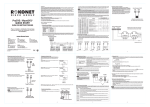
Mounting the Keypad
Connect the four wires from the keypad to the first four corresponding terminals on the Orbit 14 panel according to the color
coding of the wires as indicated on the panel. When using cables to connect between the panel and the keypad, be sure to
make the connections according to the color-coding. (The maximum distance between the keypad and the Orbit 14 panel is
200 meters.)
Ø
Panic Button Wiring
Connect the white wire and the black wire (COM) from the keypad to a panic button. (The maximum distance between the
panic button and the keypad is 30 meters.)
Ø
Zone Extension Wiring
Two zones can be connected to the LCD as End-of-Line supervision. Attach a 2200-ohm (or 2100 ohm) resistor to each zone
connection to the LCD. Where the zone expansion is not in use, the connection must be shorted.
Note: If more than one keypad (whether LCD or 8-LED or 14-LED ) is connected to the panel, the total number of zone
expansions still may not exceed two. Therefore, if one zone expansion is connected to one of the keypads, only one additional
zone expansion may be connected to a second keypad. If two zone expansions are connected to one keypad, no additional
zone expansions may be used and where the zone expansion is not in use, the connection must be shorted.
Rokonet Limited Warranty
workmanship under normal use for 18 months from the date of production. Because Seller does not install or connect the product and
because the product may be used in conjunction with products not manufactured by the Seller, Seller can not guarantee the performance
of the security system whi
no other warranty, expressed or implied, and makes no warranty of merchantability or of fitness for any particular purpose.
In no case shall seller be liable for any consequential or incidental damages for breach of this or any other warranty, expressed or
charges or costs of installation or any liability for direct, indirect, or consequential damages or delay. Seller does not represent that its
product may not be compromised or circumvented; that the product will prevent any persona; injury or property loss by burglary,
robbery, fire or otherwise; or that the product will in all cases provide adequate warning or protection. Buyer understands that a properly
installed and maintained alarm may only reduce the risk of burglary, robbery or fire without warning, but is not insurance or a guaranty
That such will not occur or that there will be no personal injury or property loss as a result.
Consequently seller shall have no liability for any personal injury, property damage or other loss based on a claim that the product fails to
give warning. However, if seller is held liable, whether directly or indirectly, for any loss or damage arising from under this limited
shall be complete and exclusive remedy against seller.
No employee or representative of Seller is authorized to change this warranty in any way or grant any other warranty.
WARNING: This product should be tested at least once a week.
RTTE COMPLIANCE STATEMENT
Hereby, Rokonet Electronics Ltd, declares that this keypad (RP214KCL0XXA * ) is in compliance with the essential requirements and other relevant
provisions of Directive 1999/5/EC.
.
Radio Frequency Interference (Ref.: FCC Part 15, Para. 15.105)
This equipment has been tested and found to comply with the limits for a Class B digital device pursuant to Part 15 of the FCC Rules.
These limits are designed to provide reasonable protection against harmful interference in a residential installation. This equipment
generates, uses, and can radiate radio frequency energy and, if not installed and used in accordance with the instructions, may cause
harmful interference to radio communications. However, there is no guarantee that interference will not occur in a particular installation.
If this equipment does cause harmful interference to radio or television reception, which can be determined by turning the equipment off
and on, the user is encouraged to try to correct the interference by one or more of the following measures:
1.
Reorient or relocate the receiving antenna.
2.
Increase the separation between the equipment and the receiver.
3.
Connect the equipment into an outlet on a circuit different from that to which the receiver is connected.
4.
Consult the dealer or an experienced Radio/TV technician for help.
Changes or Modifications (Ref.: FCC Part 15, Para. 15.21 and 15.27)
Changes or modifications to this unit not expressly approved by Rokonet, Ltd., could void the user's authority to operate the equipment
ISRAEL
Rokonet Electronics, Ltd.
Tel: +972-3-961-6555
Fax: +972-3-961-6584
e-mail: [email protected]
http://www.rokonet.com
USA
Rokonet Industries, Inc.
Tel: +1-305-592-3820
Fax: +1-305-592-3825
e-mail: [email protected]
UK
Rokonet U.K. Ltd.
Tel: +44-1527-576-765
Fax: +44-1527-576-816
e-mail: [email protected]
ITALY
Rokonet Electronics SRL
Tel: +39-02-392-5354
Fax:: +39-02-392-5131
e-mail: [email protected]
BRAZIL
Rokonet Brasil Ltda.
Tel: +55-21-496.3544
Fax:: +55-21-496.3547
e-mail:[email protected]
5IN214KCL