1
This is the second page of the Setup Guide. Start on the opposite side first.
REA20
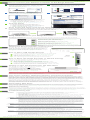
How to Connect your Wireless Computer to the Range Extender
Connecting to the 5.0GHz network requires that you have a 5.0GHz capable network adapter.
Windows 7 and Vista
Windows 8
Click on the Wireless icon to see available wireless
networks (For Vista, click Start > Connect To). Select
the "Amped_REA20_2.4" or "Amped_REA20_5.0"
network and click Connect.
Swipe in from the right edge to access the
charms bar, tap on Settings, select the Wi-Fi icon,
and select "Amped_REA20_2.4" or
"Amped_REA20_5.0".
Amped_REA20_2.4
Amped_REA20_2.4
Amped_REA20_5.0
Mac OS X
iPhone
Click on the Wireless icon to view available wireless
networks. Select the "Amped_REA20_2.4" or
"Amped_REA20_5.0" network to join that network.
Tap on your Settings icon, select Wi-Fi, and choose
the network, "Amped_REA20_2.4" or
"Amped_REA20_5.0".
Amped_REA20_2.4
Amped_REA20_5.0
Amped_REA...
iPad Tablet
A. Press the "Home" button to get to the home page.
B. Tap the "Settings" app icon.
C. Tap on Wi-Fi to enter the iPad’s Wi-Fi settings.
D. Toggle the Wi-Fi "On/Off" selector switch to "On"
E. Under "Choose a Network," select:
"Amped_REA20_2.4" or "Amped_REA20_5.0"
Amped_REA20_2.4
Android Tablet
A. Tap the "Apps" menu on the tablet screen.
B. Locate and tap the "Settings" app icon.
C. Under "Wireless & networks," tap "Wi-Fi settings"
D. Tap the Wi-Fi box to turn on Wi-Fi and scan.
E. Under "Wi-Fi networks," select:
"Amped_REA20_2.4" or "Amped_REA20_5.0"
Amped_REA20_2.4
Wi-Fi Protected Setup (One-Touch Setup or Push Button Configuration)
If your wireless adapter has WPS one-touch setup, you can use it when connecting to the Range
Extender. Hold down the WPS button on the Range Extender (back panel) for 3 seconds. The
Power/WPS LED will begin to blink. As it blinks, push the WPS button on your wireless adapter or
enable WPS with the provided software for your wireless adapter.
Using the Features on your Range Extender
The Range Extender is equipped with many powerful security features which can be accessed
through the web menu:
12:26
Wireless Access Scheduling
Control when your Wi-Fi is on/off
Menu Location: 2.4 or 5.0GHz Wi-Fi Settings > Access Schedule
User Access Control
Restrict network access to specific users
Menu Location: 2.4 or 5.0GHz Wi-Fi Settings > User Access
Wireless Coverage Control
Adjust the distance of your wireless network
Web Menu (Left Side)
Menu Location: 2.4 or 5.0GHz Wi-Fi Settings > Wireless Coverage
If you are unfamiliar or want more information on how to set up the security features on the Range Extender,
please refer to the User’s Guide on the included CD.
Setting the Range Extender’s System Clock
In order for your Access Schedules and logs to perform
using the correct time stamps and schedules you will
need to set your System Clock. To do so, go under
Management and access the System Clock tab to sync
the System Clock with your computer’s time.
How to Share USB Storage Devices
1
Connect a USB storage device to the USB port on the back panel.
2
Log on to the web menu at http://setup.ampedwireless.com
and click the USB Storage tab.
3
Follow the instructions for configuring the settings to share
your USB storage device among locally connected users.
Reset
Button
USB Port
How to Reset the Range Extender to Default Settings
There are two options to reset the Range Extender
back to factory default settings:
1
Reset the Range Extender through the web menu (left side):
More Settings > Management > Save/Reload Settings
Select the Reset Settings to Default button.
2
Locate the Reset button on the back panel of the Range Extender.
Hold down the Reset button for 5 - 10 seconds and release. You may
need to use a pen tip or pin to access the button.
Setting a Login and Password for the Web Menu
The Range Extender does not have a default login
or password to access the web menu.
LOGIN:
PASSWORD:
It is strongly recommended that you change
these settings and select your own personal
login and password. The Password menu can
be accessed through the web menu (left side):
More Settings > Management > Password
This login/password is NOT the wireless network key used to connect to your wireless networks.
If you forget your login and password, you will need to reset the Range Extender back to default settings and use the
default login and password (leave login and password blank) to access the web menu. View the instructions above on
how to reset the Range Extender back to default settings.
Tips: Power Outages, Rebooting Routers and Channel Changes
Wireless routers operate on specific wireless channels to avoid interference with neighboring networks. Some
wireless routers are set to automatically scan for the best wireless channel. A power outage, or a simple reboot,
may cause your home wireless router to change its wireless channel and cause the Range Extender to disconnect
from your home network. After a minute or two the Range Extender will automatically reconnect to your
Home Network with the new settings. However, if for whatever reason it does not, simply log onto the Range
Extender’s web menu by opening your web browser and accessing, http://setup.ampedwireless.com. If the page
does not load, try resetting the Range Extender by holding down the reset button on the back panel for five to
ten seconds. After the Range Extender has rebooted, open your web browser and try again.
When the web menu appears, run through the Wizard again to reconfigure the connection to your Home
Network. To prevent the channel changing issue from occurring in the future, you may log onto your router’s
web menu and set the wireless channel from Automatic to a static channel number. You will need to reconfigure
the Range Extender with the new channel. If you are not sure how to access your router’s web menu, contact
the support department for the brand of your wireless router.
Autoloading Web Menu
When the Range Extender loses its connection with your Home Network, the web menu will automatically load on your web
browser. All web address entries will be redirected to the Dashboard of the Range Extender. This redirect feature is meant to
notify and help you to easily reconfigure your Range Extender in the event of a disconnection. You may disable this feature
through the web menu (left side): More Settings > Network Settings > IP Settings. The feature is titled: Auto-DNS.
Wired Port Routing
The Range Extender automatically designates the Internet route for all devices connected through its wired ports. For example,
if you are connected to a dual band network, computers connected to the back of the Range Extender may access the Internet
through your 2.4GHz Home Network or your 5.0GHz Home Network. The Range Extender will automatically select an active route,
however if you feel you need to change these settings you may do so via the web menu (left side): More Settings >
Network Settings > Wired Port Routing
Troubleshooting Tips
PROBLEM:
SOLUTIONS:
PROBLEM:
SOLUTIONS:
PROBLEM:
SOLUTIONS:
PROBLEM:
SOLUTIONS:
PROBLEM:
SOLUTIONS:
I entered http://setup.ampedwireless.com and it failed to open the Web Menu.
a. Make sure your computer is connected to the Range Extender’s Wi-Fi network: Amped_REA20_2.4 or
Amped_REA20_5.0
b. Try to use a different web browser. We recommend the Google Chrome web browser.
c. Try to open your web browser to the default IP address by putting this number into your web browser instead:
192.168.1.240
d. Power off (unplug) the Range Extender and power it back on. Try again.
e. Reset your Range Extender to default settings by holding the Reset Button (located on the back panel) for
ten (10) seconds and try again.
f. If steps (a) through (e) fail, disconnect your PC from all Wi-Fi networks. Attach an Ethernet cable between
the Range Extender and your PC. Try to access http://setup.ampedwireless.com again.
My Range Extender was working fine previously, but now I can no longer access the Internet through the Range
Extender.
a. The connection to your Home Network may have been dropped or the router settings may have changed.
Changes to the router could be a result of several events, such as a power outage. When this occurs, connect
to the Range Extender and access the setup menu using the web address: http://setup.ampedwireless.com
Run the Wizard to reconnect the Range Extender to your network.
b. Using the setup menu (setup.ampedwireless.com) check to see that the signal strength between the Range
Extender and your Home Network is above 70%. The Range Extender may be too far from your router and not
maintaining a signal strength of above 70%. Check the signal strength between the router and the Range
Extender through the web menu (left side): More Settings > Management > Device Status. The Signal Strength
readout will be under the Home Wireless Network Settings section. This Signal Strength must be above 70%.
If it is below, move the Range Extender closer to your router, or reposition the Range Extender.
I cannot find my Home Network when scanning for wireless networks in the web menu Scan page.
a. The Range Extender may be out of range. Move the Range Extender closer towards the wireless router and
try the Setup Wizard again from the web menu.
b. Make sure that your Home Network’s wireless SSID is broadcasting and not hidden. Hidden SSIDs will require
that you manually enter the SSID into the Wireless Settings > Home Network menu.
I have a dual band router and I cannot repeat a network (or both networks).
a. The Range Extender will repeat the 2.4GHz and 5.0GHz signal from your router simultaneously.
To ensure a reliable and strong connection for both wireless networks, make sure that both, 2.4GHz and
5.0GHz wireless networks, have a signal strength above 70%. If necessary, reposition the Range Extender
closer to the dual band router to help further maintain a strong connection.
b. Check to make sure that you have the correct security key for both the 2.4GHz and 5.0GHz network of your
dual band router. These keys may sometimes be different from each other.
c. Ensure that your dual band router does not have any security features enabled, such as MAC address filtering,
which may be blocking the connection. If features are enabled, please disable them and run the Wizard again.
I have extended my home network but my Wi-Fi speeds seem slow or not at 802.11ac rates.
a. To achieve 802.11ac Wi-Fi speeds for your extended network, it is necessary to extend an 802.11ac Wi-Fi router.
Your extended network can only be as fast as the network it is extending.
b. Check that your computer's network adapter is an 802.11ac capable network adapter. Your computer's network
connection can only be as fast as your network adapter's speed capabilities.
c. Using the setup menu (setup.ampedwireless.com) check to see that the signal strength between the Range
Extender and your Home Network is above 70%. If it is below, move the Range Extender closer to your router,
or reposition the Range Extender.
d. Check that your antennas are fastened tightly to the corresponding antenna ports. For example, Antenna 1
should be connected to Antenna Port 1 on the Range Extender.
If you continue to have issues setting up the Range Extender, give us a call — we’re here to help: 888-573-8820
Visit our website for more support information and answers to frequently asked questions: www.ampedwireless.com/support
Amped Wireless
A Division of Newo Corporation
Copyright © 2013 Amped Wireless / Newo Corporation. All rights reserved.
Amped Wireless, Newo Corporation, the Amped Wireless Logo are registered trademarks or trademarks of Newo Corporation.
v070913