1
2.4.2 Manipulating the map
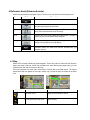
You can change how the map looks:
•
You can tilt it, rotate it or scale it to best suit your needs while you are creating, planning or
following a route.
•
You can customise which icons and buttons are visible.
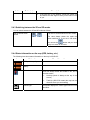
Position markers on the map:
•
Current GPS position:
•
Selected location (Cursor):
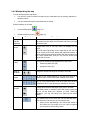
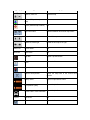
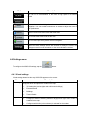
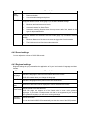
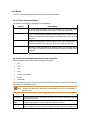
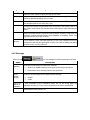
Action
Moving the
map with
drag&drop
Zooming in
and out
(page 13)
(page 14)
Button(s)
No buttons
Description
You can move the map into any direction: tap and hold the
map, and move your finger to the direction into which you want
to move the map.
Changes how much of the map ASUS GO displays on the
screen.
ASUS GO uses high-quality vector maps that let you see the
map at various zoom levels, always with optimised content. It
always displays street names and other text with the same font
size, never upside-down, and you only see the streets and
objects that you need.
Viewing
modes
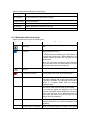
Gives you the following map perspectives in ASUS GO:
•
classic top-down view (2D)
•
perspective view (3D)
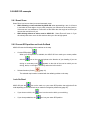
Tilting up
and down
Change the vertical view angle of the map in 3D mode.
Zoom
presets
Tap one of the preset buttons to set the zoom level to a
predefined value. These buttons are available in 2D mode.
Tilt presets
Tap one of the preset buttons to set the tilt (and zoom) level to
a predefined value. These buttons are available in 3D mode.
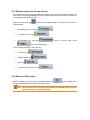
Rotating left
and right
Changes the horizontal view angle of the map in 3D mode.
When GPS position is available, ASUS GO always rotates the
map so its top faces your direction of travel (Track-Up
orientation). You can turn away from Track-Up with these
buttons.
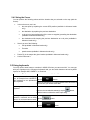
Smart Zoom
If you enable Smart Zoom, ASUS GO can automatically rotate,
scale and tilt the map and give you the optimal view:
•
When you are approaching a turn, ASUS GO zooms in
and raises the view angle to let you easily recognise
your manoeuvre at the next junction.