1
Points of Interest
36
Copying a Preloaded POI
POI’s that have been preloaded as part of the background map can be saved as a user-entered POI. This does
not delete a preloaded POI (preloaded POI’s can not be deleted) it just copies it to the POIs portion of the
database.
1.
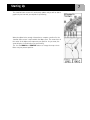
Press MENU.
2.
Use the Arrow joystick to highlight POI List.
3.
Press ENTER.
4.
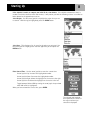
Use the Arrow joystick up/down to highlight Background Map.
5.
Use the Arrow joystick left/right to select Nearest or Alphabetical.
6.
Press ENTER.
7.
Select a category of your choice and press ENTER.
8.
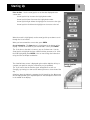
[If Alphabetical search is selected] Use the Arrow joystick and the ENTER button to enter the first few
characters of the POI you are searching for. Highlight OK and press ENTER to continue.
[If Nearest to current location is selected] Choose Position, Cities, Cursor or Other. Then press
ENTER.
9.
Use the Arrow joystick to highlight the POI to be copied.
10.
Select Save and press ENTER.
Steps 10 through 12 are optional.
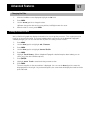
11.
Use the Arrow joystick to highlight the field you want to change.
12.
Press ENTER.
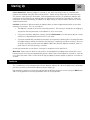
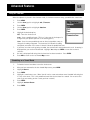
12a. If the icon field was selected: Use the Arrow joystick to select the icon desired and press ENTER. To aid
in your selection, the type of icon selected is displayed in the information block at the top of the
keypad.
12b. If the Name field was selected. Use the Arrow joystick to select the character desired and press ENTER.
If you make a mistake, highlight Back and press ENTER. To access the lower case characters, highlight
Shift and press ENTER. To clear everything and start over, highlight CLEAR and press ENTER. When you
are satisfied with the name, highlight OK and press ENTER.
Note: User-entered POI names can be up to 20 characters long (including spaces).
12c. If the Message field was selected. Use the keypad displayed just as was described in 13b to enter a
message for this POI.
13.
When the Icon, Name and Message fields are done, use the Arrow joystick to highlight Save.
14.
Press ENTER.