1
Chapter 6: Settings
Disconnecting From A Network
•
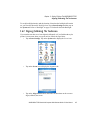
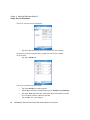
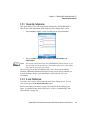
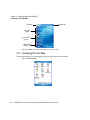
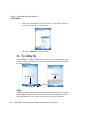
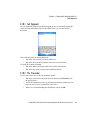
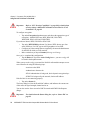
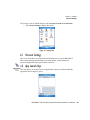
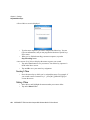
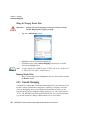
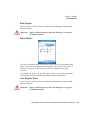
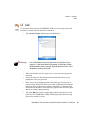
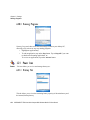
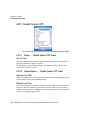
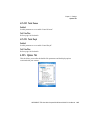
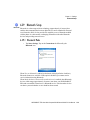
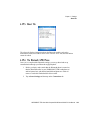
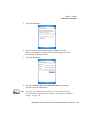
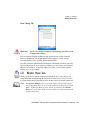
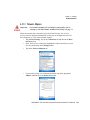
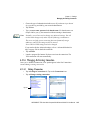
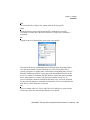
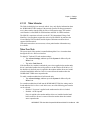
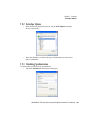
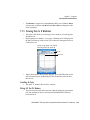
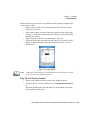
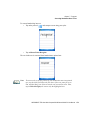
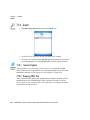
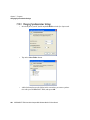
Tap on Start>Settings. Tap on the System tab followed by the Wireless
WAN icon.
Note:
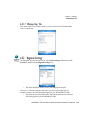
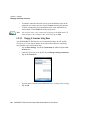
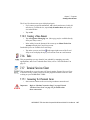
If you are prompted to enter a PIN, refer to “Entering A PIN” on page
242 for details.
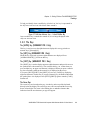
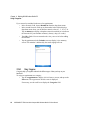
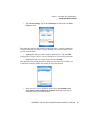
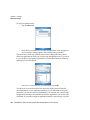
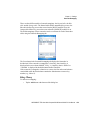
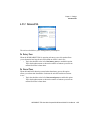
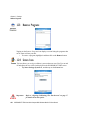
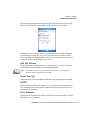
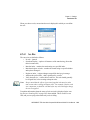
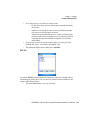
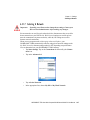
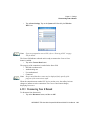
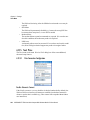
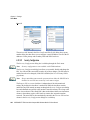
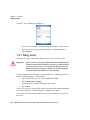
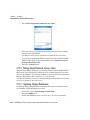
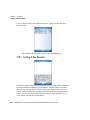
The Status field indicates when the unit is ready to connect–the Connect Data
button is enabled.
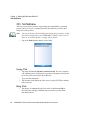
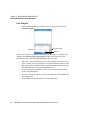
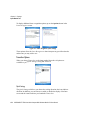
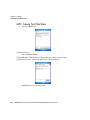
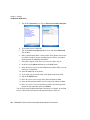
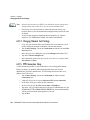
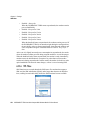
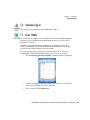
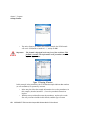
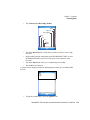
• Tap on the Connect Data button.
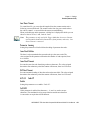
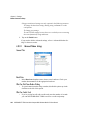
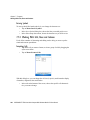
The progress of the connection is tracked in the Status field.
• PPP link to modem active
• Authenticating user
• User authenticated
• Connected
Note:
Keep in mind that these states may be displayed fairly quickly if the
progress of the connection is rapid.
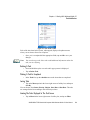
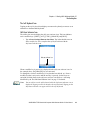
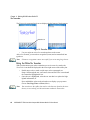
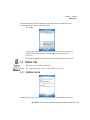
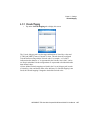
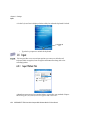
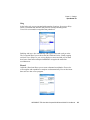
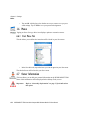
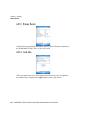
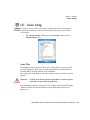
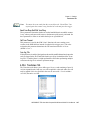
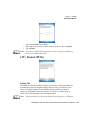
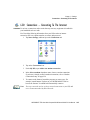
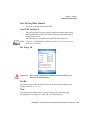
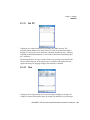
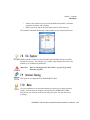
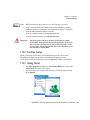
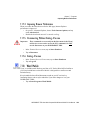
When the connection state reaches PPP link to modem active, the softkey bar icon
changes to indicate an active connection. The Connect Data button changes,
displaying Disconnect.
6.33.3 Disconnecting From A Network
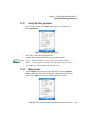
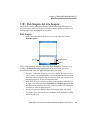
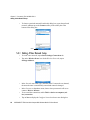
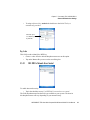
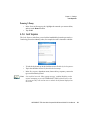
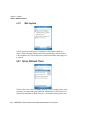
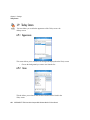
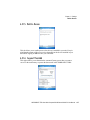
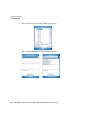
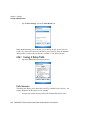
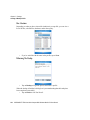
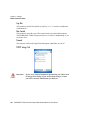
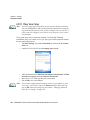
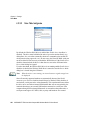
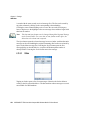
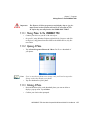
To disconnect from the network:
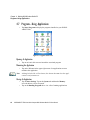
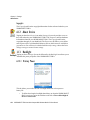
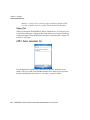
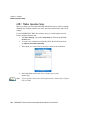
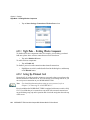
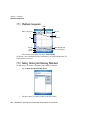
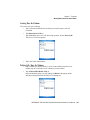
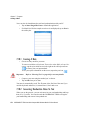
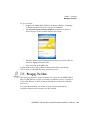
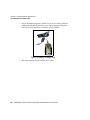
• Tap on the Disconnect button, and then on OK.
WORKABOUT PRO Hand-Held Computer With Windows Mobile 5.0 User Manual
241