1
Chapter 6: Settings
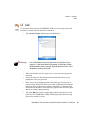
Beam
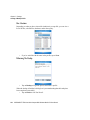
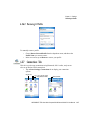
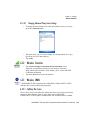
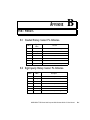
Navigation Bar Connectivity Hotkeys
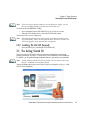
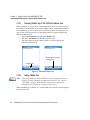
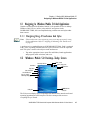
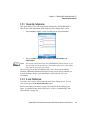
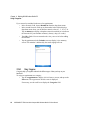
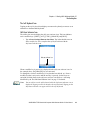
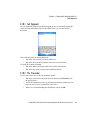
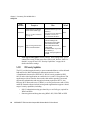
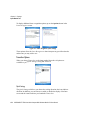
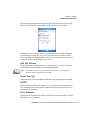
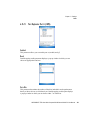
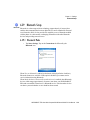
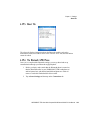
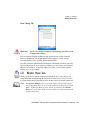
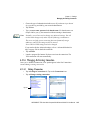
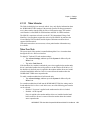
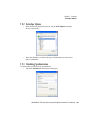
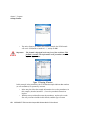
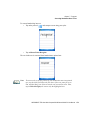
Some of the connectivity icons in the Navigation Bar along the top of the screen are
hotkeys that offer shortcuts to connection setups. Tapping on a hotkey displays a
bubble that provides information about your connections and provides a shortcut to
the Wireless Manager applet where you can set up your connections.
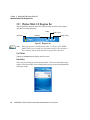
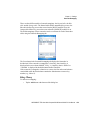
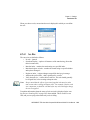
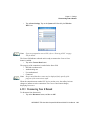
Automatic Network Detection
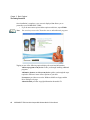
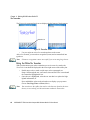
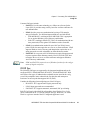
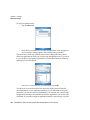
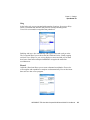
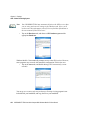
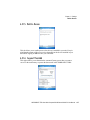
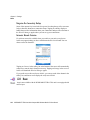
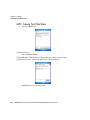
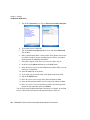
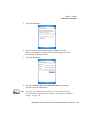
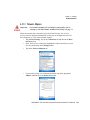
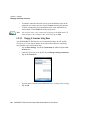
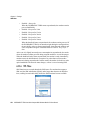
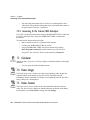
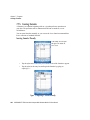
If a wireless network is available when you switch on your unit, a notification
bubble may appear letting you know which networks have been found. You can
choose a network from here.
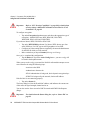
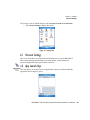
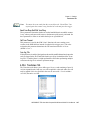
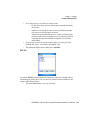
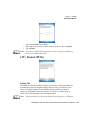
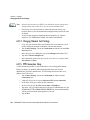
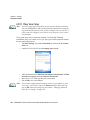
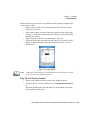
Tapping on Connect in the softkey bar at the bottom of the screen will automatically
connect to a network that’s already been set up. Tapping on Settings in the network
bubble will launch the Wireless Manager applet.
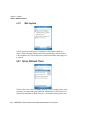
If you prefer not see this notification bubble, you can tap on the Menu button in the
softkey bar, and choose not to display the notification bubble.
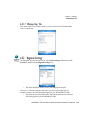
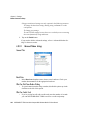
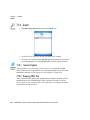
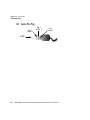
6.28 Beam
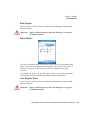
Beam is not available with the WORKABOUT PRO. This unit is not equipped with
an IrDA port.
218
WORKABOUT PRO Hand-Held Computer With Windows Mobile 5.0 User Manual