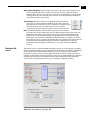
1
www.aja.com
LHi
Published: 6/16/10
Installation and Operation
Guide
B e c a u s e
i t
m a t t e r s .
ii
Trademarks
AJA®, KONA®, Ki Pro® and XENA® are registered trademarks of AJA Video, Inc. Ki Pro™, Io HD™
and Io™ are trademarks of AJA Video, Inc.
Apple, the Apple logo, AppleShare, AppleTalk, FireWire and Macintosh are registered
trademarks of Apple Computer, Inc. Final Cut Pro, QuickTime and the QuickTime Logo are
trademarks of Apple Computer, Inc. TASCAM is a registered trademark of TEAC Corporation.
All other trademarks are the property of their respective holders.
Notice
Copyright © 2010 AJA Video, Inc. All rights reserved. All information in this manual is subject
to change without notice. No part of the document may be reproduced or transmitted in
any form, or by any means, electronic or mechanical, including photocopying or recording,
without the express written permission of AJA Inc.
FCC Emission Information
This equipment has been tested and found to comply with the limits for a Class A digital
device, pursuant to Part 15 of the FCC Rules. These limits are designed to provide
reasonable protection against harmful interference when the equipment is operated in a
commercial environment. This equipment generates, uses and can radiate radio frequency
energy and, if not installed and used in accordance with the instruction manual, may cause
harmful interference to radio communications. Operation of this equipment in a residential
area is likely to cause harmful interference in which case the user will be required to correct
the interference at his own expense. Changes or modifications not expressly approved by
AJA Video can effect emission compliance and could void the user’s authority to operate
this equipment.
Contacting Support
To contact AJA Video for sales or support, use any of the following methods:
180 Litton Drive, Grass Valley, CA. 95945 USA
Telephone: 800.251.4224 or 530.274.2048
Fax: 530.274.9442
Web: http://www.aja.com
Support Email: [email protected]
Sales Email: [email protected]
When calling for support, first read the Chapter on Troubleshooting at the back of this
manual. You can often save time and effort by looking there first for simple remedies and
information on how to get support from AJA and Apple Computer Inc.
KONA LHi Installation and Operation Manual — Limited Warranty
Limited Warranty
AJA Video warrants that this product will be free from defects in materials and
workmanship for a period of three years from the date of purchase. If a product proves
to be defective during this warranty period, AJA Video, at its option, will either repair
the defective product without charge for parts and labor, or will provide a replacement
in exchange for the defective product.
In order to obtain service under this warranty, you the Customer, must notify AJA Video
of the defect before the expiration of the warranty period and make suitable
arrangements for the performance of service. The Customer shall be responsible for
packaging and shipping the defective product to a designated service center
nominated by AJA Video, with shipping charges prepaid. AJA Video shall pay for the
return of the product to the Customer if the shipment is to a location within the
country in which the AJA Video service center is located. Customer shall1be responsible
for paying all shipping charges, insurance, duties, taxes, and any other charges for
products returned to any other locations.
This warranty shall not apply to any defect, failure or damage caused by improper use
or improper or inadequate maintenance and care. AJA Video shall not be obligated to
furnish service under this warranty a) to repair damage resulting from attempts by
personnel other than AJA Video representatives to install, repair or service the product,
b) to repair damage resulting from improper use or connection to incompatible
equipment, c) to repair any damage or malfunction caused by the use of non-AJA Video
parts or supplies, or d) to service a product that has been modified or integrated with
other products when the effect of such a modification or integration increases the time
or difficulty of servicing the product.
THIS WARRANTY IS GIVEN BY AJA VIDEO IN LIEU OF ANY OTHER WARRANTIES, EXPRESS
OR IMPLIED. AJA VIDEO AND ITS VENDORS DISCLAIM ANY IMPLIED WARRANTIES OF
MERCHANTABILITY OR FITNESS FOR A PARTICULAR PURPOSE. AJA VIDEO’S
RESPONSIBILITY TO REPAIR OR REPLACE DEFECTIVE PRODUCTS IS THE WHOLE AND
EXCLUSIVE REMEDY PROVIDED TO THE CUSTOMER FOR ANY INDIRECT, SPECIAL,
INCIDENTAL OR CONSEQUENTIAL DAMAGES IRRESPECTIVE OF WHETHER AJA VIDEO OR
THE VENDOR HAS ADVANCE NOTICE OF THE POSSIBILITY OF SUCH DAMAGES.
iii
iv
KONA LHi Installation and Operation Manual — Table of Contents
Table of Contents
Trademarks . . . . . . . . . . . . . . . . . . . . . . . . . . . . . . . . . . . . . . . . . . . . . . . . . . . . . . . . . . . . . . . . . . . . . . . . . . . . . . . . . . . . . . . . . . . . . . . . . . ii
Notice . . . . . . . . . . . . . . . . . . . . . . . . . . . . . . . . . . . . . . . . . . . . . . . . . . . . . . . . . . . . . . . . . . . . . . . . . . . . . . . . . . . . . . . . . . . . . . . . . . . . . . . ii
FCC Emission Information . . . . . . . . . . . . . . . . . . . . . . . . . . . . . . . . . . . . . . . . . . . . . . . . . . . . . . . . . . . . . . . . . . . . . . . . . . . . . . . . . . . . ii
Contacting Support . . . . . . . . . . . . . . . . . . . . . . . . . . . . . . . . . . . . . . . . . . . . . . . . . . . . . . . . . . . . . . . . . . . . . . . . . . . . . . . . . . . . . . . . . . ii
Limited Warranty . . . . . . . . . . . . . . . . . . . . . . . . . . . . . . . . . . . . . . . . . . . . . . . . . . . . . . . . . . . . . . . . . . . . . . . . . . . . . . . . . . . . . . . . . . . .iii
Table of Contents . . . . . . . . . . . . . . . . . . . . . . . . . . . . . . . . . . . . . . . . . . . . . . . . . . . . . . . . . . . . . . . . . . . . . . . . . . . . . . . . . . . . . . . . . . . . 1
Chapter 1: Introduction
Overview . . . . . . . . . . . . . . . . . . . . . . . . . . . . . . . . . . . . . . . . . . . . . . . . . . . . . . . . . . . . . . . . . . . . . . . . . . . . . . . . . . . . . . . . . . . . . . . . . . . . 1
Features . . . . . . . . . . . . . . . . . . . . . . . . . . . . . . . . . . . . . . . . . . . . . . . . . . . . . . . . . . . . . . . . . . . . . . . . . . . . . . . . . . . . . . . . . . . . . . . . . . . . . 2
Hardware . . . . . . . . . . . . . . . . . . . . . . . . . . . . . . . . . . . . . . . . . . . . . . . . . . . . . . . . . . . . . . . . . . . . . . . . . . . . . . . . . . . . . . . . . .1. . . . . 2
KONA LHi Audio . . . . . . . . . . . . . . . . . . . . . . . . . . . . . . . . . . . . . . . . . . . . . . . . . . . . . . . . . . . . . . . . . . . . . . . . . . . . . . . . . . . . . 2
Software . . . . . . . . . . . . . . . . . . . . . . . . . . . . . . . . . . . . . . . . . . . . . . . . . . . . . . . . . . . . . . . . . . . . . . . . . . . . . . . . . . . . . . . . . . . . . . . 3
What’s In The Box? . . . . . . . . . . . . . . . . . . . . . . . . . . . . . . . . . . . . . . . . . . . . . . . . . . . . . . . . . . . . . . . . . . . . . . . . . . . . . . . . . . . . . . . . . . . 3
System Requirements . . . . . . . . . . . . . . . . . . . . . . . . . . . . . . . . . . . . . . . . . . . . . . . . . . . . . . . . . . . . . . . . . . . . . . . . . . . . . . . . . . . . . . . . 5
Minimum and Recommended System and Software Requirements . . . . . . . . . . . . . . . . . . . . . . . . . . . . . . . . . . . . . . . 5
Understanding Disk Storage Methods . . . . . . . . . . . . . . . . . . . . . . . . . . . . . . . . . . . . . . . . . . . . . . . . . . . . . . . . . . . . . . . . . . . 5
About RAIDs . . . . . . . . . . . . . . . . . . . . . . . . . . . . . . . . . . . . . . . . . . . . . . . . . . . . . . . . . . . . . . . . . . . . . . . . . . . . . . . . . . . . . . . . 6
Software For Striping . . . . . . . . . . . . . . . . . . . . . . . . . . . . . . . . . . . . . . . . . . . . . . . . . . . . . . . . . . . . . . . . . . . . . . . . . . . . . . . . 6
AJA KONA LHi and Fibre Channel RAID (Xserve or other) . . . . . . . . . . . . . . . . . . . . . . . . . . . . . . . . . . . . . . . . . . . . . . 6
Storage capacity . . . . . . . . . . . . . . . . . . . . . . . . . . . . . . . . . . . . . . . . . . . . . . . . . . . . . . . . . . . . . . . . . . . . . . . . . . . . . . . . . . . . 7
Cable Connections . . . . . . . . . . . . . . . . . . . . . . . . . . . . . . . . . . . . . . . . . . . . . . . . . . . . . . . . . . . . . . . . . . . . . . . . . . . . . . . . . . . . . . . . . . . 8
Using the Breakout Cable and 3 BNCs . . . . . . . . . . . . . . . . . . . . . . . . . . . . . . . . . . . . . . . . . . . . . . . . . . . . . . . . . . . . . . . . . . . 8
Using KLHi-box . . . . . . . . . . . . . . . . . . . . . . . . . . . . . . . . . . . . . . . . . . . . . . . . . . . . . . . . . . . . . . . . . . . . . . . . . . . . . . . . . . . . . . . . . 9
About BNC Connectors . . . . . . . . . . . . . . . . . . . . . . . . . . . . . . . . . . . . . . . . . . . . . . . . . . . . . . . . . . . . . . . . . . . . . . . . . . . . . . . . . 9
Connector Descriptions—Cables and KLHi-Box . . . . . . . . . . . . . . . . . . . . . . . . . . . . . . . . . . . . . . . . . . . . . . . . . . . . . . . . . 10
3G/HD/SD SDI Input and Output . . . . . . . . . . . . . . . . . . . . . . . . . . . . . . . . . . . . . . . . . . . . . . . . . . . . . . . . . . . . . . . . . . . . 10
HDMI Input and Output . . . . . . . . . . . . . . . . . . . . . . . . . . . . . . . . . . . . . . . . . . . . . . . . . . . . . . . . . . . . . . . . . . . . . . . . . . . . 10
2 Channel Digital AES/EBU Audio Inputs And Outputs . . . . . . . . . . . . . . . . . . . . . . . . . . . . . . . . . . . . . . . . . . . . . . . 10
Analog 2 Channel Balanced Audio . . . . . . . . . . . . . . . . . . . . . . . . . . . . . . . . . . . . . . . . . . . . . . . . . . . . . . . . . . . . . . . . . . 10
Analog 2 Channel Unbalanced Audio (KHLi-box only) . . . . . . . . . . . . . . . . . . . . . . . . . . . . . . . . . . . . . . . . . . . . . . . 10
RS422 Machine Control . . . . . . . . . . . . . . . . . . . . . . . . . . . . . . . . . . . . . . . . . . . . . . . . . . . . . . . . . . . . . . . . . . . . . . . . . . . . . 10
Analog Monitor Out (Component/Composite HD/SD) . . . . . . . . . . . . . . . . . . . . . . . . . . . . . . . . . . . . . . . . . . . . . . . 10
Reference Video and LTC Input . . . . . . . . . . . . . . . . . . . . . . . . . . . . . . . . . . . . . . . . . . . . . . . . . . . . . . . . . . . . . . . . . . . . . 11
In This Manual . . . . . . . . . . . . . . . . . . . . . . . . . . . . . . . . . . . . . . . . . . . . . . . . . . . . . . . . . . . . . . . . . . . . . . . . . . . . . . . . . . . . . . . . . . . . . . 11
Chapter 2: Getting Started—Workflow
KONA LHi And Your Workflow . . . . . . . . . . . . . . . . . . . . . . . . . . . . . . . . . . . . . . . . . . . . . . . . . . . . . . . . . . . . . . . . . . . . . . . . . . . . . . . 13
Understanding Typical Workflows . . . . . . . . . . . . . . . . . . . . . . . . . . . . . . . . . . . . . . . . . . . . . . . . . . . . . . . . . . . . . . . . . . . . . . . . . . . 14
PhotoJPEG . . . . . . . . . . . . . . . . . . . . . . . . . . . . . . . . . . . . . . . . . . . . . . . . . . . . . . . . . . . . . . . . . . . . . . . . . . . . . . . . . . . . . . . . . . . . 14
DV (DV25) . . . . . . . . . . . . . . . . . . . . . . . . . . . . . . . . . . . . . . . . . . . . . . . . . . . . . . . . . . . . . . . . . . . . . . . . . . . . . . . . . . . . . . . . . . . . . 14
DV50 . . . . . . . . . . . . . . . . . . . . . . . . . . . . . . . . . . . . . . . . . . . . . . . . . . . . . . . . . . . . . . . . . . . . . . . . . . . . . . . . . . . . . . . . . . . . . . . . . . 14
DVCPRO HD . . . . . . . . . . . . . . . . . . . . . . . . . . . . . . . . . . . . . . . . . . . . . . . . . . . . . . . . . . . . . . . . . . . . . . . . . . . . . . . . . . . . . . . . . . . 14
HDV . . . . . . . . . . . . . . . . . . . . . . . . . . . . . . . . . . . . . . . . . . . . . . . . . . . . . . . . . . . . . . . . . . . . . . . . . . . . . . . . . . . . . . . . . . . . . . . . . . . 15
Apple ProRes 422 and Apple ProRes 422 HQ (SD or HD) . . . . . . . . . . . . . . . . . . . . . . . . . . . . . . . . . . . . . . . . . . . . . . . . . 16
Uncompressed 8-bit . . . . . . . . . . . . . . . . . . . . . . . . . . . . . . . . . . . . . . . . . . . . . . . . . . . . . . . . . . . . . . . . . . . . . . . . . . . . . . . . . . . 16
Uncompressed 10-bit . . . . . . . . . . . . . . . . . . . . . . . . . . . . . . . . . . . . . . . . . . . . . . . . . . . . . . . . . . . . . . . . . . . . . . . . . . . . . . . . . . 16
Mixing and Matching Formats in Final Cut . . . . . . . . . . . . . . . . . . . . . . . . . . . . . . . . . . . . . . . . . . . . . . . . . . . . . . . . . . . . . . . . . . . 17
Chapter 3: Installation
Installation Overview . . . . . . . . . . . . . . . . . . . . . . . . . . . . . . . . . . . . . . . . . . . . . . . . . . . . . . . . . . . . . . . . . . . . . . . . . . . . . . . . . . . . . . . 19
Unpacking . . . . . . . . . . . . . . . . . . . . . . . . . . . . . . . . . . . . . . . . . . . . . . . . . . . . . . . . . . . . . . . . . . . . . . . . . . . . . . . . . . . . . . . . . . . . . . . . . . 19
Shipping Box Contents . . . . . . . . . . . . . . . . . . . . . . . . . . . . . . . . . . . . . . . . . . . . . . . . . . . . . . . . . . . . . . . . . . . . . . . . . . . . . . . . 19
Installing the KONA LHi Card in a Mac Pro . . . . . . . . . . . . . . . . . . . . . . . . . . . . . . . . . . . . . . . . . . . . . . . . . . . . . . . . . . . . . . . . . . . 21
Installing the KONA LHi Card in a G5 . . . . . . . . . . . . . . . . . . . . . . . . . . . . . . . . . . . . . . . . . . . . . . . . . . . . . . . . . . . . . . . . . . . . . . . . 22
Cabling the System . . . . . . . . . . . . . . . . . . . . . . . . . . . . . . . . . . . . . . . . . . . . . . . . . . . . . . . . . . . . . . . . . . . . . . . . . . . . . . . . . . . . . . . . . 23
System Video/Audio Cable Connections . . . . . . . . . . . . . . . . . . . . . . . . . . . . . . . . . . . . . . . . . . . . . . . . . . . . . . . . . . . . . . . . 23
System Cabling When Using The Breakout Cable . . . . . . . . . . . . . . . . . . . . . . . . . . . . . . . . . . . . . . . . . . . . . . . . . . . . 23
1
2
Typical System . . . . . . . . . . . . . . . . . . . . . . . . . . . . . . . . . . . . . . . . . . . . . . . . . . . . . . . . . . . . . . . . . . . . . . . . . . . . . . . . . . . . . 24
Installing KONA LHi Software . . . . . . . . . . . . . . . . . . . . . . . . . . . . . . . . . . . . . . . . . . . . . . . . . . . . . . . . . . . . . . . . . . . . . . . . . . . . . . . . 25
Software Installation Procedure . . . . . . . . . . . . . . . . . . . . . . . . . . . . . . . . . . . . . . . . . . . . . . . . . . . . . . . . . . . . . . . . . . . . . . . . 25
Genlock and Your System . . . . . . . . . . . . . . . . . . . . . . . . . . . . . . . . . . . . . . . . . . . . . . . . . . . . . . . . . . . . . . . . . . . . . . . . . . . . . . . . . . . 28
Chapter 4: Final Cut Pro and Other Application Software
Final Cut Pro . . . . . . . . . . . . . . . . . . . . . . . . . . . . . . . . . . . . . . . . . . . . . . . . . . . . . . . . . . . . . . . . . . . . . . . . . . . . . . . . . . . . . . . . . . . . . . . . 29
Using The KONA LHi Control Panel . . . . . . . . . . . . . . . . . . . . . . . . . . . . . . . . . . . . . . . . . . . . . . . . . . . . . . . . . . . . . . . . . . . . . . . . . . 29
Control Panel Basics . . . . . . . . . . . . . . . . . . . . . . . . . . . . . . . . . . . . . . . . . . . . . . . . . . . . . . . . . . . . . . . . . . . . . . . . . . . . . . . . . . . 29
Input Screen . . . . . . . . . . . . . . . . . . . . . . . . . . . . . . . . . . . . . . . . . . . . . . . . . . . . . . . . . . . . . . . . . . . . . . . . . . . . . . . . . . . . . . . . . . 33
Input Screen Settings . . . . . . . . . . . . . . . . . . . . . . . . . . . . . . . . . . . . . . . . . . . . . . . . . . . . . . . . . . . . . . . . . . . . . . . . . . . . . . 33
Formats Screen . . . . . . . . . . . . . . . . . . . . . . . . . . . . . . . . . . . . . . . . . . . . . . . . . . . . . . . . . . . . . . . . . . . . . . . . . . . . . . . . . . . . . . . . 34
Format Screen Settings . . . . . . . . . . . . . . . . . . . . . . . . . . . . . . . . . . . . . . . . . . . . . . . . . . . . . . . . . . . . . . . . . . . . . . . . . . . . . 35
Digital Out Screen . . . . . . . . . . . . . . . . . . . . . . . . . . . . . . . . . . . . . . . . . . . . . . . . . . . . . . . . . . . . . . . . . . . . . . . . . . . . . . . . . . . . . 36
Digital Out Screen Settings . . . . . . . . . . . . . . . . . . . . . . . . . . . . . . . . . . . . . . . . . . . . . . . . . . . . . . . . . . . . . . . . . . . . . . . . . 37
Analog Out Screen . . . . . . . . . . . . . . . . . . . . . . . . . . . . . . . . . . . . . . . . . . . . . . . . . . . . . . . . . . . . . . . . . . . . . . . . . . . . . . . . . . . . 38
Analog Out Screen Settings . . . . . . . . . . . . . . . . . . . . . . . . . . . . . . . . . . . . . . . . . . . . . . . . . . . . . . . . . . . . . . . . . . . . . . . . 38
HDMI Tab Screen . . . . . . . . . . . . . . . . . . . . . . . . . . . . . . . . . . . . . . . . . . . . . . . . . . . . . . . . . . . . . . . . . . . . . . . . . . . . . . . . . . . . . . 39
HDMI Tab Screen Settings . . . . . . . . . . . . . . . . . . . . . . . . . . . . . . . . . . . . . . . . . . . . . . . . . . . . . . . . . . . . . . . . . . . . . . . . . . 39
Control Screen . . . . . . . . . . . . . . . . . . . . . . . . . . . . . . . . . . . . . . . . . . . . . . . . . . . . . . . . . . . . . . . . . . . . . . . . . . . . . . . . . . . . . . . . 40
Control Screen Settings . . . . . . . . . . . . . . . . . . . . . . . . . . . . . . . . . . . . . . . . . . . . . . . . . . . . . . . . . . . . . . . . . . . . . . . . . . . . 40
Playback Timing (greyed-out when in Input Passthrough) . . . . . . . . . . . . . . . . . . . . . . . . . . . . . . . . . . . . . . . . . . . 42
Setup Screen . . . . . . . . . . . . . . . . . . . . . . . . . . . . . . . . . . . . . . . . . . . . . . . . . . . . . . . . . . . . . . . . . . . . . . . . . . . . . . . . . . . . . . . . . . 43
Setup Screen Settings . . . . . . . . . . . . . . . . . . . . . . . . . . . . . . . . . . . . . . . . . . . . . . . . . . . . . . . . . . . . . . . . . . . . . . . . . . . . . . 43
Codec Screen . . . . . . . . . . . . . . . . . . . . . . . . . . . . . . . . . . . . . . . . . . . . . . . . . . . . . . . . . . . . . . . . . . . . . . . . . . . . . . . . . . . . . . . . . . 44
Codec Screen Settings . . . . . . . . . . . . . . . . . . . . . . . . . . . . . . . . . . . . . . . . . . . . . . . . . . . . . . . . . . . . . . . . . . . . . . . . . . . . . 44
Timecode Screen . . . . . . . . . . . . . . . . . . . . . . . . . . . . . . . . . . . . . . . . . . . . . . . . . . . . . . . . . . . . . . . . . . . . . . . . . . . . . . . . . . . . . . 46
Timecode Screen Settings . . . . . . . . . . . . . . . . . . . . . . . . . . . . . . . . . . . . . . . . . . . . . . . . . . . . . . . . . . . . . . . . . . . . . . . . . . 46
Timelapse Screen . . . . . . . . . . . . . . . . . . . . . . . . . . . . . . . . . . . . . . . . . . . . . . . . . . . . . . . . . . . . . . . . . . . . . . . . . . . . . . . . . . . . . . 47
Info Screen . . . . . . . . . . . . . . . . . . . . . . . . . . . . . . . . . . . . . . . . . . . . . . . . . . . . . . . . . . . . . . . . . . . . . . . . . . . . . . . . . . . . . . . . . . . . 48
Saving Your Control Panel Presets . . . . . . . . . . . . . . . . . . . . . . . . . . . . . . . . . . . . . . . . . . . . . . . . . . . . . . . . . . . . . . . . . . . . . . 49
Who is Controlling KONA LHi? . . . . . . . . . . . . . . . . . . . . . . . . . . . . . . . . . . . . . . . . . . . . . . . . . . . . . . . . . . . . . . . . . . . . . . . . . 49
QuickTime Application—1st Priority . . . . . . . . . . . . . . . . . . . . . . . . . . . . . . . . . . . . . . . . . . . . . . . . . . . . . . . . . . . . . . . . 50
Mac Desktop Video—2nd Priority . . . . . . . . . . . . . . . . . . . . . . . . . . . . . . . . . . . . . . . . . . . . . . . . . . . . . . . . . . . . . . . . . . 50
KONA Control Panel—3rd Priority . . . . . . . . . . . . . . . . . . . . . . . . . . . . . . . . . . . . . . . . . . . . . . . . . . . . . . . . . . . . . . . . . . 51
Control Recommendations . . . . . . . . . . . . . . . . . . . . . . . . . . . . . . . . . . . . . . . . . . . . . . . . . . . . . . . . . . . . . . . . . . . . . . . . . 51
Using Multiple AJA Products . . . . . . . . . . . . . . . . . . . . . . . . . . . . . . . . . . . . . . . . . . . . . . . . . . . . . . . . . . . . . . . . . . . . . . . . . . . . . . . . 52
Easy Setups for Typical Uses . . . . . . . . . . . . . . . . . . . . . . . . . . . . . . . . . . . . . . . . . . . . . . . . . . . . . . . . . . . . . . . . . . . . . . . . . . . . . . . . . 53
Easy Setups Menu . . . . . . . . . . . . . . . . . . . . . . . . . . . . . . . . . . . . . . . . . . . . . . . . . . . . . . . . . . . . . . . . . . . . . . . . . . . . . . . . . . . . . 53
Easy Setups For Use With KONA LHi . . . . . . . . . . . . . . . . . . . . . . . . . . . . . . . . . . . . . . . . . . . . . . . . . . . . . . . . . . . . . . . . . 54
Audio/Video Settings Menu . . . . . . . . . . . . . . . . . . . . . . . . . . . . . . . . . . . . . . . . . . . . . . . . . . . . . . . . . . . . . . . . . . . . . . . . . . . . 55
To Create A New Easy Setup . . . . . . . . . . . . . . . . . . . . . . . . . . . . . . . . . . . . . . . . . . . . . . . . . . . . . . . . . . . . . . . . . . . . . . . . 56
The Sequence Presets Window . . . . . . . . . . . . . . . . . . . . . . . . . . . . . . . . . . . . . . . . . . . . . . . . . . . . . . . . . . . . . . . . . . . . . 57
The Capture Presets Window . . . . . . . . . . . . . . . . . . . . . . . . . . . . . . . . . . . . . . . . . . . . . . . . . . . . . . . . . . . . . . . . . . . . . . . 58
Capture Presets Editing . . . . . . . . . . . . . . . . . . . . . . . . . . . . . . . . . . . . . . . . . . . . . . . . . . . . . . . . . . . . . . . . . . . . . . . . . . . . 59
The Device Control Presets Window . . . . . . . . . . . . . . . . . . . . . . . . . . . . . . . . . . . . . . . . . . . . . . . . . . . . . . . . . . . . . . . . 60
The A/V Devices Window . . . . . . . . . . . . . . . . . . . . . . . . . . . . . . . . . . . . . . . . . . . . . . . . . . . . . . . . . . . . . . . . . . . . . . . . . . . 62
Checking the System with a Simple Test Project of Bars and Tone . . . . . . . . . . . . . . . . . . . . . . . . . . . . . . . . . . . . . . . . . . . . 62
Using 8-bit Versus 10-bit Video . . . . . . . . . . . . . . . . . . . . . . . . . . . . . . . . . . . . . . . . . . . . . . . . . . . . . . . . . . . . . . . . . . . . . . . . . . . . . . 66
Chapter 5: Troubleshooting
If You Run Into Problems . . . . . . . . . . . . . . . . . . . . . . . . . . . . . . . . . . . . . . . . . . . . . . . . . . . . . . . . . . . . . . . . . . . . . . . . . . . . . . . . . . . . 67
Updating Software . . . . . . . . . . . . . . . . . . . . . . . . . . . . . . . . . . . . . . . . . . . . . . . . . . . . . . . . . . . . . . . . . . . . . . . . . . . . . . . . . . . . . . . . . 67
Support . . . . . . . . . . . . . . . . . . . . . . . . . . . . . . . . . . . . . . . . . . . . . . . . . . . . . . . . . . . . . . . . . . . . . . . . . . . . . . . . . . . . . . . . . . . . . . . . . . . . 68
Apple Resources . . . . . . . . . . . . . . . . . . . . . . . . . . . . . . . . . . . . . . . . . . . . . . . . . . . . . . . . . . . . . . . . . . . . . . . . . . . . . . . . . . . . . . . 68
Appendix A: Specifications
Appendix B: Glossary
Chapter 1: Introduction
LHi
Edge Shot Photo Here
Overview
The AJA KONA LHi brings the highest quality 3G/HD/SD-SDI and analog video/audio to an
Apple Mac Pro running Final Cut Pro software. KONA LHi offers high quality digital and analog
interfaces with support for 8 and 10 bit uncompressed video. DVCPRO HD, HDV, and Apple RT
Extreme are also supported—and even accelerated by onboard hardware. Interfaces are
included for HDMI v1.3a in and out, allowing for use of low-cost cameras and high quality HD
monitoring with your Final Cut system. In addition to digital HD, the LHi also supports analog
HD. Using superb 12 bit video A/D and D/A converters, analog formats like BetaCam SP also
look excellent. Add to that hardware based upconversion from SD to HD, hardware based
downconversion from HD to SD and HD to HD crossconversion between 720 and1080 HD
formats, and you’re covered for realtime conversion at ingest or playout.
In addition to high quality video, KONA LHi also supports balanced analog, AES/EBU, and
embedded audio I/O, all at 24 bits and 48Khz. For simplified system integration, KONA LHi
includes hardware sample-rate conversion for AES inputs (eliminating annoying
synchronization hassles)—and RS-422 machine control.
This manual covers the installation and operation of the LHi and discusses using it with Final
Cut Pro and other applications. Instructions for installing the KLHi-Box are shipped with the
KLHi-Box.
Note: the earlier KONA LHe and LH models are not discussed in this manual—they have a
separate manual covering their installation and operation (available from www.aja.com/
html/support.html).
1
1
1
2
Features
The KONA LHi card offers a large number of unique features for optimum quality, ease of
use, and support for a wide variety of workflows and environments. KONA LHi provides
flexible standard definition and high definition capture and playback, a hardware
downconverter for working in mixed SD/HD environments—and it supports both analog
and digital audio/video I/O—including HDMI.
Hardware
• 10-bit uncompressed QuickTime capture card
• 3G/HD/SD SDI I/O
• HDMI v1.3a w/Deep Color at 30 bits per pixel input/output
• 12-bit SD and HD Analog Component/Composite/S-Video I/O
• Broadcast quality hardware based 10-bit upconversion
• Broadcast quality hardware based 10-bit downconversion
• Broadcast quality hardware based 10-bit crossconversion (1080 to 720 and 720 to
1080)
• Broadcast quality hardware based 10-bit SD aspect ratio conversion (anamorphic to
letterbox, etc.)
• DVCPRO HD hardware acceleration
• HDV hardware acceleration
• Dynamic RT Extreme hardware acceleration
• 2-channel analog balanced XLR audio I/O
• 2-channel AES XLR audio I/O
• 8-channel SDI embedded audio I/O
• HD/SD genlock on analog video inputs
• LTC Input (on Reference input)
• RS-422 Machine Control
• Final Cut Pro, Motion, After Effects, Combustion, and more
• Cables standard
• Optional KLHi-box Breakout Box—provides rack mounting and flexible
easy I/O (KLHi-box cabling is included with the KLHi-box).
• 3-year warranty
KONA LHi Audio
KONA LHi supports 2-channel 24-bit 48kHz or 96kHz AES audio via XLR connections, and 8
channel embedded 24 bit 48kHz audio over HDMI or the same single SDI connection as the
video. If you are using a digital deck—you’ll have the proper connections to the deck.
For analog audio, KONA LHi provides two-channel balanced audio input and output. If you
purchase the optional KLHi-Box breakout box, you also get two-channel unbalanced audio
output (RCA jacks).
KONA LHi also features AES input sample rate conversion; this feature eliminates the
requirement for audio source synchronization. Sample rate converters auto-lock to any AES
or HDMI input, 32-96KHz, and then convert it to 24 bit 48KHz audio, perfectly locked to
internal KONA LHi video. Sample rate conversion is done at very high quality (over 120db
THD). (HDMI audio can be 20 to 24 bit and will be saved as 24 bit samples.)
KONA LHi Installation and Operation Manual — What’s In The Box?
Software
• KONA control panel for source selection and controlling KONA LHi within the
overall MacOS environment (Macintosh Desktop, Input Pass through, and more).
• AJA QuickTime™ drivers for tightly integrated hardware/software operation.
• Supports all popular standard definition formats: 8/10 bit uncompressed, JPEG,
DV25/50, and 3:2 pulldown for 24Hz support.
• Support for Apple Final Cut Pro™ (application software not included).
• Support for After Effects, Combustion, Motion, and Other Applications
(application software not included).
AJA’s KONA LHi software and hardware were developed for use with Final Cut Pro for
powerful integrated video/audio capture, editing, and video production. With an Apple
Mac Pro, FCP, and KONA LHi, you have an ideal high-quality cost-effective system for
1 Software is
standard definition, high definition, and analog video production workflows.
supplied on CD, including the KONA Control Panel, drivers for the card itself, and all files
necessary for Final Cut Pro and other application support (Final Cut Pro software
application not included).
What’s In The Box?
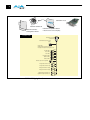
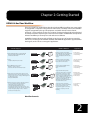
When you unpack your AJA KONA LHi, you’ll find the following components:
• AJA KONA LHi Software and Documentation CD-ROM—this CD contains the
software installer to place KONA LHi drivers and the Control Panel on an Apple
MacPro. Install the software as discussed in this manual in Chapter 3: Installation and
Configuration. The CD also contains a wide variety of useful information, including
this manual you’re reading (PDF format).
• KONA LHi PCI Express card.
• Cable, KONA LHi Standard Breakout, with Analog video, audio, AES, Reference Input,
and RS-422 Machine Control.
3G/HD/SD-SDI (1 in and 1 out) and HDMI In/Out connectors (1 in and 1 out) are on
the LHi card itself—not on the breakout cable.
• Read Me First Notice—Contains late-breaking news and/or errata related to KONA
LHi and the documentation.
• Registration Sheet—allows you to register your card by mail or online (details
provided).
Please save all packaging for shipping the KONA LHi should you wish to do so when
moving or sending it in for service.
3
4
AJA KONA LHi Card
Installation Software CD
Read Me First Notice
and Registration Sheets
Installation and Operation Manual
in electronic form on the CD (PDF)
Standard Cable
Multiple-pin connector
To KONA LHi
RS422 Machine Control to VTR
(9-pin)
Analog Video
6 BNCs (Analog Connections): Can be
Configured for Component, Composite, or Y/C
Y/CVBS In BNC
Pb/Y In BNC
Pr/C In BNC
Y/G/CVBS Out BNC
Pb/B/Y Out BNC
Pr/R/C Out BNC
green
blue
red
green
blue
red
Reference Input or LTC Input BNC
Balanced Audio
Analog Audio Channel 1 Input
Analog Audio Channel 2 Input
Analog Audio Channel 1 Output
Analog Audio Channel 2 Output
Digital AES Input Channels 1 & 2
Digital AES Output Channels 1 & 2
KONA LHi Shipping Box Contents
KONA LHi Installation and Operation Manual — System Requirements
5
System Requirements
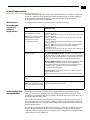
AJA Video recommends that your system meet minimum hardware and software requirements
to achieve a satisfactory level of performance when operating it. Here, we provide minimum
and recommended requirements and then discuss disk storage issues that should be
understood for proper system configuration.
Minimum and
Recommended
System and
Software
Requirements
The following table outlines the system hardware and software needed.
Item
Recommended
Recommended KONA Driver for
Mac OSX and Final Cut Pro:
FCP 7.0.x - KONA driver version 8.0 (Snow Leopard and Leopard OS
compatible version)
1
FCP 7.0.x - KONA driver version 7.5.1 (Snow Leopard and Leopard OS
compatible version)
FCP 7.0.x - KONA driver version 7.1 (Snow Leopard and Leopard OS
compatible version)
FCP 7.0.x - KONA driver version 7.0 (Snow Leopard and Leopard OS
compatible version)
FCP 7.0.x - KONA driver version 6.5 (Leopard OS compatible version)
FCP 6.0.x - KONA driver version 6.0.3 (Leopard and Tiger OS
compatible version)
For the latest appropriate match for your software and hardware, visit:
http://www.aja.com/support/kona/kona-lhi.php
Note: always consult the release
notes for the AJA software
version you are running
(included with installer)
Macintosh Tower:
Recommended KONA LHi System: Apple Mac Pro with Dual-Core
Intel Xeon Processors (2 GHz or better) with a minimum of 2GB RAM
for uncompressed SD or 4GB RAM for uncompressed HD. Use a Fibre
Channel or SCSI external RAID for uncompressed SD/HD storage.
Minimum KONA LHi System: Power Mac G5 (dual) PCI-Express, 2GHz
with 2GB RAM minimum for uncompressed SD or 4GB RAM for
uncompressed HD. Ensure your Macintosh has a PCI-Express slot for
compatibility. Use a Fibre Channel or SCSI external RAID for
uncompressed SD/HD storage.
Slot Placement: Visit our website and view this regularly updated
slot placement document:
http://www.aja.com/support/kona/kona-system-configuration.php
Understanding Disk
Storage Methods
Internal Storage (SATA inside
Mac):
Best suited for compressed SD/HD formats only
External Storage:
Note: see Storage Methods topic
that follows later in this Chapter
Ideally a RAID configuration with Fibre Channel or SCSI connection to
the Mac via qualified host bus adapter
The KONA LHi card, a MacPro, and Final Cut Pro, together offer an unprecedented level of
features and performance for audio/video post production applications. However, to ensure
performance and quality, the disk storage system used with the Apple computer must be able
to meet the demands of the media.
For uncompressed SD, AJA recommends that at a minimum, the disk storage system must be
able to provide and maintain a consistent 50 MB/sec transfer rate from the Apple computer to
disk (read/write). There are a variety of system configurations and peripherals that can provide
this level of performance.
For uncompressed single link HD, AJA recommends that at a minimum, the disk storage system
must be able to provide and maintain a consistent 200 MB/sec transfer rate from the Apple
computer to disk (read/write). There are a variety of system configurations and peripherals that
can provide this level of performance.
6
For uncompressed 3G or HD, AJA recommends that at a minimum, the disk storage system
must be able to provide and maintain in excess of 300 MB/sec transfer rate from the Apple
computer to disk (read/write). There are a variety of system configurations and peripherals
that can provide this level of performance. KONA LHi users wishing to configure a storage for
a system should also be aware that raw benchmark numbers alone do not necessarily reflect
the performance of a drive solution. Other factors, such as drive seek time and controller
cache can also affect performance especially with regard to the bandwidth requirements of
3G, HD, and SD files.
About RAIDs
Redundant Array of Independent Disks, or RAID, is a group of hard drives that appears to the
host Power Mac as a single high-speed storage unit. RAID systems enable you to increase
storage capacity and get the performance, reliability, and data protection needed for video
production, but not possible from a single hard drive. RAID drives inside the array operate
simultaneously, increasing overall throughput. RAID technology is comprised of these
techniques (some or all):
• Striping data across multiple drives for storage performance (RAID 0).
• Mirroring for redundancy (RAID 1).
• Parity for data protection (RAID 5 [plus others]).
Most RAID configurations, or RAID levels, combine these to provide a balance of protection
and performance.
Striping divides a logical drive into data blocks, or stripes, that are distributed across an array
of physical drives. Striping a set of disks improves storage performance because each drive
operates concurrently. However, striping alone, known as RAID level 0, offers no data
protection.
Mirroring involves writing identical copies of all data to a pair of physical drives. This results in
very high data reliability: If one drive fails, the data is still available on the remaining disk drive.
However, it also results in a storage efficiency of only 50 percent, because two physical drives
are required to achieve a single drive’s capacity. Mirroring alone is known as RAID level 1.
Parity provides data protection without requiring complete duplication of the drive contents.
In the event of a drive failure, parity information can be used with data on surviving drives to
reconstruct the contents of a failed drive. Parity data can be stored on a dedicated drive, as in
RAID 3, or distributed across an array of drives, as in RAID 5. Parity provides much greater
storage efficiency than mirroring—up to 85 percent for a set of seven drives.
Software For Striping
AJA recommends the Disk Utility software provided by Apple with OS X for creating and
striping RAIDs, including 3rd-party, SCSI, and Xserve RAIDs. It is very easy to use and has been
tested to work well. The utility can be found in Macintosh HD/Applications/Utilities, where
“Macintosh HD” is the name of the system drive.
AJA KONA LHi and Fibre Channel RAID (Xserve or other)
For the optimum in disk storage with Final Cut Pro and AJA KONA LHi, we recommend a Fibre
Channel or SATA RAID array. Apple’s Xserve RAID, for example, holds up to 14 hot-swap Apple
Drive Modules—5.6TB of storage—in a rack-optimized 3U enclosure. Each 7200-RPM hard
drive connects to a dedicated ATA/100 drive channel, eliminating a traditional source of
bottlenecks and maximizing the 2Gb/s Fibre Channel host connection(s). By adding more
Xserve RAID systems, you’ll have very large expansion capabilities: A standard 42U rack can
hold over 78TB of Xserve RAID storage.
Note: When creating and striping an Xserve RAID for KONA LHi using the Apple Disk Utility
provided with OS X, use RAID 50: in other words, the internal Xserve RAID drives are set up
as RAID 5; the Xserve RAID then shows up in Disk Utility as two drives (regardless of the
number of internal drives) which must be configured together as RAID 0. Apple calls this
configuration “RAID 50.”
KONA LHi Installation and Operation Manual — System Requirements
Storage capacity
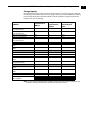
No matter which storage system you choose, pick one that can scale to meet your needs over
time. Ideally, you should be able to increase storage capacity or switch to a RAID level offering
increased data protection in the future. Balance current and future storage needs with your
budget and choose accordingly.
Transfer Rate in
MB/sec
Storage
Requirement in
GB/Hour
Hours of Storage
Per Terabyte of
Disk
10 bit Uncompressed
Standard Definition
8 bit Uncompressed
Standard Definition
DV50 Standard Definition
DV25 Standard Definition
Photo JPEG
Standard Definition
28
101
9.9
21
76
13.1
6.3
3.1
2.5
23
11
9
43.4
90.0
111
8-bit Uncompressed 1080i @59.94/
60Hz
10-bit Uncompressed [email protected]/
60Hz
124
448
2.2
166
597
1.7
8-bit Uncompressed 1080i @50Hz
10-bit Uncompressed 1080i@50Hz
104
138
373
498
2.7
2.0
8-bit Uncompressed [email protected]/
24Hz
10-bit Uncompressed
[email protected]/24Hz
100
358
2.8
133
478
2.1
8-bit Uncompressed [email protected]/
60Hz
10-bit Uncompressed [email protected]/
60Hz
100
358
2.8
133
478
2.1
DVCPRO HD
MB = MegaBytes
GB = GigaBytes
12.5
45
22.2
FORMAT
1
Note: for uncompressed formats, PAL and NTSC transfer rates and storage requirements are
about the same because PAL has a lower frame rate, but more lines.
7
8
Cable Connections
KONA LHi offers unsurpassed cable connectivity for a video/audio capture card. Connections
are made via a supplied breakout cable, plus two BNCs and two HDMI connectors on the
KONA LHi Card endplate.
Using the Breakout
Cable and 3 BNCs
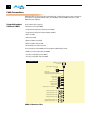
The breakout cable supports:
• Reference or LTC input (BNC)
• Component/Composite/S Video Input (3x BNC)
• Component/Composite/S Video Output (3x BNC)
• AES In (1x XLR)
• AES Out (1x XLR)
• Balanced Audio In (2x XLR)
• Balanced Audio Out (2x XLR)
• RS-422 Machine Control (9 pin D)
Four connectors on the KONA LHi Card endplate additionally provide:
• HDMI v1.3a input and output (2x HDMI)
• 3G-, HD-, and SD-SDI input (1x BNC)
• 3G-, HD-, and SD-SDI output (1x BNC)
Standard Cable
Multiple-pin connector
To KONA LHi
RS422 Machine Control to VTR
(9-pin)
Analog Video
6 BNCs (Analog Connections): Can be
Configured for Component, Composite, or Y/C
Y/CVBS In BNC
Pb/Y In BNC
Pr/C In BNC
Y/G/CVBS Out BNC
Pb/B/Y Out BNC
Pr/R/C Out BNC
green
blue
red
green
blue
red
Reference Input or LTC Input BNC
Balanced Audio
Analog Audio Channel 1 Input
Analog Audio Channel 2 Input
Analog Audio Channel 1 Output
Analog Audio Channel 2 Output
Digital AES Input Channels 1 & 2
Digital AES Output Channels 1 & 2
KONA LHi Breakout Cable
KONA LHi Installation and Operation Manual — Cable Connections
Using KLHi-box
The KLHi-box attaches to the KONA LHi card via cables that attach to the back of the box. These
cables are supplied with the KLHi-Box. When you purchase the optional box, you get twochannel unbalanced audio output (2 RCA Jacks)—not available with the standard cable.
Balanced Audio In
Channels 1 & 2
AES/EBU Audio
In and Out
HDMI v1.3a
In
HDMI v1.3a
Out
Balanced Audio Out
Channels 1 & 2
Composite/Component
Video In
RS422
SDI
In
Machine Control
SDI
Out
1
External Composite/
Reference Component
Video Out
(loop)
Analog
Audio
Output
AJA KLHi -Box Panel Connectors
About BNC
Connectors
Although most video professionals are used to BNC connectors, you may not have seen them if
you’ve been using primarily desktop video equipment. BNC connectors ensure a positive
connection by the act of locking the connectors together via pins in one connector that fit into
slots in the corresponding connector.
To make a BNC connection, slide the cable connector over the panel connector and then when
seated, rotate the barrel of the cable connector 90˚ clockwise until the connectors are locked
together. When properly locked, the cable cannot accidentally be pulled out.
Pins (2) on BNC Connector
(connector on KLHi-Box)
Align slots in
cable connector
barrel with connector
pins, then slide it over the pins
and rotate the barrel
to lock the connectors
together
9
10
Connector
Descriptions—
Cables & KLHi-Box
Connectors on the standard cable set are labelled as to their function for easy installation and
maintenance. Similarly, connectors on the optional KLHi-Box are also labelled.
3G/HD/SD SDI Input and Output
BNC connectors are provided on the KONA LHi card endplate for one 3G/HD/SD-SDI input and
one 3G/HD/SD-SDI output. The input and output support video and embedded 24-bit digital
audio. Use SDI wherever possible for the best quality 10-bit uncompressed video input,
capture and output. If peripheral equipment has a variety of inputs/outputs, look to see if it
has SDI I/O, and use it where possible. Most high-end professional broadcast equipment
supports SDI (VTRs, cameras, media storage servers, etc.).
HDMI Input and Output
Two HDMI connectors on the LHi endplate provide for input and output of HDMI compatible
video and multi-channel embedded audio (8 channels). HDMI v1.3a capability at 30 bits per
pixel allows full support of the latest 10-bit monitors.
HDCP is not supported on either input or output. The LHi’s HDMI output does not have HDCP,
and input sources having HDCP are not supported. The HDMI input is designed to support
long cable runs—up to 100 ft when using 22 or 24AWG HDMI cable, or up to 50 ft using 28 or
30AWG HDMI cable. The HDMI output supports standard HDMI cables only.
The KONA control panel allows selection and adjustment of some HDMI parameters; please
see Chapter 4—Final Cut Pro and KONA for more information on Control Panel operation.
2 Channel Digital AES/EBU Audio Inputs And Outputs
One female XLR connector is provided for the channel 1 and 2 inputs, while a male XLR
connector carries channel 1 and 2 outputs. AES/EBU signals are handled internally as 24-bit
digital.The optional KLHi-Box also provides XLR audio connections on the front panel.
Note: AES XLR connections are digital and cannot be used with analog equipment having
XLR connectors.
Analog 2 Channel Balanced Audio
Two sets of analog XLR connectors, one for each channel, support balanced audio
connections. Male XLRs are provided for outputs and female XLRs are provided for inputs.
Balanced audio (differential) connections provide better analog audio quality over longer
cable runs. Most professional quality VTRs and audio equipment have XLR style connectors for
analog audio. Analog audio signals are converted internally to 24-bit digital.
Analog 2 Channel Unbalanced Audio (KLHi-Box only)
On the KLHi-Box are two analog output connectors, one for each channel. These connectors
are RCA-style phono jacks.
RS422 Machine Control
A female DE-9 connector on the breakout cable provides connection for VTRs, camcorders,
disk media servers, and other devices using RS422 SMPTE (Sony) protocol. This connector is
also present on the optional KLHi-Box. (Connector pinout is listed in Appendix A:
Specifications.)
Analog Monitor Out (Component/Composite HD/SD)
Both the standard I/O cable and the optional KLHi-Box feature two groups of 3 BNC
connectors (each) for input and output of component, composite and Y/C functions. The
signals are labelled on both the cable and KLHi-Box connectors.
KONA LHi Installation and Operation Manual — In This Manual
Component video signals are generally higher quality than composite, but not as high quality as
serial digital (SDI).
A Note About RGB—Although RGB is used less in today’s video systems, KONA LHi supports
it. However, because the KONA LHi (and SMPTE SDI) native format is YPbPr, AJA
recommends the use of YPbPr whenever possible for analog monitoring. Although
component video monitors often have RGB inputs, it’s better to use YPbPr when the
monitor supports it. The YPbPr format provides “headroom” for “superwhite” and
“superblack”—and these video levels will be clipped when transcoding to RGB. Also, the
RGB/YPbPr transcoding involves a level translation that results in mathematical round-off
error. RGB can be configured in the KONA LHi Control Panel.
A Note About YPbPr—Component Video, or YPbPr, has been given several names over time.
YUV, Y/R-Y/B-Y, and YCbCr, are just some examples. Although these various formats have
some differences in levels, they are all basically the same. KONA LHi uses the modern YPbPr
1
terminology exclusively. KONA LHi supports three different types of YPbPr: SMPTE/EBU
N10, Betacam (NTSC), and Betacam (NTSC Japan). These three formats differ in level only
and are configured in the KONA LHi Control Panel.
Reference Video and LTC Input
A single BNC on the standard KONA LHi cable—or two BNC connectors on KLHi-Box (it loops
through)—allow you to synchronize KONA LHi outputs to your house analog reference video
signal (or black burst). If you have a sync generator or central piece of video equipment to use
for synchronizing other video equipment in your studio, then connect its analog composite
output here. When KONA LHi outputs video it uses this reference signal to lock to. When
connecting a reference video source, the locking signal should be the same format as the
Primary format selected in the KONA Control Panel. It is possible in some circumstances to use
an alternate format video signal as long as the basic frame rate is compatible.
The Reference Video input can also be used for LTC input. The hardware automatically detects
sync or LTC and acts appropriately.
In This Manual
Chapter 1 is the introduction you’re reading, listing features, box contents, and system
requirements.
Chapter 2 gets you started with using KONA LHi in a typical Video environment. Typical
workflows are discussed.
Chapter 3 provides complete instructions for installing and configuring the AJA KONA LHi card.
The user is guided through unpacking, installing the card into a PowerMac, installing KONA LHi
Mac Software From CD, cabling the system and then getting it up and running. Important
configuration information is also provided on video settings and use of genlock/external
reference.
Chapter 4 discusses operational aspects of KONA LHi when used with Final Cut Pro.
Chapter 5 discusses troubleshooting problems with your system and what to do when there’s a
problem you can’t solve.
Appendix A presents a list of technical specifications for the product.
Appendix B gives a glossary of technical terms and acronyms used in the manual.
The remainder of the manual consists of appendices listing specifications and an index section
to help you rapidly find topics in the manual.
11
12
Chapter 2: Getting Started
KONA LHi And Your Workflow
There are a lot of ways to think about the video/audio workflow you follow. Your setup might
be categorized as corporate video, professional broadcast, or desktop video. Or the workflow
might be categorized by the type of equipment used rather than the nature of work
produced—many systems these days are a mixture of equipment from high-end professional
to desktop video. This chapter hopes to show how Final Cut Pro and KONA LHi can help fit into
whatever workflow you currently have and make it more efficient.
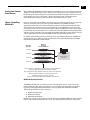
A Workflow Scenarios diagram on the following page shows types of equipment, sorted by
VTR source, and the types of workflow attributes and KONA LHi applications supported. After
the diagram, we also discuss some typical applications.
Source Deck Type(s)
Workflow Attributes
Applications
Digital SD-SDI, HD-SDI, or single-link 3G-SDI
Examples: Digibeta, DV50, DVCPRO HD,
HD Varicam and DVcam
KONA LHi captures and outputs
SD-SDI/HD-SDI video with embedded
audio. Use high-quality AES/EBU
and/or embedded 8-channel audio
output.
Pro Broadcast
Corporate/Industrial
On-site Editing
Analog
Examples: Beta, VHS, and U-matic
KONA LHi captures and outputs
Y/C, Component, and Composite
Video, with 2-channel audio.
Corporate/Industrial
Pro Broadcast
On-site Editing
Digital HDMI input from Camera
Examples: Cannon HV30 or
Panasonic AG-HSC1U AVCHD camcorder
KONA LHi captures HDMI camera
output with embedded
audio.
Pro Broadcast
Corporate/Industrial
On-site Editing
Digital capture via Firewire with Output via AJA
KONA LHi. The LHi has Analog HD component in,
which also allows you to bring in HD directly from
an HDV camera head.
Example: MiniDV, HDV
Using standard desktop video
techniques, video/audio is captured
directly from a camcorder or deck.
KONA LHi is used for playing back
captured media and editing/mastering
to tape or DVD using Final Cut 6
and other tools such as After Effects,
Combustion, Apple Motion, etc.
HDV playback is aided by KONA LHi
onboard hardware scalar.
Without even using a deck; use the video monitor
as a second Mac monitor. The KONA LHi
desktop lets you drag graphics from
programs like Adobe Photoshop from
the computer display to the video monitor. You
paint full frame and live onto a broadcast monitor.
Output virtually anything to video—ideal for
animators and compositors.
Using Final Cut Pro, work with
a wide range of old and new SD and
analog sources, and then also
using desktop graphics and video
software for creative power and
flexibility.
Desktop Video
Corporate/Industrial
On-site Editing
Pro Broadcast
Post-production
Animation
Compositing
Workflow Scenarios
2
1
1
14
Understanding Typical Workflows
KONA LHi and Final Cut Pro allow more workflow flexibility than ever before. Users can
independently select different formats for capture and storage media, while also
outputting to an array of analog and digital uncompressed formats—with all outputs active
simultaneously. Capture can range from analog, DV, or SD and HD digital uncompressed.
Media can be stored on disk as:
• offline quality at low bit rates
• on-line quality at moderate bit rates
• or with the highest quality as 8 or 10 bit uncompressed SD and HD
As quality and codecs improve, the lines between offline and online are blurring. For
example, with the Apple ProRes 422 codec, native HD editing in that codec is now possible,
providing very high quality results (true HD editing) at very low data rates.
Following are summaries of the most common workflows, listing data rates and relative
quality levels. Some workflows require a RAID array and some will work using the host Mac’s
internal system drive—it’s noted where this is supported in the following discussions.
PhotoJPEG
Data rate: approximately 1-3 MB/second standard definition or high definition—supported
by internal system drive
Quality: Very Good
The Apple PhotoJPEG codec offers an excellent compressed media choice for on-line
quality at low data rates. PhotoJPEG can use the full-raster at 4:2:2 sampling. Final Cut Pro
allows you to adjust quality using a PhotoJPEG control panel. KONA LHi allows for
PhotoJPEG monitoring and/or output in both SD and HD. KONA LHi can capture from
almost any HD or SD input, directly to PhotoJPEG media.
DV (DV25)
Data rate: 3.13 MB/second (megabyte/second) standard definition only—supported by
internal system drive
Quality: Good
In this workflow, DV is usually input to a Mac Pro running Final Cut Pro through its FireWire
port. DV offers good quality, but it has lower Chroma resolution when compared to DV50,
JPEG, or uncompressed. You can use KONA LHi to convert DV projects to uncompressed—in
real time—for monitoring and/or output. Alternatively, KONA LHi can capture
uncompressed from any input, directly to DV media.
DV50
Data rate: 6.26 MB/second standard definition only—supported by internal system drive
Quality: Very Good
Like DV25, Final Cut Pro also supports the Panasonic DV50 standard definition codec. DV50
is a 4:2:2 compressed format and therefore has higher chroma resolution when compared
to DV25. Also like DV25, you can use KONA LHi to convert DV50 projects to
uncompressed—in real time—for monitoring and/or output. KONA LHi can capture
uncompressed from any input, directly to DV50 media.
DVCPRO HD
Data rate: 12 MB/second high definition—supported by internal system drive
Quality: Excellent
Like DV50, Final Cut Pro also supports the Panasonic DVCPRO HD high definition codec. You
can use KONA LHi to convert DVCPRO HD projects to uncompressed—in real time—for
monitoring and/or output. KONA LHi can capture uncompressed from any input, directly to
DVCPRO HD media. When playing the DVCPRO HD format back, the KONA LHi hardware
handles the work of properly scaling the video for monitoring and output—which provides
for more streams of RT effects, since the Mac processors are freed up to handle the RT.
KONA LHi Installation and Operation Manual — Understanding Typical
HDV
Data rate: 19 MB/second high definition720p, 25 MB/second high definition 1080i—
supported by internal system drive
Quality: Excellent
KONA LHi supports and accelerates the Final Cut Pro HDV Codec. You can use KONA LHi to
convert HDV projects to uncompressed—in real time—for monitoring and/or output.
KONA LHi can capture uncompressed from any input, directly to HDV media. The KONA
LHi advanced scaling engine takes the native frame (long GOP 1440 HD) and outputs it
via hardware—in real time. Precision AJA circuitry re-sizes the video to proper 1920 x
1080, providing quick playback of HDV captured by Final Cut for monitoring and
recording.
HDV captures HD images via MPEG2 compression and allows for recording the signal to a
MiniDV tape. This MPEG2 compression is similar to a DVD (although DVD is a program
1 DVDs use
stream vs. HDV’s transport stream and HDV uses a constant bit rate whereas
variable bit rates). The issue for post production is that the HDV transport stream is based
around a long-GOP structure (group of pictures) which produces images based on
information over a section of time, via I, P and B frames; Intraframes, predicted frames and
bi-directional frames. Formats that do not use this scheme treat frames as individual
units, as in the progressive formats where a frame truly is a frame, or as interlaced frames
where two fields create the image. Sometimes we refer to these formats in contrast to
MPEG formats, as I-frame formats where frames can be easily defined as individual.
Since the frames of HDV have the long GOP structure to define them, herein lies the
problem for post-production; how can we work with the material if we must know what
lies before, after and during? Luckily, the transport stream MPEG2 can be transmitted
over IEEE1394 (aka FireWire). This means that the compressed HD material can be
transferred into systems with the appropriate hardware and software (for example, a Mac
Pro with Final Cut Studio 2). While this seems like a simple solution for post-production,
it means that the footage must be brought into the system as a rather heavily
compressed format and that the computer must continue to work with the material as a
MPEG2 transport stream, which is incredibly processor intensive for the computer.
How does the AJA KONA LHi card connect to HDV and digitize material to uncompressed
HD files for editing—or at the very least, to a lightly compressed I-Frame HD format? The
answer to this is provided in a feature common to many HDV devices: analog HD output
via component video. The component connectors on JVC cameras and decks, along with
Sony cameras and decks, allows for the output of the long GOP MPEG2 data as a standard
HD video format such as 720P in the JVC products—or 1080i in the Sony products.
Since the KONA LHi has the ability to digitize analog HD signals, the analog component
output of the HDV devices can simply be connected to the KONA inputs. Note that HD
signal cannot be transported over composite or S-Video (Y/C) cables, so the HDV device
must have an analog component HD output. The KONA LHi also has the ability to ingest
analog audio, so the analog audio outputs of the HDV devices can be sent to the Kona
card as well. (Also note that these analog audio outputs on the HDV devices are usually
unbalanced RCA connections where the KONA card uses balanced XLR style connection
so some sort of audio level correction device, such as a mixer or a stand alone active
interface amplifier, should be used for accurately attenuated audio.)
Finally, you will want to control your device. Where all of the video, audio and timecode
information moved over the FireWire cable, now you are dividing those tasks. Device
control is the most difficult to configure for HDV devices because so few HDV devices
have implemented any form of device control other than IEEE1394. The one notable
exception is the JVC BR-HD50 HDV deck which has a remote serial port for RS422 protocol
and device control. Check the KONA LHi support area on the AJA website for a
whitepaper on HDV, which gives details on using KONA LHi with various HDV equipment.
Note: direct capture into HDV media on the LHi is not possible. Direct capture into the
LHi can only be done using uncompressed, DVCPRO HD, or Pro Res. Regarding ProRes
422, capturing HD resolution ProRes 422 from an HD source requires a Mac Pro with
an Intel Xeon processor.
15
16
Apple ProRes 422
and Apple ProRes
422 HQ
(SD or HD)
Data rate: Approximately 18 MB/second ProRes 422, Approximately 31 MB/second ProRes
422 HQ— supported by internal system drive or attached storage
Quality: Excellent, broadcast quality
Captured media is virtually indistinguishable from pristine uncompressed sources. Better
yet, ProRes maintains the quality during editing, surviving multiple encoding/decoding
generations without degradation. It was designed by Apple for editing, rather than as a
transmission/distribution codec as are most popular codecs. Some of the advantages
include:
• Full-size 1920-by-1080 and 1280-by-720 HD resolutions.
• Full-size 720-by-486 and 720-by-576 SD resolutions.
• 4:2:2 chroma sampling. Provides precise compositing and blending at sharp saturatedcolor boundaries.
• 10-bit sample depth. Preserves subtle gradients of 10-bit sources (perfect for greenscreen compositing, graphics or color correction) with no visible banding artifacts.
• I frame-only encoding. Ensures consistent quality in every frame and no artifacts from
complex motion.
• Variable bit-rate (VBR) encoding. “Smart” encoding analyzes the image and allocates
more bits to complex frames.
• Low data rate requirements make for more storage options and require less drive
space to store high quality video.
Uncompressed
8-bit
Data rate: 21 MB/second standard definition, or 100-124 MB/second high definition (see
later “Storage Capacity” chart in Chapter 1 for the various transfer rates per format)—
requires SCSI, Fibre Channel, or ATA drive array
Quality: Excellent
Uncompressed media is KONA LHi’s native storage format, offering the highest quality
available. Capturing in uncompressed results in no compression artifacts, and video is
sampled over the full raster at a 4:2:2 rate.
Using uncompressed maintains a higher quality in your project from capture all the way
through effects rendering. Final Cut Pro supports RT with uncompressed media using RT
Extreme. KONA LHi supports capture of uncompressed through any of its inputs, and
uncompressed projects are output to all of its outputs simultaneously.
Uncompressed
10-bit
Data rate: 28 MB/second standard definition, or 133-166 MB/second high definition with 3G
double that—uncompressed 10-bit requires SCSI, Fibre Channel or SATA drive arrays.
Quality: Excellent, very high quality
Offering all the benefits noted previously for 8-bit uncompressed, 10-bit additionally offers
the very highest quality available. With 10-bit media and Final Cut Pro’s 32 bit Floating Point
YUV Codec, video quality is second to none. For more information on this subject, please
see the topic at the end of Chapter 4: Installation and Configuration, titled “Using 8-bit Versus
10-bit Video.”
KONA LHi Installation and Operation Manual — Mixing and Matching
Mixing and Matching Formats in Final Cut
In Final Cut Pro, it works best to use one format consistently. For example, if you capture DV 50
files and then capture 8-bit uncompressed files, you’ll have to rerender one or the other when
using the two types on the same Final Cut sequence (the timeline where media is edited into a
project). You could even capture 8-bit uncompressed and HDV, and then place them both on a
PhotoJPEG timeline and end up having to render them both. You can capture directly, in real
time to any supported format, even if it doesn’t match the source formats at all (for example, DV
and DV50 to 8 bit uncompressed).
Therefore, it makes sense to capture media into your system at the highest quality you’ll expect
to use to eliminate rerendering and ensure best results. KONA LHi is ideal for this since it has the
connections necessary to bring in a variety of media for capture into Final Cut.
1
17
18
Chapter 3: Installation & Configuration
Installation Overview
The installation and set up of a KONA LHi is very simple. All of the steps of installation and
configuration are documented in this chapter, summarized as follows:
1. Unpack the shipping box
2. If not previously installed on your Mac Pro, ensure that Final Cut Pro is installed as
detailed in its user documentation. Final Cut Pro must be installed and have been run at
least once prior to installing AJA KONA LHi software.
3. For Mac Pro and LHi:
Visit: http://www.aja.com/support/kona/kona-system-configuration.php
Locate your Mac model and install in the recommended slot.
For Model LHi and a G5:
Lay the PCIe PowerMac G5 on it’s on it’s side (motherboard facing up). Install the KONA
LHi capture card into one of the PCI Express slots in the PowerMac. The RAID controller
card (SCSI or Fibre Channel) can go in any other available slot.
4. Install AJA KONA LHi software on your Mac from the
supplied AJA CD-ROM
5. Cable the system audio and video sources, VTR, audio monitor,
and video monitor. If you purchased the optional KLHi-box, then
install it into an equipment rack or place it on a desk and
connect its two cables to the KONA LHi card. If you’re instead
using the standard cable set, then use those to connect
equipment.
Each of these steps are explained in greater detail in the remaining
pages of this chapter.
Unpacking
Shipping Box
Contents
KONA LHi is shipped with a CD containing system software and an Installation and User
manual (a PDF on the CD), and a cable. If you purchased the optional KLHi-box breakout box,
it ships with its own set of cables and instructions for connection to the KONA LHi card.
3
1
1
20
AJA KONA LHi Card
Installation Software CD
Read Me First Notice
and Registration Sheets
Installation and Operation Manual
in electronic form on the CD (PDF)
Standard Cable
Multiple-pin connector
To KONA LHi
RS422 Machine Control to VTR
(9-pin)
Analog Video
6 BNCs (Analog Connections): Can be
Configured for Component, Composite, or Y/C
Y/CVBS In BNC
Pb/Y In BNC
Pr/C In BNC
Y/G/CVBS Out BNC
Pb/B/Y Out BNC
Pr/R/C Out BNC
green
blue
red
green
blue
red
Reference Input or LTC Input BNC
Balanced Audio
Analog Audio Channel 1 Input
Analog Audio Channel 2 Input
Analog Audio Channel 1 Output
Analog Audio Channel 2 Output
Digital AES Input Channels 1 & 2
Digital AES Output Channels 1 & 2
Contents, KONA LHi Shipping Box
As you unpack the shipping box(es), carefully examine the contents. Ensure you received
everything and that nothing was damaged during shipment. If you find any damage,
immediately notify the shipping service and supply them with a complete description of
the damage. AJA will repair or replace damaged items. If you find shipping damage, contact
your AJA dealer or distributor for details on how to have your KONA LHi repaired or
replaced.
Note: Save packing materials and the shipping box. If you ever require service or move
your system—use the packaging materials and box for safe shipment.
KONA LHi Installation and Operation Manual — Installing the KONA LHi
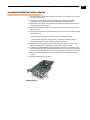
Installing the KONA LHi Card in a Mac Pro
1. Place the Mac Pro in a well-lit convenient area, where you will have easy access to
the chassis access door.
2. Using your hand, touch the outside of the Mac Pro to discharge any static
electricity you have. Remove the power cable from the back of the Mac.
3. Remove the access door as described in your Apple User Manual. Lay the Mac on
its side, motherboard facing up.
4. Remove the KONA LHi card from its protective anti-static bag; place the card on
top of the bag.
5. Visually locate the PCIe slots inside the Mac chassis. The slots are numbered along
the left side. Visit:
1
http://www.aja.com/support/kona/kona-system-configuration.php
6.
7.
8.
9.
....and determine which slot works best for your Mac Pro model. This page is
updated regularly to account for Apple product line changes.
Remove the card edge locking plate on the right side of the card cage, using a
Phillips screwdriver (it is held in place by two captive phillips screws).
Carefully insert the KONA LHi card by rocking it slowly into the desired PCIe slot.
Ensure the card edge aligns properly with the Mac Pro’s rear panel opening (where
the card edge locking plate was just removed) and that it is fully seated in the slot.
Replace the card edge locking plate removed earlier, securing the two phillips
screws.
Replace the Mac Pro’s access door.
KONA LHi Card
21
22
Installing the KONA LHi Card in a G5
1. Place the PCI-Express G5 in a well-lit convenient area, where you will have easy
access to the chassis access door.
2. Using your hand, touch the outside of the G5 to discharge any static electricity you
have. Remove the power cable from the back of the PowerMac G5.
3. Remove the access door and clear inner panel as described in your Apple G5 User
Manual. Lay the G5 on its side, motherboard facing up.
4. Remove the KONA LHi card from its protective anti-static bag; place the card on top
of the bag.
5. Visually locate the PCI-Express slots inside the G5 chassis. The KONA card only
requires a 4-lane PCI-Express slot, so any of the available slots will work correctly.
6. Remove the card edge access cover from the desired slot where you will be inserting
the KONA LHi card. The card edge cover is secured by a phillips screw; save this screw
for use in installing KONA LHi.
7. Holding the KONA LHi card by the card edge plate and an outside edge, carefully
insert the KONA LHi card by rocking it slowly into the slot. Ensure the card edge
aligns properly with the G5’s opening (where the card edge cover was just removed)
and that it is fully seated in the slot.
8. Secure the card in the slot using the screw removed earlier.
9. Replace the G5’s clear inner panel and outer access door.
Note: After you install the KONA LHi card, you may notice that in the MacOSX Network
preferences there is a message stating “You have a new network port named KONA LHi
—be sure to check the settings...”. There is no need to take any action; this occurs
because MacOSX detects the RS-422 serial port on the KONA LHi card that you will use
for VTR machine control.
KONA LHi Installation and Operation Manual — Cabling the System
23
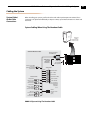
Cabling the System
System Video/
Audio Cable
Connections
When installing your system, you’ll make video and audio input/output connections. These
connectors are explained individually in chapter 2. Here, system interconnection is shown and
described.
System Cabling When Using The Breakout Cable
1
KONA LHi
Installs in
PCI-Express Slot
in Mac Pro or G5
Standard Breakout Cable
60-pin connector
To KONA LHi
HDMI Input
SD/HD/3G-SDI
and HDMI
Video/Audio
Connections
Reference Input BNC
or LTC input
(switchable via KONA
Control Panel)
HDMI Output
SDI Input BNC
SDI Output BNC
Analog Video
green
Y/CVBS In BNC
blue
Pb/Y In BNC
red
Pr/C In BNC
green
Balanced Audio
Analog Audio
Channel 1 Input
Analog Audio
Channel 2 Input
Analog Audio
Channel 1 Output
Analog Audio
Channel 2 Output
AES Input
Channels 1 & 2
Y/G/CVBS Out BNC
blue
Pb/B/Y Out BNC
red
Pr/R/C Out BNC
6 BNCs (Analog Connections):
Can be Configured for
Component,
Composite,
or Y/C
RS422
Machine Control
to VTR
(9-pin)
AES Output
Channels 1 & 2
KONA LHi System Using The Breakout Cable
24
Typical System
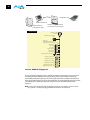
A figure on the following page shows typical system interconnections for a system with digital
A/V sources. Your system may differ depending on VTRs, audio monitoring, and video
monitoring.
1. If desired, connect your house reference sync to the KONA LHi Ref Loop connector
(BNC). The second KONA LHi Ref Loop connector on the KLHi-box (if used) can be
connected to the VTR or terminated with a 75-ohm terminator. If instead using LTC
timecode input, connect to the Ref Loop input.
2. Connect an HDMI Video Monitor to the KONA LHi HDMI Out connector. Or instead, use
the Component Analog Video Out BNC connectors to go to an analog monitor.
3. Connect a 9-pin DB9 machine control cable between your VTR’s RS422 control port and
the breakout cable’s RS-422 machine control connector.
4. Connect two SDI cables between KONA LHi (BNCs are on the card endplate) and your
digital VTR (Digital Betacam etc.): one from KONA LHi SDI In to the VTR SDI Out, and one
from KONA LHi SDI Out to the VTR SDI In. The KONA LHi SDI connections have
embedded audio so the VTR must be configured accordingly.
5. If you have an AES/EBU-ready audio monitoring system, then connect the two
channels of AES/EBU output from KONA LHi’s XLR connectors (channels 1 and 2) to the
monitoring system AES/EBU inputs. If you instead have an analog audio monitoring
system, you can use either the XLR balanced audio connectors or the two RCA-style
unbalanced stereo output jacks on the Optional KLHi-Box for output.
VTR with SDI Inputs
Reference Monitors
Analog Audio
Inputs/Outputs
(Balanced)
AES/EBU Audio In/Out
to Monitor System
3G/HD/SD-SDI Video
with Embedded
Audio In/Out
RS422
Machine
Control
HDMI Monitor
Connect to
KLHi-Box Using
Cables Supplied With it
Apple Mac Pro
w/OSX
And
Final Cut
Pro
External Reference
(Blackburst)
or,
LTC Input
Installed
Inside Mac
AJA KONA LHi Card
POWER
CMPTR
Computer Monitor
Dual-port 2Gb Apple Fibre Channel PCIe card
Storage RAID
FibreChannel or SATA
Typical System Connections—Shown with Optional KLHi-Box
KONA LHi Installation and Operation Manual — Installing KONA LHi
25
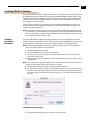
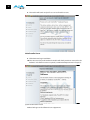
Installing KONA LHi Software
First ensure that Final Cut Pro is installed as detailed in its user documentation. Final Cut Pro must
be installed and have been run at least once prior to installing AJA KONA LHi software. Next, use the
CD-ROM supplied with the KONA LHi system to install necessary software drivers and KONA LHi
control panel. You cannot use KONA LHi with Final Cut Pro until the AJA KONA LHi software has
been installed on the host Mac Pro.
System software updates may occasionally become available to AJA KONA LHi owners on our
website (www.aja.com). We recommend checking occasionally for both software updates and
additional product information.
Note: If your Mac has previously had another video capture or multimedia card installed, ensure
you remove the card and uninstall any related software before installing KONA LHi. This will
prevent any hardware or software conflicts. KONA LHi will operate properly
1 on a Mac that also
has an AJA Io installed, but not an Io HD.
Software
Installation
Procedure
Locate the AJA KONA LHi Software CD packaged with your system. Then follow the procedure
below to put the required software on the host system to be used with KONA. The system must be
an Apple Mac Pro or Power Mac G5 as described earlier in Chapter 1: System Requirements.
Note: Before installing KONA LHi software, turn off any virus protection and security software
that you may have installed on your computer.
1. Insert the KONA LHi CD in the Mac
2. Locate the KONA LHi CD icon on the OS X desktop.
3. Move the mouse cursor to the icon and double click to see the CD contents, which will
appear in its own window.
4. In the window, locate the package file; it has an icon that looks like a box and has a “.pkg” or
“.mpkg” suffix.
Note: Files ending in the “.pkg” and “.mpkg” suffix are OS X installer files. These launch the OS X
installer and tell it where and what to install on your system.
5. Double-click the package to log on and begin software installation.
6. The system will respond by asking you to authenticate who you are as currently defined on
your OS X user profile. Enter the proper name and password at the Authenticate prompt; if
you have multiple users defined, ensure that you log on as a user with administrator-level
authority.
Log On Authenticate Prompt
7. Click on the OK button after entering a valid user and password.
26
8. The installer will launch and you’ll see a series of installer screens.
Initial Installer Screen
9. Click Continue to begin installation.
10.The next screen lets you know that the installer will check your Mac to ensure it has the
hardware and software resources required (see Minimum Requirements in Chapter 1).
System Check Installer Screen
11.Read and agree to the Software License Agreement.
KONA LHi Installation and Operation Manual — Installing KONA LHi
1
KONA LHi Software License Agreement Screen
12.The next screen shows all the available drives on the Mac Pro. Click on the drive that
contains your system files (Apple default is “Macintosh HD”). A green arrow will point to
the drive you’ve selected. Click the Continue button to proceed with installation.
13.At the next screen, select the Easy Setups that you want to use (or all of them) and then
click the Continue button to place the software on the drive you previously selected.
27
28
Installer Screen, Select Easy Setups to be Installed
14.A system prompt will pop up with a reminder that OS X must be restarted after
installation. Click the Continue Installation button to proceed.
Restart OS X Reminder Prompt
15.The installer will run and put all the necessary KONA LHi drivers, KONA LHi Control
Panel, presets and software on the desired hard drive. When it has completed
installation, a final screen will be displayed announcing that “software was successfully
installed.”
16.Click the Restart button to complete the installation procedure. The system will
perform a software restart and be ready for use.
Genlock and Your System
For video stability and proper system operation, you can genlock all equipment to house
sync, however genlock is not required for KONA LHi due to excellent freerun accuracy. To
connect genlock, use a black burst generator output looped through the system. On the
KONA LHi cables and optional KLHi-Box breakout box, house sync is connected to “Ref Loop”.
Chapter 4: Final Cut Pro and Other Software
Final Cut Pro
Final Cut Pro (not included with KONA LHi) ships with information already configured for most
common system configurations. After you install the KONA LHi software on your Mac Pro, all
you need to do to begin using it is to become familiar with the KONA LHi Control Panel and
how Final Cut Pro works with KONA LHi.
With Final Cut Pro you’ll choose the proper setups from the canned ones provided by AJA.
These canned setups are called “Easy Setups” in Final Cut Pro and are available to use and edit
under Audio/Video Settings in the “Final Cut Pro” menu (next to the apple menu).
You’ll also need to gain familiarity with the KONA LHi Control Panel, which will be used for
source selection, configuring many KONA LHi features, and for creating your own preset
configurations for different applications.
The manual you are reading does not provide operational information about Final Cut Pro.
Please read the Final Cut Pro user documentation provided with it for information on
configuration and operation. The chapter you are reading addresses configuration and setup
unique to use of KONA LHi with Final Cut Pro and other applications.
Using The KONA LHi Control Panel
The KONA LHi Control Panel is a software application that provides a simple visual way to see
how the KONA LHi card is currently configured and then make changes as desired. Settings—
both what you changed and didn’t—can be saved as a snapshot for recall at anytime. This lets
you save settings associated with all your frequent tasks; then as you switch tasks you don’t
have to spend extra time constantly resetting card configurations—just load the previously
saved settings for each task.
One thing you’ll notice instantly about the Control Panel is that it represents a visual block
diagram of how the card is set. The current status, input and output settings, down-converter,
and many other details can be viewed as a color-coded block diagram in the Control Panel.
Control Panel Basics
Although the KONA LHi card auto-configures depending on the inputs present, and the
Control Panel intuitively shows at a glance much about what the card is doing, there is even
more information presented that may not be obvious. To ensure you make the most of the
software, run the KONA LHi application and look at its display. Then refer to the “Basics”
described here to fully understand what you’re seeing and learn how to view and change the
KONA LHi system configuration.
Note: The KONA Control Panel also works with KONA LS, KONA LH, KONA 3 and KONA 2.
However, the actual features and screens displayed differ slightly since the board feature
sets differ. Only one KONA card can be installed in a Mac at one time.
4
1
1
30
Before we go into too much detail, here are some basic definitions you should know (please
refer to the figure that follows for reference). After studying the basics, read “Who is
Controlling KONA LHi?” later in this chapter for more advanced information on how
applications interact with the KONA LHi board.
Block Diagram Screen—The top area of the KONA LHi Control
Panel shows a visual picture representing the processing (if
any) that’s currently occurring, including inputs/outputs, any
down conversion, reference source, and system status. Lines
between inputs, the framebuffer, and outputs, show a video
path. Where there are no lines, it shows there is no
connection; this can be either because an input or output
isn’t selected or because no video is present at the selected
input. The lines will also show whether the outputs are video
or video + key.
Control-Clicking
an Icon Produces
a Context-sensitive
Menu
Icon objects on the block diagram screen (input/output icons, frame buffer, etc.—also
called “widgets”—indicate their status by color (explained later) and can be clicked for
context-sensitive information and choices. (These same choices can also be made from
the tabbed Control Panel screens.)
The “Primary Format”
Inputs:
SDI In,
HDMI In,
Analog,
and Reference
Outputs
Conversion
Icon
Framebuffer
Shows the
“Primary Format”
KONA LHi has
selected
Tabbed Windows—Click One To Edit/View A Topic
KONA LHi Control Panel, Block Diagram
Click on Arrows
to See Additional
Tabs
KONA LHi Installation and Operation Manual — Using The KONA LHi Control
Framebuffer—The framebuffer is the “engine” in the KONA LHi card where active video
operations take place using Final Cut Pro, other 3rd-party applications, or even KONA
LHi itself. The framebuffer has a format (called the “Primary Format” and color space
that it follows, as defined in the Tabbed Windows or via external application software
(such as the “Easy Setups” in Final Cut). It is important to realize that inside the
Macintosh many applications can use the KONA LHi card (as you switch from
window to window) and it may not always be obvious which currently controls it.
The KONA LHi Control Panel displays the name of the application controlling the
card. In some cases, applications may not always properly “let go” of the card as
another takes over—you’ll be able to tell by looking at the Control Panel.
Primary Format—The video format currently assigned to KONA LHi. This is the format
that the framebuffer will use and is shown in the Control Panel using
1 the color blue.
All icons in blue are the same as the Primary Format used by the framebuffer. Also
any text descriptions in the block diagram that appear in blue also indicate that
something is in the primary format. So, for example, if you see that the input and
output icons are blue, then you know that the same format is used throughout the
video path and that no format conversion is being performed. If a different color is
displayed on the input or output, say green for example, then you know that KONA
LHi is performing a format conversion in the video path.
Secondary Format—Any format other than the currently selected Primary Format, is a
secondary format. As described previously, this means that either the Inputs or
Outputs are somehow different from the framebuffer’s assigned format (i.e., the
“Primary Format”). This can be seen at a glance because the color will be different
than blue.
Input/Output Icons—The input and output icons are triangles that together with their
color show all the input and outputs and their status (selected, not selected, input
present or not, format, etc.). A complete video path is shown when inputs and
outputs are connected with lines going to/from the framebuffer.
Input/Output Icon
Conversion Icons—when an input or output is a different standard than the framebuffer
then the KONA LHi may be upconverting, downconverting or crossconverting the
signal to the proper standard. This may be automatic, because it's detected an input
signal that differs from the standard currently selected, or because you've explicitly
told it to convert. In either case, the block diagram will show the conversion by
displaying a conversion icon in between the input/output and the framebuffer. In
the case of cross-conversion, the type of crossconvert will be shown under the icon
(in the example that follows, it's “1080 to 720”).
Down, Up, and Cross Conversion Icons
31
32
Color Meanings—All items in the KONA LHi Control Panel block diagram are color-coded
to show what is happening in realtime. This applies to both icons and text. These colors
have the following corresponding meanings:
Blue: video is same format as the Primary Format (framebuffer)
Red: the selected operation cannot be performed
Yellow: reference video (black burst or other reference source)
Green: indicates that KONA LHi is performing some kind of active change to the video,
to make it different from the Primary Format (e.g., down convert, format change, etc.).
Tabbed Windows—The bottom area of the KONA LHi Control Panel provides different
information categorized by topic. Clicking on a “Tab”—or a block diagram element—
will result in an information screen corresponding to a tabbed topic. The arrows at
either side of the displayed tabs can be clicked to see any additional tabs not visible on
the screen. If an arrow is “grayed out”, then it means there are no additional tabs in that
direction. Each of these tabbed windows are described on the following pages. Tabs
that can be selected are:
Inputs: view and edit input selections and how they are mapped
Formats: select the framebuffer primary video format and any secondary
formats and down conversion for inputs/outputs
Digital Out: assign outputs
Analog Out: configure the component/composite analog output
HDMI: configure the HDMI I/O
Control: configures KONA LHi operation (pass through, desktop, etc.) plus setting
output timing.
Setup: configures Video and Audio options such as composite black level and analog
audio monitor level.
Codec: used to select codec options such as whether a pause stops on a full frame or
a single field (jitter shown or not) and 24 to 30 fps padding patterns.
Timecode: monitor and configure timecode
Timelapse: enables the capture of select frames over a specified time interval.
Info: displays status information about the KONA LHi card and how it is
installed in the host Macintosh. This information is generally intended for
troubleshooting/support.
KONA LHi Installation and Operation Manual — Using The KONA LHi Control
33
Input Screen
Click a Tab to
Select a Screen.
Click Arrows to
View Left or Right
Tabs
1
Click to Select
an Input
KONA LHi Control Panel, Inputs Tab
On the Inputs screen you can view the currently selected video and audio input sources and
map audio sources to the channels supported by Final Cut Pro (more on this later). Two
information panes in the screen are provided: Video Input and Audio Input.
Input Screen Settings
Video Input—These radio buttons allow you to see and change what’s currently selected and
the video format that KONA LHi has detected there (if any). If you wish to select a different
input you can do so by clicking a different radio button. If Analog is selected, then you also
need to select the Analog Format via a pulldown menu. Choices are:
Composite
Y/C
Component (SMPTE/EBU N10)
Component (Beta)
Audio Input—This pulldown menu allows you to pick where the audio comes from. KONA LHi
supports up to 8 channels of embedded digital audio, so you can choose out of the 16
channels that can be embedded in SDI, and pick which to bring in (from the group 1-8 or 916). Since Final Cut Pro currently only supports two channels of audio, here you can also
select which two channels from the 8 embedded will be mapped to Final Cut’s two
channels.
34
When a KONA LHi has a KLHi-Box attached, there are two ways to connect AES/EBU inputs:
XLR or BNC connectors. The Audio Input pulldown allows you to select which of the two
connector groups will be used.
Formats Screen
The Formats screen shows the video format currently in use by the KONA LHi framebuffer
(called the Primary Format) and allows you to change it. All throughout the Control Panel,
choices are always presented based on what KONA LHi can do with the signals available and
the inputs/outputs selected. For example, on the Formats screen, if the output or inputs are a
different format than the primary, then you’ll see an additional information pane that allows
you to view and edit the secondary format—including control over whether down conversion
is employed.
KONA LHi Control Panel, Formats Tab
KONA LHi Installation and Operation Manual — Using The KONA LHi Control
1
KONA LHi Control Panel, Formats Tab, Showing Primary Formats Pulldown Menu
Format Screen Settings
Video Format—This pull-down menu shows the currently selected format. This pull-down
appears in both the Primary Format area of the Formats screen as well as the Secondary
Format area (if present). If you select an alternate value in the Primary Format using the
pull-down, it will change the format used by KONA LHi’s framebuffer. Video Format can
only be changed when the Control Tab menu has the setting “Input Pass through”. When a
change is made via the Video Format pull-down, the block diagram will change to reflect
the new format.
In the case of Secondary Format, the formats available can vary based on what the
Primary Format is and the input signal (frame rates of input sources limits the to/from
conversion choices). The “Secondary Video Format” pull-down menu lists all formats with
those that are incompatible shown in gray (these can’t be selected). This allows you to
see what you've chosen, and also see those formats that are incompatible with the
selected Primary format.
KONA LHi Formats include
525i 29.97
625i 25
720p 50
720p 59.94
720p 60
1080i 25
1080i 29.97
1080i 30
1080PsF 23.98
1080PsF 24
1080P 23.98
1080P 24
1080P 25
1080P 29.97
1080P 30
1080P 50
1080P 59.94
1080P 60
Note: The AJA Control Panel software uses the abbreviation "sf" instead of "psf" when referring
to "progressive segmented frame". In the manual and in other literature you may see either
of these acronyms used interchangeably.
Crossconversion: if you have an HD format as your primary and then select a secondary HD
format with a different frame size, the KONA LHi card will perform a crossconversion where
necessary (input or output) for “like Hz” formats. By like Hz this means that 720P 59.94 may
be converted to 1080i 29.97 (59.94Hz). Converting from disparate Hz is not supported on
the KONA LHi card for crossconversions. The example below shows 1080i to 720p.
35
36
Up (Conversion)—the Up and Down pull-down menus are available when conversion has
been selected for the video path to/from the framebuffer and like Hz formats are selected
(the one exception is 1080PsF 23.98 which can be downconverted to 525i 29.97.)
Different choices will be available depending on the type of conversion and formats
being converted. SD to SD conversions are essentially aspect ratio conversions to
accommodate transforming anamorphic images to letterbox or vice versa.
For Upconversion the following choices are available:
Anamorphic: full-screen “stretched” image
Pillar box 4:3: results in a 4:3 image in center of screen with black sidebars
Zoom 14:9: results in a 4:3 image zoomed slightly to fill a 14:9 image
with black sidebars
Zoom Letterbox: results in image zoomed to fill full screen
Zoom Wide: results in a combination of zoom and horizontal stretch to fill
a 16:9 screen; this setting can introduce a small aspect ratio change
Down (Conversion)—for downconversion the following choices are available:
Anamorphic: full-screen “stretched” image
Letterbox: image is reduced with black top and bottom added to image area with the
aspect ratio preserved
Crop: image is cropped to fit new screen size
SD to SD—this pulldown is for SD to SD aspect ratio conversion.
Letterbox: this transforms SD anamorphic material to a letterboxed image.
H Crop: will produce a horizontally stretched effect on the image; transforms anamorphic
SD to full frame SD
Pillarbox: will produce an image in the center of the screen with black borders on the left
and right sides and an anamorphized image in the center
V Crop: will transform SD letterbox material to an anamorphic image
Digital Out Screen
The Digital Out screen shows the current settings for both the SDI outputs. If an input/output
has no video, it will be indicated on the block diagram (“No Video”).
KONA LHi Control Panel, Digital Out Tab
KONA LHi Installation and Operation Manual — Using The KONA LHi Control
Digital Out Screen Settings
Information that can appear includes the following items. You can view the current setting or
click on another to change to it:
Primary—when selected, this indicates that the SDI output is set to the same format as the
framebuffer. That value will be listed in blue.
Secondary—when selected, this indicates that the SDI output is set to a format different from
the framebuffer (Primary Format). That secondary format value will be listed in green. This
shows that active processing of the video is taking place (format change and possibly
down-conversion).
Control-clicking on an output icon brings up a contextual menu allowing you see the current
format and make changes if desired.
1
KONA LHi Control Panel, Digital Out Tab
37
38
Analog Out Screen
KONA LHi provides a high-quality analog component or composite output, generally used for
monitoring. This screen shows the current settings for that analog output, and allows you to
re-configure it when desired.
KONA LHi Control Panel, Analog Out Tab
Analog Out Screen Settings
Analog Format—choices in the Analog Format pulldown menu vary depending upon the
Analog Output video standard. For example, the “Composite + Y/C” selection is only
available when an SD (525i29.97 or 625i25) format is in use. Analog formats can include:
Composite +Y/C
Component (SMPTE/EBU N10)
Component (Beta)
Component (RGB)
Component (RGB -HV)
KONA LHi Installation and Operation Manual — Using The KONA LHi Control
HDMI Tab Screen
The KONA LHi’s HDMI input and output are shown and configured at this tab screen. The HDMI
input pane shows if an HDMI input source has been detected and locked on, showing the
format found.
1
KONA LHi Control Panel, HDMI Tab
HDMI Tab Screen Settings
HDMI Input—while there are two different ranges of colorspace values that SDI can use (RGB
and YCbCr) the HDMI input on the KONA LHi will automatically negotiate between the two.
A pulldown allows you to select the SMPTE video input range.
HDMI Output—one set of radio buttons allow you to select either the primary video format
(framebuffer) or a secondary one (up/down/cross-conversion). Pulldowns are provided for
configuring the video output range, color space and number of embedded audio channels
(2 or 8) for the HDMI output. A Protocol pulldown allows you to choose either “HDMI” or
“DVI” protocol—use DVI if you’re outputting to a DVI monitor using an HDMI to DVI
adapter.
39
40
Control Screen
The KONA LHi can be controlled by various software applications running on a host
PowerMac as well as act as a Macintosh Desktop extension. The Control Screen is where you
select how the KONA LHi directs video and is used by application software. This screen also
provides control for configuring output timing with regard to external reference video and
horizontal/vertical delay.
At the top of the Control screen it will show the current Default KONA LHi output and the
application currently controlling the KONA LHi card (if there is one). For example, in the screen
shown here, the default output is the Macintosh Desktop and the only controlling application
is the KONA LHi Control Panel itself.
KONA LHi Control Panel, Control Tab
Control Screen Settings
Default Kona Output—This is where you select what KONA LHi will output as a default when
no application has control of the board, such as when the Finder is active. Since KONA LHi
can be controlled by software applications as well as its own Control Panel, the output
can change dynamically. When you select many video applications, they will grab control
of the KONA LHi card inputs/outputs. These settings determine what happens when an
application that doesn’t grab the KONA LHi inputs/outputs is active.
KONA LHi Installation and Operation Manual — Using The KONA LHi Control
KONA LHi Control Panel, Control Tab, Default KONA Output Pulldown Menu
Choices available and their meaning are:
1
Macintosh Desktop: when selected, this selection causes the KONA LHi program video
output (digital and analog) to be an extension of the Macintosh desktop. MacOS windows
and applications can appear (when applicable) on the KONA outputs.
Input Passthrough: this selection directs KONA LHi to route video from its selected input
through the card for processing and output. When this selection is in effect, all Primary/
Secondary Format selections are available for selection in controlling the output. This is
similar to using the KONA LHi as a VTR (as far as video/audio pass through).
Black: this selection directs KONA LHi to output video black whenever an application isn’t
controlling the card.
Test Pattern: this selection directs KONA LHi to output a choice of preset patterns—when no
other QuickTime application is using the KONA board. In addition to the preset test pattern
choices, a “Load File...” selection at the bottom of the menu allows you to load any standard
Mac RGB graphics file (.tif, .psd, etc.) into the frame buffer for display.
Note: the graphic file will not be scaled to fit. If it’s smaller than the current frame buffer format,
KONA LHi will center it in the frame. If it’s larger than the current frame buffer format, it will
be cropped on the right and bottom.
Once a graphic file is loaded into the frame buffer it will be retained until it is overwritten by
another graphic or test pattern, or when power is turned off. Graphic file names are only
“remembered” in the menu as long as the Kona Control Panel application is running.
Hold Last Application: this selection directs KONA LHi to hold and output the last frame of
video from the last application to control KONA LHi. This can be helpful when operating
in an environment where you’re switching back and forth between multiple application
windows.
Tip: Pressing and holding the Apple COMMAND key while clicking in the KONA Control
Panel—while in any software application (Final Cut, etc.)—causes control of the KONA card
to stay with that application, rather than shifting to the Control Panel. This works regardless
of the setting of “Default KONA Output.”
41
42
KONA LHi Control Panel, Test Pattern Choices
Playback Timing (greyed-out when in Input Passthrough)
Genlock (Freerun, Ref In, Input 1, or Input 2)—Selects how KONA LHi will synchronize program
video:
Freerun: in this mode, KONA LHi generates video without an external reference source
Ref In: directs KONA LHi to use the Ref Video source for sync (usually an analog black burst
video signal)
Video: directs KONA LHi to use whichever video input source has been selected in the
Inputs tab window for sync
Timing (Horiz and Vert)—these two pull-downs allow output timing adjustment with
reference to the Ref Video source selected. The Horizontal reference can be adjusted by
selecting a number of pixels (clocks) to offset. Vertical can be adjusted by specifying a
number of lines to offset.
KONA LHi Installation and Operation Manual — Using The KONA LHi Control
Setup Screen
KONA LHi provides a high-quality analog component or composite output, generally used for
monitoring. This screen shows the current settings for that analog output, and allows you to reconfigure it when desired.
1
KONA LHi Control Panel, Setup Tab
Setup Screen Settings
Analog Black Level—choices in the black Level pulldown menu are only available for the two
Composite analog formats. Choices presented are for US or Japan settings:
7.5 IRE (NTSC US)
0 IRE (NTSC Japan)
Lock Audio Gain To Unity—When set, the KONA card will ignore the Final Cut Pro gain setting
and set the audio gain at unity. When not set, this checkbox tells the KONA card to get the
audio gain setting from Final Cut Pro.
Analog Audio Monitor Level—when a KLHi-Box is connected to KONA LHi, the button
selected determines the audio level that will appear at the Analog Audio Output RCA
connector pair (“FSD” is full-scale-deflection reading as measured on a VU meter). Select +18
for Europe or +24 for USA.
Active Video Output Filter—The Active Video Output Filter is designed to help manage the
comprehensive list of video outputs that may be available to applications, particularly Final
Cut Pro's A/V Devices tab.
By selecting the checkbox next to specified parameters, the video outputs related to
these specified parameters are enabled as possible video outputs for applications. As an
example, if the checkbox next to 25/50 is unchecked, 50Hz video outputs are deselected
and would not be available to the user in the A/V Devices tab of Final Cut Pro. To avoid
confusion when working in a particular editorial environment, users might elect to leave
50Hz unchecked if they work solely in a 60Hz editorial environment.
43
44
Note: If a prompt occurs in Final Cut Pro stating that the AJA output device is missing, this
simply may be due to the Active Video Filter for a given parameter being unchecked for
the format selected in the application. If this occurs, simply make the appropriate
selection in the Control Panel application and re-enter Final Cut Pro where the selection
should now be available.
Codec Screen
This screen offers a variety of controls that determine how the card behaves under Final Cut
Pro.
KONA LHi Control Panel, Codec Tab
Codec Screen Settings
24-30 FPS Conversion—the value selected in this pulldown is used whenever, due to format
selection, you’ve chosen to do 24 frames-per-second to 30 conversion where extra fields
will be added to pad the existing ones. Depending on video content, selection of
different field patterns may be useful in reducing jitter due to the content of adjacent
fields. The numbers in the pattern choices specify the frequency with which inserted
fields will be repeated. For example, “2:3:2:3” means duplicate a field twice, then the next
field three times, then the next twice, and then back to three times.
KONA LHi Control Panel, Codec Tab, Frame-padding Pattern Choices
Video Out, Pause On—these two choices determine what happens when Final Cut Pro is
paused in stop mode:
KONA LHi Installation and Operation Manual — Using The KONA LHi Control
Full Frame: both fields are displayed resulting in some jitter while paused.
Single Field: a single field is displayed, showing no flicker (useful when color
correcting or whenever the flickering would be a distraction).
RGB-YUV Conversion: These pulldowns select industry standard color space and gamma
transfer functions for the YUV-RGB conversion, or allow you to direct the KONA card to
automatically determine it for you.
Colorspace—choose from:
Rec 601
Rec 709
Auto
Gamma—choose from the following:
Linear (1.8)
Rec 601 (2.20)
Rec 709 (2.22)
Auto
1
Enable Custom LUTs—this checkbox enables a custom color lookup table (LUT) for use in
Final Cut Pro. When checked, there will be a new “Custom LUT” menu item under the
Windows menu in Final Cut. Selecting that item brings up the KONA LHi Control Panel
“Custom LUTs” dialog shown below. Defining a LUT applies it to the KONA LHi output. The
custom LUT will be saved with the Final Cut Pro presets.
Note: Custom LUTs only work with RGB material.
Select a “canned” LUT or
create your own
Click to restore factory defaults
Adjust Gain & Offset sliders to
change color. Changed values
will appear in red in text fields.
You can also enter specific
numbers to explicitly set a value.
KONA Custom LUTs Dialog
45
46
Timecode Screen
The timecode is used for both monitoring the RP-188 timecode embedded in the digital data
stream and for selecting a timecode offset (if required) for the attached VTR (connected to
KONA LHi’s RS-422 port)—and sent during assemble-edit mode.
Note: SMPTE 12M-2 is the updated name and specification for what was RP-188.
KONA LHi Control Panel, Timecode Tab
Timecode Screen Settings
RP-188 Timecode <n>—in RP-188 timecode (SMPTE 12M-2) there can be multiple timecode
values in the data stream. Use this pull-down to select the one you wish to monitor. The
selection will be displayed in the timecode value displayed to the right of the pull-down.
User Bits—For monitoring variable framerate (VFR) timecode (such as Varicam), you may
wish to monitor the user bits embedded in the timecode. If you set this checkbox, KONA
LHi will detect and interpret the user bits and display them next to the checkbox.
KONA LHi Control Panel, Timecode Tab, User Bits Checked
Use QuickTime Timecode—when checked, this directs KONA to output timecode from the
QuickTime timecode track. When not checked, KONA uses the Output Timecode Offset
value plus the number of frames into the movie. Note: not all QuickTime applications use
or support timecode tracks—so sometimes the QuickTime timecode is missing or not
meaningful.
KONA LHi Installation and Operation Manual — Using The KONA LHi Control
Output Timecode Offset (entry field and FPS pull-down)—this text entry field allows you to
specify a timecode offset for use with Final Cut Pro (or any other application that has
timecode offsets that are user-controlled). In FCP, go to “Timeline Options” and locate the
“Starting Timecode” value. Use that same value here as the “Output Timecode Offset” to
ensure the timecode is synchronized.
Timecode Burn-in—this pulldown selects whether the timecode value is
“burned-in” on video output from KONA LHi. If set to “OFF”, timecode
will not be keyed over the video. If set to “timecode”, then the timecode
value will be keyed over the output video. This can be useful for
synchronizing, choosing edit points, dailies, and many other purposes.
Note: SMPTE RP 188 defines a standard for the transmission of time code
and control code in the ancillary data space of a digital television data stream. Time code
1
information is transmitted in the ancillary data space as defined in ANSI/SMPTE
291M.
Multiple codes can be transmitted within a single digital video data stream. Other time
information, such as real time clock, DTTR tape timer information, and other user-defined
information, may also be carried in the ancillary time code packet instead of time code. The
actual information transmitted through the interface is identified by the coding of a
distributed binary bit. Equipment manufacturers can use the meta data for different
purposes.
Timelapse Tab
Screen
This Tabbed screen is used for the KONA LHi timelapse feature. To use the timelapse capability,
choose the "Enable Timelapse Capture" checkbox. This functionality is enabled for all QuickTime
capture applications (Final Cut Pro, VTR Xchange, etc.) Set the "Capture" and "For Interval"
parameters as desired. Launch a capture application like Final Cut Pro, select the desired Easy
Setup for the video format desired. You will not need to change anything within the application;
the timelapse feature will produce QuickTime files with the framerate specified by the Easy
Setup used. The resulting timelapse clip can be used without additional rendering.
KONA LHi Control Panel, Timelapse Tab
47
48
Info Screen
This Tabbed screen shows the KONA LHi software files that have been installed on your system.
This information may be needed if you talk to an AJA Customer Service representative to
determine if files are missing or need updating.
KONA LHi Control Panel, Info Tab
KONA LHi Installation and Operation Manual — Using The KONA LHi Control
Saving Your Control
Panel Presets
After configuring the KONA LHi Control Panel via the Tabbed screens, you can then save all your
settings as a snapshot for later recall—called a preset. In this way, you can organize the presets
for all your typical tasks, saving time by not having to manually reconfigure each time. To save a
preset, simply go to “File -> Save Preset...”. Be sure to give the preset a meaningful name.
Thereafter the preset will be available under the Control Panel “Presets” menu.
Who is Controlling
KONA LHi?
If you are consistent in the workflows and formats you use between applications, you generally
won’t be surprised by how your system operates. KONA LHi is very flexible and most
applications perform the necessary housekeeping so they work correctly when they’re active
and when they’re not. However, since several applications using KONA LHi can be running at
once, with one active, it can create confusion when settings are different in each and you switch
back and forth. To prevent confusion, we recommend you run the KONA LHi Control Application
and have it visible somewhere on your Macintosh desktop. It will tell you, even when it’s not the
1 are.
“active” application, who has control of KONA LHi and what the format selections
For further understanding, read on and we’ll give you some further background on KONA LHi
control. The main issue you’ll generally want to know, is what application has control of KONA
LHi’s Primary Format at the current moment.
Who Has
Priority?
Masters
That Can
Control KONA LH
1st Priority
Final Cut Pro
1st Priority
Other “QuickTime Application”
2nd Priority
Mac OSX Desktop Video
3rd Priority
KONA LH Control Panel Application
..
..
Control of KONA LH
and
Primary Format
Selection
When you click in an application window, the “Master” controlling KONA LH
changes, possibly changing the Format Selections in effect.
This happens because each application has it’s own sets of control parameters
TIP: If you keep the KONA LH Control Panel window in view,
it displays the application that is in control and
what the Primary and Secondary Format Selections are at all times.
KONA LHi Control Priorities
The KONA Control Panel is one of three masters contending for control—and it’s the lowest
priority of the three. The other two masters are: any currently running QuickTime application
(e.g. Final Cut Pro, Apple Motion, After Effects, etc.) using the board and the Mac “Desktop”
display. The priority of these three “masters” is:
1. QuickTime Application
2. Macintosh Desktop
3. KONA LHi Control Panel
By “Master”, we mean a process that can control and change what the KONA LHi is doing and the
Primary and Secondary formats that it uses (as set in the Control Panel “Formats” tab screen).
49
50
QuickTime Application—1st Priority
If a running QuickTime application uses KONA LHi for capture or output, it controls the
Primary format via its own menus and settings. For example, when Final Cut Pro is active (it’s
the topmost application) and has KONA LHi as its “A/V Device”, then the KONA LHi'S Primary
format is determined by Final Cut's “Video Playback” submenu (under the “View” menu) or its
“Audio/Video Settings...” dialog under A/V Devices.
When a QuickTime application is in control of the KONA LHi board—versus one of the other
masters—it will be indicated by a label in both the KONA Control Panel's Formats and Control
tabs. The KONA LHi Control Panel’s Primary Format menu will also indicate that it is not active
while the QuickTime application is running—it will be grayed-out.
What can be confusing is that QuickTime applications can start and stop and change
modes—even while they are running! And the behavior of different QuickTime applications
can vary: some applications take control of the board as soon as they are launched and don't
give it up until they quit, while other applications take control of the board only when they
are the “front-most” running application and then relinquish control when they’re not. Final
Cut Pro is one of the latter type QuickTime applications. This difference in behavior can
surprise you when you click in and out of multiple QuickTime application windows.
To illustrate such possible confusion, consider this multiple application scenario:
1. Open Final Cut Pro, select KONA LHi as the A/V device. FCP takes control of the board
and tells it what Primary format to use. If one of the FCP windows covers up the KONA
Control Panel application (which typically happens), you won't be able to see the “Kona
card is in use by Final Cut Pro” message displayed in the Control Panel, or be able to tell
which format FCP has selected. (This is why we recommend you arrange your display
so you can see the Control Panel at all times.)
2. Next, you want to see what the KONA card is doing, so you find the KONA Control Panel
application by clicking around on the desktop, eventually clicking on the Control Panel
to make it visible. As soon as FCP realizes it is now running in the background, it gives
up control of the KONA LHi board. The KONA Control Panel application takes away the
“...Final Cut Pro” message.
3. With the Control Panel the topmost application—and in control of the board—you
now switch to a different Primary format.
4. However, when you click back on Final Cut Pro and bring it back to continue your
project, it becomes the master again and resets the board's Primary format to the one
determined by Final Cut’s A/V Settings dialog. To further the surprise, if FCP's windows
are covering the KONA Control Panel window, the change will be hidden and you
won’t know why the board isn't doing what you told it earlier via the Control Panel.
The moral of the story: keep the Control Panel visible so you can learn what various QuickTime
applications are doing when they control KONA LHi—and then you can step in and change
the application’s settings and Control Panel settings as desired to get the configuration you
expect.
Mac Desktop Video—2nd Priority
If you choose “Macintosh Desktop” as your KONA Default Video Output (Control Tab), then the
Mac Finder uses the KONA LHi board as a second (or third, or fourth...) graphics “desktop”
output—as long as there isn't a QuickTime application running. When the Finder is in control,
the Primary Format is dictated by the System Preferences “Displays” panel or by you selecting
“Show Displays in the menu bar”, from the Displays menu near the right side of the main menu
bar).
KONA LHi Installation and Operation Manual — Using The KONA LHi Control
1
When the Finder is in control of the KONA board, the KONA Control Panel disables the Primary
Format popup and puts a message in the KONA Control Panel “Formats” tab as follows:
KONA Control Panel—3rd Priority
If a QuickTime application is not running and the Default Video Output is not set to Mac Desktop,
then the KONA LHi Control Panel gets control of the board.
Control Recommendations
To avoid surprises, run the KONA LHi Control Panel, keep it visible on the desktop—and stay
consistent in your settings within all QuickTime applications when working on a project. For
example, if you’re working in a particular format (e.g. 525i29.97), it would make sense to set Final
Cut Pro for 525i29.97, the Mac Desktop size to 720x486, and the KONA Control Panel for
525i29.97. Then, when you switch between applications, the output will stay in the same format.
Having the Control Panel running and visible helps because you can always check and see what
the board is doing and who has control of it—even when the Control Panel is running in the
background.
51
52
Using Multiple AJA Products
Starting with the v7.5 drivers, more than one AJA product can be used with your host
computer. Using the AJA Control Panel application, you can choose which installed product
an application uses for input/output. In the upper left corner of the AJA Control Panel
application, you will see a board name, such as Kona3-0, if you have more than one product
and the associated drivers installed (if only one product is installed, you’ll see no product or
pulldown). To "target" a specific installed product for use, click on the text in the upper left
hand side of the UI and select from the list of available products that appear in the pulldown.
When you launch an application such as Final Cut Pro, or AJA TV, that application will use the
product that is currently selected in the AJA Control Panel application for its input/output.
Once an application is running, you can change the "targeted" product selection in the AJA
Control Panel and select a different product. The running application will retain its connection
to the product. If you change the "targeted" product and launch a different application, that
application will use the new product for its input/ output, while the first application you
launched will continue to use the other AJA product.
Example: select a KONA 3 as the targeted product in the AJA Control Panel application.
Launch Final Cut Pro. Final Cut Pro is now using the KONA 3 for its input/output. Go back
to the AJA Control Panel application and select a KONA LHi as the "targeted" product.
Launch the AJA TV application. AJA TV would now use the LHi for its output. If you switch
back to Final Cut Pro, you would note that it is still uses the KONA 3 for its input/output.
Note that some applications, like AJA TV, have a provision for playing in the background,
so playback on one product could even continue when switching the targeted device for
use with another application. You can even feed the output from one AJA product to
another AJA product on the same system in such cases.
AJA TV Preferences, Continue Playback when AJA TV is in background
AJA TV optionally supports playback in the background; checkbox “Continue Playback when
AJA TV is in background.
Notes on using
multiple AJA
Products:
Performance of multi-product use depends on a variety of factors: CPU usage, RAM, disk IOPS/
bandwidth for streams of video, etc. and therefore performance may vary. Also be aware that
multiple input/output streams are only supported by software that is explicitly designed for a
multi-product environment.
KONA LHi Installation and Operation Manual — Easy Setups for Typical Uses
Easy Setups for Typical Uses
Final Cut and KONA LHi together make working with multiple formats an easy proposition.
Inside of Final Cut, equipment and setting presets are available in groups called Easy Setups,
from which you can choose typical system configurations. A large set of Easy Setups are
supplied with KONA LHi and installed along with the KONA LHi software. At installation you can
choose exactly which sets of Easy Setups you want. These canned choices can be used directly
or as the basis for making your own customized Easy Setups unique to your system. By
duplicating an Easy Setup and then making changes to it, you simplify the process of
configuring and re-configuring when working with new formats.
Although this manual assumes you’re familiar with Final Cut Pro and have read its
documentation, let’s review Easy Setups and how to use them effectively with KONA LHi.
At the simplest level, Final Cut lets you choose and edit presets for capturing1media, device
control, and for project sequences. These presets are defined in the Audio/Video Settings menu.
Just like Easy Setups, here also there are factory defined choices, plus you can create and make
your own. When you have a set of presets you want to use again, you can store them as an “Easy
Setup.”
On the following pages we’ll further review the Easy Setups menu and Audio/Video Settings
Menu.
Easy Setups Menu
Both the Easy Setups menu item and the Audio/Video Settings menu item are located under the
main Final Cut Pro menu.
Easy Setup and Audio/Video Menu Items
Click on the Easy Setups menu item and Final Cut Pro will present the Easy Setup dialog
window:
53
54
Easy Setup dialog
At the top of the Easy Setup dialog is the currently selected Easy Setup. It can be changed by
clicking on the pulldown arrow at the right. Doing so results in a long list of the factory Easy
Setups stored on the system. If you wish to see all of the Easy Setups, factory and userdefined, then ensure the “Show All” checkbox is marked at the right side of the dialog. By
default, all AJA Easy Setups will be checked.
A large set
of Easy
Setups are
Provided
as KONA
LHi
defaults
Factory Easy Setups
To choose a new Easy Setup from the list, click on the pulldown menu and select a desired
choice. The choice won’t take effect until you click the Setup button, but you will be able to see
the description for the choice just by selecting it (without clicking the Setup button).
KONA LHi Installation and Operation Manual — Easy Setups for Typical Uses
Descriptions provide a paragraph summarizing what the Easy Setup is intended for and then
each of the presets are explained (Sequence, Capture, Device, Playback Output, and Edit to Tape
Video/Audio Outputs).
Easy Setups For Use With KONA LHi
The factory default Easy Setups currently shipped with KONA LHi are updated regularly by AJA
and posted on the relevant support web page for your model of KONA. In addition to this, there
are additional easy setups available on your KONA Software CD
Audio/Video
Settings Menu
The Audio/Video Settings menu in Final Cut Pro contains a series of tabbed windows where you
define the presets in specific categories such as A/V devices or in what format1media is captured.
When you open the Audio/Video Settings window, it shows a summary of the currently selected
Easy Setup. Other tabbed windows are available with greater details about each category. On
the initial summary window you can see the selected presets for the Easy Setup as well as
change specific presets.
The presets you can change on the Summary window are:
Sequence Preset—select one of these as the editing timebase for new sequences. If you make
a change to Sequence Presets, the change will only take effect on any new sequences you
create—currently active sequences will not see the change.
Capture Preset—select one of these to set the incoming source format you’ll be capturing.
Ideally select the maximum quality format you’ll be using for most of the material so there
will be no need to re-render later as clips are added from the bin to the sequence.
Device Control Preset—select the AJA Video KONA LHi device (NTSC or PAL as desired). This
tells Final Cut that the KONA LHi will control the VTR attached to KONA LHi or KLHi-Box.
A/V Devices (Audio and Video Playback)—select the KONA LHi as video and audio playback
devices for Final Cut and the format to be output.
55
56
Audio/Video Settings, Summary Window
To Create A New Easy Setup
If you have a group of presets that you’d like to use continually, then you can create a new
Easy Setup by modifying the settings of the Easy Setup currently selected (pick one most like
the one you want to create) and then saving it under a new name:
1. Change the currently selected Easy Setup by making changes at the Summary tabbed
window via the pulldown menus.
2. When everything is set as desired, click on the Create Easy Setup button at the bottom
of the Summary window.
3. A new dialog will pop up. Enter a descriptive name for the new Easy Setup (i.e., 10-bit
SDI from Video Server) in the Name field.
4. Enter a sentence or two describing what is unique about the Easy Setup in the
Description field.
5. Click the Create button to store the new Easy Setup.
Click Here
Audio/Video Settings, Creating a New Easy Setup
At any point in the above procedure you can go to the other tabbed windows and make
additional changes. For example, in the Sequence Presets, Capture Presets, and Device
Control Presets windows you can select a preset and click on an Edit button to change specific
aspects of the preset. As an example, under Device Control Preset you might wish to change
the Time Source on your VTR from LTC to VITC, or change the pre-roll and post-roll values.
When you save a Setup, it defaults to saving in the Final Cut Pro Custom Setups folder.
Each of the tabbed preset screens are described on the following pages for your convenience.
For more information, please read the Final Cut Pro user documentation.
KONA LHi Installation and Operation Manual — Easy Setups for Typical Uses
The Sequence Presets Window
1
Audio/Video Settings, Sequence Presets Window
This window allows you to select an editing timebase for the current sequence. Once you add a
clip to the sequence this cannot be changed.
For example, once you’ve selected uncompressed 10-bit NTSC 48 kHz, you then have to stay in
that timebase and can’t switch to another. By clicking in the leftmost column (see the
checkmark in the sample screen above), you select a new Sequence Preset for use. The
checkmark tells which Preset is in use—highlighting a choice alone does not select it.
If you select an editing timebase you can then edit it (click the Edit button) or copy and rename
it as another (click Duplicate). When editing a timebase you can change the following:
• Select video processing properties (how to render)
• Frame size and aspect ratio
• Pixel aspect ratio
• Field dominance (none, upper, or lower)
• Editing timebase
• Set QuickTime video codec settings (quality and type)
• Select audio sample rate
57
58
Audio/Video Settings, Sequence Presets Editor Window
The Capture Presets Window
Audio/Video Settings, Capture Presets Window
KONA LHi Installation and Operation Manual — Easy Setups for Typical Uses
This window lets you choose a preset format for incoming source video and audio media you’ll
be capturing. Select the maximum quality format you’ll be using for most of the material so
there will be no need to re-render later. The information on the right window pane describes the
preset and all it’s parameters. If you select a format by making a checkmark in the left column,
you can edit it (click the Edit button) or copy and rename it as another (click Duplicate). The only
exceptions to this are those presets marked with a lock icon; those can be duplicated, but when
you try to edit one the system reports they’re locked and can only be copied (it will create the
copy for you when you try to edit).
Factory AJA presets are easily identified by “AJA” at the beginning of their name.
Since Capture Presets will be used frequently as you bring media into KONA LHi, we’ll discuss
the edit screen next.
Capture Presets Editing
1
Audio/Video Settings, Capture Presets Editing Window
Note: Whenever a Preset is being copied as the basis of a new preset, always change the name
and description to fit the new preset so users aren’t confused between it and the original.
Frame Size—below the name and description are the frame size settings. These can be
changed via the pulldown menu. Selecting a new Aspect Ratio value also changes the
values in the width and height fields.
QuickTime Video Settings—these settings select a video input source and affect how it’s
processed by Final Cut Pro. The Digitizer pull-down menu selects whether you want the
selected input source to be digitized as 8-bit or 10-bit uncompressed video as it comes into
KONA LHi. The Input pull-down selects the primary format KONA LHi will use to capture
input video. The Compressor pull-down selects a codec that tells Final Cut how to process
the video; the codec selected should be chosen for compatibility with the Digitizer setting
selected.
For example, if your Digitizer setting is 10-bit Uncompressed, then the Compressor setting
should be one of the 10-bit choices available. The Quality slider should be set to 100
percent when capturing uncompressed; for other formats use an appropriate quality level.
Set the FPS (Frames Per Second) setting to the correct frame rate. The Advanced settings
59
60
button opens a new screen providing choices of codec-specific options. For
uncompressed codecs these probably are not unneeded; for other codecs choose the
options desired.
QuickTime Audio Settings—these settings select an audio input source and affect how it’s
processed by Final Cut Pro. The Device pull-down should be set to AJA Kona. The Input
pull-down selects that KONA LHi (AJA Kona) will be used for capturing audio—it does not
select the specific inputs. For specific audio input selection use the KONA LHi Control
Panel. The Rate pull-down selects a sample rate; it should always be set to 48 kHz for
KONA LHi. By clicking on the Advanced button, a new screen will be displayed where you
can select between 8- and 16-bit sampling—AJA recommends 16-bit for optimum sound
quality. (This has nothing to do with input format, as KONA LHi supports 20-bit SD
embedded audio, and 24-bit AES audio.)
The Device Control Presets Window
Audio/Video Settings, Device Control Presets Window
This window selects machine control parameters for an attached VTR. Your choice here tells
Final Cut that KONA LHi is handling the machine control parameters for the VTR attached to
KONA LHi. Alternatively, you could also select a different device for input/output instead of
KONA LHi.
For example, if you have a IEEE 1394 camcorder attached to the Mac’s FireWire port you might
choose “FireWire NTSC.” The information on the right window pane describes the current
machine control settings and parameters for the VTR attached. For KONA LHi presets this
means the VTR attached at the RS422 port on KONA LHi. For non-KONA LHi presets, this
means camcorder/VTRs attached directly at the FireWire port or via some other interface.
If you select a preset you can edit it (click the Edit button) or copy and rename it as another
(click Duplicate). The only exceptions are those presets marked with a lock icon; those can be
duplicated, but when you try to edit one the system will report they’re locked and can only be
copied (it will create the copy when you try to edit).
When editing a Device Control preset you can change the following:
• Name and description of Device Control preset
KONA LHi Installation and Operation Manual — Easy Setups for Typical Uses
• Protocol for capture/playback VTR (for KONA LHi this will be RS422)
• Audio Mapping
• Time Source (LTC/VITC/both/etc.)
• Port
• Frame Rate
• Default Timecode (Drop Frame etc.)
• Capture/Playback Offsets (to correct for VTR versus Final Cut timing issues)
• Handles/Pre-roll/Post-roll
• Auto Record and PTV
KONA LHi ships with VTR Device Control Presets for Sony and Panasonic VTRs.
1 Select a Device
Control Preset for the desired frame rate. Presets for both Sony and Panasonic VTRs are provided
with these frame rates: 23.98, 24, 25, 29.97, and 59.94.
Audio/Video Settings, Device Control Presets Editor Window
61
62
The A/V Devices Window
Audio/Video Settings, A/V Devices Window
The A/V Devices window selects the current playback device for both audio and video.
Typically, you’ll select KONA LHi for both playback devices. The format chosen determines the
Primary format for the KONA LHi board during playback. The Video Options button is greyed
out for KONA LHi (use the KONA LHi Control Panel for video configuration; the Audio Options
button opens a second dialog where Final Cut gives options for changing bit depth, number
of channels, and the sample rate. Since Final Cut currently only supports 2 channels of audio,
AJA recommends you leave all of these settings as set in the factory defaults.
You may wish to use a different KONA LHi output for final Print-to-tape from Final Cut. You can
select that in this window by clicking the checkbox “Different Output for Edit to Tape/Print to
Video.” This allows you to select via a pull-down menu any KONA LHi video output and audio
output.
The window also allows you to turn on and off device and audio output warnings.
Checking the System with a Simple Test Project of Bars and Tone
To test that you’ve installed the KONA LHi drivers and have audio and video monitoring
correctly configured, try creating a simple Final Cut Pro project with bars and tone.
1. Select an Easy Setup as previously discussed (go to the Final Cut Pro menu and select
Easy Setup; then select a desired preset).
2. Select New Project from the File menu.
KONA LHi Installation and Operation Manual — Checking the System with a
1
Create a New Project
3. The Sequence window will be at the bottom of the screen and a Browser window will be
at the top left. Look at the Browser window and locate the “Effects” tab at the top right.
Click on it.
4. Locate the Viewer window in Final Cut and click on the Filmstrip pulldown menu button
(it’s a “filmstrip” icon with an “A” on it). Select “Bars and Tone NTSC” or “Bars and Tone PAL”.
The viewer window will display bars after you do this.
5. Click the mouse cursor on the Bars and Tone in the Viewer window and drag it to the
beginning of the sequence window. You’ll see the bars and tone show up on the
sequence where it can be played.
6. Go to the beginning of the sequence by clicking on the left-most icon and then click the
“Play” icon. You should see and hear the bars and tone on your video monitor and audio
monitoring system.
If you don’t see bars on the external video monitor and hear tone, check your connections and
ensure KONA LHi is selected in the Easy Setups and Audio/Video Settings as necessary.
63
64
Click Filmstrip Button in Viewer Window
...Then select “Bars and Tone”
Finally, click in the viewer window and
drag the “bars” to the Sequence window.
Click and Drag Bars and Tone From Viewer Window To Sequence
KONA LHi Installation and Operation Manual — Checking the System with a
1
Bars and Tone
In Sequence
Window
Click “Play” to
Test the
System
Sequence Window Showing Bars and Tone Clip Dragged from Viewer
If everything works properly, go ahead and try capturing audio and video media from your VTR.
65
66
Using 8-bit Versus 10-bit Video
While both 8- and 10-bit uncompressed video are capable of providing excellent quality
broadcast video, 10-bit represents a significantly higher quality and is preferable in many
situations.
Because 10-bit video has four times the numerical precision when compared to 8-bit, it has a
signal-to-noise ratio 12 db higher than 8-bit video.
Visually, in 8-bit video compared to 10-bit video, you will notice a substantial difference. In 8bit video there will be “contour lines” or “striations” visible, particularly noticeable in scenes
having soft gradients like a ramp or sunset. For example, if a sky region is mostly the same
color but varies by only a few digital numbers from one side of the picture to another, you
may see contour lines where the signal passes from one digital value to the next higher value.
Since each numerical value in a 10-bit system is only one fourth as large as an 8-bit system's,
these contours become invisible and the sky varies smoothly.
10-bit video is often used when the source and output video (or “master”) is also 10-bit. Even if
the input and/or output video is 8-bit, a 10-bit “project” will still maintain a higher quality
when there is a significant amount of effects rendering involved.
Industry standard professional mastering formats—Sony Digital Betacam for Standard
Definition and Panasonic D5 for High Definition—are both true 10-bit formats.
Chapter 5: Troubleshooting
If You Run Into Problems
One useful way to find the source of problems is to isolate your system to the smallest size
where the problem still occurs and then note all the symptoms. This serves to eliminate areas
not involved in the problem and makes finding the problem easier.
Once you’ve noted problem symptoms, look through the following table and see if any of the
symptoms are listed. If so, check the items listed. If you later need to call for customer service,
let them know all of the things you’ve tried and when and how the symptoms appeared.
Symptom
Check
Disk RAID cannot keep up (dropped
frames etc.).
Ensure the disk system is providing at least 50 MB/second
sustained transfer rate
Dropped frames during playback.
1. Canvas/Viewer zoom setting exceeds the fit-towindow setting. Change to “Fit-to-Window.”
2. RAID cannot sustain the data rate of the clip/sequence.
3. The sequence setting does not match the “playback
output setting” found at FCP Audio/Video Settings -> AV
Output.
4. Virus checking software running in the background
(disable it).
5. Scratch drive not set to the RAID.
Dropped frames during record.
1. RAID cannot sustain the data rate of the capture preset
codec.
2. Virus checking software running in the background
(disable it).
3. Scratch drive not set to the RAID.
Media is not being captured from desired
external device.
Check the settings in the Input tab of the KONA LHi
Control Panel application. Also check equipment cables.
Dropped frames during playback
Look for scroll bars in the viewer or canvas as a warning
sign that the zoom setting exceeds the fit-t-window.
5
1
1
68
Symptom
Check
Changes made to Final Cut’s configuration
aren’t remembered or you need to force a
change to them.
Under some circumstances, Final Cut Pro may need to be
initialized back to the factory default state as it was when
you installed it. The easiest way to do this is to locate
Final Cut’s preference file and discard it.
To do so, follow this procedure:
1. Locate the file named “Final Cut Pro x.x Preferences”.
Note: path to file is “Macintosh HD/users/username/
library/preferences/final cut user data.”
3. Click and drag that file to the Trash Can icon and drop it
there.
When you next start up Final Cut Pro, it will present the
“Choose Setup” prompt (as in initial installation) where
you can again choose a desired KONA LHi input format in
the “Setup For” pulldown and re-enter a desired system
scratch disk (your RAID).
Video in the canvas stays frozen during
playback.
1. The sequence setting does not match the “playback
output setting” found at FCP Audio Video Settings -> AV
Output.
2. Canvas/Viewer zoom setting exceeds the fit-towindow setting. Change to “Fit-to-Window.”
Video output is black.
1. External video is set to “No Frames” (View -> External
Video).
2. The “Playback output setting” found at FCP Audio
Video Settings -> AV Output is set to “none” or to a nonKONA LHi device.
Video stutter during playback.
RAID cannot sustain data rate.
Red render bar occurs when placing a clip
on a sequence.
The sequence setting does not match the clip setting.
Updating Software
Check on the AJA Video website (www.aja.com/support_kona.html) for software updates. If
any are available, download the file and read any associated instructions prior to installing
the software.
Support
When calling for support, first check over your system configuration and ensure everything
is connected properly and that current Final Cut presets and Easy Setups match what you
are trying to do. Even if you cannot find the cause of the problem, having this information at
hand will help when you call Apple or AJA Customer Support for help.
If the problem is unknown or you need general help, first contact the dealer where you
purchased the product. AJA dealers offer product support for many service requirements.
If the problem is a Final Cut Pro operational issue, Mac Pro system issue, or Xserve RAID
issue, then call Apple Customer Support for help.
KONA LHi Installation and Operation Manual — Support
If the problem is an AJA Video KONA LHi issue, then contact AJA Video Customer Support
using one of the methods listed below:
Contacting by Mail Address:
443 Crown Point Circle, Grass Valley, CA. 95945 USA
Telephone: 1.800.251.4224 or 1.530.274.2048
Fax: 1.530.274.9442
Web: http://www.aja.com
Support Email: [email protected]
Apple Resources
Apple provides a large amount of support information online at their support website.
Information provided includes answers to top questions, discussions on specific topics,
and software downloads for updates and utilities.
You may also enroll in AppleCare for extended support of hardware and1software
products. Information is provided on the Apple Support website on how to enroll in
AppleCare.
General Apple Support Website for information on all products:
http://www.info.apple.com/
Mac Pro Support Area: http://www.apple.com/support/macpro/
Final Cut Pro Web Support: http://www.info.apple.com/usen/finalcutpro/
Final Cut Discussion Area:
http://www.apple.com/support/finalcutpro/
69
70
Appendix A: Specifications
Formats
525i 29.97
625i 25
720p 50
720p 59.94
720p 60
1080i 25
1080i 29.97
1080i 30
1080PsF 23.98
1080PsF 24
1080P 23.98
1080P 24
1080P 25
1080P 29.97
1080P 30
1080P 50
1080P 59.94
1080P 60
Video Input
Digital: 8 or 10 bit 3G/HD/SD SDI, SMPTE-259/292/296/424, 1BNC
HDMI v1.3, 30 bits/pixel, RGB or YUV, 2.25Gbps, SD, HD, 1080p50/60
Analog:
Composite/S-Video (Y/C):
NTSC, NTSCJ, PAL
12 bit A/D, 2x oversampling
3 line adaptive comb filter decoding
+/- .25 db to 5.0 MHz Y Frequency Response
+/- .25 db to 1 MHz C Frequency Response
.5% 2T pulse response
< 1.5% Diff Phase
< 1.5% Diff Gain
Component:
SMPTE/EBU N10, Betacam 525 line, Betacam 525J
12 bit A/D, 2x oversampling
+/- .25 db to 5.5 MHz Y Frequency Response
+/- .25 db to 2.5 MHz C Frequency Response
.5% 2T pulse response
<2 ns Y/C delay inequity
Video Output
Digital: 3G/HD/SD SDI, SMPTE-259/292/296/424, 1BNC
HDMI v1.3, 30 bits/pixel, RGB or YUV, 2.25Gbps, SD, HD, 1080p50/60
Analog:
Composite/S Video:
NTSC, NTSCJ, PAL
12 bit D/A, 8x oversampling
+/- .2 db to 5 MHz Y Frequency Response
+/- .2 db to 1 MHz C Frequency Response
A
1
1
A-2
.5% 2T pulse response
< 1% Diff Phase
< 1% Diff Gain
SD Component:
SMPTE/EBU N10, Betacam 525 line,
Betacam 525J, RGB
12 bit D/A, 8x oversampling
+/- .2 db to 5.5 MHz Y Frequency Response
+/- .2 db to 2.5 MHz C Frequency Response
.5% 2T pulse response
<1 ns Y/C delay inequity
Analog SD and HD Output, 12-bits, BNC:
HD:
YPbPr, RGB
SD:
YPbPr, RGB (component mode)
Composite/YC (composite mode)
Audio Input
Digital: 2-channel 24 bit AES/EBU, 48KHz or 96KHz sample rate
Synchronous or Non-synchronous
(Internal sample rate conversion)
24 bit SMPTE-259 SDI embedded audio, 8-ch, 48kHz synchronous
Analog: 2-channel balanced input
+24dbu Full Scale Digital
24 bit A/D, 48 KHz sample rate
+/- 0.2db 20 to 20 KHz Frequency Response
Audio Output
Digital: 2-ch 24-bit AES/EBU, 48 KHz or 96KHz sample rate
24 bit SMPTE-259 SDI embedded audio, 8-ch, 48 KHz synchronous
Analog: 2-channel Balanced output (XLR)
+24dbu Full Scale Digital (0dbFS)
24 bit D/A, 48 KHz sample rate
+/- 0.2db 20 to 20 KHz Frequency Response
2-channel unbalanced output (RCA-jack): requires KLHi-Box option
Up-Conversion
Hardware 10-bit
Anamorphic: full-screen
Pillar box 4:3: results in a 4:3 image in center of screen with black sidebars
Zoom 14:9: results in a 4:3 image zoomed slightly to fill a 14:9 image
with black sidebars
Zoom Letterbox: results in image zoomed to fill full screen
Zoom Wide: results in a combination of zoom and horizontal stretch to fill
a 16:9 screen; this setting can introduce a small aspect ratio change
KONA LHi Installation and Operation Manual — Down-Conversion
Down-Conversion
Hardware 10-bit
Anamorphic: full-screen
Letterbox: image is reduced with black top and bottom added to image
area with the aspect ratio preserved
Crop: image is cropped to fit new screen size
Cross-Conversion
Hardware 10-bit
1080i to 720P
720P to 1080i
720P to 1080PsF
1
SD to SD Aspect Ratio Conversion
Letterbox: This transforms SD anamorphic material to a letterboxed image.
H Crop: Will produce a horizontally stretched effect on the image; transforms anamorphic
SD to full frame
SD Pillarbox: Will produce an image in the center of the screen with black borders on the left
and right sides and an anamorphized image in the center
V Crop: Will transform SD letterbox material to an anamorphic image.
Reference Input
Color Black or Tri-level sync
(Ref input is looping/non-terminating on the optional KLHi-Box;
terminated on supplied breakout cable)
LTC Input (on Reference input)
Hardware Acceleration Provided
DVCProHD hardware acceleration
HDV hardware acceleration
Dynamic RT Extreme hardware acceleration
Machine Control
RS-422, Sony-style DE-9 connector provided on KONA LHi breakout cable and on optional KLHiBox. The 9-pin DE-9 connector pinout is as follows:
1 GND
2 RX3 TX+
4 GND
5 No Connection
6 GND
7 RX+
8 TX9 GND
Shell GND
A-3
A-4
KONA LHi Installation and Operation Manual — Machine Control
1
A-5
A-6
KONA LH/LHe Installation and Operation Manual — Index
Index
Symbols
.pkg 25
Numerics
10-bit video 67
48kHz audio 2
8-bit Versus 10-bit Video 67
8-channel 24-bit 48kHz AES 2
9-pin D-connector 3
A
A/V Devices 57
AES audio 2
AES/EBU 24
AES/EBU Audio Inputs 10
Analog 4 Channel Balanced/Unbalanced Audio 10
analog component 41, 47
analog composite 41, 47
Analog Format 41, 47, 49
Analog monitor output 10
Analog Out Screen 41
Analog Out Screen Settings 41, 47, 48
Anamorphic 38
anamorphic SD to full frame SD 39
Apple Support 71
aspect ratio 59
aspect ratio conversion 2, 38
Audio 2
Audio Input 35
audio input/output 23
Audio Inputs And Outputs 10
Audio Mapping 62
Audio/Video Settings 55
Audio/Video Settings Menu 56
B
Balanced 10
Bars and Tone, sample FCP project 64
Betacam 11
Black 44
black borders 39
black burst 11
Black Level 47, 49
Block Diagram Screen 32
Blue 34
BNC Connectors 9
BNC connectors 9
BNCs for Audio 23
borders, black 39
Box 3
Box Contents 19
Browser window 64
C
Cable Connections 8, 23
Cable connector descriptions 10
cables 19
cables, what’s included 19
Cabling the System 23
camcorders 10
capacity 7
Capture Preset 57
CCD-ROM 25
Chassis Connections 24
Checking the System 64
codec settings 59
codecs 14
Color Meanings, Control Panel 34
Component Analog Video Out 241
Component settings 41
Component video 11
Component/Composite 10
composite output 41, 47
Composite settings 41
Composite video 11
Configuration 25
configuring output timing 43
Connector Descriptions 10
Connectors 9, 10
connectors 23
Control Panel Basics 31
Control Panel Presets 52
Control Panel, AJA Software 3
Control Panel, Tabbed Screens 34
Control Screen 43
Control Screen Settings 43
conversion icon 33
Conversion Icons 33
Conversion Icons, Control Panel 33
Crop 38
crossconversion 2, 38
customer service 69
D
data protection 7
DB9 10, 24
Default Io HD Output 42
Default Kona Output 43
Device Control Preset 57
Digital Out Screen 39
Digital Out Screen Settings 39
Digital System 24
disk storage 5
Disk Utility 7
Down (Conversion) 38
Down-Conversion 3
downconversion 2, 38
drivers 25
Drop Frame 62
DV (DV25) 14
DV50 14
DVCPRO HD 14
DVCProHD 14, 15, 16
I-1
I-2
E
Easy Setups 54, 55
Easy Setups For Use With KONA 3 56
Easy Setups Menu 55
EBU N10 11
editing timebase 58
embedded audio 2
F
Factory Easy Setups 56
features 2
Field dominance 59
Format Screen Settings 38
format, primary 11
format, secondary 32
Formats and Transfer Rates/Storage Table 7
Formats Screen 37
formats, mixing and matching 17
Frame Rate 62
Frame Size 61
Frame size 59
Framebuffer 33
Freerun 45
full-screen 38
G
Genlock 45
Genlock and Your System 29
Getting Help 70
Green 34
H
H Crop 39
hard drives 6
Hardware 2
hardware and software requirements 5
HD editing 14
HDMI Screen 42
Hold Last Application 45
horizontally stretched 39
hot-swap 6
Hours of Storage 7
house reference 11
house reference sync 24
house sync 29
I
Icons 33
Icons, Control Panel 33
Info Screen 51
Input Pass through 44
Input Screen 35
Input Screen Settings 35
Input/Output 33
Installation Overview 19
Installation Software CD-Rom 3
Installer Screen 26
Installing Io Software 25
Installing 21, 22
IRE 47
K
KONA Control Panel 31
KONA Software 25
L
Letterbox 38
Lock Input Audio Gain To Unity 47
Log On Authenticate Prompt 25
LTC 62
LUT 49
M
Machine Control 10
machine control parameters 62
Machine Control, pinout 3
Macintosh Desktop 44
Macintosh Desktop extension 43
Manual 11
minimum hardware and software requirements 5
Mirroring 6
Mixing and Matching Formats 17
Monitor Audio 47, 48
Monitor Out 10
O
OS X installer files 25
output default, setting 43
output video black 44
P
packaging 3
Parity 6
PCI-Express slots 21, 22
PhotoJPEG 14
Pillar box 38
Pillarbox 39
pinout, RS-422 D-connector 3
Pixel aspect ratio 59
playback device 64
Post-roll 62
Pre-roll 62
Presets 52
presets 55
Presets, KONA 2 Control Panel 52
Primary 39
Primary Format 33
Primary format 11
Print-to-tape 64
problem symptoms 69
Problems, what to do 69
problems, what to do if you encounter 69
Q
QuickTime Audio Settings 61
KONA LH/LHe Installation and Operation Manual — Index
QuickTime video 59
QuickTime Video Settings 61
R
RAID 6
RCA connector pair, K-Box configuration 47
read/write 6
rear panel 10
Recommended System Requirements 5
Red 34
Ref In 45
Ref Loop 24
Reference Video 11
Requirements 5
Requirements, System 5
RGB 11
RP-188 Timecode 50
RS422 10, 62
RS-422, Sony 9-pin protocol. 9-pin D-connector pinout
3
S
sample rate 59
Sample rate conversion 2
Save Preset.. 52
Scenarios, workflow 13
SD letterbox material to an anamorphic image 39
SD to SD aspect ratio conversion 39
SDI cables 24
SDI embedded audio 2
SDI Input and Outputs 10
Secondary 39
Sequence Preset 57
Sequence window 64
set up 19
Settings 55
shipping 20
Shipping Box Contents 4
sidebars 38
SMPTE protocol 10
SMPTE RP 188 51
snapshot, Control Panel settings 52
Software 3
Software CD 25
software files that have been installed 51
Software For Striping 6
software requirements 5
software updates 70
software, 3rd-party 31
Standard Cables 8
Storage capacity 7
Storage Methods 5
Storage Requirement Table 7
Striping 6
Striping data 6
Support 70
support 70
Support, 3rd-party software 3
Symptoms, problem 69
sync generator 11
synchronize program video 45
synchronizing other video equipment 11
system configuration, Control Panel 31
System Connections 24
system interconnections 24
System software 25
T
Tabbed Windows 34
Time Source 62
timebase 59
1
Timecode 62
Timecode Offset 51
Timecode Screen 50
Timecode Screen Settings 50
Timing adjustment, Control Panel 45
Transfer Rate 7
Transfer Rate Table 7
transforming 38
Troubleshooting 69
troubleshooting 69
typical system interconnections 24
Typical Workflows 14
U
Uncompressed 10-bit 16
Uncompressed 8-bit 16
unpack 3
Unpacking 19
upconversion 2, 38
Up-Converstion 2
Updating Software 70
user and password 25
User Bits, RP-188 50
Utility, disk 7
V
V Crop 39
video and audio input/output connections 23
Video Format 38
Video Input 35, 1
Video Monitor 24
Video Output 2
video path 33
video processing properties 59
Video/Audio connections 23
VITC 62
VTR 24, 62
VTR RS-422 Control Port 10
VTRs, 10
W
Workflow 13
Workflow General Notes 17
I-3
I-4
Y
Y/R-Y/B-Y 11
Yellow 34
YPbPr 11
YUV 11
Z
Zoom 14
9 38
Zoom Letterbox 38
Zoom Wide 38