1
8.8 USB Data – Scene Transfer
Individual Scenes can be transferred between Qu
mixers via a USB device (key or drive) plugged into the
Qu-Drive port. This provides a quick way to transfer
settings without overwriting the current scenes and
preferences.
Make sure the USB device has been previously
formatted using the Qu mixer Utility / Qu-Drive
screen.
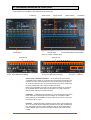
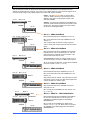
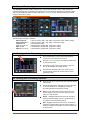
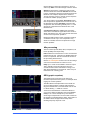
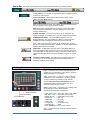
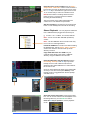
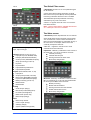
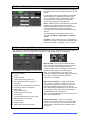
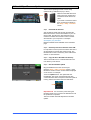
The list on the left displays a list of scenes stored in
the Qu mixer. The list on the right displays those found
on the USB device. Scenes are transferred as data
files numbered from ‘0’. Both the number and name
will appear in the USB list.
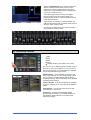
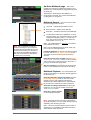
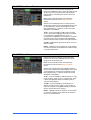
To Qu – Touch to highlight a USB Scene to transfer.
Touch a Qu Scene to highlight the position to transfer
to. Once both are highlighted touch ‘to Qu’. A
confirmation box appears if you are about to overwrite
an existing scene. Once transferred, the highlighted
scenes increment ready to transfer the next if required.
To USB – Highlight both positions as above. Touch ‘to
USB’ to transfer.
Delete – Highlight a scene in either list. Touch ‘Delete’
to remove it. Scenes can be deleted from either the Qu
or from the USB device.
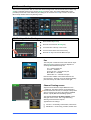
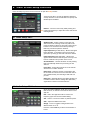
8.9 USB Data – Library transfer
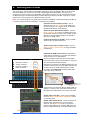
Individual processing Libraries can be transferred
between Qu mixers via a USB device (key or drive)
plugged into the Qu-Drive port.
Make sure the USB device has been previously
formatted using the Qu mixer Utility / Qu-Drive
screen.
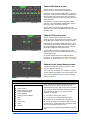
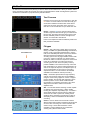
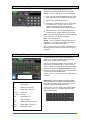
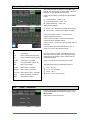
The list on the left displays a list of libraries stored in
the Qu mixer. The list on the right displays those found
on the USB device. Libraries are transferred as data
files numbered from ‘0’. Both the number and name
will appear in the USB list.
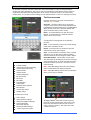
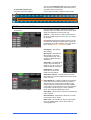
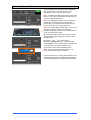
To Qu – Touch to highlight a USB Library item to copy
to the Qu mixer. Touch ‘to Qu’ to copy the item. Once
copied, the highlighted library increments ready to
copy the next if required.
To USB – Touch to highlight a Qu Library item to
transfer via USB. Touch ‘to USB’ to copy the item to
USB. Once copied, the highlighted library increments
ready to transfer the next if required.
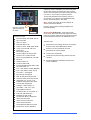
Delete – Highlight a library in either list. Touch ‘Delete’
to remove it. Libraries can be deleted from either the
Qu or from the USB device.
Qu Mixer User Guide
45
AP9372 iss.1