1
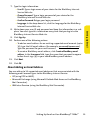
7. Type the login information.
䡲
䡲
䡲
䡲
User ID: Type a login name of your choice for the BlackBerry Internet
Service Web site.
Choose Password: Type a login password of your choice for the
BlackBerry Internet Service Web site.
Confirm Password: Retype your login password.
Language: In the drop-down list, click the language for the BlackBerry
Internet Service Web site.
8. Write down your user ID and password and keep the information in a safe
Setting Up Email
place. You must type this information every time that you log in to the
BlackBerry Internet Service Web site.
9. Click Sign Up.
10. Perform one of the following actions:
䡲
䡲
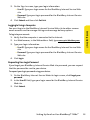
To add an email address for an existing supported email account (up to
10), type the full email address (for example, [email protected]).
Type the password for your email account.
To create a BlackBerry email address, click Create a BlackBerry email
address. In the Username field, type the name that you want to appear
before the at sign (@) in your new BlackBerry email address.
11. Click Next.
12. Click OK.
About Adding an Email Address
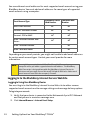
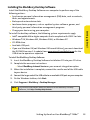
You can add up to 10 supported email addresses that are associated with the
following email account types to the BlackBerry Internet Service:
䢇 ISP (using POP or IMAP).
䢇 Microsoft Exchange (using Microsoft Outlook Web Access or the BlackBerry
Mail Connector).
䢇 IBM Lotus Domino (using the BlackBerry Mail Connector).
Setting Up Email on Your BlackBerry® 7130e
TM
11