1
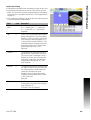
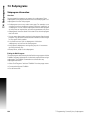
10.1 CAM Programming
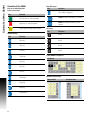
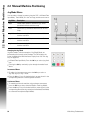
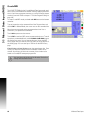
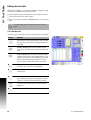
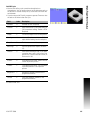
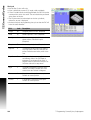
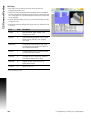
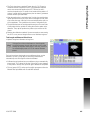
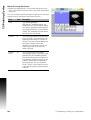
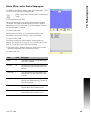
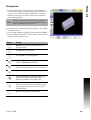
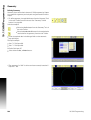
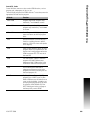
CAM Mode buttons
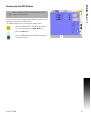
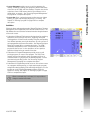
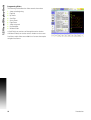
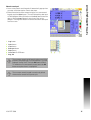
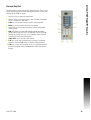
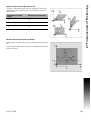
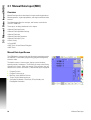
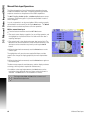
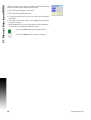
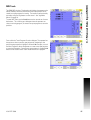
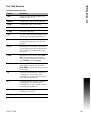
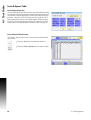
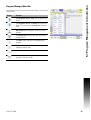
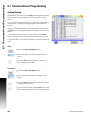
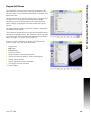
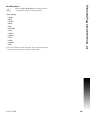
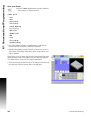
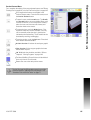
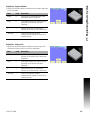
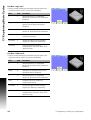
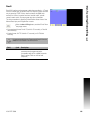
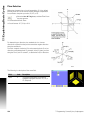
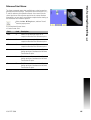
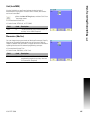
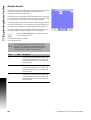
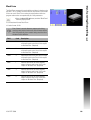
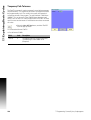
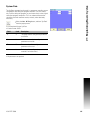
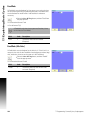
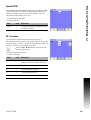
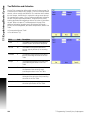
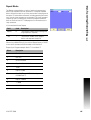
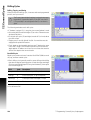
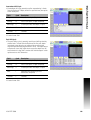
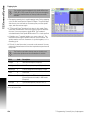
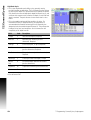
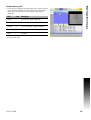
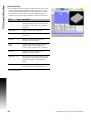
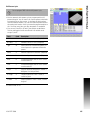
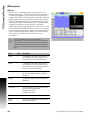
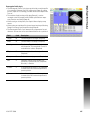
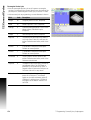
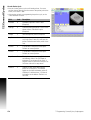
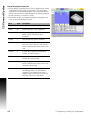
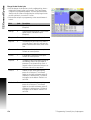
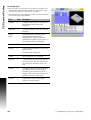
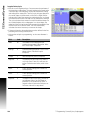
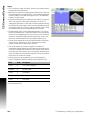
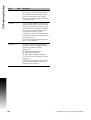
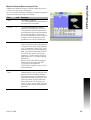
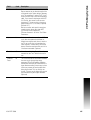
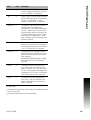
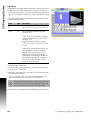
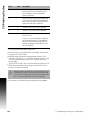
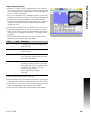
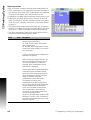
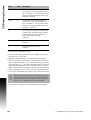
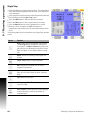
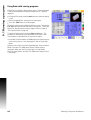
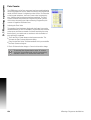
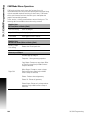
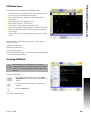
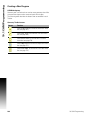
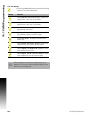
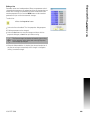
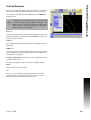
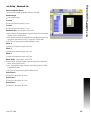
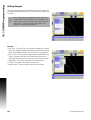
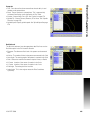
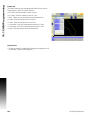
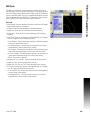
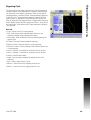
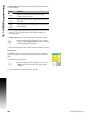
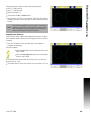
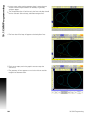
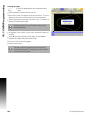
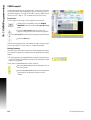
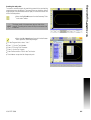
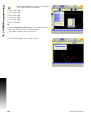
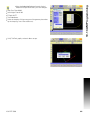
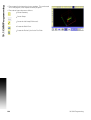
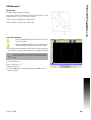
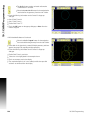
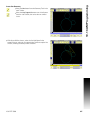
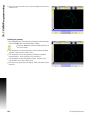
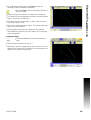
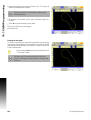
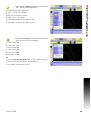
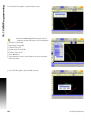
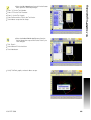
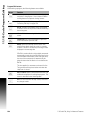
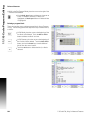
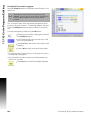
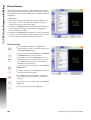
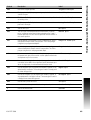
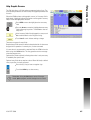
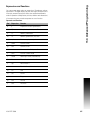
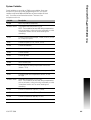
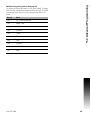
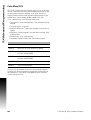
The CAM mode screen has 10 standard buttons. Touch Next Menu
button to locate the QUIT button on the second menu.
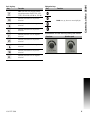
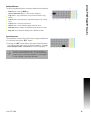
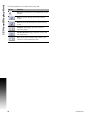
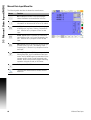
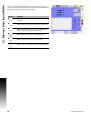
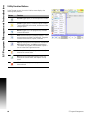
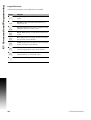
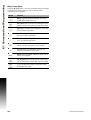
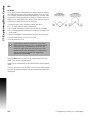
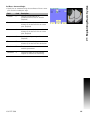
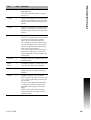
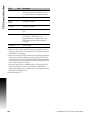
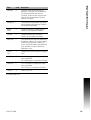
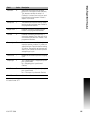
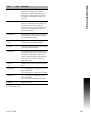
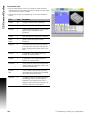
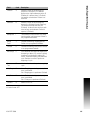
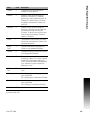
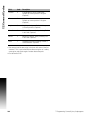
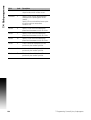
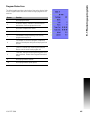
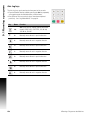
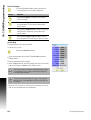
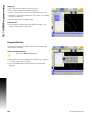
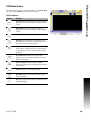
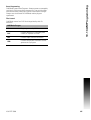
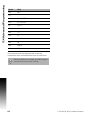
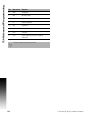
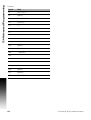
CAM Tool Buttons:
Button
Function
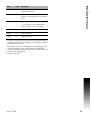
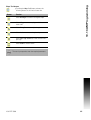
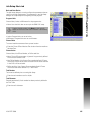
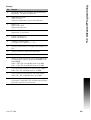
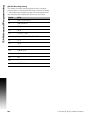
Use Select to select geometry for creating shapes.
Quit (On menu two) Use to quit the program without
saving.
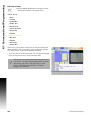
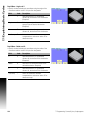
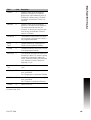
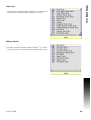
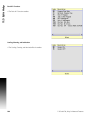
Shape Edit activates the Shape Edit pop-up
dialogue. Use this pop-up dialogue to edit and import
shapes.
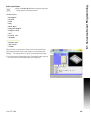
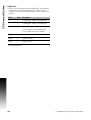
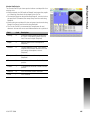
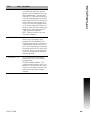
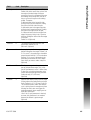
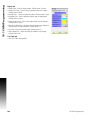
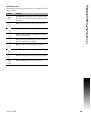
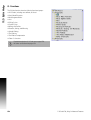
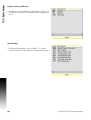
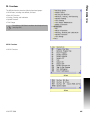
Use Layers to create, delete and toggle layers.
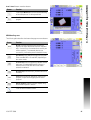
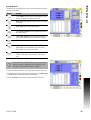
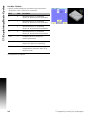
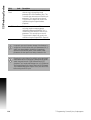
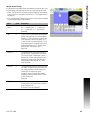
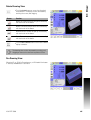
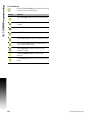
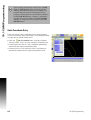
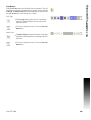
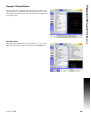
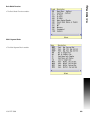
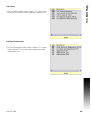
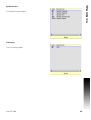
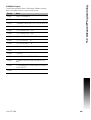
View Type activates the View Type buttons. Use
these buttons to switch between view types. This is
only active when viewing tool paths.
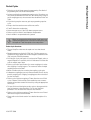
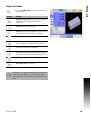
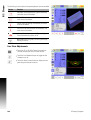
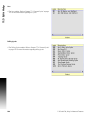
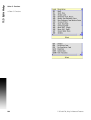
Adjust View activates the Adjust View buttons. Use
these buttons to adjust the view of the tool path(s)
in your program. This is only active when viewing
tool paths.
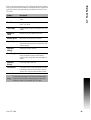
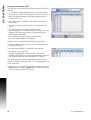
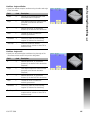
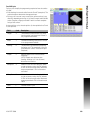
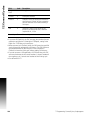
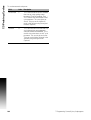
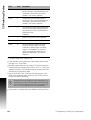
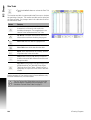
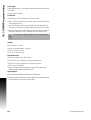
Tool Path Edit activates the Tool Path Edit
dialogue. Use this to edit and arrange existing tool
paths in the program.
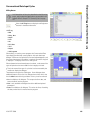
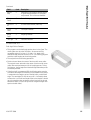
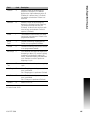
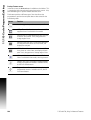
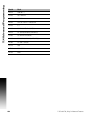
Create Program activates the New Program
dialogue, or creates the existing program and shows
it in a dialogue.
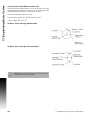
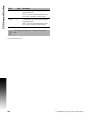
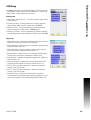
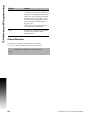
Setup activates the CAM setup dialogue.
Next Menu toggles to the next menu bar to view
additional buttons.
Exit exits, and saves the program, returning to the
Program Manager.
ACU-RITE 3500i
295