1
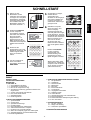
To change the level, simply press a board square, and the
display will show the new level, alternating with the level
details. Press LEVEL again to exit Level Mode.
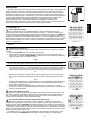
which shows for one second. For example, if square F4 is
selected, the display will show:
• The selected square
L:F4
and then…
• The number of moves in
the Primary Time Control
40
and then…
• The duration of
the Primary Time Control
2:00
Note the following key sequences and effects:
LEVEL, LEVEL
No change; previous level
remains selected.
LEVEL, Square, LEVEL
New level selected, clock
resets.
LEVEL, Piece Symbol,
Starting position of selected
LEVEL
Teach Mode is set at
previously selected level.
LEVEL, Square,
Starting position of selected
Piece Symbol, LEVEL
Teach Mode is set at new
level.
LEVEL, Piece Symbol,
New level is set, previous
Square, LEVEL
Teach Mode selection is
canceled, existing game is
retained.
To select Teach Mode, press LEVEL. The display will
show the skill level, as indicated by the equivalent chessboard square, alternating with the level details. To select a
Teach Mode, press one or two of the Piece Symbol Keys (%,
$, #, @ or !) you would like to use. The display will then
show the selected pieces. For example, if you want to play
with Kings, Bishops, Knights, and Pawns, after pressing
LEVEL, you should press # and @. The display will show
your selection. Then, press LEVEL to exit Level Mode and
enter your selection into the computer, and you can begin
your game. Since the King is always required for the game,
you do not need to select this piece for the Teach Mode. In
fact, pressing & is how you select a normal, 32-piece game.
3.8 Fixed Depth Levels
The Fixed Depth Levels in file G limit the skill of the
computer—not by the time to search for its next move, but by
the number of moves it searches ahead. At the lower levels,
it behaves like a novice player. At the lowest level, G1, where
the computer looks ahead only one individual move, it does
not anticipate the game at all, and could even miss a mate
that you might make in one more move. At the other end of
the scale, on Level G8, the computer will review all the
possibilities within the next 8 individual moves.
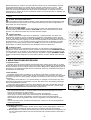
On these levels, the display alternates between the level
you have selected and how many individual moves (ply)
ahead the computer searches:
• The selected square
L:G5
and then…
• The number of individual moves
the computer is looking ahead
5PLY
3.9 Tactical Levels
The Tactical Levels are found on squares H1 through H8.
These levels limit how many individual moves ahead the
computer looks, but in this case the computer does not
evaluate strategic advantages, and looks only for material
gain such as checkmate or draws. The number of individual
moves the computer looks ahead is equivalent to the chessboard square, e.g., H1 equals one individual move ahead,
and H8 equals 8 moves ahead.
On the Tactical Levels, the display alternates between the
level you have selected, and how many individual moves
(ply) ahead the computer will search.
• The selected square
L:H8
and then…
• The number of individual moves
the computer is looking ahead
8PLY
Note that Non Auto is automatically canceled whenever
a Teach Mode is selected in the existing Level Mode.
The 11 Teach Modes and the normal game are indicated
by the following displays:
TEACH MODE
DISPLAY
Kings and Pawns ......................................... te:_p
Kings, Knights and Pawns ........................... te:_n
Kings, Bishops and Pawns .......................... te:_b
Kings, Rooks and Pawns ............................. te:_r
Kings, Queens and Pawns .......................... te:_q
Kings, Knights, Bishops and Pawns ............ te:nb
Kings, Knights, Rooks and Pawns ............... te:nr
Kings, Knights, Queens and Pawns ............ te:nq
Kings, Bishops, Rooks and Pawns .............. te:br
Kings, Bishops, Queens and Pawns ........... te:bq
Kings, Rooks, Queens and Pawns .............. te:rq
All Pieces (standard board-normal game) .. te:sb
3.10 Teach Modes
Your chess computer contains 11 built-in Extended Teach
Modes. This feature allows you to learn basic moves and
master the tactics of the pieces, one at a time! For each
individual Teach Mode, the only pieces on the board will be
Kings and Pawns, or Kings and Pawns and one or two
selected piece types. This allows beginners to concentrate
on one or two pieces at a time, without losing focus and
being distracted by other pieces on the board. More developed players can use this feature to practice playing with
selected combinations of pieces.
Note the following, in regard to Level and Teach Modes:
• If NEW GAME is pressed during a game, the computer
will exit Teach Mode and switch back to the standard 32piece game, with the current level still in effect.
• If you press LEVEL and then decide not to change the
current playing level or Teach Mode, simply press
LEVEL again—and the current status will remain as is.
• You may select a new level at any time during your turn.
If you do so, however, note that the clock will be reset.
• If you press more than 2 Piece Symbol Keys during a
Teach Mode selection, only the last 2 symbol selections
will be valid when you exit Level Mode.
• If you accidentally press a Piece Symbol Key in Level
Mode, you will lose your current game after exiting Level
Mode. To continue with the current game, press the
square corresponding to the current level of play before
exiting Level Mode. Note, however, that the clock will
have been reset.
3.12 Openings Coach Mode
Your computer has 16 different opening sequences in
memory, all of which can be played through so that you may
learn them. Press OPENINGS COACH, and, when first
selected, the computer will beep and the display will flash
o(:
You can then choose which opening game you want to
review by pressing one of the squares from A1 to B8. Figure
3-1 lists the available openings. For example, to select the
third Openings Coach, press square A3, and o(:3 will flash
in the display to confirm that the third Openings Coach has
been selected. The two bars indicate that the computer will
display moves for both sides, so you can watch and learn.
Press the same square again and the display will change to
o_:3, indicating that the computer will play the white side and
let you work out the moves for black. Another press on the
square changes the bar to show that the computer will play
black while you play white. One more press will remove the
bars altogether, indicating that the computer will leave all the
moves to you while it monitors your moves for legality. Press
3.11 Selecting Levels and Teach Modes
Press LEVEL to enter Level Mode, and the current level is
displayed. For example, Level A3 shows as L:A3, alternating
with Fun3 (the level selected by pressing board square A3).
8