1
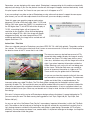
On professional DVDs, designers often use something as simple
as a small square to indicate button states. A square does not
have any diagonal lines so the edges won’t appear jagged or
rough. As you become more familiar with DVD menu design and
understand ways to work around these limitations, you may find
you can start to use more intricate shapes. (We will discuss this in
Part II of this article.)
Because of limitations with subpicture overlays, designers may
opt for another option. This second method, supported by Apple’s
DVD Studio Pro™ and Adobe’s Encore™, allows you to import
Photoshop layers. The designer can utilize layer effects such as
glows, drop shadows, and other antialiased effects producing a
more dynamic overlay.
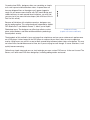
Subpicture Overlay
(caption can center under both)
The drawback of this method is layers are larger than subpictures and can cause a decrease in performance
on a DVD player. It takes longer for the DVD player to swap out layers than it does to swap a subpicture
overlay. Using layers may result in a one to three-second delay between button states or navigation. This may
not seem like a considerable amount of time, but if you are trying to scroll through 10 scene selections, it can
quickly become annoying.
Follow these simple steps and you can start to design your own custom DVD menus. In the next issue of The
Source, we’ll offer more DVD menu design tips, including adding motion and sound.