1
This is the second page of the Setup Guide. Start on the opposite side first.
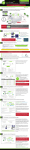
LED Indicator Information
Power: Indicates when the Access Point is powered on. The LED will remain on.
WPS: When Wi-Fi Protected Setup (WPS) is activated, the Power LED blinks as it awaits a connection.
5.0GHz Wireless Activity: Blinks rapidly when data traffic is transmitted or received over the 5.0GHz wireless network.
2.4GHz Wireless Activity: Blinks rapidly when data traffic is transmitted or received over the 2.4GHz wireless network.
Network Connection: Indicates when the Access Point is connected to your network.
The LED will blink rapidly when Internet traffic is transmitted or received.
Gigabit Wired Ports 1-4: Indicates when a networking device is connected to a wired port on the back of the Access
Point. The LED will blink rapidly when wired data traffic is transmitted or received.
USB Connection: Indicates when a USB storage device is connected to the USB port.
How to Connect Wirelessly to the Access Point
Windows 7 and Vista
Windows 8
Click on the Wireless icon to see available wireless
networks (For Vista, click Start > Connect To). Select
"Amped_APA20_2.4" or "Amped_APA20_5.0"
network and click Connect. When prompted for a
password, enter "wireless".
Swipe in from the right edge to access the
charms bar, tap on Settings, select the
Wi-Fi icon, and select "Amped_APA20_2.4"
or "Amped_APA20_5.0". When prompted for
a password, enter "wireless".
Wireless Network
Wireless Network
Amped_APA20_2.4
Amped_APA20...
iPhone
Mac OS X
Click on the Wireless icon to see available
wireless networks. Select "Amped_APA20_2.4"
or "Amped_APA20_5.0" network. When prompted
for a password, enter "wireless".
Tap on your Settings icon, select Wi-Fi, and
choose the network, "Amped_APA20_2.4" or
"Amped_APA20_5.0". When prompted for a
password, enter "wireless".
Amped_APA20_2.4
Amped_APA20...
iPad Tablet
A. Tap the "Home" button to get to the home page.
B. Tap the "Settings" app icon.
C. Tap on Wi-Fi to enter the iPad’s Wi-Fi settings.
D. Toggle the Wi-Fi "On/Off" selector switch to "On"
E. Under "Choose a Network," select:
"Amped_APA20_2.4" or "Amped_APA20_5.0"
F. When prompted, enter the wireless security key:
"wireless"
Amped_APA20_2.4
Android Tablet
A. Tap the "Apps" menu on the tablet screen.
B. Locate and tap the "Settings" app icon.
C. Under "Wireless & networks," tap "Wi-Fi settings"
D. Tap the Wi-Fi box to turn on Wi-Fi and scan.
E. Under "Wi-Fi networks," select:
"Amped_APA20_2.4" or "Amped_APA20_5.0"
F. When prompted, enter the Password key: "wireless"
Amped_APA20_2.4
Wi-Fi Protected Setup (One-Touch Setup or Push Button Configuration)
If your Wi-Fi device has WPS one-touch setup, you can use it to connect to the Access Point:
A. Hold down the WPS button on the Access Point (back panel) for 3 seconds.
The Power LED will begin to blink.
B. As it blinks, push the WPS button on your wireless adapter or enable WPS with the provided
software for your wireless adapter. WPS will automatically configure the connection settings
for your wireless adapter to connect to the Access Point.
Using the Features on the Access Point
The Access Point is equipped with many powerful security features which can be accessed
through the web menu:
12:26
Wireless Access Scheduling
Control when your Wi-Fi is on/off
Menu Location: 2.4 or 5.0GHz Wi-Fi Settings > Access Schedule
User Access Control
Restrict network access to specific users
Menu Location: 2.4 or 5.0GHz Wi-Fi Settings > User Access
Wireless Coverage Control
Adjust the distance of your wireless network
Menu Location: 2.4 or 5.0GHz Wi-Fi Settings > Wireless Coverage
Web Menu (Left Side)
If you are unfamiliar or want more information on how to set up features, please refer
to the User’s Manual on the included CD.
Setting a Static/Manual IP for your Access Point
If your network uses Static IP settings, you will need to set a static IP address for your
Access Point. To do this, access the More Settings > Network Settings menu from the navigation menu and select Disabled / Static IP from the DHCP drop down menu. Next enter the IP
information as it relates to your network. Click Apply and reboot when you are done.
Note: Accessing the web menu from http://setup.ampedwireless.com will no longer work when using a Static IP.
You will only be able to access the menu using the Static IP address assigned to the Access Point.
How to Share USB Storage Devices
1
Connect a USB storage device to the USB port on the back panel.
2
Log onto the web menu at http://setup.ampedwireless.com
and click the USB Storage tab.
3
Follow the instructions for configuring the settings to share the
USB storage device.
Reset
Button
USB Port
How to Reset the Access Point to Default Settings
There are two options to reset the Access Point back to factory default settings:
1
Access the Reset button through the web menu on the left side under
More Settings > Management > Save/Reload Settings. Select Reset Settings
to Default.
2
Access the physical Reset button on the back panel of the Access Point:
Hold down the Reset button for five to ten (5-10) seconds. You may need to
use a pen tip or pin to access the button. Pressing the Reset button for less
than five (5) seconds will simply reboot the Access Point while saving
your existing settings.
Using the Included Desktop Stand and Cable Organizer
1
Check that all your cables are
connected to the Access Point and
locate the Desktop Stand.
2
Tuck the cables to the bottom of
the Access Point and slide them
through the hole on the Stand.
3
Attach and fasten the Desktop
Stand to lock the cables in place.
Troubleshooting Tips
PROBLEM:
SOLUTIONS:
PROBLEM:
SOLUTIONS:
PROBLEM:
SOLUTIONS:
I entered setup.ampedwireless.com and it failed to open the web menu.
a. Make sure your computer is connected to the Access Point wirelessly and NOT using a network cable.
Ensure the power is plugged in and on. Try to access the setup menu again.
b. Enter the following web address into your web browser instead of ‘setup.ampedwireless.com’: http://192.168.80.240
c. Power off (unplug the power adapter) the Access Point and power it back on. Try again.
d. Reset your Access Point to default settings by holding the Reset button (located on the back panel) for
ten (10) seconds and try again.
e. If you are using a Static IP, you will need to enter the assigned IP address into the web browser to access the web
menu. When using a Static IP, the setup.ampedwireless.com shortcut will no longer work.
I do not have Internet access when connecting to the Access Point.
a. Your router or original network may not have Internet access. First check to see if you are able to access the
Internet by connecting directly with your router. If you cannot, there is a problem with your router that needs
to be fixed first. If you are able to access the Internet, continue with the following troubleshooting options below.
b. Your router may be using Static IP assignments. If so, you will need to configure a Static IP for the Access Point.
Connect your PC to the Access Point using an Ethernet cable. Disconnect your PC from any wireless networks that
it may be connected to. Access the web menu at setup.ampedwireless.com using a web browser. Access the IP
settings menu from the left hand navigation bar. Select ‘Disabled’ under the DHCP dropdown menu and enter an
IP address that matches your router’s IP settings.
My Access Point was working fine previously, but now I can no longer access the Internet through the Access Point.
a. The settings on your router’s network may have changed or you may have lost Internet connection on your home
router. Any changes to the DHCP settings of your home router may affect the Internet connection of the
Access Point. Check the settings on your router and try again.
b. Reboot the Access Point by unplugging the power adapter and plugging it back in. Allow up to 3 minutes
for the Access Point to reconfigure itself to your network. Check to see if your connection has been
reestablished by viewing a website.
If you continue to have issues setting up the Access Point, give us a call — we’re here to help: 888-573-8820
Visit our website for more support information and answers to frequently asked questions: www.ampedwireless.com/support
Amped Wireless
A Division of Newo Corporation
Copyright © 2013 Amped Wireless / Newo Corporation. All rights reserved.
Amped Wireless, Newo Corporation, the Amped Wireless Logo are registered trademarks or trademarks of Newo Corporation.
v090513