1
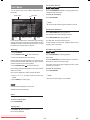
Displaying / Changing Subtitle Language Changing Audio Soundtrack Language It is possible to change the subtitle language from the one selected at the initial settings to a different language, if available. It is possible to change the audio language from the one selected at the initial settings to a different language, if available. (This operation works only with discs on which multiple subtitle languages are recorded.) (This operation works only with discs on which multiple audio soundtrack languages are recorded.) Press SUBTITLE during playback. Press AUDIO during playback. When no subtitles are recorded, “ Off ” is displayed on the screen instead of the selected language. Press AUDIO consecutively until the preferred language is selected. Press SUBTITLE consecutively until the preferred language is selected. When this button is pressed once, the first subtitle recorded on the disc is displayed. The rest of the subtitles recorded are displayed in sequence for each time SUBTITLE is pressed. NOTE: • When the desired language cannot be found after pressing AUDIO several times, it means that the language is not available on the disc. To cancel the subtitles, press SUBTITLE consecutively until “ Off ” is displayed on the screen. • When the player is restarted or the disc is changed, the language selection is automatically changed back to the initial settings. NOTE: • If a language that is not supported by the disc is selected, the language is automatically set to the disc’s default language. • In some cases, the subtitle language is not changed immediately to the selected one. • When the desired language cannot be found after pressing SUBTITLE several times, it means that the language is not available on the disc. • When the player is restarted or the disc is changed, the subtitle selection is automatically changed back to the initial settings. • If a language that is not supported by the disc is selected, the subtitle language is automatically set to the disc’s default language. Viewing from Another Angle Some DVDs may contain scenes that have been shot simultaneously from a number of different angles. For these discs, the same scenes can be viewed from each of these different angles using ANGLE. The number of recorded angles differs depending on the disc used. “ANGLE” is also displayed on the player display. From that moment on, the xth of total angles is played and you can change the viewing angle until the end of the multi-angle scene. Press ANGLE during playback. The current angle is changed. Press ANGLE consecutively until the preferred viewing angle is selected. NOTE: • This function will only work on discs where different angles have been recorded. • The viewing angles are shown on the screen. You can select one of them for viewing. • If you press ANGLE outside of a multi-angle scene on a multi-angle title, “ 1/1” is displayed on the screen. It means that only one angle is currently available. Downloaded From Disc-Player.com Sharp Manuals - 19 - EN