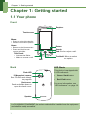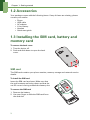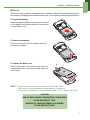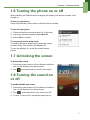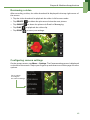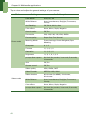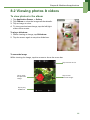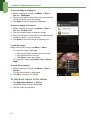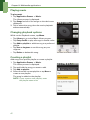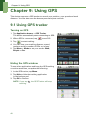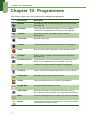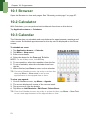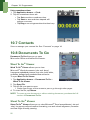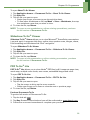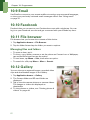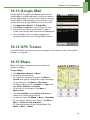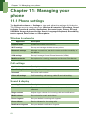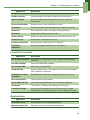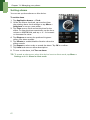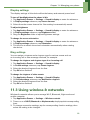
1
MOTOROLA QUENCH XT5 XT502 TM User Guide Table of contents Chapter 1: Getting started .................................................................... 1 1.1 Your phone................................................................................................... Front ........................................................................................................... Back ............................................................................................................ Top.............................................................................................................. Side............................................................................................................. 1.2 Accessories .................................................................................................. 1.3 Installing the SIM card, battery and memory card................................... SIM card ..................................................................................................... Battery ........................................................................................................ Memory card.............................................................................................. 1.4 Charging the battery ................................................................................... 1.5 Using the headset ....................................................................................... 1.6 Turning the phone on or off ....................................................................... 1.7 Unlocking the screen................................................................................... 1.8 Turning the sound on or off........................................................................ 1 1 1 2 2 3 3 3 4 5 5 5 6 6 6 Chapter 2: The basics ............................................................................ 7 2.1 The Home screen......................................................................................... 7 Status bar icons ......................................................................................... 7 Shortcut menu ........................................................................................... 9 Application drawer................................................................................... 11 Extended Home screen ........................................................................... 11 Using widgets........................................................................................... 12 Setting the wallpaper............................................................................... 12 2.2 LED indicators............................................................................................ 13 2.3 Adjusting the volume................................................................................ 13 2.4 Contacts ..................................................................................................... 14 Adding a contact ...................................................................................... 14 Searching for contacts............................................................................. 14 Importing contacts ................................................................................... 15 Backing up contacts................................................................................. 16 Favorite contacts...................................................................................... 16 Chapter 3: Using the phone ................................................................ 17 3.1 Voice calls .................................................................................................. Making a call ............................................................................................ Answering a call....................................................................................... Ending a call ............................................................................................. 3.2 Voice mail .................................................................................................. 17 17 18 19 19 Chapter 4: Entering information ......................................................... 20 4.1 On-screen keyboard .................................................................................. Using the on-screen keyboard ................................................................ Setting the input method......................................................................... Changing the input method..................................................................... 4.2 Configuring phone keyboard settings ..................................................... i 20 20 21 21 21 Table of contents Chapter 5: Email & messaging ............................................................ 22 To open messaging ................................................................................. 5.1 Text messages ........................................................................................... Creating and sending a text message..................................................... Receiving and managing messages........................................................ 5.2 Multimedia messages ............................................................................... Creating and sending an MMS message ................................................ 5.3 Voice message........................................................................................... Recording voice ....................................................................................... 5.4 Email accounts........................................................................................... Setting up an Internet email account ...................................................... To open email .......................................................................................... 5.5 Using email ................................................................................................ Composing and sending an email........................................................... Receiving emails ...................................................................................... Reading and replying to emails............................................................... Managing email folders ........................................................................... Customising email settings ..................................................................... 22 22 22 23 26 26 27 28 29 29 29 31 31 31 32 32 33 Chapter 6: Using the Internet ............................................................. 34 6.1 Connecting to the Internet ....................................................................... Wi-Fi.......................................................................................................... Mobile data networks .............................................................................. Starting a data connection....................................................................... 6.2 Browsing a web page ............................................................................... Managing a web page ............................................................................. Quick search on your phone and the web.............................................. 34 34 35 36 37 37 38 Chapter 7: Using Bluetooth................................................................. 39 7.1 Connecting to Bluetooth devices............................................................. 39 Chapter 8: Multimedia applications ................................................... 40 8.1 Photos and videos ..................................................................................... Taking a photo ......................................................................................... Recording video ....................................................................................... Reviewing a photo ................................................................................... Reviewing a video.................................................................................... Configuring camera settings ................................................................... 8.2 Viewing photos & videos .......................................................................... To view photos in the album................................................................... To playback videos in the album ............................................................ 8.3 Using the music player ............................................................................. Music screen ............................................................................................ Playing music ........................................................................................... Changing playback options ..................................................................... Creating a playlist..................................................................................... 40 40 41 41 42 42 44 44 45 46 46 47 47 47 ii Table of contents Chapter 9: Using GPS .......................................................................... 49 9.1 Using GPS tracker ..................................................................................... Turning on GPS........................................................................................ Hiding the GPS window........................................................................... Managing tracking data ........................................................................... 49 49 49 50 Chapter 10: Programmes..................................................................... 51 10.1 Browser .................................................................................................... 10.2 Calculator ................................................................................................. 10.3 Calendar ................................................................................................... 10.4 Camcorder................................................................................................ 10.5 Camera ..................................................................................................... 10.6 Clock......................................................................................................... 10.7 Contacts ................................................................................................... 10.8 Documents To Go.................................................................................... Word To Go® Viewer .............................................................................. Sheet To Go® Viewer.............................................................................. Slideshow To Go® Viewer ...................................................................... PDF To Go® Lite ...................................................................................... 10.9 Email......................................................................................................... 10.10 Facebook ................................................................................................ 10.11 File browser ........................................................................................... Managing files and folders ...................................................................... 10.12 Gallery .................................................................................................... 10.13 Google Mail............................................................................................ 10.14 GPS Tracker ........................................................................................... 10.15 Maps ....................................................................................................... 10.16 Market .................................................................................................... 10.17 Messaging .............................................................................................. 10.18 Music ...................................................................................................... 10.19 MySpace................................................................................................. 10.20 Note Pad................................................................................................. 10.21 Phone...................................................................................................... 10.22 RSS reader ............................................................................................. 10.23 Settings .................................................................................................. 10.24 SIM Toolkit............................................................................................. 10.25 Talk ......................................................................................................... 10.26 Videos..................................................................................................... 10.27 Voice dialer ............................................................................................ 10.28 Voice note .............................................................................................. 10.29 YouTube ................................................................................................. 53 53 53 54 54 54 55 55 55 55 56 56 57 57 57 57 57 58 58 58 59 59 59 59 60 60 60 61 61 61 61 62 62 62 Chapter 11: Managing your phone ..................................................... 63 11.1 Phone settings ......................................................................................... Wireless & networks................................................................................. Call settings .............................................................................................. Sound & display ....................................................................................... Location & security................................................................................... Applications.............................................................................................. iii 63 63 63 63 64 64 Table of contents Accounts & sync....................................................................................... Privacy ...................................................................................................... SD card, USB mass storage & phone storage ........................................ Search....................................................................................................... Language & keyboard .............................................................................. Text-to-speech ......................................................................................... Date & time ............................................................................................... About phone ............................................................................................ 11.2 Changing basic settings.......................................................................... Date and time ........................................................................................... Setting alarms .......................................................................................... Display settings ........................................................................................ Ring settings............................................................................................. 11.3 Using wireless & networks ..................................................................... 11.4 Protecting your phone ............................................................................ Enable or disable SIM card PIN............................................................... Enabling screen lock protection .............................................................. 11.5 Resetting the phone ................................................................................ 65 65 65 65 65 66 66 66 66 66 67 68 68 68 69 69 69 69 Chapter 12: Using the PC Tools application ...................................... 70 12.1 Using the PC Tools application .............................................................. Installing the driver .................................................................................. Using your phone as a storage device ................................................... Using your phone as a modem ............................................................... Using your phone to sync with a computer ........................................... 70 70 71 71 72 Safety, regulatory & legal ....................................................................................... 73 Specifications .......................................................................................................... 87 iv Chapter 1: Getting started Chapter 1: Getting started 1.1 Your phone Front Earpiece Touch screen Menu: • Press to unlock the device. • Press to view menu options. Home: Return • Return to the Home screen. • Press and hold to see recent activities. Search End: End or reject a call. Talk/Send: • Activate the Dialer. • Make or answer a call. MIC Back Trackball: Move to select an option. LED Alerts Flash LED 5-Megapixel camera: See “Photos and videos” on page 40. Back cover: Push and slide down to open the back cover. This device is equipped with 2 LED indicators: • Green: Send button • Red: End button. For more information, see “LED indicators” on page 13. Speaker for PLUGGABLE EQUIPMENT, the socket outlet shall be installed near the equipment and shall be easily accessible. 1 Chapter 1: Getting started Top Headset jack: Use a headset for hands-free conversation or for listening to music Power: • Press and hold for 5 seconds to turn the device on or off. • To save battery, quick press to turn the screen on or off temporarily. Side Volume: Slide up or down to increase or decrease the volume. Micro USB port: • Connect USB cable to PC as a modem/USB mass storage. • Connect USB cable and the AC adapter to charge the battery. Strap hole Shutter: • Press the shutter to activate the camera. • In Camera mode, press to take a photo or video. See “Photos and videos” on page 40. NOTE: The battery can also be charged while connected to a computer. Users have to use the connection to USB interfaces with a USB 2.0 version or higher. 2 Chapter 1: Getting started 1.2 Accessories Your package comes with the following items. If any of these are missing, please contact your retailer. • • • • • • Phone USB cable AC adaptor Li-Ion battery Headset Quick start guide 1.3 Installing the SIM card, battery and memory card To remove the back cover 1. Turn the device off. 2. Push and slide down to open the back cover. 2 1 SIM card The SIM card contains your phone number, memory storage and network service details. To install the SIM card Insert the SIM card as shown. Make sure that the gold contacts are facing down and that the cut-off corner is facing towards the battery slot. To remove the SIM card 1. Remove the battery. 2. Use your finger to slide the SIM card from the card slot. 3 Chapter 1: Getting started Battery This device comes with a rechargeable Li-Ion battery. Battery life varies depending on the network and applications used and the type of connections attached to this device. To install the battery Insert the battery. Make sure that the contacts of the battery are aligned with the connectors on the battery slot. To remove the battery Use your fingertip to lift the battery tab and remove the battery. To replace the back cover Secure the hooks on the back cover with the designated holes on the device and close the back cover. 1 2 NOTE: To ensure battery performance and avoid the risk of fire: • Only use the original batteries designated for the device. • Do not store the battery in temperatures below -10°C or higher than 45°C. CAUTION RISK OF EXPLOSION IF THE BATTERY IS REPLACED BY AN INCORRECT TYPE. DISPOSE OF USED BATTERIES ACCORDING TO THE INSTRUCTIONS. 4 Chapter 1: Getting started Memory card You will need a microSD® card to store photos, music, videos and other data. To install the memory card 1. Insert the memory card with the gold contacts facing down. 2. Push the memory card until it clicks into place. To remove the memory card 1. For safe removal of the memory card, tap Application Drawer > Settings > SD card, USB Mass storage & phone storage > Unmount SD card. 2. Push the memory card down to eject it from the slot. 1.4 Charging the battery The battery out of the box is only partially charged. To fully charge the battery, charge it for 2 hours. 1. Open the Micro USB port cover. 2. Plug in the battery charger as shown in the diagram. 3. Plug the AC adaptor into the wall socket to start charging. When the battery is charging, the red LED is activated; the icon is also displayed in the status bar. When the battery is fully charged, the red LED disappears and the green LED is activated; if the device is turned on, the icon is also displayed in the status bar. NOTE: • The battery can also be charged when you connect the device to a computer with a USB cable. • To ensure safety, do not remove the battery from the device while the AC adaptor is connected or while it is being charged. 1.5 Using the headset For hands-free conversation or to listen to music, plug a headset into the headset jack. NOTE: • When using a headset, your ability to hear outside sounds may be limited. Do not use the headset if it will endanger you. • Do not set the volume to its maximum with a headset as it may damage your hearing. 5 Chapter 1: Getting started 1.6 Turning the phone on or off After installing the SIM card and charging the battery, the device is ready to be turned on. To turn on your phone Press and hold the power button until the device vibrates. To turn off your phone 1. Press and hold the power button for 5 seconds. 2. A pop-up window appears, tap Power off. 3. Select OK to confirm. To set your phone to sleep mode To set this device to sleep mode, press the power button briefly. This will turn the display off. To turn the display on, press the power button briefly. 1.7 Unlocking the screen To unlock the screen 1. Press the power button or front buttons briefly to turn on the display from sleep mode. 2. Tap and swipe right to unlock the screen. 1.8 Turning the sound on or off To enable/disable the sound 1. Press the power button or front buttons briefly to turn on the display from sleep mode. 2. Tap and swipe left to turn the sound off. 3. To turn on the sound, repeat the steps above. 6 Chapter 2: The basics Chapter 2: The basics 2.1 The Home screen From the Home screen, you can quickly access common features and view notifications of missed calls, received messages, check battery and connection status. Status bar • Displays status and notification icons and clock. • Message, appointment, task and connection notifications are also displayed here. Google Search Enter the text that you want to search for in the box. Shortcut menu Tap an icon to access the function. Tap to open the Phone keypad. Application drawer Tap to view the applications and device settings. Status bar icons The Status bar icons indicate different types of information. Tap the status bar and scroll down to view ongoing phone activities or notifications easily. To close the window, press 7 . Chapter 2: The basics The icons on the status bar indicate the following information: Hidden icons Notification icon Alarm icon Battery icon Signal strength icon Wi-Fi icon Bluetooth icon USB connection icon Volume icon Battery icon The following icons may appear in the volume icon area. The following icons may appear in the battery icon area: Icon Description Icon Description Sound is off. Battery is full. Vibrate mode is activated. Battery is low. Battery is charging. Speakerphone is on. Phone is muted. To charge the battery, see “Charging the battery” on page 5. To adjust the volume, see “Adjusting the volume” on page 13. Phone network icon The following icons may appear in the phone network icon area. Icon Description Icon Description No network signal Call is in progress. Maximum signal strength. Fewer bars indicate lower signal strength. Call is on hold. No SIM card inserted. GPRS network is in use. 8 Chapter 2: The basics Connection icon Notification icon The following icons may appear in the connection icon area. The following icons may appear in the notification icon area. Icon Description Icon Description WiFi is connected. New text message notification Bluetooth connection is active. New WAP Push notification GPRS data connection is active. New email notification HSDPA data connection is active. New Google Mail notification Device is connected to PC via USB connector. Alarm Task notification File has been downloaded. Missed call notification Shortcut menu The Shortcut menu displays notifications or other information related to each menu item. To easily access the menu, tap the item on the Home screen. By default, the following applications are displayed: Icon Menu item Description Messaging Displays message notification. Tap to access Messaging menu. See page 22. Phone Contacts Application drawer 9 Displays phone keypad. Tap to enter the phone number and make calls. See page 17. Displays contacts saved on the device. Tap to select the contact that you would like to call or send a text message to. See page 14. Tap to access the Application drawer. See page 7. Chapter 2: The basics Customising the Shortcut menu To add a shortcut: 1. Tap Menu > Add > Shortcuts. 2. Tap Widgets to display the list of widgets. 3. Tap to add the items that you want to appear on the Home screen. To remove a shortcut: 1. Tap and hold the desired shortcut icon. The icon expands. 2. appears at the bottom of the Home screen. 3. Drag the icon to to delete. The shortcut icon is then removed. 10 Chapter 2: The basics Application drawer The Application drawer contains all applications and settings. On the Home screen, tap to display the menu. • Swipe your finger up or down to access more applications in this device. • Tap an icon to open the application. Tap to close the Application drawer and return to the Home screen. Extended Home screen Swipe your finger to the left or right across the Home screen. The two left and two right extensions to the Home screen provide more space for icons, widgets, shortcuts and other items. 11 Chapter 2: The basics Using widgets Save time with live updates right on the Home screen and get all of your personalised updates in one place. You may add and customise the widgets on the Home screen as you like. 1. From the Home screen, tap Menu > Add > Widgets. A gallery list of all available widgets is displayed. 2. Tap to select the widget that you want to appear on the Home screen. To remove widgets: 1. From the Home screen, tap and hold the desired widget. The widget expands. 2. appears at the bottom of the Home screen. 3. Drag the widget to then removed. to delete. The widget is Setting the wallpaper You can customise your Home screen wallpaper with default wallpaper or with pictures taken with this device. Set wallpaper from Pictures 1. From the Home screen, tap Menu > Add > Wallpapers. 2. Select wallpaper from is displayed on screen. 3. Tap Gallery. 4. Tap to select pictures taken from the camera in the phone or saved on your SD card. 5. You will see thumbnail images of all pictures. Tap to select the picture that you want to use as wallpaper. 6. Drag your finger to select the crop area and tap inside the box to crop the image. 7. Tap Save and the cropped image appears as wallpaper on the Home screen. Set wallpaper from Wallpaper gallery 1. 2. 3. 4. From the Home screen, tap Menu > Add > Wallpapers. Select wallpaper from is displayed on screen. Tap Live wallpapers or Wallpapers. All system wallpapers are displayed. Swipe your finer left or right to view all available wallpapers. 5. Tap to preview the wallpaper. 6. Tap Set wallpaper to apply your selection. 12 Chapter 2: The basics 2.2 LED indicators This device has 2 LED indicators: green and red. Whether this device is turned on or off, the LED indicators provide useful information. LED Location Phone status Green (solid) Red (solid) Send button Phone On/Off End button Phone On/Off Indication Battery is fully charged. Battery is charging. NOTE: When the device is on, pressing the Send or End button will light all the LED indicators. 2.3 Adjusting the volume This device has three types of volume, which can be adjusted separately: • Media volume: Set the volume for music and videos. • Ringer volume: Set the volume for incoming calls and notifications. • In-call volume: Set the volume during a call. To adjust ringer volume 1. Tap Application drawer > Settings > Sound & display. 2. In the Sound settings submenu, tap Ringer volume and the Ringer volume slider appears. 3. To adjust the volume, complete either of the following: a. Drag the volume slider to adjust the volume. b. Press the volume button. Slide the volume Volume slider button up or down to adjust the volume. NOTE: When the device is set to silent mode, all sounds are turned off except media and alarm. 3. Tap to exit the menu. To adjust in-call volume 1. During a phone call, press the volume button on the right. 2. Slide the volume button up or down to adjust the volume. To adjust media volume 1. Tap Application drawer > Settings> Sound & display. 2. In the Sound settings submenu, tap Media volume and the Media volume slider appears. 3. Drag the volume slider to adjust the volume. 13 Volume slider Chapter 2: The basics 2.4 Contacts Contacts is your phonebook that lets you store names, phone numbers, email addresses and other information. Contacts are stored in the phone memory. You can save information such as names, pictures, phone numbers, email addresses, etc. You can also add frequently used contacts to the favorites list. See “Favorite contacts” on page 16. Adding a contact 1. On the Home screen, tap Contacts. 2. Tap Menu > New contact. The New contact window appears. 3. Tap each field to enter the contact information using the on-screen keyboard. TIPS: • To add a picture, tap Image Icon, then select a picture file or take a photo of the contact immediately. To take a photo of the contact, tap . 4. Tap Done to save. Searching for contacts On the Contacts screen, complete any of the following to easily search for contacts: • Tap Menu > Search. • Type the first few letters of the contact to search. The list is filtered as you type. • Tap an alphabetical index to view contacts that start with the letter. For example, to view names that start with “k”, tap “k” and the list of contacts will be displayed. • To filter the contacts list by categories, tap Menu > Display options. Tick the box to display Only contact with phones. 14 Chapter 2: The basics Importing contacts Copy SIM contacts to the phone 1. From the Home screen, tap Contacts. 2. Tap Menu > Import/Export > Import from SIM card. 3. Tap OK. NOTE: • To copy a single contact, simply tap the contact, then edit contact information as in “Adding a contact“. • To copy all contacts, tap Menu > Import all. All contacts on the SIM card are imported. Copy microSD contacts to the phone 1. From the Home screen, tap Contacts. 2. Tap Menu > Import/Export > Import from SD card. NOTE: • To copy a single contact, simply tap the contact, tap Import one VCard file and tap to select the contact that you want to copy. Then edit contact information as in “Adding a contact“. • To copy multiple contacts, tap Import multiple VCard files. Tick to select contacts on the memory card to be imported. • To copy all contacts, tap Import all VCard files. All contacts on the memory card are imported. 3. Tap OK. 15 Chapter 2: The basics Backing up contacts You can copy the contacts to the memory card to back up the contact information in this device. Export contacts to the memory card 1. From the Home screen, tap Contacts. 2. Tap Menu > Import/Export > Export to SD card. NOTE: • Copying contacts to the memory card will overwrite the old backup file. 3. A warning message pops up, tap OK to proceed. All contacts are copied to the memory card. Favorite contacts You can add the most frequently called contacts to the favorite contact list which helps you to access the contacts quickly and easily. Add to favorites 1. From the Home screen, tap Contacts. 2. From the contact list, tap and hold the desired contact. 3. Tap Add to favorites. 4. The contact now appears in the favorites list. Remove from Favorites 1. From the Home screen, tap Contacts. 2. Tap the Favorites tab. The favorites list is displayed. 3. Tap and hold the desired contact to display the submenu. 4. Tap Remove from favorites. The contact will be removed from the favorites list. 16 Chapter 3: Using the phone Chapter 3: Using the phone To open the Phone screen, complete any of the following: • On the Home screen, tap Phone. • From any application screen, press the Send button. 3.1 Voice calls Making a call To make a call from the Phone screen 1. From the Home screen, tap Phone. 2. Tap the phone number on the keypad. NOTE: Tap hold to erase a wrong number. Tap and to erase the entire number. 3. Tap the phone number or press the Send button to dial. 4. To end the call, press the End button. To make a call from Contacts 1. From the Home screen, tap Contacts. 2. Tap the desired contact. 3. Tap Call home, Call work or Call mobile. Alternatively, press the Send button to dial the default number. 17 Chapter 3: Using the phone To make emergency calls Emergency calls without a SIM card: 1. Open the Phone screen. 2. Tap the emergency number on the keypad. 3. Tap the phone number or press the Send button. To make international calls 1. Open the Phone screen. 2. Tap and hold until the international prefix code “+” is displayed. 3. Enter the country code, area code and the phone number. 4. Tap the phone number or press the Send button. Answering a call When you receive an incoming call: • The device rings if the ring volume is turned on. • A notification message appears on the screen. To accept or reject an incoming call • To accept the call, press the Talk / Send button. • To reject the call, press the End button. To put a call on hold If a call comes in while you are already on another call, tap Menu > Hold to put the first call on hold. To take a call off hold, tap Hold again. To switch between calls If a call comes in while you are already on another call, tap Menu > Hold to put the first call on hold. Tap Menu > Swap calls to switch between calls. To set up conference calls 1. If you are already on a call, tap Menu > Hold to put the call on hold. 2. Tap Add to display the dial pad and then enter the second number that you want to call. 3. Tap Merge calls to set up the conference call. NOTE: Conference call is a network service. Check with your network provider for the availability of this function. 18 Chapter 3: Using the phone To manage other voice call features • Tap Menu > Speaker to activate or deactivate the speakerphone. • Tap Menu > Mute to mute or unmute the microphone. • To view the call history, from the Home screen tap Menu > Phone > Call log. Ending a call To end a call, tap End call or press the End button. 3.2 Voice mail Listening to voice mail To listen to a voice mail message 1. From the Home screen, tap Phone. 2. Tap to listen to your voice mail messages. NOTE: Before you use the voice mail service, you need to add a voice mail number. Tap Application Drawer > Settings > Call settings > Voicemail settings. Use the numeric keypad to enter the voice mail number and tap OK. 3. After listening to the voice mail messages, press the End button. 19 Chapter 4: Entering information Chapter 4: Entering information 4.1 On-screen keyboard The on-screen keyboard appears in portrait mode when an application requires text input, such as messaging and writing emails. The keyboard input method is activated by default. CAPs Lock selector arrow Tap to toggle between upper case or lower case text input method. Dictionary: Tap to enable dictionary Input method selector: Tap to choose your preferred input Using the on-screen keyboard Tap the screen to display the on-screen keyboard. Lower case keyboard (default) Upper case keyboard Numbers and symbols • Use the on-screen keyboard as you would use a computer keyboard. • Tap the keys to enter characters. • To toggle between upper and lower case letter display, tap • To display the numeric and symbols keyboard, tap . Tap . to toggle back. 20 Chapter 4: Entering information Setting the input method This device supports several text input methods, select your preferred method. 1. Tap Application Drawer > Settings > Language & keyboard. 2. In the Text settings submenu, a list of the input methods is displayed. Select and check the options that you prefer. Changing the input method 1. Tap and hold any text field in a programme. For instance, in Messaging, tap and hold the field “To:”. The Input method screen pops up. 2. You may select one of the available input methods to use. 4.2 Configuring phone keyboard settings You can use the keyboard aids to help you when you input text with the device keyboard. 1. Tap Application Drawer > Settings > Language & keyboard. 2. Tap TouchPal. 3. Select the applicable options from the following: Basic settings, Prediction & Gestures, Chinese and Handwriting submenus. • Basic settings: Options available include Word prediction, Key press sound, Key press vibration, Layout in portrait mode, Layout in landscape mode, Swipe to switch layout, Mixed language input and Select languages. • Prediction & Gestures: Options available include Predict next word, Correct mistyping, Slide-down symbols and Relevant words. • Chinese: tap Ambiguous PinYin to see more options. 21 Chapter 5: Email & messaging Chapter 5: Email & messaging Use Messaging to access text and MMS messages. Use Email receive email messages via your Internet email accounts. to send and To open messaging • On the Home screen, tap . • From the Application drawer, tap Messaging. 5.1 Text messages A text message can only contain letters, numbers and symbols. Creating and sending a text message This device offers several ways to create and send a new text message. From the Messaging screen 1. Tap New message. 2. The Compose screen is displayed. 3. In the To field, enter the recipient’s phone number. TIP: To add recipients from Contacts, tap To and enter at least two numbers of a contact number or two characters of a contact name. Then the corresponding contact will be listed for you to select. 4. Type your message in the Type to compose field. 5. Tap Send or press the Send button to send your message. 22 Chapter 5: Email & messaging From Contacts 1. 2. 3. 4. 5. From the Home screen, tap Contacts. Tap and hold a contact to display the options menu. Tap Text contact. Compose the contents. Tap Send. From Call log 1. 2. 3. 4. 5. 6. From the Home screen, tap Contacts. Tap the Call log tab to view all call history. Tap a call from the Call log. Tap Send text message. Compose the contents. Tap Send. Note: If you exit Messaging before sending a message, the unsent message will automatically be saved as a draft. To request message delivery notification 1. In Messaging, tap Menu > Settings to access SMS and MMS settings. 2. Tap to tick Delivery reports checkbox. 3. Tap to exit the menu. Receiving and managing messages When you send and receive messages from a contact, these messages are grouped as a message thread. A message thread looks like an exchanged conversation. To reply to a text message 1. 2. 3. 4. 23 Tap Application Drawer > Messaging. Tap a message thread to open it. Tap Type to compose to compose your message. Tap Send. Chapter 5: Email & messaging To lock a text message 1. Tap Application Drawer > Messaging. 2. Tap to view a message thread. 3. Tap and hold a message to display the message options. 4. Tap Lock message. 5. The message is locked and will not be deleted when the conversation limit reaches the maximum. 6. To unlock a message, repeat the steps above. To forward a text message 1. Tap Application Drawer > Messaging. 2. Tap to view a message thread. 3. Tap and hold a message to display the message options. 4. Tap Forward. 5. In the To field, enter the recipient’s phone number. 6. Tap Send. To delete all text messages You can delete all text threads in Messaging. 1. Tap Application Drawer > Messaging. 2. Tap Menu > Delete threads. A warning message pops up. NOTE: To delete locked messages, tick Delete locked messages. 3. Tap Delete to confirm the deletion of all message threads. 24 Chapter 5: Email & messaging To delete one message thread 1. Tap Application Drawer > Messaging. 2. Tap and hold the message thread that you want to delete. 3. Tap Delete thread. To delete a message within a thread 1. Tap Application Drawer > Messaging. 2. Tap the message thread to open it. 3. Highlight the message to be deleted by flicking your finger down across the sender of the message. 4. Tap and hold the highlighted message. 5. Tap Delete message. To copy message text You can use this function to copy the text from a message to a new message that you are composing. 1. Tap Application Drawer > Messaging. 2. Tap a message thread to open it. 3. Tap and hold the message to display the submenu options. 4. Tap Copy message text. 5. Go to New message. 6. Tap and hold Type to compose. 7. Tap Paste to paste the copied text to your new message. 25 Chapter 5: Email & messaging 5.2 Multimedia messages A Multimedia message or MMS can contain letters, an image, an audio or video file. Creating and sending an MMS message This device offers several ways to create and send an MMS message. From the Messaging screen 1. Tap Application Drawer > Messaging. 2. Tap New message. 3. Tap Menu > Add subject. The message automatically converts to an MMS message. 4. In the To field, enter the recipient’s phone number or email address. TIP: To add recipients from Contacts, tap To and enter at least two numbers of a contact number or two characters of a contact name. Then the corresponding contact will be listed for you to select. 5. Enter the subject. 6. To insert a picture or video file, tap Menu > Attach. 7. To insert text, tap Type to compose, then enter the message. 8. To insert an audio file, tap Menu > Attach > Audio. 9. Tap Send. From Contacts 1. From the Home screen, tap Contacts. 2. Tap a contact and hold the contact that you want to send the text to. 3. Tap Text contact. The message window is displayed. 4. Tap Menu > Add subject to convert to an MMS message. To enter a subject, tap Subject. 5. To insert a picture or video file, tap Menu > Attach. 6. To insert text, tap Type to compose, then enter your message with the on-screen keyboard. 7. To insert an audio file, tap Menu > Attach > Audio. 8. Tap Send. 26 Chapter 5: Email & messaging From the Call log 1. 2. 3. 4. 5. 6. 7. 8. From the Home screen, tap Contacts > Call log. Tap and hold a call from the Call log. Tap Send text message. Tap Menu > Add subject to convert to an MMS message. To enter a subject, tap Subject. To insert a picture or video file, tap Menu > Attach > Pictures / Videos. To insert an audio file, tap Menu > Attach > Audio. To insert text, tap Type to compose, then enter your message using the on-screen keyboard. Tap Send. 5.3 Voice message This device can be used to send voice messages. To create a voice message 1. Tap Application Drawer > Messaging. 2. Tap New message. 3. Tap Menu > Attach > Record audio. 4. Tap to record your message. 5. Tap to stop recording. 6. Tap to listen to your recording. 7. Tap Use this recording to proceed or Discard to return to the compose message screen. 8. Tap Play to listen to your recording again, or tap Remove to delete your recording from the MMS message. 9. Enter the recipient’s phone number in the To field. 10. Tap to enter a message and tap Send. 27 Chapter 5: Email & messaging Displays recording information. Tap buttons to record, stop and play. Equaliser Recording voice 1. Tap to record your message. 2. Tap to stop recording. NOTE: Tap to play voice. 28 Chapter 5: Email & messaging 5.4 Email accounts This device can send and receive emails just like you do with a computer. This device supports Internet email: an email account provided by an Internet Service Provider (ISP) or web-based email, such as Google Mail, Hotmail, Yahoo! Mail, etc. Setting up an Internet email account 1. 2. 3. 4. Tap Application Drawer > Email. Select your email account provider. Enter your email address and password. Tap Next. The device will automatically retrieve the email settings. • To add another email account, tap Menu > Add account. 5. Enter Name and Account display name. NOTE: The Account display name is the name shown on the Home screen and Email screen. 6. Tap Done. To open email From the Application Drawer, tap Email to view your emails. To select an account 1. Tap Application Drawer > Email. 2. The account picker screen lists the available email accounts. 3. Tap the account you want to access. 29 Chapter 5: Email & messaging To configure email settings Configure message settings using the Account settings submenus. 1. On the Accounts screen, tap to select an email account. 2. Tap Menu > Account settings to open the email setting submenus. 30 Chapter 5: Email & messaging 5.5 Using email Composing and sending an email 1. Tap Application Drawer > Email, then tap an email account. 2. Tap Menu > Compose. 3. In the To field, enter the recipient’s email address. 4. To enter a subject, tap Subject. 5. Compose the contents. 6. Tap Send. Sending an email from contacts You can send an email to a contact with an email address stored in Contacts. 1. 2. 3. 4. On the Home screen, tap Contacts. Tap a name to open contact. Tap Email home or Email work. Choose to send an email via Google Mail or other email accounts. 5. Enter the subject and compose the content. 6. Tap Send. Adding attachments to an email message 1. Before sending your message, tap Menu > Attach. 2. Select a picture that you want to attach from the gallery folders. Receiving emails Emails are automatically received in the Inbox folder when the device connects to the network. To receive emails manually 1. Tap Application Drawer > Email, then tap an email account. 2. Tap Menu > Refresh. 31 Chapter 5: Email & messaging Reading and replying to emails The Inbox displays the email headers. When you open the email, it shows only a part of the message, unless it is a very short message. Download the email to view the complete content. To download attachments • With POP3 email accounts, attachments are downloaded when you download the complete message. • With IMAP4 email accounts, tap the attachment to mark it for download. The attachment is downloaded the next time you connect to your email server. NOTE: Only supported file types can be opened on this device. To reply to or forward an email 1. Open the message. 2. Do any of the following: • Tap Reply or Reply all to reply to the email. • Tap Menu > Forward. Then enter the recipient in the To field. 3. Compose your message. 4. Tap Send. Managing email folders To delete an email 1. Tap Application Drawer > Email, then tap an email account. 2. Tap Inbox to view the inbox messages. 3. Tap and hold the message to delete. 4. Tap Delete. To move between messaging accounts If you are viewing the messaging list screen of one account and you want to view the list of another account, tap Menu > Accounts, then tap the account that you want to view. 32 Chapter 5: Email & messaging Customising email settings You can configure the general settings of your email account such as account name, email checking frequency, default account, notifications and server settings. To set up your account name 1. Tap an email account. 2. Tap Menu > Account settings to view the email account settings and make adjustments. 3. Tap Account name to change the account name. 4. Tap OK to confirm. To set up the email checking frequency 1. Tap an email account. 2. Tap Menu > Account settings to view the email account settings and make adjustments. 3. Tap Email check frequency. You can set the device to check for new emails automatically every 5 mins, every 10 mins, every 15 mins, every 30 mins, every hour or never. To set up default account 1. Tap an email account. 2. Tap Menu > Account settings to view the email account settings and make adjustments. 3. Tap Default account to send email from this account by default. To delete an email account 1. 2. 3. 4. 33 Tap Application Drawer > Email. Tap and hold the account to delete. Tap Remove account. Tap OK to confirm. Chapter 6: Using the Internet Chapter 6: Using the Internet 6.1 Connecting to the Internet This device connects to the Internet via: • Wi-Fi • Mobile data networks Wi-Fi To turn Wi-Fi on or off 1. From the Home screen, tap Application Drawer > Settings > Wireless & networks. 2. Tap to check the Wi-Fi function and turn Wi-Fi on or off. To connect to a Wi-Fi network 1. Turn Wi-Fi on. 2. Tap Wi-Fi settings. The device scans for Wi-Fi signals. 3. Detected networks are displayed below. Tap a network connection, then tap Connect. 4. If you select an unsecured network, the connection is automatically established. Otherwise, proceed to the next step. 5. When you attempt to connect to a secure network, you will be prompted for the password. Enter the password then tap Connect. When Wi-Fi is connected, the displayed in the status bar. connection icon is 34 Chapter 6: Using the Internet To add a Wi-Fi network 1. From the Home screen, tap Application Drawer > Settings > Wireless & networks. 2. Tap Wi-Fi settings. 3. In Wi-Fi networks, tap Add Wi-Fi network. A new window is displayed. 4. Follow the on-screen instructions and enter the necessary information, then tap Save to store your settings. To configure Wi-Fi settings 1. From the Home screen, tap Application Drawer > Settings > Wireless & networks. 2. Tap Wi-Fi settings. 3. Tap Menu > Advanced. NOTE: If you use static IP, enter the IP settings as required. 4. In IP settings, enter the information for IP address, gateway, netmask and DNS. Tap OK to save your settings. Mobile data networks Check the availability of these connections with your network service provider and obtain the following information: • • • • • 35 Access Point Names Proxy Port Username Password Chapter 6: Using the Internet To set up wireless data connection 1. Tap Application Drawer > Settings > Wireless & networks. 2. Tap Mobile networks > Access Point Names. 3. Tap Menu > New APN. 4. Tap Name to enter a name for the connection, then tap OK. 5. Enter the APN, then tap OK. 6. Enter the Proxy, Port, Username and Password (if available) etc., then tap OK. 7. Tap Menu > Save to store your settings or tap Menu > Discard to exit without saving the changes. Starting a data connection A data connection is automatically activated when the device is turned on. If you set up multiple data connections, select the connection that you want to use manually. To start a data connection manually 1. Tap Application Drawer > Settings. 2. Tap Wireless & networks > Mobile networks > Access Point Names. 3. A list of connections will be displayed. Tap the radio button to select the connection that you want to use. 36 Chapter 6: Using the Internet 6.2 Browsing a web page 1. Tap Application Drawer > Browser. 2. Tap the address bar at the top of the screen. Type the URL then tap . Tap to enter the website. Address bar Recently viewed websites are listed. To scroll the page To scroll up or down, swipe your finger down or up. To scroll left or right, tap and swipe your finger to the right or left. To set the Home page 1. While viewing a web page, tap Menu > More > Settings > Set home page. 2. Enter the URL of the page that you want to set as home page. 3. Tap OK to save your settings. Managing a web page While viewing a web page, tap Menu to change view settings or apply other functions. The following table lists the menu options. Depending on the function, some options may be unavailable. Menu item Descriptions New window Open a web page in a new window. Bookmarks Tap to select from the list of saved favorite web pages. Windows Tap to select from a list of open web pages to view. Refresh Tap to refresh the page. 37 Chapter 6: Using the Internet Menu item Descriptions Add bookmark Tap to save as favorite web pages to visit. Find on page Tap to find the text on the web page. Select text Tap to select text on the web page. Page info Tap to view web page information. Share page Tap to send this web page via email or messaging. Downloads Tap to view the download history. Settings Tap to configure browser settings: • Page content settings: configure page content settings. • Privacy settings: configure privacy settings. • Security settings: configure security settings. • Advanced settings: view and adjust gear settings or reset all settings to factory default. Quick search on your phone and the web From the Home screen, you can search for information on your phone and on the web with Google Search. To search for information by entering text 1. Tap the Google Search widget. 2. Enter the text that you are searching for in the Quick Search Box. As you type, matching items on your phone and suggestions from Google web search are added to the list of previously chosen search results. 3. If what you are searching for is in the list of suggestions, phone search results or previously chosen search results, tap it in the list. The item opens in the appropriate application, such as Contacts or Browser. 4. If what you are searching for is not in the list, tap in the Quick Search Box. The Browser opens, displaying the results of a Google search on the web. 38 Chapter 7: Using Bluetooth Chapter 7: Using Bluetooth Bluetooth modes • On: Bluetooth is turned on. This device detects other Bluetooth devices, but this device is not visible to others. • Discoverable: Bluetooth is turned on and this device is visible to other Bluetooth devices. • Off: Bluetooth is turned off. To turn Bluetooth on or off 1. Tap Application drawer > Settings > Wireless & networks. 2. Tap to check Bluetooth and activate. 3. To make your phone visible to others, tap Bluetooth settings and tick Discoverable to make this phone visible to other devices. 7.1 Connecting to Bluetooth devices A connection to a Bluetooth device is called a partnership. You need to pair and create a partnership with a Bluetooth device to exchange information. 1. Tap Application drawer > Settings > Wireless & networks. 2. Tap Bluetooth settings to view the menu options. 3. To search for a new device, tap Scan for devices. 4. Tap the device to connect. 5. Enter the PIN to start pairing, then tap OK. NOTE: PIN of the device must be the same PIN on the other Bluetooth pairing device. 6. If you connect with an audio device which only supports HSP/HFP, "Connected to phone audio" will be displayed on the screen. 7. If you connect with an audio device which supports HSP/HFP/A2DP, "Connected to phone and media audio" will be displayed on the screen. NOTE: Tap and hold the selected device to enter the device options menu. NOTE: Once a partnership has been created, connecting to that device again will no longer require entering the password. 39 Chapter 8: Multimedia applications Chapter 8: Multimedia applications 8.1 Photos and videos You can take photos and videos with the 5.0-megapixel camera in this device. Taking a photo Displays the last captured image. Swipe right to open the camera settings menu. Slide to switch between video and camera mode. Tap to take a photo. Tap “+” or “-” to zoom the image in or out. 1. Tap Application Drawer > Camera. The screen automatically switches to landscape view. NOTE: To activate the camera at any time, press and hold the shutter button on the side. 2. Aim the device at the subject, then press the shutter button halfway down or tap and hold to focus. 3. The focus frame turns green to indicate that the focus is set, fully press the shutter button or tap to take the shot. 40 Chapter 8: Multimedia applications Recording video Displays the last recorded video. Slide to switch between video and camera mode. Indicates recording time. Tap to record video. 1. Tap Application Drawer > Camcorder. 2. Aim the device at the subject. 3. To start recording, press the shutter button or tap . 4. To stop recording, press the shutter button again or tap . Reviewing a photo After taking a shot, a thumbnail image is displayed in the top-right corner of the screen. 1. Tap the thumbnail to view the image in full screen size. • Tap DELETE to delete the picture and view the next picture. • Tap SHARE to share the picture via Email or Messaging. • Tap SET AS to set the image as Contact icon or Wallpaper. • Tap DONE 41 to save your settings. Chapter 8: Multimedia applications Reviewing a video After recording a video, the video thumbnail is displayed in the top-right corner of the screen. 1. Tap the video thumbnail to playback the video in full screen mode. • Tap DELETE • Tap SHARE • Tap PLAY • Tap DONE to delete the picture and view the next picture. to share the picture via Email or Messaging. to playback the video clip. to save your settings. Configuring camera settings On the camera screen, tap Menu > Settings. The Camera settings menu is displayed on the left of the screen. Swipe your fingers up and down to scroll the page for more options. Tap an option to configure the camera settings. 42 Chapter 8: Multimedia applications Tap to view and adjust the general settings of your camera Mode Photo mode Video mode 43 Setting Available options Flash Mode Auto, On, Off White Balance Auto, Incandescent, Daylight, Fluorescent, Cloudy Anti Banding Off, 50 Hz, 60 Hz, Auto Color effect None, Mono, Sepia, Negative Store location Off, On Picture size 5 M, 3 M, 2 M, 1 M, VGA, QVGA Picture quality Super fine, Fine, Normal Metering Mode Frame Average, Center Weighted, Spot Metering Sharpness 0, 1, 2 Contrast -2, -1, 0, 1, 2 Saturation -2, -1, 0, 1, 2 Brightness -3, -2, -1, 0, 1, 2, 3 prompt after capture No limit, No preview, 3 seconds, 5 seconds, 10 seconds Grid Off, On Shutter sound Off, On Video quality VGA, QVGA, QCIF Video Encoder MPEG4, H263, H264 Video duration 60 minutes (for MMS), 10 minutes, 30 minutes White Balance Auto, Incandescent, Daylight, Fluorescent, Cloudy Color effect None, Mono, Sepia, Negative prompt after capture No limit, No preview, 3 seconds, 5 seconds, 10 seconds Chapter 8: Multimedia applications 8.2 Viewing photos & videos To view photos in the album 1. 2. 3. 4. Tap Application Drawer > Gallery Tap Camera to view the images as thumbnails. Tap an image to view. To view previous/next image, tap the left/right sides of the screen. To play a slideshow 1. While viewing an image, tap Slideshow. 2. Tap the screen again to stop the slideshow. To zoom the image While viewing the image, tap the screen to show the zoom bar. Tap to zoom out /in. Tap to view the previous image. Tap to view the next image. Tap to play slideshow. 44 Chapter 8: Multimedia applications To set an image as wallpaper 1. While viewing an image, tap Menu > More > Set as > Wallpaper. 2. Drag your finger to select the crop area and tap inside the box to crop the image. 3. Tap Save to set the image as wallpaper. To save an image to Contacts 1. While viewing an image, tap Menu > More > Set as > Contact icon. 2. Tap the contact name to add the image. 3. Drag your finger to select the crop area and tap inside the box to crop the image. 4. Tap Save to save the image as contact icon. To edit an image While viewing an image, tap Menu > More. • To crop the image, tap Crop. • Drag your finger to select the crop area. • Tap inside the box to crop. • Tap Save to save the image. • To rotate the image, tap Rotate Left or Rotate Right. To view file properties 1. While viewing an image, tap Menu > More > Details. The file information is displayed. 2. Tap OK to return to the image. To playback videos in the album 1. Tap Application Drawer > Videos. All saved video clips are displayed. 2. Tap the video to playback. 45 Chapter 8: Multimedia applications 8.3 Using the music player You can transfer your music to this device from the computer. Tap Application Drawer > Music. Music screen • Playback screen: Displays the playback area with the playback controls. Tap to go to the Now playing screen. Album art picture or animation Tap to shuffle. Tap to enable or disable the repeat function. Audio information display area. Tap to go to the next song. Tap to go to the previous song. Tap to play or pause the song. Slide to go forward or backward. • Library screen: Displays folder categories which makes searching for media files quick and easy. It contains the following categories: Artists, Albums, Songs and Playlists. • Now Playing screen: Displays the list of songs currently playing and those on queue for playback. Drag the icon on the left of each media file to arrange the sequence of files for playback. Library screen Now playing screen 46 Chapter 8: Multimedia applications Playing music To play music 1. Tap Application Drawer > Music. The Library screen is displayed. 2. Tap Songs and all of the songs on the device are displayed. 3. Tap to select the song, then the music playback starts automatically. Changing playback options While on the Playback screen, tap Menu. • Tap Library to go to the Music Library screen. • Tap Party shuffle to play all songs in shuffle order. • Tap Add to playlist to add the song to a preferred playlist. • Tap Use as ringtone to set this song as your ringtone. • Tap Delete to delete this song. Creating a playlist Add songs to a specific playlist or create a playlist. 1. Tap Application Drawer > Music. The Library screen is displayed. 2. Tap and hold the song you want to add. 3. Tap Add to playlist. 4. Select from the current playlist or tap New to create a new playlist. The song is added to the playlist. NOTE: If you create a new playlist, enter the playlist name now. 47 Chapter 8: Multimedia applications To remove a music file from a playlist 1. Tap Application Drawer > Music. The Library screen is displayed. 2. Tap and hold the song you want to delete. 3. Tap Remove from playlist. The song is removed from the playlist. 48 Chapter 9: Using GPS Chapter 9: Using GPS This device supports a GPS tracker to record your position, your speed and track distance. You can also save the data as personal sports records. 9.1 Using GPS tracker Turning on GPS 1. Tap Application drawer > GPS Tracker. The device automatically starts connecting to GPS. 2. When GPS is connected, tap to set POI. 3. Tap to start tracking. 4. You can view your tracking distance, speed, trackers and the number of POIs on screen. 5. Tap Menu > Mode to set your mode: Walk, Bicycle or Car. Hiding the GPS window To use other applications and keep the GPS tracking on at the same time, complete the following: 1. In the GPS tracker, tap Menu. 2. Tap Hide to hide the tracking application in the background. 3. Tap OK to confirm. NOTE: If you tap tracking. 49 , the GPS Tracker will stop Chapter 9: Using GPS Managing tracking data You can save the tracking data for your personal record. Set GPS file format 1. Tap Application drawer > GPS tracker. 2. Tap Menu > Format. 3. Tap to choose the file format. You can save the GPS tracking record in the following file formats: KML, GPX or Both. 4. Tap OK to confirm. Save GPS file 1. Tap Application drawer > GPS tracker. 2. Tap Menu > Save to. 3. Enter default path to save the file on your memory card. 4. Tap OK to confirm. 50 Chapter 10: Programmes Chapter 10: Programmes This device comes with the following pre-installed programmes. Programmes 51 Description Browser Browses the web and downloads files from the Internet. See page 37. Calculator Performs basic arithmetic functions, such as addition, subtraction, multiplication and division. See page 53. Calendar Creates and tracks schedules or appointments. See page 53. Camcorder Records video clips. Camera Captures still images and records videos. See page 44. Clock Sets up alarm clock, global time, timer and stop watch. Contacts Stores names, numbers, email and other information. See page 14. Documents To Go Uses Document To Go applications such as Word To Go, Sheet To Go, Slideshow To Go and PDF To Go Lite. Email Sends and receives email messages. See page 22. Facebook Logs in and uses Facebook applications on your device. File Browser Manages audio, video and picture files. Gallery Views and edits photos and videos. See page 44. Google Mail Google’s web-based email service. GPS Tracker Records and tracks your training information such as training time, tracking distance, moving speed and tracks. Maps Google’s mapping service to search for places of interest. Market Find applications and fun games which you can download and install on this device here. Chapter 10: Programmes Programmes Description Messaging Sends and receives all types of messages, such as text messages, MMS and voice messages. See page 22. Music Plays and manages the music and audio files on your phone. MySpace Logs in and uses MySpace applications on your device. Note pad Creates notes for drafts. Phone Makes and receives phone calls. See page 17. Rss Reader Gets live updates of your favorite news or websites. Settings Configures the device settings, wireless settings and call settings of this device. SIM Toolkit Connects directly to and uses services provided by your mobile service provider. Talk Google’s instant messaging programme. Videos Plays back the video clips. Voice Dialer Read and record predefined texts to be recognised and used by this device for voice dialling, finding a contact and others. Voice Note Record voice notes. YouTube Online video streaming service that allows you to view, search and upload videos. 52 Chapter 10: Programmes 10.1 Browser Open the Browser to view web pages. See “Browsing a web page” on page 37. 10.2 Calculator With Calculator, you can perform basic arithmetic functions on this device. Tap Application drawer > Calculator. 10.3 Calendar The Calendar lets you schedule and sound alarms for appointments, meetings and other events. Scheduled appointments for the day can be displayed on the Home screen. To schedule an event 1. Tap Application drawer > Calendar. 2. Tap Menu > New event. 3. Enter event details. 4. Select the dates for the From and To fields. NOTE: For an all-day event, tick All Day. 5. To set repetition, select the repetition from the list. 6. To set a reminder, select the reminder time from the list. 7. When finished, tap Done to return to the calendar. TIP: From the Calendar screen, tap a day or a time slot then tap Menu > New event to set a new appointment on the tapped date or time. To view your agenda 1. On the Calendar screen, tap Menu > Agenda. 2. The screen displays all events of the current week. 3. Tap an event to view the details. 4. Tap Menu to Add Reminder / Edit Event / Delete Event. TIP: From the Calendar screen, tap a day or a time slot then tap Menu > New Task to set a new appointment on the tapped date or time. 53 Chapter 10: Programmes 10.4 Camcorder Record video clips with this device. See “Photos and videos” on page 40. 10.5 Camera Capture images with this device. See “Photos and videos” on page 40. 10.6 Clock The clock function contains alarm clock, global time, timer and stop watch. For alarm clock settings, see page 67. Viewing world clock Use world clock time to view the current time in different locations. 1. Tap Application drawer > Clock. 2. Tap the World clock tab, the current time of selected cities is displayed. 3. Tap Menu > Search to select from the world major cities list. 4. The current time of the selected cities is shown on the atlas screen. Using Stopwatch 1. Tap Application drawer > Clock. 2. Tap the Stopwatch tab. • Tap Start to start and time elapsed will appear on screen. • Tap Lap to record the time for finishing one lap. • Tap Restart to continue counting. • Tap Reset to reset the stop watch. • Tap Save to save the counting results. 54 Chapter 10: Programmes Using countdown timer 1. Tap Application drawer > Clock. 2. Tap the countdown timer tab. • Tap Set to set the countdown time. • Tap Start to start and time elapsed will appear on screen. • Tap Ring to set a ringtone when the time is up. 10.7 Contacts View or manage your contact list. See “Contacts” on page 14. 10.8 Documents To Go Documents To Go allows you to open Microsoft® Office and Adobe file formats. Word To Go® Viewer Word To Go® Viewer allows you to view Microsoft® Word documents (.doc and .docx). It supports embedded pictures, font color, bold, italics, underline, bulleted and numbered lists and more. To open Word To Go Viewer 1. Tap Application drawer > Documents To Go > Word To Go Viewer. 2. Tap Open File. 3. Tap the file you want to open. • Swipe your finger on the screen to pan or go through other pages. 4. To close the file, tap Return. NOTE: To create a new document or edit an existing document, purchase the full version of Documents To Go. Sheet To Go® Viewer Sheet To Go® Viewer allows you to view Microsoft® Excel spreadsheets (.xls and .xlsx). It supports cell and number formatting, row and column alignment, formulas and fast finger-friendly panning. 55 Chapter 10: Programmes To open Sheet To Go Viewer 1. Tap Application drawer > Documents To Go > Sheet To Go Viewer. 2. Tap Open File. 3. Tap the file you want to open. • Swipe your finger on screen to pan through the sheet. • To view other worksheets on file, tap Menu > View > Worksheets, then tap the worksheet name that you want to view. 4. To close the file, tap Return. NOTE: To create a new spreadsheet or edit an existing spreadsheet, purchase the full version of Documents To Go. Slideshow To Go® Viewer Slideshow To Go® Viewer allows you to view Microsoft® PowerPoint presentations (.ppt and .pptx). It supports slide view, outline view, speaker notes, images, charts, font formatting and effortless slide “flick” navigation. To open Slideshow To Go Viewer 1. 2. 3. 4. Tap Application drawer > Documents To Go > Slideshow To Go Viewer. Tap Open File. Tap the file you want to open. To close the file, tap Return. NOTE: To create a new presentation or edit an existing presentation, purchase the full version of Documents To Go. PDF To Go® Lite PDF To Go® Lite allows you to view Adobe® PDF files (.pdf). It supports page view, word wrap, multiple zoom levels, auto-rotate, embedded images and more. To open PDF To Go Lite 1. Tap Application drawer > Documents To Go > PDF To Go Lite. 2. Tap Open File. 3. Tap the file you want to open. • Tap the screen to bring up the zoom controls. • Swipe your finger up or down to view the next or previous page. 4. To close the file, tap Return. Purchase Documents To Go To get the full version of Documents To Go: 1. Tap the lock tab . 2. Tap Buy. Browser is launched and you will be redirected to www.dataviz.com. 3. Follow the on-screen instructions to complete your purchase. 56 Chapter 10: Programmes 10.9 Email Use Email to connect to your remote mailbox to retrieve your new email messages, or view your previously retrieved email messages offline. See “Using email” on page 31. 10.10 Facebook Facebook lets you connect to your Facebook account with a single tap. You can log in to your Facebook account and get connected with your friends any time. 10.11 File browser File browser lets you browse the contents of this device. 1. Tap Application drawer > File Browser. 2. Tap the folder list and tap the folder you want to explore. Managing files and folders • To open an item, tap it. • To move, copy, delete, rename or set the picture as Contact icon or Wallpaper, tap and hold the item then tap the option. • To sort items, tap Menu > Sort, then select an option. • To search for a file, tap Menu > More > Search. 10.12 Gallery You can view your captured images, recorded video clips and downloaded images in the Gallery. 1. Tap Application drawer > Gallery. 2. The Camera folder and SD card folder are displayed. 3. Tap to view the camera pictures or camera videos. The images or videos are displayed as thumbnails. 4. To view photos or videos, see “Viewing photos & videos” on page 44. 57 Chapter 10: Programmes 10.13 Google Mail Google Mail is Google's web-based email service. Google Mail is configured when you first set up this device. Depending on your synchronization settings, Google Mail is automatically synchronised on your phone with your Google Mail account on the web. 1. Tap Application Drawer > Google Mail. 2. Tap Create or Sign in to your Google account. 3. Follow the on-screen instructions to login or create your Google Mail username and password. 4. Once logged in, you can begin reading and sending emails from your Google Mail account. 10.14 GPS Tracker Use GPS Tracker to record the time and speed of your training. See “Using GPS tracker” on page 49. 10.15 Maps Maps is Google's mapping service to search for places of interest. To open Maps 1. Tap Application drawer > Maps. 2. Do any of the following: • To search for a place of interest: Tap Menu > Search then type in a keyword to begin searching. • To get direction: Tap Menu > Directions. • To select a Map mode: Tap Menu > Layers then tap Traffic, Satellite or Latitude. • To go back to my location: Tap Menu > My Location. • Tap Join Latitude and tap Allow and share to share your location with friends. • To clear the map: Tap Menu > More > Clear Map. • To view terms, privacy and notices: Tap Menu > More > Terms, Privacy & Notices. • To view information about Google Maps: Tap Menu > More > About. 58 Chapter 10: Programmes 10.16 Market Android Market allows you to find and download applications and fun games to this device. To start using Android Market 1. 2. 3. 4. Tap Application drawer > Market. Tap Accept after reading the terms of service. Tap Next to setup your Google account. Tap Create to create a new account or Sign in to sign in your existing account. 5. Once you are signed in, you can begin searching and downloading programmes from the market. Tap Apps to view the list of applications available and tap Games to view the list of games available. You can also tap Downloads to view the programmes that you have previously downloaded. NOTE: Android Market may not be supported in some countries. 10.17 Messaging Use Messaging to send or receive text and MMS messages. See “Text messages” on page 22. 10.18 Music Use the Music player to play music files or recorded voice files. See “Using the music player” on page 46. 10.19 MySpace MySpace lets you connect to your MySpace account with a single tap. You can log in to your MySpace account and connect with your friends any time. 59 Chapter 10: Programmes 10.20 Note Pad Use the note pad to write down notes as you would on a note pad. Saved notes are displayed here. Tap to add a new note. Tap to mark the note. To create a note 1. Tap Application drawer > Note Pad. 2. Tap Menu > Add note. 3. Enter your notes using the on-screen keyboard. 4. Tap Menu > Edit title to add a title to the note. 5. When you are done, tap automatically saved. to return to the Note pad screen. The note is 10.21 Phone Use Phone to make phone calls or manage your contact list. See “Voice calls” on page 17. 10.22 RSS reader Use the RSS reader to get live updates from your favorite web sites. Add a new RSS feed 1. Tap Application Drawer > Rss Reader. 2. Tap Menu > New feed. 3. Tap an import option: • Import from OPML file: Select a file from the SD card. • Import OPML from the Internet: Enter the URL to import OPML from. • Manual Add: Manually enter a URL. 4. Tap OK to confirm. 60 Chapter 10: Programmes Update RSS feed 1. Tap Application Drawer > Rss Reader. 2. Tap Menu > Update all to update the RSS feeds. New feeds are displayed in the RSS feed inbox. 10.23 Settings In the Settings menu, you can view and make adjustments for wireless control, call settings, general phone settings and security settings. See “Phone settings” on page 63. 10.24 SIM Toolkit Connects directly to and uses services provided by your mobile service provider. 10.25 Talk Google Talk is Google's instant messaging programme. To sign in to Google Talk 1. Tap Application drawer > Talk. 2. Tap Create or Sign in to your Google account. 3. Follow the on-screen instructions to login or create your Google Mail username and password. 4. Once logged in, you can begin using Google Talk and do any of the following: • View friends list: Tap Menu > All friends • Add friends to friends list: Tap Menu > Add friend. • To switch to different chats: Tap Menu > Switch chats. • To block a person: Tap Menu > Blocked. • To invite a person to your chat: Tap Menu > Invites. • To configure Google Talk settings: Tap Menu > More > Settings. • To sign out: Tap Menu > More > Sign out. • To view terms and privacy: Tap Menu > More> Terms & Privacy. 10.26 Videos You can playback the video clips captured with this device. See “Photos and videos” on page 40. 61 Chapter 10: Programmes 10.27 Voice dialer Read and record predefined texts to be recognised and used by this device for voice dialling, finding a contact and others. Tap Applications drawer > Voice Dialer. 10.28 Voice note To record a voice note 1. Tap Menu > Voice Note. 2. Tap Menu > Record. The recording screen is displayed. 3. Tap to record your voice. To stop recording, tap . 4. Tap Save to save the file. To play a voice note 1. Tap Menu > Voice Note. A list of voice notes is displayed. 2. Tap the voice note you want to listen to. 3. The voice note is played with the Music player. 10.29 YouTube YouTube is an online video streaming service that allows you to view, search and upload videos. To start using YouTube 1. Tap Application drawer > YouTube. 2. Videos are grouped into categories, such as Featured, Most popular, Most viewed, Top rated and more. Tap a category to see the available videos for that category. 3. Tap a video to play it. 62 Chapter 11: Managing your phone Chapter 11: Managing your phone 11.1 Phone settings Tap Application drawer > Settings to view and adjust the settings of this device. The Settings menu is categorised into: Wireless & networks, Call settings, Sound & display, Location & security, Applications, Accounts & sync, Privacy, SD card, USB Mass Storage & phone storage, Search, Language & keyboard, Accessibility, text-to-speech, Date & time and About phone. Wireless & networks Application Description Airplane mode Disable all wireless connections. Wi-Fi settings Set up and manage wireless access points. Bluetooth settings Manage connections, set device name and discoverability of the device. VPN settings Set up & manage Virtual Private Networks (VPNs). Mobile networks Set options for roaming, networks and Access Point Names. Call settings Application Description Fixed Dialling Numbers Managed fixed dialling numbers. Voicemail Set voice mail number. Other call settings Call forwarding, call barring, caller ID and call waiting. Sound & display Application Description Silent mode Turn silent mode on/off. All sounds except media & alarms are silenced. Ringer volume Adjust ringer volume for incoming calls and notifications. Media volume Set volume for music and videos. Phone ringtone Set your default incoming call ringtone. Phone vibrate Device vibrates for incoming calls. Notification ringtone Set your default notification ringtone. 63 Chapter 11: Managing your phone Application Description Audible touch tones Enable/disable sound when using dial pad. Audible selection Enable/disable sound when making screen selection. Haptic feedback Play sound when pressing soft keys and on certain UI interactions. SD card notifications Enable memory card notification sounds. Orientation Switch orientation automatically when rotating the device. Animation Show animation when opening & closing windows. Brightness Adjust the brightness of the screen. Screen timeout Adjust the delay before the screen automatically goes off. Screen turn on Set the keys to turn the screen on. G-Sensor Calibration Set the g-sensor calibration for the device. E-Compass Calibration Set the e-compass calibration for the device. Location & security Application Description Use wireless networks Set location in applications (such as maps) using wireless networks. Use GPS satellites Check to enable GPS satellites. Use assisted GPS Use server to assist GPS. AGPS Settings Adjust AGPS settings. This option is only available if Enable GPS satellites is activated. GPS Ephemeris Auto Download Enable/Disable Ephemeris update download from server. Set unlock pattern Tap to set the unlock pattern. Set up SIM card lock Tap to set up the SIM card lock or change the SIM pin. Passwords Tick the box to display the password as you type. Credential storage Use secure credentials from the SD card, set or change password for credential storage, or clear credential storage. Applications Application Description Unknown sources Allow install of non-market applications. Manage applications Manage and remove installed applications. 64 Chapter 11: Managing your phone Application Description Running services View and control services that are currently running. Development Set options for application development. Accounts & sync Application Description Background data Tick to enable sync, send and receive data for all applications. Auto-sync Tick to sync data with applications automatically. Manage accounts Tap an account to configure synchronization settings for Calendar, Contacts and Google Mail or tap to add a Google Mail account. Privacy Application Description Use My Location Check to use My Location for Google search results and other Google services Factory data reset Delete all data on the device. SD card, USB mass storage & phone storage Application Description Unmount SD card Unmount the memory card for safe removal. Internal phone storage Shows available phone storage. Search Application Description Google search settings Manage search settings and history. Searchable item Choose what to search on the device. Clear search shortcuts Clear shortcuts to recently chosen search results. Language & keyboard Application Description Locale Select language and region for this device. TouchPal Set on-screen keyboard settings. 65 Chapter 11: Managing your phone Text-to-speech Application Install voice data Description Install the voice data required for speech synthesis. Date & time Application Description Automatic Check to use network provided values. Set date Tap to set the date for this device. Set time zone Set time zone of your current location. Set time Tap to set the time for this device. Use 24-hour format Set the clock to 24-hour format. Select date format Set the preferred date format. About phone View legal information, device status and software version. 11.2 Changing basic settings Date and time To set the date and time 1. 2. 3. 4. Tap Application drawer > Settings > Date & time. Set the date. Select the time zone from the list. To adjust the time, tap the hour, minute, second or AM/PM field, and tap + or - to increase or decrease the value. 5. To adjust the date, tap the month, day, or year field and tap + or - to increase or decrease the value. 6. Tap Set to apply the values. 66 Chapter 11: Managing your phone Setting alarms You can set up three alarms on this device. To set the alarm 1. Tap Application drawer > Clock. 2. Under the Alarm clock tab, tap to select from the existing alarm clock settings or tap Menu > Add alarm to set up a new alarm. 3. Tap Time open a clock and set the time for the alarm. To enter the time numerically, tap the hour, minute or AM/PM field, and tap + or - to increase or decrease the value. 4. Tap Ringtone to set up the preferred ringtone when your alarm sounds. 5. Tap Vibrate to enable/disable vibration when the alarm sounds. 6. Tap Repeat to select a day to sound the alarm. Tap OK to confirm. 7. Tap Label and enter an alarm description. 8. To turn on the alarm, tick Turn on alarm. TIP: To sound an alarm even when this device is set to silent mode, tap Menu > Settings and tick Alarm in silent mode. 67 Chapter 11: Managing your phone Display settings The display settings of this device affect the battery and external power level. To turn off backlight when the phone is idle 1. Tap Application Drawer > Settings > Sound & display to enter the submenu. 2. In Display settings submenu, tap Screen timeout. 3. Select from the screen timeout list. Your setting is automatically saved. To adjust brightness 1. Tap Application Drawer > Settings > Sound & display to enter the submenu. 2. In Display settings submenu, tap Brightness slider. 3. Drag the Brightness slider to adjust brightness settings. To change the screen orientation 1. Tap Application Drawer > Settings > Sound & display to enter the submenu. 2. In Display settings submenu, tap Orientation. 3. Tick the box to switch the screen orientation automatically when rotating the device. Ring settings You can assign a ringtone and a ringtone type for various events such as an incoming call or new message received, for example. To change the ringtone and ringtone type of an incoming call 1. 2. 3. 4. Tap Application Drawer > Settings > Sound & display. In Sound settings submenu, tap Phone ringtone. Select the desired ringtone from the lists. Tap OK when finished. To change the ringtone of other events 1. 2. 3. 4. Tap Application Drawer > Settings > Sound & Display. On Sound settings submenu, tap Notification ringtone. Select the desired ringtone from the lists. Tap OK when finished. 11.3 Using wireless & networks Wireless & networks allows you to manage Wi-Fi, Bluetooth, flight mode and mobile networks. 1. Tap Application Drawer > Settings > Wireless controls. 2. To turn on or off Wi-Fi, Bluetooth or Airplane mode, simply tap their corresponding bars. 3. To change connection settings, tap the corresponding function settings, then select the setting to be changed. 68 Chapter 11: Managing your phone 11.4 Protecting your phone You can protect this device from unauthorised users by requiring the PIN code or entering a password. Enable or disable SIM card PIN When PIN code is enabled, you are required to enter the PIN code before making a call. 1. 2. 3. 4. 5. 6. 7. Tap Application Drawer > Settings > Location & security. In the SIM card lock submenu, tap Set up SIM card lock. Tap Lock SIM card to use PIN to use the device. Tick to enable, untick to disable. Enter the current PIN code. To change the PIN code, tap Change PIN. Enter the old PIN code. Enter the new PIN code and confirm. Enabling screen lock protection When Screen lock is enabled, you are required to draw the pattern to unlock the screen. 1. Tap Application Drawer > Settings > Location & Security. 2. In the Screen unlock pattern submenu, tap Set unlock pattern. 3. Follow the on-screen instructions to draw your own personal unlock pattern and tap Continue. 4. Redraw your unlock pattern again and tap Confirm. 11.5 Resetting the phone You can reset your phone to its factory defaults. 1. Tap Application Drawer > Settings > Privacy. 2. In the Personal data submenu, tap Factory data reset. 3. Tap Reset phone to erase all data on your phone. 69 Chapter 12: Using the PC Tools application Chapter 12: Using the PC Tools application The PC Tools application is a software application that enables you to change USB modes when your device is connected to a computer. Available modes are as follows: • USB mass storage: Allows the computer to recognise your device as a USB mass storage device. • Phone as modem: Allows you to use your device as a modem. • Synchronization Tool: Allows you to sync your device with a computer. NOTE: The pre-loaded user manual in the microSD card can only be viewed through the storage function. 12.1 Using the PC Tools application Installing the driver 1. Turn on your device and connect it to your computer using the USB cable. 2. From the Windows desktop, double-click My Computer and locate the CD drive. 3. Browse and double-click Setup.exe. 4. Follow the on-screen instructions to complete the driver installation. 70 Chapter 12: Using the PC Tools application Using your phone as a storage device To browse and transfer video and still images to a computer, complete the following: 1. In the PC Tools application, select USB mass storage. 2. The Removable Disk window appears on the screen. 3. Locate the DCIM folder and double-click the DCIM folder to open it and find more folders. Your recorded images and video clips will be inside these folders. 4. Copy and paste the image and video files to a folder on your computer. Using your phone as a modem This feature allows you to use your device as a modem to access the Internet. 1. Make sure that the Wi-Fi function on your device is set to disable mode. • Tap Application Drawer > Settings > Wireless controls. Turn off Wi-Fi mode (uncheck Wi-Fi). 2. In the PC Tools application, select Phone as modem. 3. Select APN. You can edit the correct APN of your operator. Contact your network provider for more information. 4. Wait until Connecting to 3G_Modem process is completed. A “3G_Modem is now connected” message appears on the screen. 5. From the Windows desktop, double-click Internet Explorer or launch a web browser. 71 Chapter 12: Using the PC Tools application Using your phone to sync with a computer This feature allows you to sync your device with a computer. In the PC Tools application, select Synchronization Tool. • Start Synchronization: allows you to initiate synchronization. • Synchronization Setting: allows you to set the synchronization settings. Follow the on-screen instructions to complete the settings. • Synchronization Summary: displays the summary of the synchronization process. 72 Safety, regulatory & legal Safety, regulatory & legal Battery use & safety Important: handle and store batteries properly to avoid injury or damage. Most battery issues arise from improper handling of batteries, and particularly from the continued use of damaged batteries. DON’Ts • Don’t disassemble, crush, puncture, shred, or otherwise attempt to change the form of your battery. • Don’t let the phone or battery come in contact with water. Water can get into the phone’s circuits, leading to corrosion. If the phone and/or battery get wet, have them checked by your service provider or contact Motorola, even if they appear to be working properly.* • Don’t allow the battery to touch metal objects. If metal objects, such as jewelry, stay in prolonged contact with the battery contact points, the battery could become very hot. • Don’t place your battery near a heat source. Excessive heat can damage the phone or the battery. High temperatures can cause the battery to swell, leak, or malfunction. Therefore: • Do not dry a wet or damp battery with an appliance or heat source, such as a hair dryer or microwave oven. • Avoid leaving your phone in your car in high temperatures.* DOs • Do avoid dropping the battery or phone. Dropping these items, especially on a hard surface, can potentially cause damage.* • Do contact your service provider or Motorola if your phone or battery has been damaged from dropping or high temperatures. * Note: if the product guide expressly states that your phone is designed to resist damage from exposure to certain rugged conditions, such as water immersion, rain, dust, high and low temperatures, shock, or other conditions, do not exceed the stated limits, and ensure the stated precautions are taken. Always make sure that the battery compartment is closed and secure to avoid direct exposure of the battery to any of these conditions. Important: use Motorola original products for quality assurance and safeguards. To aid consumers in identifying authentic Motorola batteries from non-original or counterfeit batteries (that may not have adequate safety protection), Motorola provides holograms on its batteries. Consumers should confirm that any battery they purchase has a “Motorola Original” hologram. 73 Safety, regulatory & legal Motorola recommends you always use Motorola-branded batteries and chargers. Motorola mobile devices are designed to work with Motorola batteries. If you see a message on your display such as Invalid battery or Unable to charge, take the following steps: • Remove the battery and inspect it to confirm that it has a “Motorola Original” hologram; • If there is no hologram, the battery is not a Motorola battery; • If there is a hologram, replace the battery and retry charging it; • If the message remains, contact a Motorola authorized service centre. Important: Motorola’s warranty does not cover damage to the phone caused by non-Motorola batteries and/or chargers. Warning: use of a non-Motorola battery or charger may present a risk of fire, explosion, leakage, or other hazard. Proper and safe battery disposal and recycling: proper battery disposal is not only important for safety, it benefits the environment. Consumers may recycle their used batteries in many retail or service provider locations. Additional information on proper disposal and recycling may be found on the Web: • www.motorola.com/recycling • www.rbrc.org/call2recycle/ (in English only) Disposal: promptly dispose of used batteries in accordance with local regulations. Contact your local recycling center or national recycling organizations for more information on how to dispose of batteries. 032375o Warning: never dispose of batteries in a fire because they may explode. Battery charging Notes for charging your phone’s battery: • When charging your battery, keep it near room temperature. Never expose batteries to temperatures below 0°C (32°F) or above 45°C (113°F) when charging. • New batteries are not fully charged. • New batteries or batteries stored for a long time may take more time to charge. • Motorola batteries and charging systems have circuitry that protects the battery from damage from overcharging. Specific Absorption Rate (ICNIRP) Your model wireless phone meets international guidelines for exposure to radio waves. Your mobile device is a radio transmitter and receiver. It is designed not to exceed the limits for exposure to radio waves recommended by international guidelines. These guidelines were developed by the independent scientific organisation ICNIRP and include safety margins designed to assure the protection of all persons, regardless of age and health, and to account for any variations in measurements. 74 Safety, regulatory & legal The guidelines use a unit of measurement known as the Specific Absorption Rate (SAR). The ICNIRP SAR limit for mobile devices used by the general public is 2 watts per kilogram (W/kg) and the highest SAR value for this mobile device when tested at the ear is 1.16 W/kg. As mobile devices offer a range of functions, they can be used in other positions, such as on the body as described in this guide. In this case, the highest tested SAR value is 0.592 W/kg. The tests are carried out in accordance with international guidelines for testing. The SAR information includes the Motorola testing protocol, assessment procedure and measurement uncertainty range for this product. As SAR is measured utilising the mobile device's highest transmitting power, the actual SAR of this mobile device while operating is typically below that indicated above. This is due to automatic changes to the power level of the mobile device to ensure it only uses the minimum level required to reach the network. While there may be differences between the SAR levels of various mobile devices and at various positions, they meet the governmental requirements for safe exposure. Please note that improvements to this product model could cause differences in the SAR value for later products; in all cases, products are designed to be within the guidelines. The World Health Organisation has stated that present scientific information does not indicate the need for any special precautions for the use of mobile devices. They note that if you want to reduce your exposure, then you can do so by limiting the length of calls or using a hands-free device to keep the mobile device away from the head and body. Additional information can be found on the Web sites of the World Health Organisation (http://www.who.int/emf) and Motorola, Inc. (http://www.motorola.com/rfhealth). European Union Directives Conformance Statement [Only Indoor Use Allowed In France] Hereby, Motorola declares that this product is in compliance with: • The essential requirements and other relevant provisions of Directive 1999/5/EC • All other relevant EU Directives 0700 Product Approval Number The above gives an example of a typical Product Approval Number. You can view your product’s Declaration of Conformity (DoC) to Directive 1999/5/EC (to R&TTE Directive) at www.motorola.com/rtte. To find your DoC, enter the Product Approval Number from your product’s label in the “Search” bar on the Web site. 75 Safety, regulatory & legal Software copyright notice Motorola products may include copyrighted Motorola and third-party software stored in semiconductor memories or other media. Laws in the United States and other countries preserve for Motorola and third-party software providers certain exclusive rights for copyrighted software, such as the exclusive rights to distribute or reproduce the copyrighted software. Accordingly, any copyrighted software contained in Motorola products may not be modified, reverse-engineered, distributed, or reproduced in any manner to the extent allowed by law. Furthermore, the purchase of Motorola products shall not be deemed to grant either directly or by implication, estoppel or otherwise, any licence under the copyrights, patents or patent applications of Motorola or any third-party software provider, except for the normal, non-exclusive, royalty-free licence to use that arises by operation of law in the sale of a product. Content copyright The unauthorised copying of copyrighted materials is contrary to the provisions of the Copyright Laws of the United States and other countries. This device is intended solely for copying non-copyrighted materials, materials in which you own the copyright, or materials which you are authorised or legally permitted to copy. If you are uncertain about your right to copy any material, please contact your legal advisor. Open source software information For instructions on how to obtain a copy of any source code being made publicly available by Motorola related to software used in this Motorola mobile device, you may send your request in writing to the address below. Please make sure that the request includes the model number and the software version number. MOTOROLA, INC. OSS Management 600 North US Hwy 45 Libertyville, IL 60048 USA The Motorola website opensource.motorola.com also contains information regarding Motorola's use of open source. Motorola has created the opensource.motorola.com website to serve as a portal for interaction with the software community-at-large. To view additional information regarding licenses, acknowledgments and required copyright notices for open source packages used in this Motorola mobile device, please tap Menu > Settings > About Phone > Legal Information > Open source licences. In addition, this Motorola device may include self-contained applications that present supplemental notices for open source packages used in those applications. 76 Safety, regulatory & legal GPS & AGPS Your mobile device can use Global Positioning System (GPS) signals for locationbased applications. GPS uses satellites controlled by the U.S. government that are subject to changes implemented in accordance with the Department of Defense policy and the Federal Radio Navigation Plan. These changes may affect the performance of location technology on your mobile device. Your mobile device can also use Assisted Global Positioning System (AGPS), which obtains information from the cellular network to improve GPS performance. AGPS uses your wireless service provider's network and therefore airtime, data charges and/or additional charges may apply in accordance with your service plan. Contact your wireless service provider for details. Your location Location-based information includes information that can be used to determine the approximate location of a mobile device. Mobile phones which are connected to a wireless network transmit location-based information. Devices enabled with GPS or AGPS technology also transmit location-based information. Additionally, if you use applications that require location-based information (e.g. driving directions), such applications transmit location-based information. This locationbased information may be shared with third parties, including your wireless service provider, applications providers, Motorola and other third parties providing services. Emergency calls When you make an emergency call, the cellular network may activate the AGPS technology in your mobile device to tell the emergency responders your approximate location. AGPS has limitations and might not work in your area. Therefore: • Always tell the emergency responder your location to the best of your ability; and • Remain on the phone for as long as the emergency responder instructs you. Performance tips • Go outside and away from underground locations, covered vehicles, structures with metal or concrete roofs, tall buildings and foliage. Indoor performance might improve if you move closer to windows, but some window sun shielding films can block satellite signals. • Move away from radios, entertainment equipment and other electronic devices. 77 Safety, regulatory & legal Navigation Motorola strives to provide complete and accurate mapping information, directions, and other navigational data, using a combination of governmental and private location information sources. These sources may contain inaccurate or incomplete data. In some countries, complete information may not be available. Therefore, you should visually confirm that the navigational instructions are consistent with what you see. All drivers should pay attention to road conditions, closures, traffic and all other factors that may impact driving. Always obey posted road signs. Safety & general information This section contains important information on the safe and efficient operation of your mobile device. Read this information before using your mobile device. Exposure to Radio Frequency (RF) energy Your mobile device contains a transmitter and receiver. When it is ON, it receives and transmits RF energy. When you communicate with your mobile device, the system handling your call controls the power level at which your mobile device transmits. Your mobile device is designed to comply with local regulatory requirements in your country concerning exposure of human beings to RF energy. Operational precautions For optimal mobile device performance, and to be sure that human exposure to RF energy does not exceed the guidelines set forth in the relevant standards, always follow these instructions and precautions. Product operation When placing or receiving a phone call, hold your mobile device just like you would a landline phone. If you wear the mobile device on your body, always place the mobile device in a Motorola-supplied or approved clip, holder, holster, case or body harness. If you do not use a body-worn accessory supplied or approved by Motorola, keep the mobile device and its antenna at least 2.5 centimeters (1 inch) from your body when transmitting. Using accessories not supplied or approved by Motorola may cause your mobile device to exceed RF energy exposure guidelines. For a list of Motorola-supplied or approved accessories, visit our Web site at: www.motorola.com. RF energy interference/compatibility Nearly every electronic device is subject to RF energy interference from external sources if inadequately shielded, designed or otherwise configured for RF energy compatibility. In some circumstances, your mobile device may cause interference with other devices. 78 Safety, regulatory & legal Follow instructions to avoid interference problems Turn off your mobile device in any location where posted notices instruct you to do so. In an aircraft, turn off your mobile device whenever instructed to do so by airline staff. If your mobile device offers an airplane mode or similar feature, consult airline staff about using it in flight. Implantable medical devices If you have an implantable medical device, such as a pacemaker or defibrillator, consult your physician before using this mobile device. Persons with implantable medical devices should observe the following precautions: • ALWAYS keep the mobile device more than 20 centimeters (8 inches) from the implantable medical device when the mobile device is turned ON. • DO NOT carry the mobile device in the breast pocket. • Use the ear opposite the implantable medical device to minimize the potential for interference. • Turn OFF the mobile device immediately if you have any reason to suspect that interference is taking place. Read and follow the directions from the manufacturer of your implantable medical device. If you have any questions about using your mobile device with your implantable medical device, consult your healthcare provider. Driving precautions Using a mobile device while driving may cause distraction. End a call if you can’t concentrate on driving. Input information about your destination and route prior to your drive. Do not input data or engage in text messaging while driving. Keep your eyes on the road while driving. Listen to the audible turn-by-turn directions, if available. Also, using a mobile device or accessory may be prohibited or restricted in certain areas. Always obey the laws and regulations on the use of these products. Responsible driving practices can be found at www.motorola.com/callsmart (in English only). Operational warnings Obey all posted signs when using mobile devices in public areas. Potentially explosive atmospheres Areas with potentially explosive atmospheres are often, but not always, posted and can include fueling areas, such as below decks on boats, fuel or chemical transfer or storage facilities, or areas where the air contains chemicals or particles, such as grain dust or metal powders. When you are in such an area, turn off your mobile device, and do not remove, install, or charge batteries. In such areas, sparks can occur and cause an explosion or fire. 79 Safety, regulatory & legal Symbol Key Your battery, charger or mobile device may contain symbols, defined as follows: Symbol 032374o 032376o 032375o Definition Important safety information follows. Do not dispose of your battery or mobile device in a fire. Your battery or mobile device may require recycling in accordance with local laws. Contact your local regulatory authorities for more information. Do not throw your battery or mobile device with normal household waste. Do not let your battery, charger or mobile device get wet. Listening at full volume to music or voice through a headset may damage your hearing. Batteries & Chargers Caution: improper treatment or use of batteries may present a danger of fire, explosion, leakage or other hazard. For more information, see “Battery Use & Safety.” Keep your mobile device & its accessories away from small children These products are not toys and may be hazardous to small children. For example: • A choking hazard may exist for small, detachable parts. • Improper use could result in loud sounds, possibly causing hearing injury. • Improperly handled batteries could overheat and cause a burn. Glass parts Some parts of your mobile device may be made of glass. This glass could break if the product is dropped on a hard surface or receives a substantial impact. If glass breaks, do not touch or attempt to remove. Stop using your mobile device until the glass is replaced by a qualified service center. Seizures/blackouts Some people may be susceptible to epileptic seizures or blackouts when exposed to flashing lights, such as when playing video games. These may occur even if a person has never had a previous seizure or blackout. If you have experienced seizures or blackouts, or if you have a family history of such occurrences, please consult with your physician before playing video games or enabling a flashing-lights feature (if available) on your mobile device. Discontinue use and consult a physician if any of the following symptoms occur: convulsion, eye or muscle twitching, loss of awareness, involuntary movements or disorientation. It is always a good idea to hold the screen away from your eyes, leave the lights on in the room, take a 15-minute break every hour, and stop use if you are tired. 80 Safety, regulatory & legal Caution about high volume usage Warning: exposure to loud noise from any source for extended periods of time may affect your hearing. The louder the volume sound level, the less time is required before your hearing could be affected. To protect your hearing: • Limit the amount of time you use headsets or headphones at high volume. • Avoid turning up the volume to block out noisy surroundings. • Turn the volume down if you can’t hear people speaking near you. If you experience hearing discomfort, including the sensation of pressure or fullness in your ears, ringing in your ears or muffled speech, you should stop listening to the device through your headset or headphones and have your hearing checked. For more information about hearing, see our Web site at direct.motorola.com/ hellomoto/nss/AcousticSafety.asp (in English only). Repetitive motion When you repetitively perform actions such as pressing keys or entering fingerwritten characters, you may experience occasional discomfort in your hands, arms, shoulders, neck or other parts of your body. If you continue to have discomfort during or after such use, stop use and see a physician. [Nov0109] FCC notice to users The following statement applies to all products that have received FCC approval. Applicable products bear the FCC logo, and/or an FCC ID in the format FCCID:xxxxxx on the product label. Motorola has not approved any changes or modifications to this device by the user. Any changes or modifications could void the user’s authority to operate the equipment. See 47 CFR Sec. 15.21. This device complies with part 15 of the FCC Rules. Operation is subject to the following two conditions: (1) This device may not cause harmful interference, and (2) this device must accept any interference received, including interference that may cause undesired operation. See 47 CFR Sec. 15.19(3). This equipment has been tested and found to comply with the limits for a Class B digital device, pursuant to part 15 of the FCC Rules. These limits are designed to provide reasonable protection against harmful interference in a residential installation. This equipment generates, uses and can radiate radio frequency energy and, if not installed and used in accordance with the instructions, may cause harmful interference to radio communications. However, there is no guarantee that interference will not occur in a particular installation. If this equipment does cause harmful interference to radio or television reception, which can be determined by turning the equipment off and on, the user is encouraged to try to correct the interference by one or more of the following measures: • Reorient or relocate the receiving antenna. • Increase the separation between the equipment and the receiver. 81 Safety, regulatory & legal • Connect the equipment to an outlet on a circuit different from that to which the receiver is connected. • Consult the dealer or an experienced radio/TV technician for help. Use & care To care for your Motorola mobile device, please observe the following: liquids of any kind Don’t expose your mobile device to water, rain, extreme humidity, sweat or other moisture. If it does get wet, don’t try to accelerate drying with the use of an oven or dryer, as this may damage the mobile device. extreme heat or cold Avoid temperatures below 0ºC/32ºF or above 45ºC/113ºF. microwaves Don’t try to dry your mobile device in a microwave oven. dust and dirt Don’t expose your mobile device to dust, dirt, sand, food or other inappropriate materials. cleaning solutions To clean your mobile device, use only a dry soft cloth. Don’t use alcohol or other cleaning solutions. shock and vibration Don’t drop your mobile device. Information from the World Health Organisation Present scientific information does not indicate the need for any special precautions for the use of mobile phones. If you are concerned, you may want to limit your own or your children’s RF exposure by limiting the length of calls or by using handsfree devices to keep mobile phones away from your head and body. Source: WHO Fact Sheet 193 Further information: http://www.who.int/peh-emf Product registration Online product registration: www.motorola.com/us/productregistration Product registration is an important step toward enjoying your new Motorola product. Registering permits us to contact you for product or software updates and allows you to subscribe to updates on new products or special promotions. Registration is not required for warranty coverage. 82 Safety, regulatory & legal Please retain your original dated sales receipt for your records. For warranty service of your Motorola Personal Communications Product you will need to provide a copy of your dated sales receipt to confirm warranty status. Thank you for choosing a Motorola product. Caring for the environment by recycling This symbol on a Motorola product means the product should not be disposed of with household waste. Disposal of your mobile device & accessories Please do not dispose of mobile devices or electrical accessories (such as chargers, headsets, or batteries) with your household waste. 032376o Do not dispose of your battery or mobile device in a fire. These items should be disposed of in accordance with the national collection and recycling schemes operated by your local or regional authority. Alternatively, you may return unwanted mobile devices and electrical accessories to any Motorola approved service centre in your region. Details of Motorola approved national recycling schemes, and further information on Motorola recycling activities can be found at: www.motorola.com/recycling. Disposal of your mobile device packaging & product guide Product packaging and product guides should only be disposed of in accordance with national collection and recycling requirements. Please contact your regional authorities for more details. Privacy & data security Motorola understands that privacy and data security are important to everyone. Because some features of your mobile device may affect your privacy or data security, please follow these recommendations to enhance protection of your information: • Monitor access—Keep your mobile device with you and do not leave it where others may have unmonitored access. Lock your device’s keypad where this feature is available. • Keep software up to date—If Motorola or a software/application vendor releases a patch or software fix for your mobile device that updates the device’s security, install it as soon as possible. • Secure personal information—Your mobile device can store personal information in various locations including your SIM card, memory card, and phone memory. Be sure to remove or clear all personal information before you recycle, return, or give away your device. You can also backup your personal data to transfer to a new device. Note: For information on how to backup or wipe data from your mobile device, go to www.motorola.com/support 83 Safety, regulatory & legal • Online accounts—Some mobile devices provide a Motorola online account (such as MOTOBLUR). Go to your account for information on how to manage the account, and how to use security features such as remote wipe and device location (where available). • Location-based information—Location-based information includes information that can be used to determine the approximate location of a mobile device. Mobile phones which are connected to a wireless network transmit locationbased information. Devices enabled with GPS or AGPS technology also transmit location-based information. Additionally, if you use applications that require location-based information (e.g. driving directions), such applications transmit location-based information. This location-based information may be shared with third parties, including your wireless service provider, applications providers, Motorola, and other third parties providing services. • Other information your device may transmit—Your device may also transmit testing and other diagnostic (including location-based) information, and other non-personal information to Motorola or other third-party servers. This information is used to help improve products and services offered by Motorola. If you have further questions regarding how the use of your mobile device may impact your privacy or data security, please contact Motorola at [email protected], or contact your service provider. Smart practices while driving Drive safe, Call smart Check the laws and regulations on the use of mobile devices and their accessories in the areas where you drive. Always obey them. The use of these devices may be prohibited or restricted in certain areas—for example, handsfree use only. Go to www.motorola.com/callsmart (in English only) for more information. Your mobile device lets you communicate by voice and data—almost anywhere, anytime, wherever wireless service is available and safe conditions allow. When driving a car, driving is your first responsibility. If you choose to use your mobile device while driving, remember the following tips: • Get to know your Motorola mobile device and its features such as speed dial and redial. If available, these features help you to place your call without taking your attention off the road. • When available, use a handsfree device. If possible, add an additional layer of convenience to your mobile device with one of the many Motorola Original handsfree accessories available today. • Position your mobile device within easy reach. Be able to access your mobile device without removing your eyes from the road. If you receive an incoming call at an inconvenient time, if possible, let your voicemail answer it for you. • Let the person you are speaking with know you are driving; if necessary, suspend the call in heavy traffic or hazardous weather conditions. Rain, sleet, snow, ice, and even heavy traffic can be hazardous. • Do not take notes or look up phone numbers while driving. Jotting down a “to do” list or going through your address book takes attention away from your primary responsibility—driving safely. 84 Safety, regulatory & legal • Dial sensibly and assess the traffic; if possible, place calls when your car is not moving or before pulling into traffic. If you must make a call while moving, dial only a few numbers, check the road and your mirrors, then continue. • Do not engage in stressful or emotional conversations that may be distracting. Make people you are talking with aware you are driving and suspend conversations that can divert your attention away from the road. • Use your mobile device to call for help. Dial 911 or other local emergency number in the case of fire, traffic accident, or medical emergencies (wherever wireless phone service is available). • Use your mobile device to help others in emergencies. If you see an auto accident, crime in progress, or other serious emergency where lives are in danger, call 911 or other local emergency number (wherever wireless phone service is available), as you would want others to do for you. • Call roadside assistance or a special non-emergency wireless assistance number when necessary. If you see a broken-down vehicle posing no serious hazard, a broken traffic signal, a minor traffic accident where no one appears injured, or a vehicle you know to be stolen, call roadside assistance or other special non-emergency wireless number (wherever wireless phone service is available). 85 Safety, regulatory & legal www.motorola.com Certain mobile phone features are dependent on the capabilities and settings of your service provider’s network. Additionally, certain features may not be activated by your service provider, and/or the provider’s network settings may limit the feature’s functionality. Always contact your service provider about feature availability and functionality. All features, functionality, and other product specifications, as well as the information contained in this guide, are based upon the latest available information and believed to be accurate at the time of printing. Motorola reserves the right to change or modify any information or specifications without notice or obligation. MOTOROLA and the Stylised M Logo are registered in the US Patent & Trademark Office. The MOTOBLUR logo is a trademark of Motorola, Inc. Facebook is a trademark of Facebook, Inc. The Bluetooth trademarks are owned by their proprietor and used by Motorola, Inc. under license. Microsoft, Windows, Windows Me, and Windows Vista are registered trademarks of Microsoft Corporation in the United States and other countries. Google, YouTube, Google Mail, and the Google logo are trademarks of Google, Inc. is a Certification Mark of the Wireless Fidelity Alliance, Inc. All other product or service names are the property of their respective owners. © 2010 Motorola, Inc. All rights reserved. Caution: changes or modifications made in the radio phone, not expressly approved by Motorola, will void the user’s authority to operate the equipment. Bluetooth ID: B016163 86 Specifications Specifications Radio band & standard GSM bands 850 / 900 / 1800 / 1900 UMTS bands 850 / 1900 / 2100 or 900 / 1900 / 2100 GPRS GPRS Class 12 EGPRS/EDGE Multi-Slot Class 12 UMTS DL / UL, HSDPA 7.2 Mbps Connectivity GPS GPS / AGPS Wi-Fi 802.11 b/g Bluetooth 2.1 + EDR USB USB 2.0 High-Speed client Power Battery Rechargeable Li-Ion 1270 mAh AC Adapter AC input voltage: 100-240 Vac, 50/60 Hz AC input current: 0.3 Aac max. DC output voltage: 5 Vdc (typical) DC output current: 1 A (typical) Temperature Operating -15°C to 55°C Non-operating / Storage -20°C to 70°C Charging 0°C to 40°C Humidity 87 Operating 10% to 90% non-condensing Non-operating / Storage 5% to 95% non-condensing INDEX A Android Market 59 B Battery 4 charging 5 Bluetooth 39 connecting 39 Browser 53 C Calculator 53 Calendar 53 add event 53 agenda 53 Call answer a call 18, 19 conference call 18 make a call 17 Camcorder 54 Camera 54 settings 42 Camera using 43 Clock 54 countdown timer 55 stopwatch 54 world clock 54 Contacts 14, 55 add image 45 searching 14 D Display backlight 68 brightness 68 orientation 68 E Email 57, 58 Email 33 Email 31 F File managing 57 Folders managing 57 G Gallery 57 Google Mail 58 Google Talk 61 GPS using 49, 70 H Home screen 7 I Icons Battery 8 Connection 9 Notification 9 Phone network 8 Status bar 7 volume 8 Input method 21 Internet 34 Browsing 37 connect data connection 36 connecting 34 K Keyboard on screen 20 L LED 1, 13 M Maps 58 Market 59 Memory card 5 Menu Application drawer 11 Shortcut menu 9 Messaging 22, 59 email 29 Voice 27 Messaging SMS, text 25 Messaging MMS 26 SMS, text 22 Micro USB port 2 Mobile Networks New APN 36 Music Player 46, 59, 60 88 INDEX P Phone 60 answering a call 18, 19 making a call 17 protect 69 reset 69 settings 61 Phone settings 63 Photo edit 45 set as wallpaper 45 slideshow 44 taking photos 40 viewing 41, 44 zoom 44 PIN code 69 Power button 2 turn on and off 6 Programmes 51 S Screen orientation 68 Screen lock 6, 69 Settings alarms 67 basic 66 date and time 66 display 68 keyboard 21 ringtone 68 Shutter button 2 SIM install 3 remove 3 SIM Toolkit 61 Slideshow 44 T Text entering 20 V Video playback 45 recording 41 viewing 42 Videos 61 Voice dialer 62 89 Voice dialler 62 Voice mail 19 Volume adjusting 13 slider 2 W Wi-Fi 34 Add Wi-Fi 35 Connect to Wi-Fi 34 Wireless & networks 68 Y YouTube 62