1
Using Remote Software
Setup Requirements:
•
Network connection to PC.
•
IP address of your Full-Featured MPEG-4 series DVR. To check the DVR’s IP address, press
MENU key on the unit and enter password to access OSD Main menu; select <System Setup>,
<Network Setup>, then <LAN Setup> to check the IP.
Changing Internet Setting:
•
Start the IE; select <Tools> from the main menu of the browser, then <Internet Options> and
then click the <Security> tab.
•
Select <Trusted sites> and click <Sites> to specify its security setting.
•
Disable Require server verification (https:) for all sites in this zone. Type the IP address of the
unit in field and click <Add> to add this website to the zone.
•
In the Security Level area, click <Custom Level>. Under <All ActiveX controls and plug-ins>,
set all items to <Enable> or <Prompt>.
•
Click <OK> to accept the settings and close the <Security> screen.
Using the Remote Software:
•
Start the IE and enter the IP address of your Full-Featured MPEG-4 series DVR in the address
field.
•
The ActiveX controls and plug-ins dialog will show twice for confirmation, click <YES> to accept
ActiveX plug-ins. The DVRRemote plug-ins will be downloaded and installed on your PC
automatically when the connection is successfully made.
NOTE: Do not enter any leading 0 characters in the address, for example,
“192.068.080.006” should be entered “192.68.80.6”.
NOTE: If the default trigger port 80 is changed into another one, port 81 for example, you
should enter the IP address as “192.68.80.6:81”.
•
Version verification starts automatically to verify whether DVTRemote was installed. This
process may take up to 30 seconds.
•
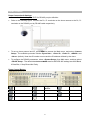
When the software is completely downloaded, the Login Screen is displayed.
•
Enter your username and password. The default usernames and passwords are admin: 1234,
user: 4321.
7