1
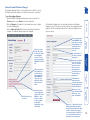
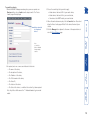
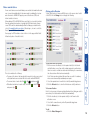
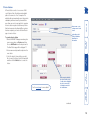
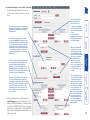
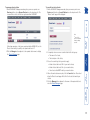
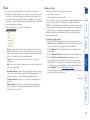
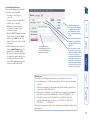
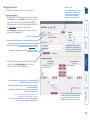
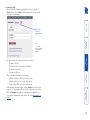
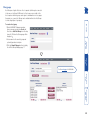
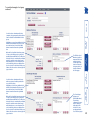
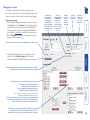
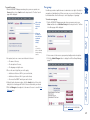
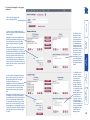
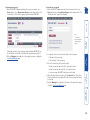
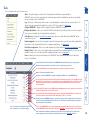
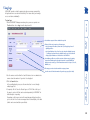
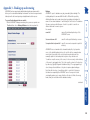
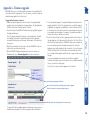
Advanced Control (Hardware Manager) Click to overwrite the host information on the device with the host settings stored within ADDER.NET. This option is only displayed for devices that can store host details. Click this link to reboot the device. Click to discover the current configuration settings of the selected KVM device - these details are required in order to populate the ‘Hardware Configuration’ section (shown right) getting started This is the port through which ADDER.NET may make “http” connections to the KVM device. The default is 80 and can be modified where necessary. Keyboard shortcuts that can be sent from this device to a connected host can be set here. Please refer to the documentation for the specific device for details of valid key combinations. If the KVM device supports a modem connection, the baud rate and initialisation strings may be modified here. When set to “0”, the device will not use DHCP. When set to “1” the device will use DHCP. When set to “1” the device will use the VESA Generalized Timing Formula to help identify the incoming video signals from the connected hosts, in order to correctly encode them. If UseGTF is set to “0”, only a fixed internal look-up table will be used for this purpose. the manager This is the IP address of the device. It cannot be changed here. the connector Click here to retrieve the list of Hosts that the device has already been configured to connect to. This can help when configuring ADDER.NET for the first time. The Hardware Configuration section is populated every time the Hardware Manager is opened. If the device is on-line at the time, the configuration will be updated. It can be refreshed by clicking on the ‘Download configuration from the device’ option: To use the Hardware Manager 1 On the ADDER.NET Manager menu bar, place your mouse pointer over Devices and then choose Browse from the drop down list. 2 Click the Manage button adjacent to the required device name to display the Device Manager page. 3 click the Advanced Control link (the device must have previously been acquired). The Hardware Manager page will be displayed: welcome The Hardware Manager allows you to view greater levels of detail for a chosen KVM device and permits changes to be made to various aspects of operation. 12