1
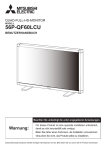
QUAD FULL HIGH DEFINITION MONITOR
MODEL
56P-QF60LCU
USER'S MANUAL
Be sure to follow the directions below.
Warning:
This product requires special installation to prevent
falling or toppling.
Please ask installation specialists for installation.
Don't attempt to install the product by yourself.
This user's manual is important to you. Please read it before using your product.
CAUTION
RISK OF ELECTRIC SHOCK
DO NOT OPEN
CAUTION: TO REDUCE THE RISK OF ELECTRIC SHOCK,
DO NOT REMOVE COVER (OR BACK)
NO USER-SERVICEABLE PARTS INSIDE
REFER SERVICING TO QUALIFIED SERVICE PERSONNEL.
The lightning flash with arrowhead symbol, within an equilateral triangle, is intended to alert
the user to the presence of uninsulated “dangerous voltage” within the product’s enclosure
that may be of sufficient magnitude to constitute a risk of electric shock.
The exclamation point within an equilateral triangle is intended to alert the user to the
presence of important operating and maintenance (servicing) instructions in the literature
accompanying the appliance.
WARNING:
TO PREVENT FIRE OR SHOCK HAZARD, DO NOT EXPOSE THIS APPLIANCE TO RAIN OR MOISTURE.
CAUTION:
TO PREVENT ELECTRIC SHOCK, DO NOT USE THIS (POLARIZED) PLUG WITH AN EXTENSION CORD,
RECEPTACLE OR OTHER OUTLET UNLESS THE BLADES CAN BE FULLY INSERTED TO PREVENT BLADE
EXPOSURE.
NOTE:
SINCE THIS PRODUCT IS A PLUG-IN DEVICE, THE RECEPTACLE MUST BE INSTALLED NEAR THE EQUIPMENT
AND SHOULD BE EASILY ACCESSIBLE.
Index
Important safeguards................................................................................................................................................. 3
Contents .................................................................................................................................................................... 5
Parts Name and Functions ........................................................................................................................................ 6
Front panel ........................................................................................................................................................... 6
Rear panel ........................................................................................................................................................... 7
Installation ................................................................................................................................................................. 8
Connections............................................................................................................................................................... 9
Basic Operation ....................................................................................................................................................... 10
Troubleshooting ....................................................................................................................................................... 11
Specifications .......................................................................................................................................................... 12
Pin Assignment ........................................................................................................................................................ 13
EN-2
Important safeguards
Please read all these instructions regarding your monitor and
retain them for future reference. Follow all warnings and instructions marked on the monitor.
1. Read instructions
All the safety and operating instructions should be read before the appliance is operated.
2. Retain instructions
The safety and operating instructions should be retained for
future reference.
3. Warnings
All warnings on the appliance and in the operating instructions should be adhered to.
4. Instructions
All operating instructions must be followed.
5. Cleaning
Unplug the power cord from the wall outlet before cleaning
it. Do not use liquid aerosol cleaners. Use a damp soft cloth
for cleaning.
6. Attachments and equipment
Never add any attachments and/or equipment without the
approval of the manufacturer as such additions may result in
the risk of fire, electric shock or other personal injury.
7. Water and moisture
Do not use this product near water or in contact with water.
8. Accessories
Do not place this product on an unstable cart, stand, tripod,
bracket or table. Use only with a cart, stand, tripod bracket,
or table recommended by the manufacturer or sold with the
product. Any mounting of the appliance should follow the
manufacturer’s instructions and should use a mounting accessory recommended by the manufacturer.
An appliance and cart combination should be moved with
care. Quick stops, excessive force and uneven surfaces
may cause the appliance and cart combination to overturn.
9. Ventilation
Slots and openings in the cabinet are provided for ventilation, ensuring reliable operation of the product and to protect
it from overheating. Do not block these openings or allow
them to be blocked by placing the product on a bed, sofa,
rug, or bookcase. Ensure that there is adequate ventilation
and that the manufacturer’s instructions have been adhered
to.
10. Power sources
This product should be operated only from the type of power
source indicated on the marking label. If you are not sure of
the type of power, please consult your appliance dealer or
local power company.
11. Power-cord protection
Power-supply cords should be routed so that they are not
likely to be walked on or pinched by items placed upon or
against them. Pay particular attention to cords at plugs, convenience receptacles, and points where they exit from the
appliance.
12. Overloading
Do not overload wall outlets and extension cords as this can
result in a fire or electric shock.
13. Objects and liquids
Never push objects of any kind through openings of this
product as they may touch dangerous voltage points or
short-out parts that could result in a fire or electric shock.
Never spill liquid of any kind on the product.
14. Servicing
Do not attempt to service this product yourself. Refer all servicing to qualified service personnel.
15. Damage requiring service
Unplug the power cord from the wall outlet and refer servicing to qualified service personnel under the following conditions:
(a) If the power-supply cord or plug is damaged.
(b) If liquid has been spilled, or objects have fallen into
the product.
(c) If the product does not operate normally after you
follow the operating instructions. Adjust only those
controls that are covered by the operating instructions.
An improper adjustment of other controls may result
in damage and may often require extensive work by a
qualified technician to restore the product to its normal
operation.
(d) If the product has been exposed to rain or water.
(e) If the product has been dropped or the cabinet has
been damaged.
(f) If the product exhibits a distinct change in performance
- this indicates a need for service.
16. Replacement parts
When replacement parts are required, be sure that the service technician has used replacement parts specified by the
manufacturer or parts having the same characteristics as the
original part. Unauthorized substitutions may result in fire,
electric shock or other hazards.
17. Safety check
Upon completion of any service or repair to this product, ask
the service technician to perform safety checks determining
that the product is in a safe operating condition.
EN-3
WARNING:
Unplug immediately if there is something wrong with
your product.
CAUTION:
Battery replacement of the optional remote control
•
Do not operate if smoke, strange noise or odor comes out of
your product. It might cause fire or electric shock. In this case,
unplug immediately and contact your dealer.
•
Never remove the cabinet.
•
•
This product contains high voltage circuitry. An inadvertent
contact may result in an electric shock. Except as specifically
explained in the Owner’s Guide, do not attempt to service this
product yourself. Please contact your dealer when you want to
fix, adjust or inspect the product.
For the LAN terminal;, use an Ethernet cable only.
For your safety, connect to an Ethernet network which does not
exceed the voltage limit of the Ethernet connector.
Use “CAT5 STP (Shielded twisted pair) Ethernet cable” for control.
Do not modify this equipment.
It can lead to fire or electric shock.
Use the optional specified power supply cord.
This apparatus must be grounded.
Place the product more than 5 cm (2 in.) from the
wall to prevent blocking the intake, exhaust slots and
ventilation of this product because hot air comes out
of it.
Carry the product by all four handles, not by two
handles.
Do not use the product under the following circumstances, which may cause fire or electric shock.
•
•
•
•
•
•
Improper use may result in fire, injury, or spread dirt due to
leakage, heat generation, or explosion.
Replace all the batteries with new ones. Use two AAA
batteries (R03).
Load the batteries with their (+) and (-) sides correctly.
Load the batteries from (-) sides first.
in a dusty or humid place
near a heater
in a oily, smoky or damp place
in direct sunlight
with high temperature, such as the closed car
where the temperature is lower than 5°C (41°F) or higher
than 35°C (95°F)
If you use unshielded control cable, it may cause interference
with radio and television reception.
Recommended Use
•
•
•
•
For optimum performance, allow 30 minutes for warm-up.
Rest your eyes periodically by focusing on an object at least
5 feet away. Blink often.
Clean the monitor surface with a lint-free, nonabrasive cloth.
Avoid using any cleaning solution or glass cleaner!
Flaws in the surface of the LCD panel cannot be repaired.
NOTE:
This product contains a Lithium Battery which contains
Perchlorate Material - special handling may apply, See
www.dtsc.ca.gov/HazardousWaste/perchlorate/
This symbol mark is for EU countries only.
This symbol mark is according to the directive
2002/96/EC Article 10 Information for users and
Annex IV.
Don't expose the LCD panel to impact.
The LCD panel may be damaged, causing injury or breakdown.
Your MITSUBISHI ELECTRIC product is designed and
manufactured with high quality materials and components which
can be recycled and reused.
This symbol means that electrical and electronic equipment,
at their end-of-life, should be disposed of separately from your
household waste.
Please, dispose of this equipment at your local community
waste collection/recycling centre.
In the European Union there are separate collection systems for
used electrical and electronic product.
Please, help us to conserve the environment we live in!
Image persistence
• Please be aware that LCD Technology may experience a phenomenon known as Image Persistence. Image Persistence occurs
when a residual or “ghost” image of a previous image remains visible on the screen. Unlike CRT monitors, LCD monitors’ image persistence is not permanent, but constant images being displayed for a long period of time should be avoided. To alleviate
image persistence, turn off the monitor for as long as the previous image was displayed. For example, if an image was on the
monitor for one hour and a residual image remains, the monitor should be turned off for one hour to erase the image.
NOTE:
As with all personal display devices, we recommends displaying moving images and using a moving screen saver at regular intervals whenever the screen is idle or turning off the monitor when not in use.
EN-4
COMPLIANCE NOTICE OF FCC
This equipment has been tested and found to comply with the limits for a Class A digital device, pursuant to Part 15 of the FCC
Rules. These limits are designed to provide reasonable protection against harmful interference when the equipment is operated
in a commercial environment. This equipment generates, uses, and can radiate radio frequency energy and, if not installed
and used in accordance with the instruction manual, may cause harmful interference to radio communications. Operation of
this equipment in a residential area is likely to cause harmful interference in which case the user will be required to correct the
interference at his own expense.
This digital apparatus does not exceed the Class A limits for radio noise emissions from digital apparatus as set out in the
interference-causing equipment standard entitled “Digital Apparatus”, ICES-003 of the Department of Communications.
Changes or modifications not expressly approved by Mitsubishi could void the user's authority to operate this equipment.
COMPLIANCE NOTICE OF INDUSTRY CANADA
This Class A digital apparatus complies with Canadian ICES-003.
COMPLIANCE NOTICE OF EC DIRECTIVE
This monitor complies with requirements of 89/336/EEC, 2006/95/EC and 93/68/EEC. The requirements of susceptibility have
chosen at a level, that makes interference free operation possible in living areas, office areas and light industry, related to indoor
and outdoor operation. All places of operation are related to the public low voltage power supply.
This is a equipment of Class A. This device could cause interferences in residential areas; in the case of interferences it can be
demand from the user to provide appropriate solutions and pay for it.
Warning:
This is class A information technology equipment. When used in a household environment, this product may cause radio
interface. In such a case, the user may be required to take suitable countermeasures.
Contents
Your new 56P-QF60LCU monitor box should contain the following:
• Monitor
• User’s Manual
* Remember to save your original box and packing material to transport or ship the monitor.
The following components are prepared as option.
• Remote control unit
: R-QF60TX
• Power cord (North America) : JC-PC3MA (125V 10A)
• Power cord (Europe)
: JC-PC3ME (250V 10A)
• Power cord (China)
: JC-PC3MC (250V 10A)
EN-5
Parts Name and Functions
Front panel
EXIT
MENU
(2)
(1)
(1) POWER button ( )
Switches the power on/off.
(2) Buttons for menu settings
These buttons cannot be used.
(3) Remote control sensor and power lamp
Receives the signal from the remote control (when using the
optional wireless remote control). During start-up, it will blink
green. Glows red when the LCD is in stand-by mode and
glows green when the monitor is in active. When the LCD is
in power save mode, it will glow both green and red. In the
case of where a failure is detected, it will blink red. (Refer to
page 11.)
EN-6
(3)
Rear panel
INPUT1
POWER
(1)
(2)
INPUT2
DVI-D
INPUT3
INPUT4
(3)
(1) Main Power Switch
LAN
(4)
(5)
(4) RS-232C connector
On/Off Switch to turn main power on/off.
Connect the RS-232C cable with the RS-232C connector of
the computer for control the monitor.
(2) AC IN connector
Connects with the power cord.
RS-232C
(5) LAN connector
Connect the LAN cable with the LAN connector of the computer for control the monitor.
(3) INPUT 1 - 4 (DVI-D x 4)
Connect the DVI-D cable with the DVI-D connector of the
computer.
EN-7
Installation
To avoid monitor from falling
Warning:
Take measures to prevent the monitor from falling over in case
of an earthquake or other disaster to lessen the probability of
injury and damage resulting from fall.
As shown in the figure, secure the monitor to a solid wall or pillar using rope (commercially available) strong enough to bear
the weight of the monitor. (Approx. 51 kg)
Be sure to follow the directions below.
This product requires special installation
to prevent falling or toppling.
Please ask installation specialists for
installation.
Don't attempt to install the product by
yourself.
CAUTION:
Attach the ropes and screws securely.
Determine the installation location
CAUTION:
DO NOT ATTEMPT TO INSTALL THE MONITOR BY YOURSELF.
Installing your monitor must be done by a qualified technician.
Contact your dealer for more information.
CAUTION:
MOVING OR INSTALLING THE MONITOR MUST BE DONE
BY TWO OR MORE PEOPLE.
Failure to follow this caution may result in injury if the monitor
falls.
When mounting the monitor on the wall or
ceiling
CAUTION:
Do not mount or operate the monitor in the portrait position,
upside down, face up, or face down.
CAUTION:
CAUTION:
Do not install the monitor where it will be exposed to direct sunlight, as this will result in display defects.
CAUTION:
The operation of this monitor is guaranteed at an ambient
temperature of 35°C or lower. When using the product put in a
case, etc., keep the temperature inside the case 35°C or lower
by installing a fan or providing a ventilation slot.
CAUTION:
This monitor is equipped with cooling fans. Don't block the air
vents especially near the cooling fans.
For preventing the monitor from falling
• To lessen the probability of injury and damage resulting from
fall of the monitor in case of earthquake or other disaster, be
sure to consult the bracket manufacturer for installation location.
• Do not sleep where the monitor may topple over or fall in
case of an earthquake or other disaster.
• Do not mount or operate the monitor in the portrait position
or upside down.
• Do not secure the monitor by the handles.
• Do not tilt the monitor 15 degrees or more when mounting it
on the wall or ceiling.
When installing with the LCD surface up
CAUTION:
•
•
•
•
EN-8
Special installation works are required to ensure proper ventilation, etc. for safe use. Be sure to ask a qualified installation specialist to install the product.
Ensure that the temperature near the air inlet is 35°C or
lower.
Don't lean or step on the LCD panel or put a heavy object on
it because it may be damaged, causing injury or breakdown.
Flaws in the surface of the LCD panel cannot be repaired.
For longer use
To use the product for a long time, you are recommended to follow the
instructions below.
You can change the settings of the product using the accessory application software “QF60LC_Control.”
For details of the application software, see the QF60LC_Control software operation manual.
Turn off the product when it is not used.
•
Turn off the product using the POWER button when it is not used.
1. Set the power saving function to ON. The factory default is ON.
•
The power saving mode is automatically activated when no signal is input.
[Control application]
[OPERATION] → [POWER SAVE] ON/OFF
2. Use the off-timer function.
•
The product is automatically turned off after a lapse of the time you set.
[Control application]
[OPERATION] → [OFF TIMER] OFF, 1 to 24
Keep the temperature of the product as low as possible.
•
By keeping the temperature of the product low, the load to the LCD panel can be reduced.
1. Cooling fan
•
•
•
You can control the rotation speed of the built-in cooling fan.
When FULL is selected, the cooling fan always rotates at a high speed, increasing the effect of lowering the temperature of
the product.
The factory default is NORMAL. When the temperature inside the product exceeds a certain level, the cooling fan changes
the rotation speed from Low to High.
[Control application]
[CONFIGURATION] → [FAN MODE] NORMAL/FULL
2. Bright mode
•
•
•
You can adjust the brightness of the screen.
When NORMAL is selected, the brightness is automatically lowered (to 80%), reducing the heat generation of the product.
The factory default is NORMAL.
When HIGH is selected, the brightness is set to 100%.
[Control application]
[CONFIGURATION] → [BRIGHT MODE] NORMAL/BRIGHT
Tips
•
•
•
•
Decrease the brightness to reduce the heat generation of the product. The factory default is 100.
[Control application]
[PICTURE] → [BRIGHTNESS] 0 to 100
Keep the ambient temperature low and install the product in a well-ventilated place.
Display different images and moving images regularly and avoid displaying the same image for a long time.
Display images on the full screen. If black areas with no image exist on the screen for a long time when images having different resolution and aspect ratio are displayed, the afterimages of the boundaries between images may be left on the screen after
displayed images are changed.
EN-9
This product is designed to be resistant to adverse environmental conditions.
However, note the following for longer use.
•
•
•
•
•
•
The display quality of the panel (such as brightness, uniformity, and afterimage) degrades, depending largely on the usage and
installation condition.
Pay attention to the following points and use the product correctly.
The guaranteed operating temperature and relative humidity ranges are 5°C to 35°C and 20% to 80%.
Be careful not to subject the product to static discharge. Otherwise it may be broken.
To prevent damage to the LCD panel and backlight, do not apply strong vibrations, pressure, and impacts to the product.
Don’t press the panel surface.
The panel surface is very soft and vulnerable. Gently wipe off dirt and dust from the panel surface with a dry soft cloth or lint-free
sheet. Avoid using the same cloth repeatedly.
When dirt and dust cannot be removed from the panel surface with a dry soft cloth, wipe them off gently using a soft cloth moistened with 5% ethyl alcohol.
Installation environmental conditions
The guaranteed operating temperature and relative humidity ranges are 5°C to 35°C and
20% to 80%.
•
•
When the bright mode is set to NORMAL, the screen brightness is automatically lowered (to 80%), reducing the heat generation
of the product. The factory default is NORMAL.
[Control application]
[CONFIGURATION] → [BRIGHT MODE] NORMAL/BRIGHT
Keep the ambient temperature low and install the product in a well-ventilated place.
1. When the fan mode is set to FULL, the effect of lowering the temperature of the product
is increased.
•
The built-in fan always rotates at a high speed.
[Control application]
[CONFIGURATION] → [FAN MODE] NORMAL/FULL
2. Installation conditions
For standard installation
• Install the product on a flat surface. When the panel surface bends or curls, uneven brightness and uneven color tend to be
caused, degrading the screen uniformity.
• For good ventilation, leave space around the product as much as possible.
• Don’t block the intake and exhaust vents in the rear of the product.
For wall mounting
• This product can be mounted directly on the wall by its rear.
• The maximum allowable tilting angle is 15 degrees forward.
• Mount the product on a flat wall. When the panel surface bends or curls, uneven brightness and uneven color tend to be
caused, degrading the screen uniformity.
• For good ventilation, leave space around the product as much as possible.
• Don’t block the intake and exhaust vents in the rear of the product.
3. Installation in a place where the temperature changes abruptly
•
The LCD panel is made of materials vulnerable to thermal shock. Avoid installing the product in a place where the temperature goes down to 0°C or lower when it is stopped. Due to the difference in the temperature between when the product is
operating and stopped, the LCD panel materials may be subject to thermal impact and deterioration may be accelerated.
4. Dew condensation
•
•
Don’t use the product with condensation forming inside the product. Otherwise it may be broken.
Especially, depending on the environment where the product is transported or stored in a warehouse, condensation may
form inside the product when it is unpacked. In such a case, evaporate the moisture completely before turning on the product.
5. Sideways installation and top side down installation
•
Use of the product installed on its side or its top side down isn't guaranteed.
EN-10
Note the following when using the product continuously for a long time.
•
•
The backlight used in the LCD monitor has a lifetime.
The brightness of the backlight decreases with the duration of use.
When the same image is kept displayed for a long time, its afterimage may be left on the screen after the displayed image is
changed.
The afterimage gradually disappears as different images are displayed. However, when the same image is kept displayed for a
too long time, the afterimage tends to persist on the screen.
Use for special applications
This product is designed for indoor use.
•
Protective measures for outdoor use, such as water proofing, moisture proofing, dust proofing, salt resistance, and UV resistance (resistance to sunlight irradiation), aren’t provided to the product.
This product isn’t designed for use in vehicles and boats.
•
Because this product doesn’t comply with any automobile standards and isn’t designed to be resistant to earthquake, it shouldn't
be used in moving cars. Use of the product in medical institutions is on the user’s responsibility.
Use of the product in medical institutions is on the user’s responsibility.
•
This product doesn’t comply with any medical standards. This product cannot be used in combination with medical diagnosis
equipment.
EN-11
Connections
Before making connections:
•
•
First turn off the power of all the attached equipment and make connections.
Refer to the user manual included with each separate piece of equipment.
DVI-D cable
DVI-D
Computer
56P-QF60LCU
(Rear panel)
INPUT1
INPUT2
DVI-D
INPUT3
INPUT4
Recommended video signal timing for this product is as follows.
Resolution
Frequency
Horizontal
67.5 kHz
1920×1080
•
•
•
•
Notes
Vertical
60 Hz
Each of INPUT 1 to 4 connectors
To display images at a resolution of 3840x2160, input 1920x1080 signal to each of INPUT 1 to 4 connectors.
The image of 2544x1080 signal can not display correctly.
Images may not be displayed correctly depending on the type of video card or driver.
Signals input to INPUT 1 to 4 connectors are laid out on the screen as follows.
INPUT
1
INPUT
2
INPUT
3
INPUT
4
Connect the power cord
POWER
1. Insert one end of the power cord into the power input connector of this product.
Insert it as far as it will go.
2. Clamp the power cord using the clamper.
3. Plug the power cord in a wall outlet.
Clamper
•
•
The power outlet socket should be installed as near to the equipment as possible, and should be easily accessible.
Fully insert the prongs into the power outlet socket. Loose connection may cause noise.
EN-12
Basic operation
Power ON procedures
1. Turn the Main Power Switch on the rear of the product to ON to turn on the main
power.
The power lamp blinks green and then illuminates red. (You cannot turn on the power
while the lamp is blinking green.)
ON
OFF
Main Power Switch
(Rear panel)
2. Press the power ( ) button to turn on the power.
The power lamp illuminates green.
3. Turn on the power of the other equipment.
CAUTION:
This monitor has the sensors to detect errors in the power, fan, temperature, and memory. When an error occurs, the power lamp
illuminates. (See page 11.)
Power OFF procedures
1. Press the power ( ) button to turn off the power.
The power lamp illuminates in red.
2. Turn the Main Power Switch to the OFF mode.
The power lamp goes out.
NOTE:
For safety, unplug the power cord from the outlet.
Image persistence
• Please be aware that LCD Technology may experience a phenomenon known as Image Persistence. Image Persistence occurs
when a residual or “ghost” image of a previous image remains visible on the screen. Unlike CRT monitors, LCD monitors’ image persistence is not permanent, but constant images being displayed for a long period of time should be avoided. To alleviate
image persistence, turn off the monitor for as long as the previous image was displayed. For example, if an image was on the
monitor for one hour and a residual image remains, the monitor should be turned off for one hour to erase the image.
NOTE:
As with all personal display devices, we recommends displaying moving images and using a moving screen saver at regular intervals whenever the screen is idle or turning off the monitor when not in use.
Control by computer
You can control this product using the control utility software installed on a personal computer to make settings such as picture quality adjustment. For the usage of the control utility software, see its operation manual.
The control utility software and its operation manual are included on the CD-ROM that is supplied with the product.
To view the operation manual of the control utility software, follow the steps below.
1. Insert the CD-ROM supplied with the product into the CD-ROM drive.
2. Open the 56PQF60LC folder from the CD-ROM.
3. Double-click the Index.pdf icon.
4. Select a language for the operation manual.
Acrobat Reader/Adobe Reader is required to view the operation manual of the control utility software. If you don’t have it on your
computer, you can download and install it from the Adobe website.
EN-13
Troubleshooting
Consult the following table for troubleshooting a problem.
Symptom
Cause and remedy
Reference
page
The monitor displays nothing. (The power lamp doesn't
Check that the power cord is connected securely.
P.9
illuminate.)
Using other device, check that the wall outlet is receiving power.
Check that the main power switch isn't off.
P.7, P.10
The monitor displays nothing. (The power lamp is blinking An error may have occurred. Contact your MITSUBISHI red.)
dealer.
Blinking red
0.5 sec. 3 times ↔1 sec. 1 time
0.5 sec. 1 time ↔1 sec. 1 time
0.5 sec. 4 times ↔1 sec. 1 time
0.5 sec. 2 times ↔1 sec. 1 time
Power error
Fan error
Temperature error
Memory check error
The monitor displays nothing. (The power lamp illuminates The monitor displays nothing when the power saving
orange.)
function of your computer is active. Hit any key on the
keyboard or move the mouse.
Connect the signal cable correctly.
Check that the computer isn't turned off.
The monitor becomes dark, flickers, or displays nothing
Replace the LCD panel with new one. Contact your MITthough it was displaying images properly.
SUBISHI dealer.
There are black spots (which don't illuminate) or bright
They are not a failure, but due to the characteristics of
spots (which stay illuminated) on the monitor.
the LCD panel.
The monitor has uneven brightness.
This symptom may occur depending on the displayed images. This is not a failure, but due to the characteristics
of the LCD panel.
Faint vertical stripes appear on the monitor.
This symptom may occur depending on the displayed images. This is not a failure, but due to the characteristics
of the LCD panel.
Flickers and moire patterns appear when a fine pattern is This symptom may occur when a fine pattern is disdisplayed.
played. This is not a failure, but due to the characteristics of the LCD panel.
Lines aren't displayed in correct width.
This symptom may occur when an image of other than
3840x2160 resolution is displayed. This is not a failure,
but due to the characteristics of the LCD panel.
"Afterimage" appears on the non-display area.
This symptom may occur when the entire monitor isn't
filled with the display area and the same image is kept
displayed for a long time. This is not a failure, but due to
the characteristics of the LCD panel.
The contrast varies depending on the viewing angle
Depending on the viewing angle (angle at which you view
the monitor), the contrast varies. This is not a failure, but
due to the characteristics of the LCD panel.
The display quality varies.
Because the LCD panel uses a fluorescent light, its
display quality varies with the lapse of the operating time.
In addition, the display quality is affected by the ambient
temperature. This is not a failure, but due to the characteristics of the LCD panel.
A faint object persists on the screen even after switching This symptom called "afterimage" may occur when the
the displayed image.
same still picture is kept displayed for a long time. The
faint object fades away gradually by turning off the monitor or displaying a motion picture. Sometimes it cannot
be eliminated but this is not a failure.
The monitor flickers (when connected via a distributor).
Connect the monitor and the computer directly each
other, not via a distributor.
P.4, P.10
-
P.4, P.10
-
Others
Symptom
The resolution and
number of colors
cannot be changed/
they are fixed.
Cause
Remedy
Signals aren't input/output correctly in rare
cases.
When your computer's operating system
isn't Windows®, it may not be able to recognize the driver for the graphic board correctly.
Reference
page
-
Turn off the monitor and the computer and turn
them back on.
Reinstall the driver for the graphic board. As for reinstallation, see the user's guide of your computer or consult the support center for your computer.
EN-14
Specifications
Model
56P-QF60LCU
Surface treatment
Glossy
Diagonal
56.2” (142.75 cm)
Viewable size
1244.16 × 699.84 mm
Resolution
3840 × 2160
Pixel pitch
0.108(H) × 0.324(V)
Color
16,770,000
View angle (Typ.) *1
88° (Horizontal), 88° (Vertical)
Brightness (Typ.)
500 cd/m2
Contrast ratio (Typ.)
1200 : 1 (1000 : 1 using at surface up)
Response speed (Typ.)
GTG 6.5 ms *2
PC input
Input resolution
1920 × 1080
Horizontal frequency
67.5 kHz
Vertical frequency
60 Hz
Video input
Digital RGB
Sync.
Separate HV sync : TTL level
Signal input connector
DVI-D
Operational
environment
Temperature
5 - 35 °C
Humidity
20 - 80 % (Without condensation)
Storage
environment
Temperature
- 20 - 55 °C
Power
Humidity
20 - 80 % (Without condensation)
Power supply
AC 100 - 240 V, 50/60Hz 5.5 A
Power consumption
Max 550 W
Power connector
3P IEC type
Weight
51 kg (Approximately)
Accessories
User’s manual
Gross
68 kg / 1452 (W) x 1020 (H) x 582 (D) mm
1
* Viewing angle: Angle at which images are displayed at a white-to-black contrast level of 30 or higher.
*2 Average of the response speeds between certain gradation levels (for example, 0, 63, 127, 191, 255)
Outline drawings (mm)
1333
133
704
832
791
1246
151
959
420
EN-15
Pin Assignment
1) INPUT 1 - 4
PIN No.
1
2
3
4
5
6
7
8
9
10
11
12
Name
TX 2TX 2+
Shield (TX2/TX4)
NC
NC
DDC-Serial Clock
DDC-Serial Data
NC
TX 1TX 1+
Shield (TX1/TX3)
NC
PIN No.
13
14
15
16
17
18
19
20
21
22
23
24
Name
NC
+5V Power
Ground
Hot Plug Detect
TX 0TX 0+
Shield (TX0/TX5)
NC
NC
Shield (TXC)
TXC +
TXC -
2) RS-232C input/output
Pin No
1
2
3
4
5
6
7
8
9
Name
NC
RXD
TXD
NC
GND
NC
RTS
CTS
NC
D-SUB 9P
1
5
6
9
3) LAN terminal
Pin No
1
2
3
4
5
6
7
8
Name
TX+
TXRX+
NC
NC
RXNC
NC
1
8
EN-16
DVI-D 24-pin
1
8
9
16
17
24
MITSUBISHI ELECTRIC CORPORATION
1 Zusho Baba, Nagaokakyo-City, Kyoto Japan
871D502A30
Printed in Japan