1
1-4 AppleWorks 5 Installation Manual
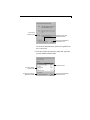
If the destination drive doesn’t have enough room, the Installer tells you.
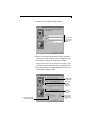
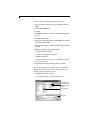
10. Specify the Program Folder where you want the AppleWorks program icons to
appear and then click Next.
Accept the preset
location or type a
new folder name
Or select a folder
from the list
The Installer begins copying files.
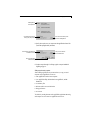
11. In the Setup Complete dialog box, indicate if you want to see the Readme file,
which contains important last-minute information, and if you want an
AppleWorks icon to appear on your desktop.
Deselect I would like to view the Readme file now if you do not want to see the
Readme file. You can see the Readme file anytime by choosing Programs
from the Start menu, and then choosing AppleWorks 5 and Readme File.
12. Click Finish.
If you selected the options in the Setup Complete dialog box,
AppleWorks starts and the Readme file opens.
Doing a custom installation
To do a custom installation:
1. Follow steps 1 through 8 in “Doing a typical or compact installation” beginning
on page 1-2.
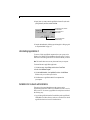
2. In the Setup Type dialog box, select Custom, choose where you want to install
AppleWorks, and then click Next.