1
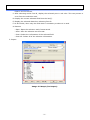
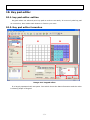
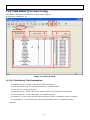
B. PLU No at <Iimage 3-1> part B: Input searching conditoin of PLU No area
C. PLU Name at <Iimage 3-1> part B: Input PLU name whicj you want to find
2. Instruction
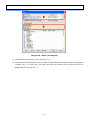
A. Check all the conditions above 1(Expain controll). Clikck find PLU button at <Image 3-1>
part B. It show the PLU which satisfy the request.
[Reference: To see all PLU. Choose 00.All Dept at Department and click Finf PLU button.]
3.3.8. Viewing PLU type
Explain how to see PLU types. It can show up all the data grid type or some parts only
1. To view all data
Click Full View at <Image 3-1> part A
2. To view some parts
Click Price view at <I mage 3-1> part A
[Reference: It need to set up price view first. More details look for the <9.2.3.Field Select
(PLU Filed configuration>)
3.3.9. Upload PLU
Explains to bring data from the scale
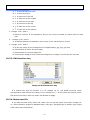
1. First, check communication cable is connected
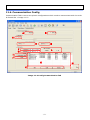
[Reference: refer to <11.2.4.Communication (communication configuration)]
2. Check communication setting is in oerder
[Reference: refer to <11.2.4.Communication (communication configuration)>]
3. Start program if above conditions are done
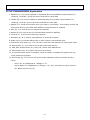
4. Click upload icon at <Image 3-1> part E
[Reference: You can press Cancel button to cacel it]
5. You can see the data from the scale on the screen
3.3.10. Downloading PLU
Explain how to download data to scale)
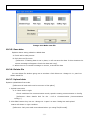
1. First, check communication cable is connected
[Reference: refer to <11.2.4.Communication (communication configuration)>]
2. Check communication setting is in oerder
[Reference: refer to <11.2.4.Communication (communication configuration)>]
3. Start program if above conditions are done
4. Open ro edit files which you want to download
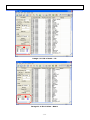
5. Select PLU to download at <Image 3-1> part G
6. Click Download icon at <Image 3-1> part E
[Reference: You can press Cancel button to cacel it]
7. Click OK button to finish
-24-