1
Quick Start — System 5ccr Plus
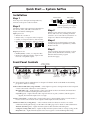
Installation
Step 1
Unbalanced Output
Turn off power to the input and output devices,
and remove the power cords from them.
CAUTION
Step 2
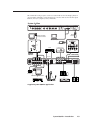
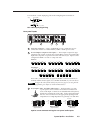
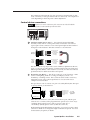
Attach the switcher to the input and output devices.
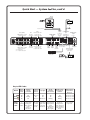
See “Power, video, and audio connections” in
chapter 2 for details and diagrams.
Input options are:
• RGB for PC 1 and PC 2
• RGB, S-video, or composite video for Input 3
• S-video or composite video for Vid 1 & Vid 2
• Balanced/unbalanced stereo audio for all inputs
Tip
Sleeve
Tip
Sleeve
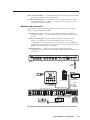
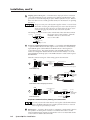
With AC power still removed, connect control
devices and accessories, including an RS-232
controller. See “Control device connections” in
chapter 2 for details and wiring diagrams.
Step 4
Connect power cords and apply power to the
switcher, the input and output devices, and the
RS-232 controller.
600 ohms
Unbalanced Input
Balanced Input
Balanced Input
(high impedance:
over 10 kohms)
(high impedance)
(600 ohms)
Connect sleeve to ground (Gnd).
Connecting the sleeve to a negative
terminal will damage the circuits.
Step 3
Tip
Ring
Sleeve (s)
Tip
Ring
Tip
Ring
Sleeve (s)
Tip
Ring
Balanced Output
Tip
Ring
Sleeve (s)
Tip
Ring
Tip
See Caution
Sleeve (s)
Tip
See Caution
Step 5
Output options are:
• RGBHV, RGBS, S-video, or composite video
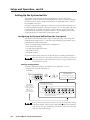
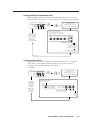
Set up (configure) the System 5cr Plus via front
panel controls, RS-232 SIS commands, or the
Windows-based control program.
(See the next page.)
• Balanced or unbalanced audio output via the
line level or amplified outputs.
Front Panel Controls
S-video or composite
video inputs with audio
SYSTEM 5
ROOM
Power
LED
POWER
DISPLAY
MUTE
AUDIO
MODE
Room
Display (projector)
control
controls
(for Room/ for setting and sending
relay port) learned IR commands
(once the button is
See pages
programmed)
2-6 and 4-7.
PC1
PC2
PC
VID1
INPUT 3
VID2
VID
VID
VID
Y/C
Y/C
Y/C
RGB computer
video inputs
with audio
AUDIO
MAX.
CLIP
MIN. VOLUME
Audio volume
master control
or control for
amplified output
TX
CONFIG
RETRY
PC 1 (input 1)
RGB computer
video input with
audio
Plus
IR
PC1 INPUT
COMPUTER
RX LEARN
IR
IR receiver
control
and IR
LEDs
learning
ports
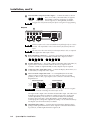
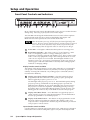
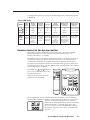
See “Front Panel Controls and Indicators” in chapter 3 for details. Refer to the Windows-based help
program for details on settings.
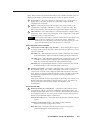
Audio indicator LEDs (Max, Clip, and Min) — These light in response to changes made via the front panel
volume control knob or RS-232 or control software.
Max/Min LEDs (red) – Light when the volume control knob reaches its maximum/minimum limit.
They do not indicate anything about the audio level.
Clip LED (green) – Lights when the audio output level starts to peak (overdrive) and the signal is
clipped, often when the input level is too high.
Volume control knob — Adjusts audio volume (audio gain) for the amplified output. It can be used as a
master volume control for both audio outputs if all the inputs have the same level.
IR function LEDs (Tx, Config, Retry) — These indicate stand-alone functions and also are used in
combinations during IR learning. See the LED codes table (page 3-7) for details on LED combinations.
Transmit (Tx) LED (green) – Lights when the System 5cr Plus transmits infrared signals.
Configure (Config) LED (amber) – Lights steadily when the System 5cr Plus is in setup (config.) mode.
Retry LED (red) – Lights when the System 5 does not recognize a command during IR learning.