1
Additional installation features
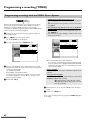
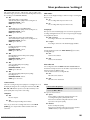
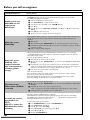
Sorting TV channels with 'Follow TV'
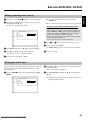
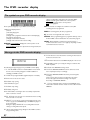
TV 01
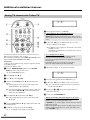
8 Select programme number '1' on the TV.
a I cannot switch my TV to programme number '1'
b If you have connected additional devices to the EXT2
AUX-I/O M socket, please disconnect these devices. Other connected
devices may have switched the TV to the programme number of the scart
socket.
9 Confirm with OK L on the DVD recorder remote control.
P 'WAIT' will appear in the display.
P The DVD recorder compares the TV channels on the TV and
the DVD recorder.
If the DVD recorder finds the same TV channel as on the TV
it stores it at 'P01'.
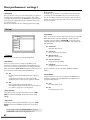
This function changes the order of the TV channels stored in your
DVD recorder to match the order on the TV.
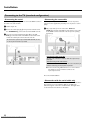
This only works if the DVD recorder ( EXT1 TO TV-I/O N socket)
and the TV are connected with a scart cable.
a 'NOTV' will appear in the display.
Preparation:
•) Switch on the TV, and if necessary, select the programme number
for the DVD recorder.
•) Switch on the DVD recorder.
b If the problem persists, you won't be able to use this feature.
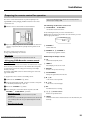
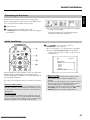
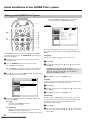
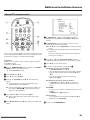
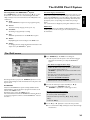
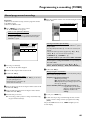
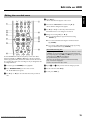
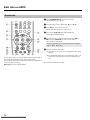
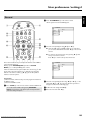
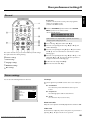
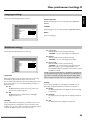
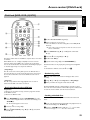
1 Press the BROWSER HDD H and then the SYSTEM
MENU A button on the remote control.
P The 'SYSTEM MENU' appears.
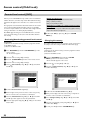
2 Select 'Set up' using B O .
3 Press C M to select 'System'.
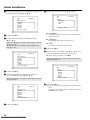
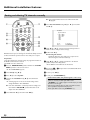
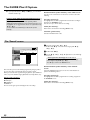
4 Select the line 'Installation' using B O and confirm with
CM.
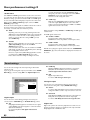
P A message appears on the screen that the change of this
setting will flush the 'Time Shift Buffer'.
O If the 'Time Shift Buffer ' contains important recordings, save
them with the REC/OTR n 1 button first. Refer to the
chapter 'The Time Shift Buffer'.
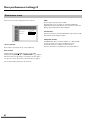
The DVD recorder is not receiving a video signal from the TV.
b Chech the connectors at both ends of the scart cable.
b Check your TV's operating instructions to see which scart socket is used
for video signals.
Please read 'Sorting and deleting TV channels manually'.
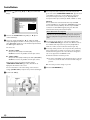
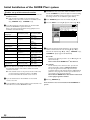
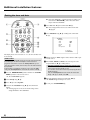
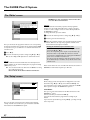
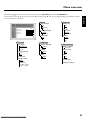
0 Wait until for example 'TV 02' appears in the display.
TV 02
A Select the next programme number on the TV, e.g. '2'.
B Confirm with OK L on the DVD recorder remote control.
O If you confirmed the wrong TV channel, you can delete the
last allocation with D K .
C Repeat steps 0 to B until you have assigned all the TV
channels from your TV.
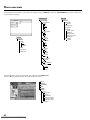
À To end, press SYSTEM MENU A .
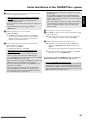
5 Select 'Yes' with D K and confirm with OK L .
O If the message window was closed, confirm the line with
C M again.
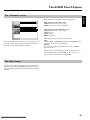
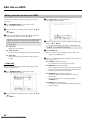
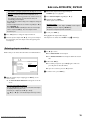
6 Select line 'Follow TV' with B O or A I and confirm with
the C M button.
7 Confirm the message on the screen with OK L .
P 'TV 01' will appear in the DVD recorder display.
27
Downloaded From Disc-Player.com Philips Manuals
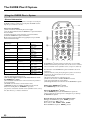
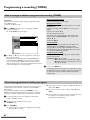
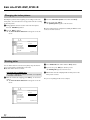
a 'Switch off recorder, new preset' appears on the screen
b In order to transfer the new TV channel order to the GUIDE Plus+®
system, it is necessary to switch off the DVD recorder
( STANDBY m 2 ). Wait for approx. 4 minutes before you switch the
DVD recorder on again.
b If this message appears after you switch on the DVD recorder, it was not
possible to complete the transfer process. Switch off the DVD recorder
using STANDBY m 2 .