1
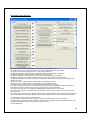
3.0 Project Log-In and the Main Menu
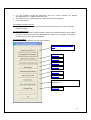
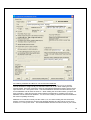
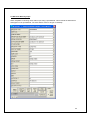
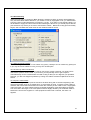
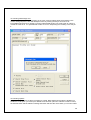
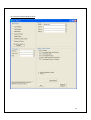
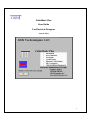
Log-In Form
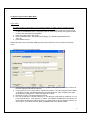
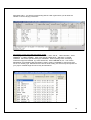
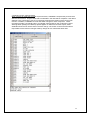
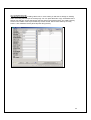
3.1 When making a new project or if you need to register an exsiting project, use the program
MakeNewProject (use the button to Make or Register a Project)
1. Enter the project number and Project Name. The project number must be the same as the
number in the database name. The project name is used to help identify the project because
numbers are often difficult to remember.
2. Enter the model path for the project.
3. Enter the Employee ID. This ID is used to identify your Wintab spreadsheet file (ex:
Jerry.tbl).
4. Press Create Project.
Please read and use the document ‘Making a New Project’ which can to be viewed from the help
menu.
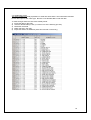
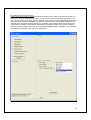
3.2 When logging in to an existing project:
1. Use the Project Number drop down to find the project. If the project is one of the choices, all
the other required data will be retrieved.
2. If the project is not one of the choices, register the project on your PC using the butto to Make
or Register a Project. The MakeNewProject program will launch. After completing the steps
as described in paragraph 3.1, start CM+ again to continue.
3. Next time you log in, the project will be in the list.
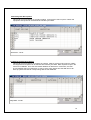
4. You may change the Local User Directory (or use browse). This directory should be on your
local computer drive. This directory is where your Wintab spreadsheets and reports are
saved. When dealing with multiple projects, you might want to have a separate directory for
each project. If you leave this entry blank, CableMatic will use a default location.
7