1
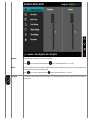
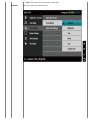
Poor Focus
Picture is fuzzy, blurry, or
ghosting
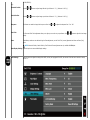
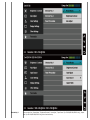
Perform Auto Adjust via OSD.
Adjust the Phase and Pixel Clock controls via OSD.
Eliminate video extension cables.
Reset the monitor to Factory Settings.
Change the video resolution to the correct aspect ratio (16:9).
Shaky/Jittery Video
Wavy picture or fine
movement
Perform Auto Adjust via OSD.
Adjust the Phase and Pixel Clock controls via OSD.
Reset the monitor to Factory Settings.
Check environmental factors.
Relocate the monitor and test in another room.
Missing Pixels
LCD screen has spots
Cycle power On-Off.
Pixel that is permanently Off is a natural defect that can occur in LCD technology.
For more information on Dell Monitor Quality and Pixel Policy, see Dell Support site at:
www.dell.com/support/monitors.
Cycle power On-Off.
Pixel that is permanently Off is a natural defect that can occur in LCD technology.
Stuck-on Pixels
LCD screen has bright spots
Brightness Problems
For more information on Dell Monitor Quality and Pixel Policy, see Dell Support site at:
www.dell.com/support/monitors.
Picture too dim or too bright
Reset the monitor to Factory Settings.
Auto Adjust via OSD.
Adjust brightness & contrast controls via OSD.
Geometric Distortion
Screen not centered correctly
Horizontal/Vertical Lines
Screen has one or more lines
Synchronization Problems
Screen is scrambled or
appears torn
Safety-Related Issues
Visible signs of smoke or
sparks
Do not perform any troubleshooting steps.
Contact Dell immediately.
Intermittent Problems
Monitor malfunctions On &
Off
Ensure that the video cable connecting the monitor to the computer is connected properly
and is secure.
Reset the monitor to Factory Settings.
Perform monitor self-test feature check to determine if the intermittent problem occurs in
self-test mode.
Missing Color
Picture missing color
Perform monitor self-test feature check.
Reset the monitor to Factory Settings.
Auto Adjust via OSD.
Adjust brightness & contrast controls via OSD.
NOTE: When using 'DVI-D', the positioning adjustments are not available.
Reset the monitor to Factory Settings.
Perform Auto Adjust via OSD.
Adjust Phase and Pixel Clock controls via OSD.
Perform monitor self-test feature check and determine if these lines are also in self-test
mode.
Check for bent or broken pins in the video cable connector.
NOTE: When using 'DVI-D', the Pixel Clock and Phase adjustments are not available.
Reset the monitor to Factory Settings.
Perform Auto Adjust via OSD.
Adjust Phase and Pixel Clock controls via OSD.
Perform monitor self-test feature check to determine if the scrambled screen appears in
self-test mode.
Check for bent or broken pins in the video cable connector.
Restart the computer in the safe mode.