1
5. Troubleshooting
5. Troubleshooting
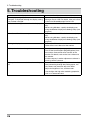
Symptom
"The display setting of your monitor has been
changed." is displayed although the display setting
has not been changed.
"Failed to detect applicable monitor." is displayed.
Main Control Panel does not open.
Nothing is displayed.
Possible cause and remedy
•Turn off the Auto FineContrast function of ScreenManager Pro for LCD. For details, refer to the User’
s Manual of ScreenManager Pro for LCD.
•Make sure that the USB cable is connected properly.
•When using Windows, specify the display area
using the Monitor Display Area Setting Utility. (see
page 24)
•Make sure that the USB cable is connected properly.
•When using Windows, specify the display area
using the Monitor Display Area Setting Utility. (see
page 24)
•Restart your PC.
•Refer to the User’s Manual of the monitor.
Display color has been changed.
•Readjust the monitor. (see page 15)
•Turn off the Auto EcoView (BrightRegulator) function and the ContrastEnhancer function of the
monitor. For details, refer to the User’s Manual of
the monitor.
Display color does not match the color on the paper.
•If other company’s monitor adjustment software is
running, exit the software.
•Be sure to use white paper. To prevent color or light
from penetrating through the printing paper, use
two sheets, one placed on top of the other.
•Adjust the brightness first, and then color.
•Use the light with high color rendering properties,
such as a fluorescent tube.
26